Edit notes
The Notes card on the Details tab holds free text about the order, such as pickup instructions or the reason it was held. You can edit it at every status, including Packed.
- Open the order. It opens on the Details tab.
- Click the Edit notes icon at the top right of the Notes card.
- Type or change the text in Notes. It can hold up to 4,000 characters.
- Click Save, or Cancel to discard your change.
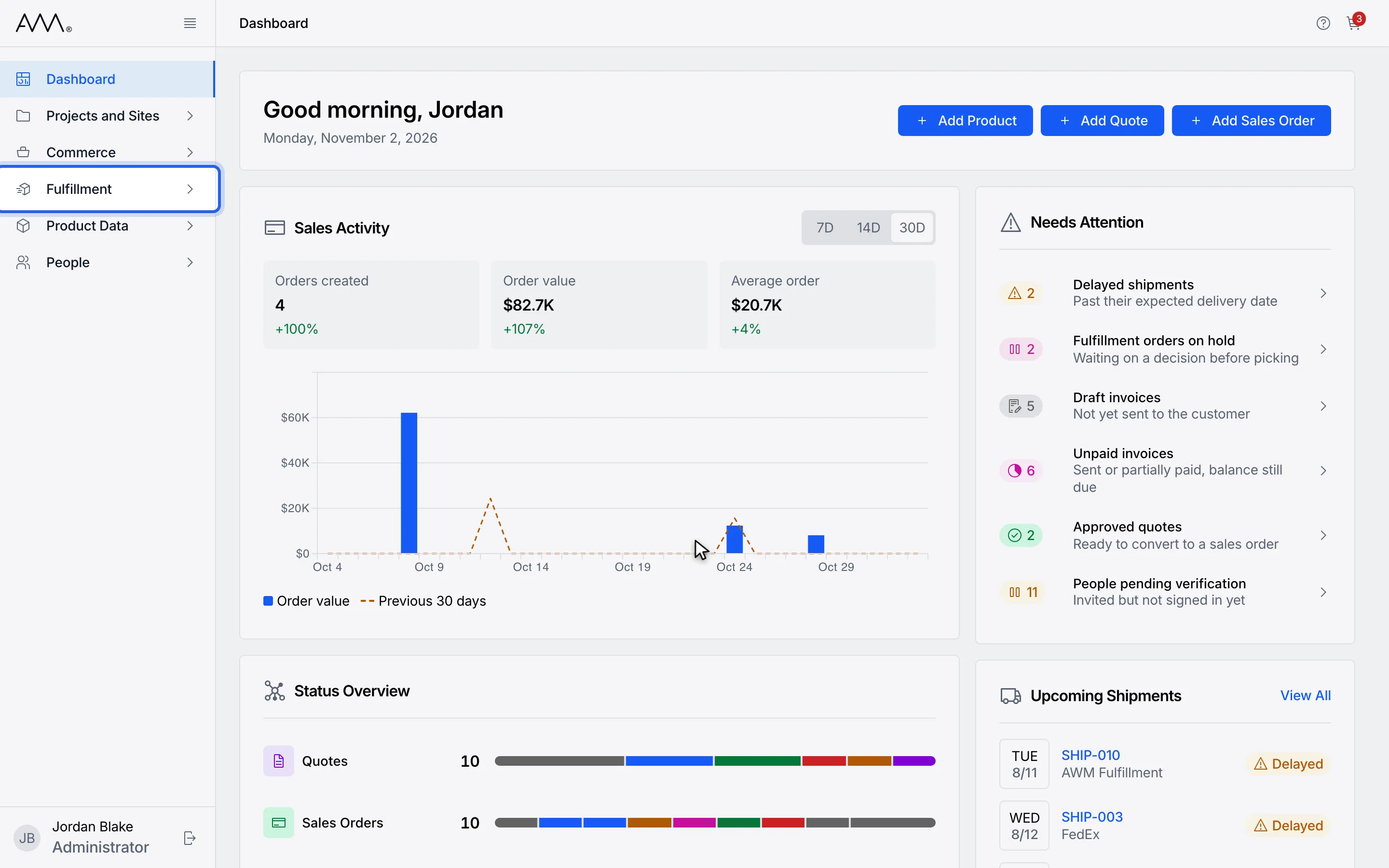
1In the sidebar, open Fulfillment.
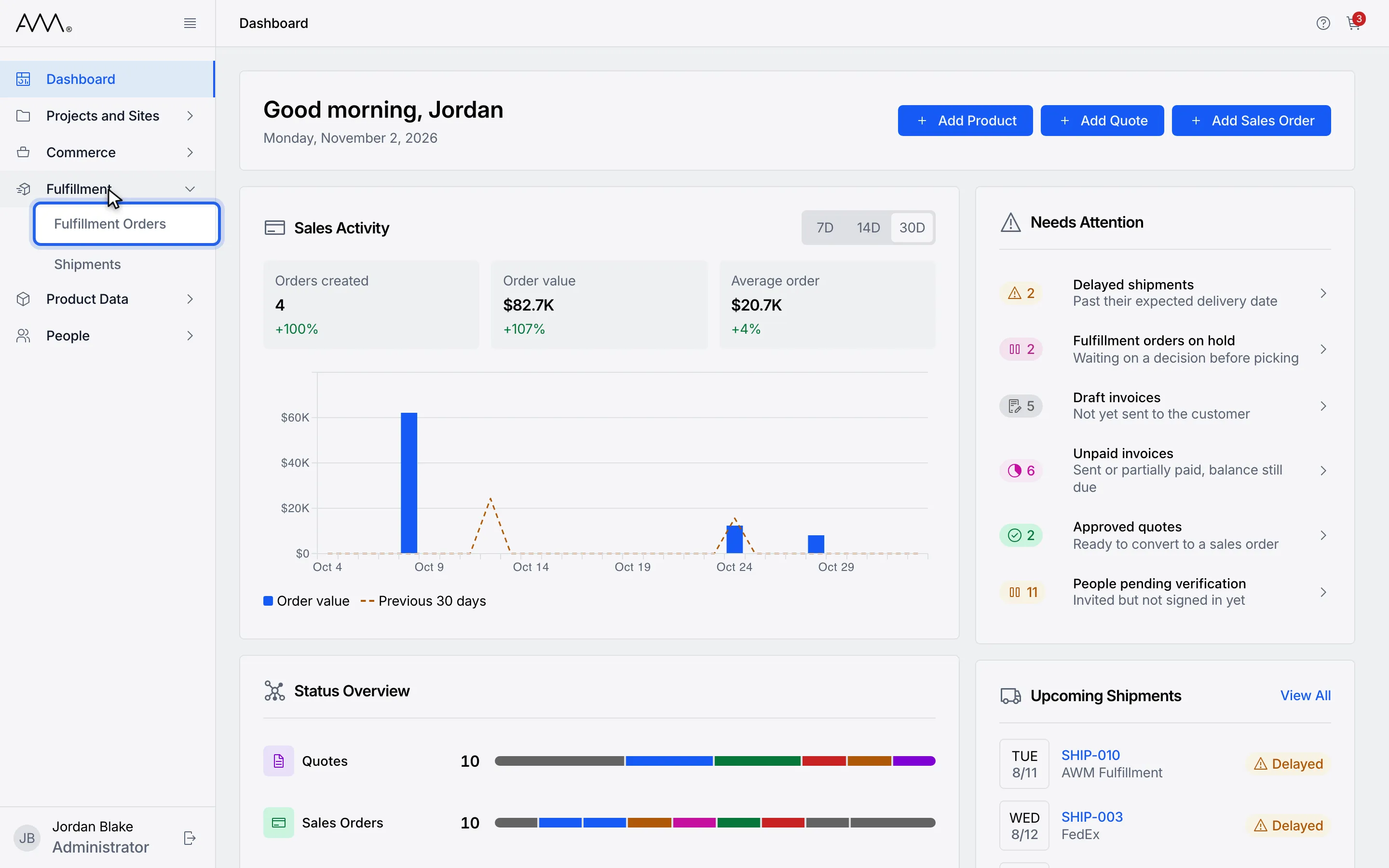
2Choose Fulfillment Orders.
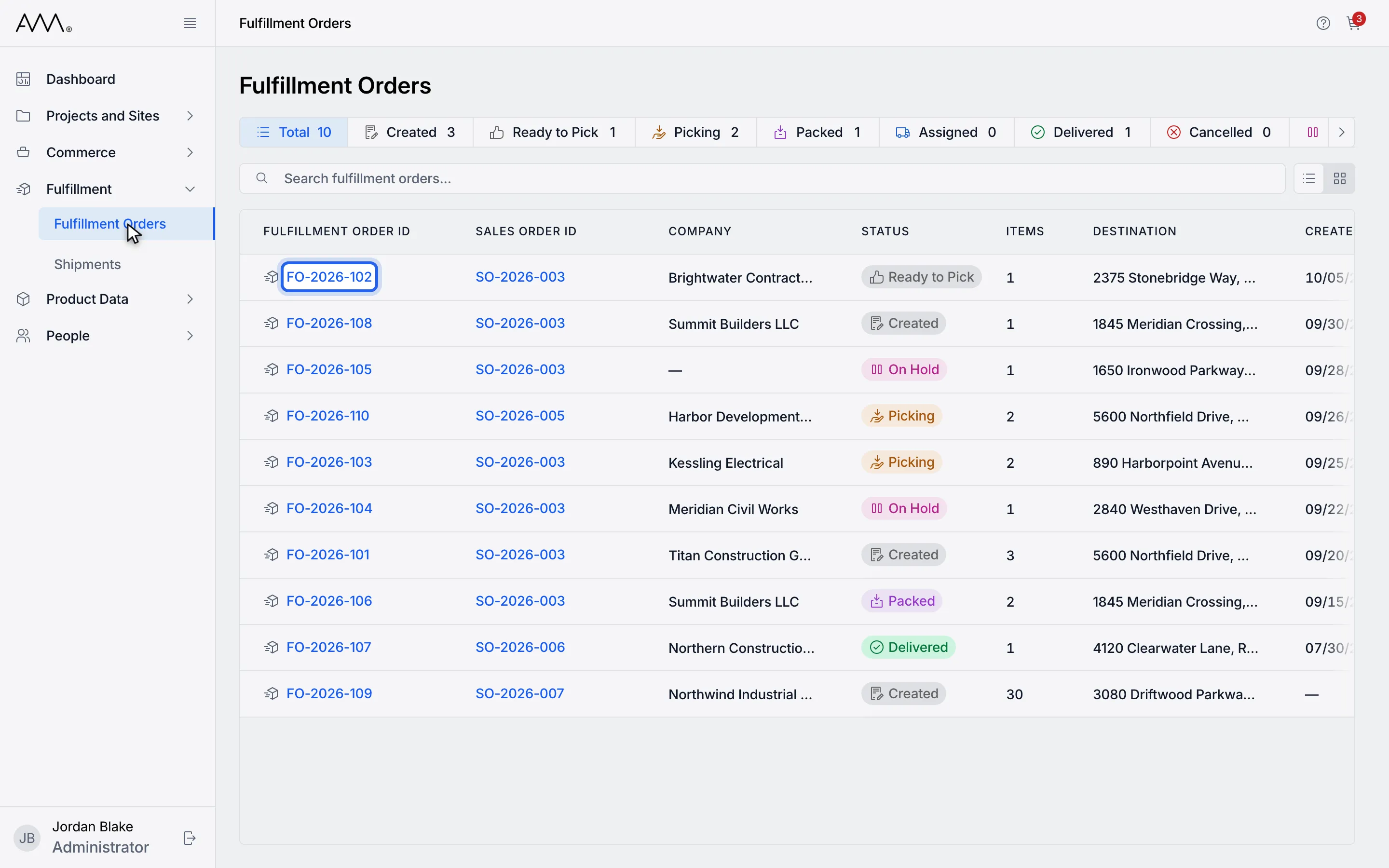
3Open the order. Notes are on the Details tab.
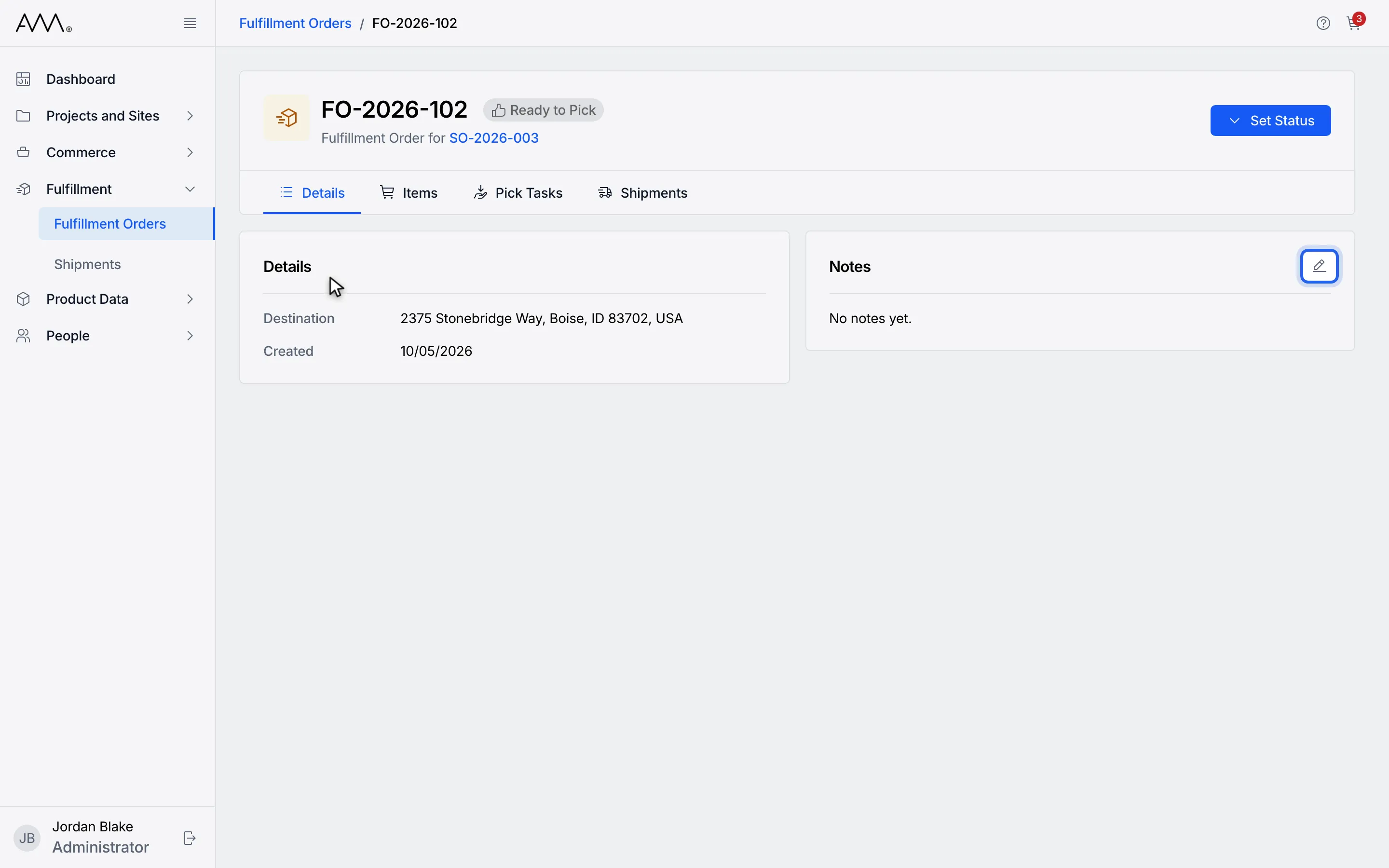
4Click the Edit notes icon on the Notes card.
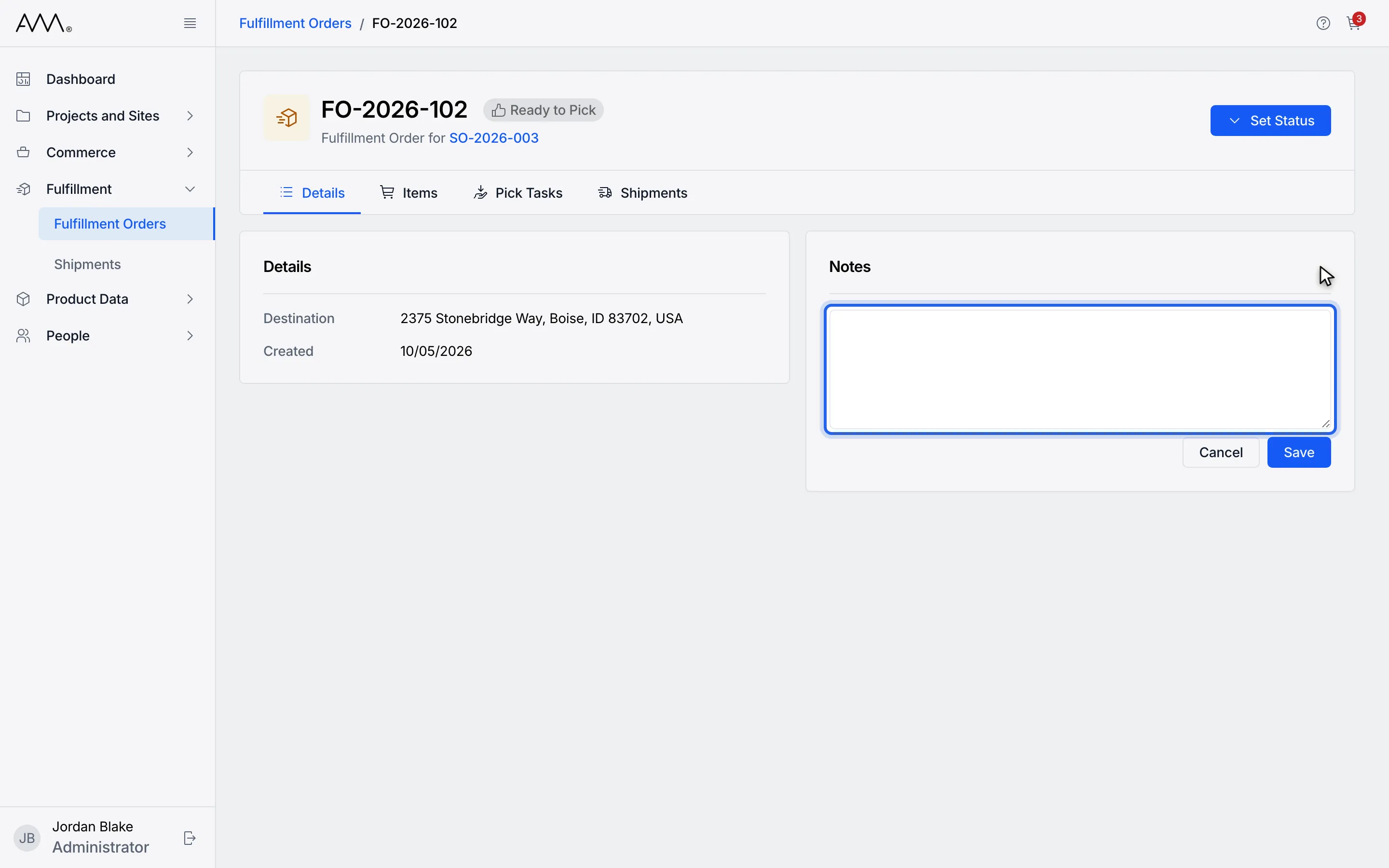
5Type the notes.
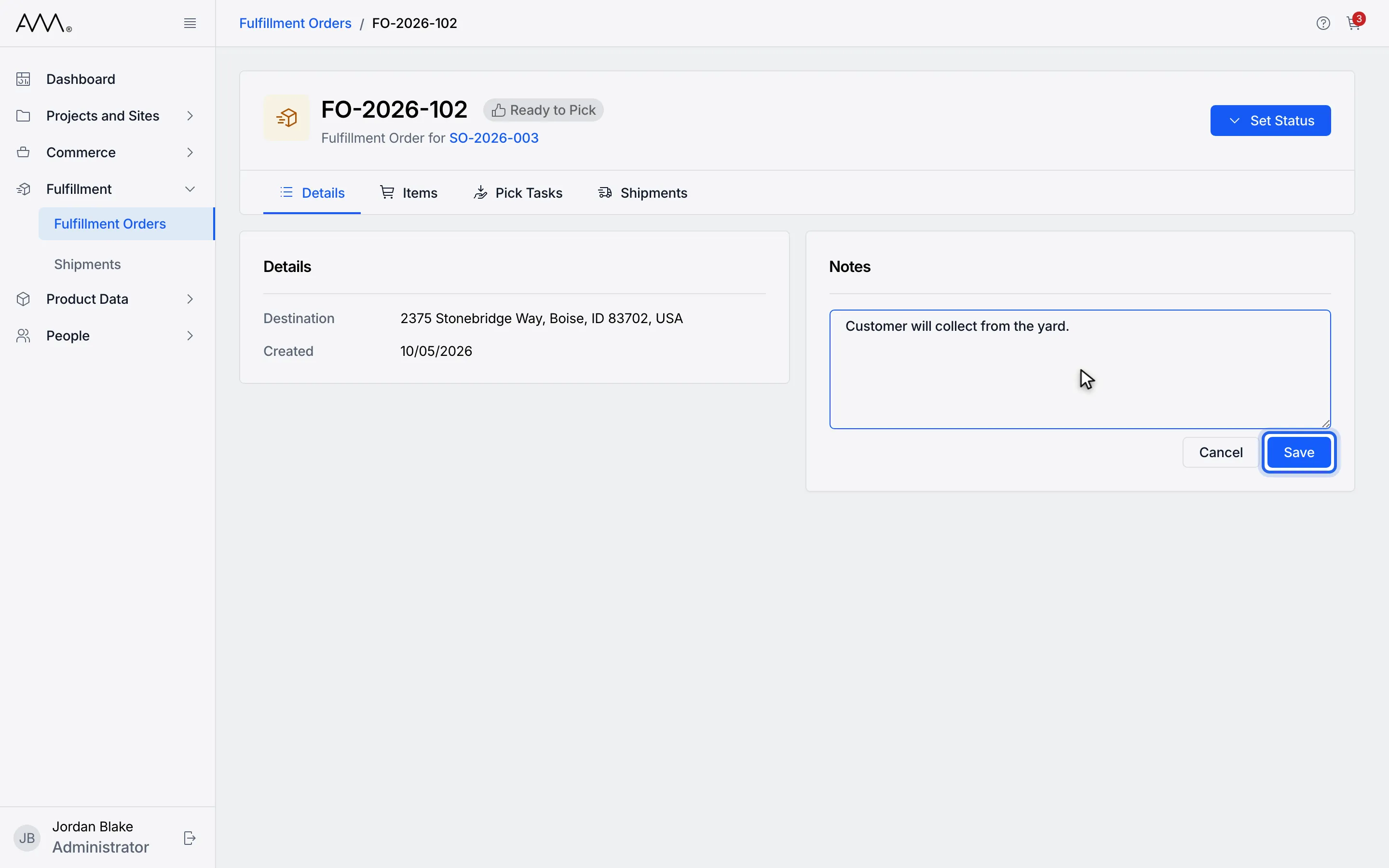
6Click Save.
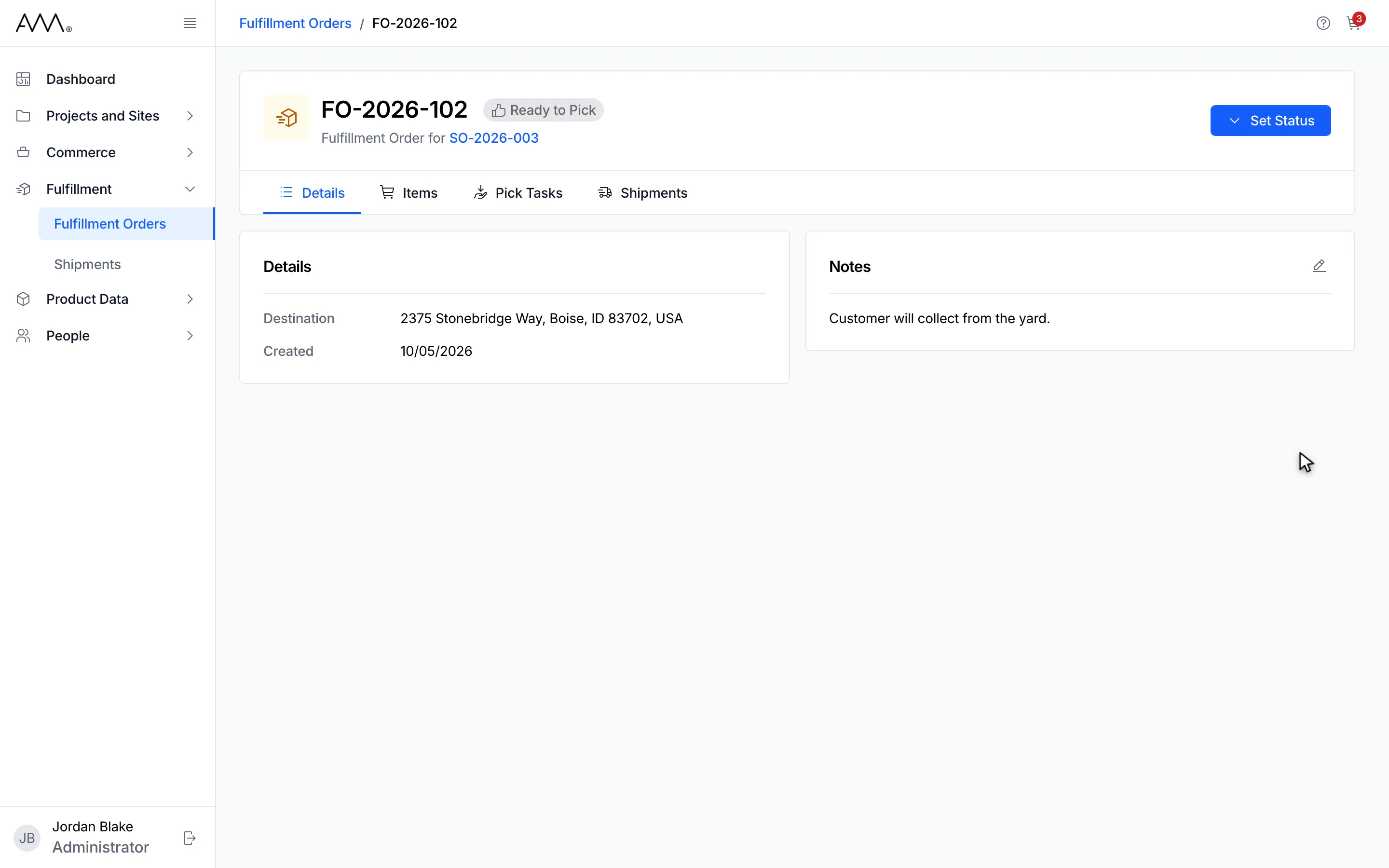
7The card returns to read mode and shows the saved notes.
8The Notes card shows the saved text.
Watch this as a video (edit notes)
What happens next
Section titled “What happens next”The card returns to read mode showing the saved text. There is no toast. Clearing the field and saving leaves the card showing No notes yet.
If saving fails, the message Could not save the notes. Please try again. (or the reason given) appears under the field, and your text stays in the box so you can try again.
Putting an order on hold also writes to the same notes, so the hold reason you enter in Put On Hold? appears here afterwards.