Find a project
The Projects list shows every project. Use the status pills, the column headings, the view toggle and the search box together to get to one project quickly.
- In the sidebar, open Projects and Sites and choose Projects.
- Click a status pill such as Active to show only projects in that status. Each pill shows a count.
- Click a second pill, such as Planning, to include that status too. Click a pressed pill again to remove it, or click Total to show every status.
- In list view, click a column heading such as Company to sort the list. You can sort by Project, Company, Status, Start Date and End Date; click the heading again to reverse the order.
- Use the view toggle to switch between List view and Card view. Cards show the company, the supply point count and the timeline.
- Type part of a project or company name in Search Projects…. The list updates shortly after you stop typing.
- Click the project name to open it.
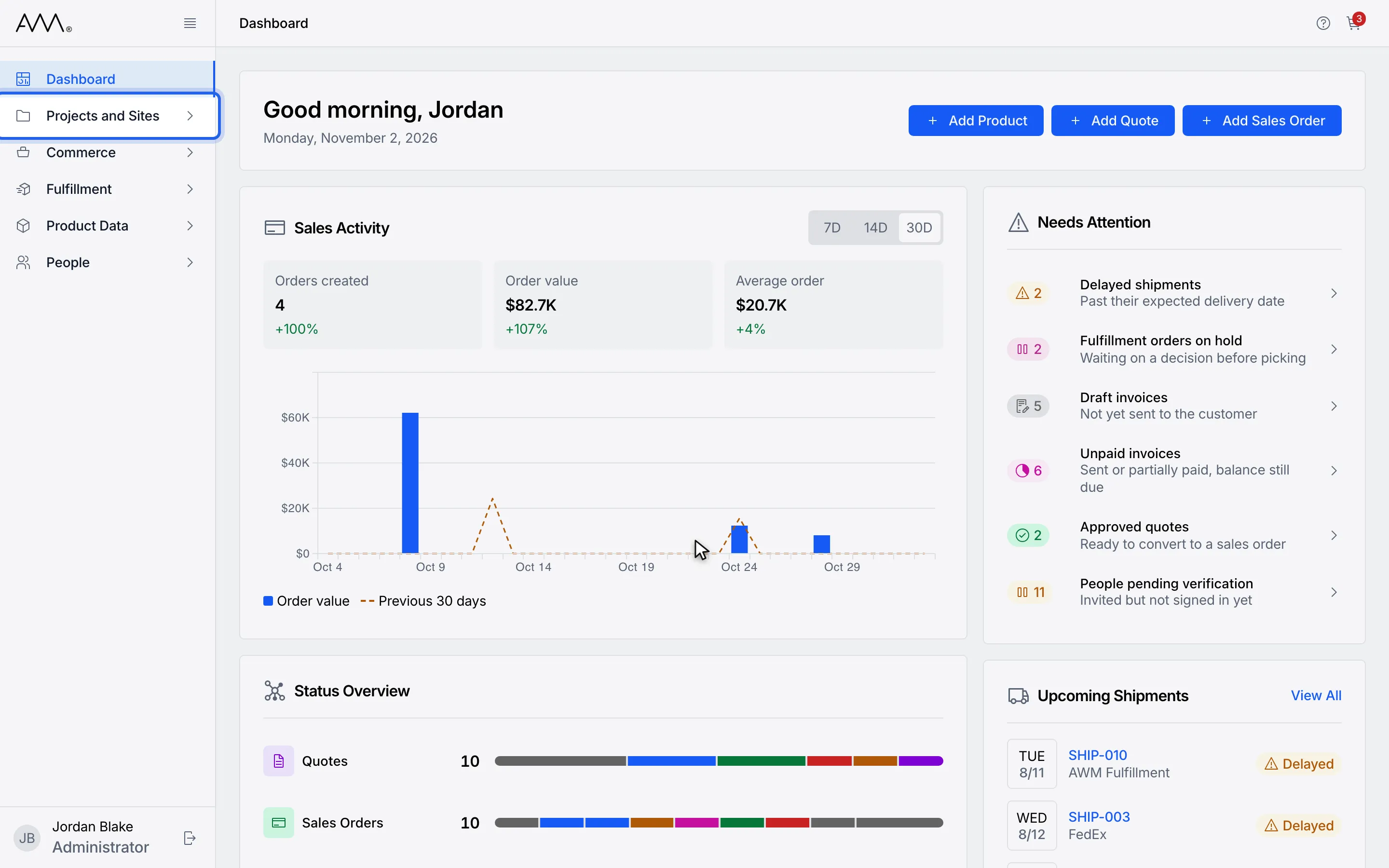
1In the sidebar, open Projects and Sites.
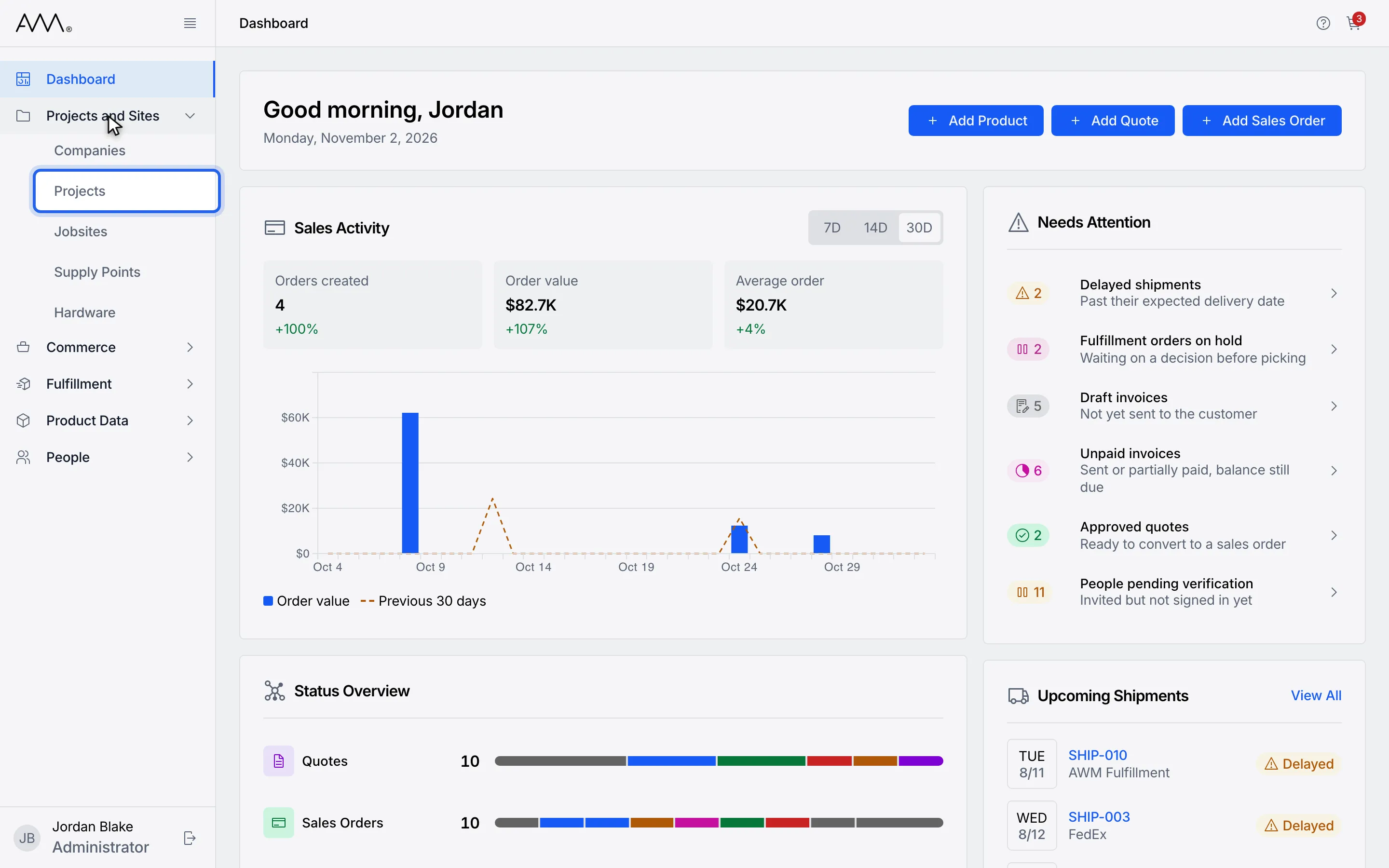
2Choose Projects.
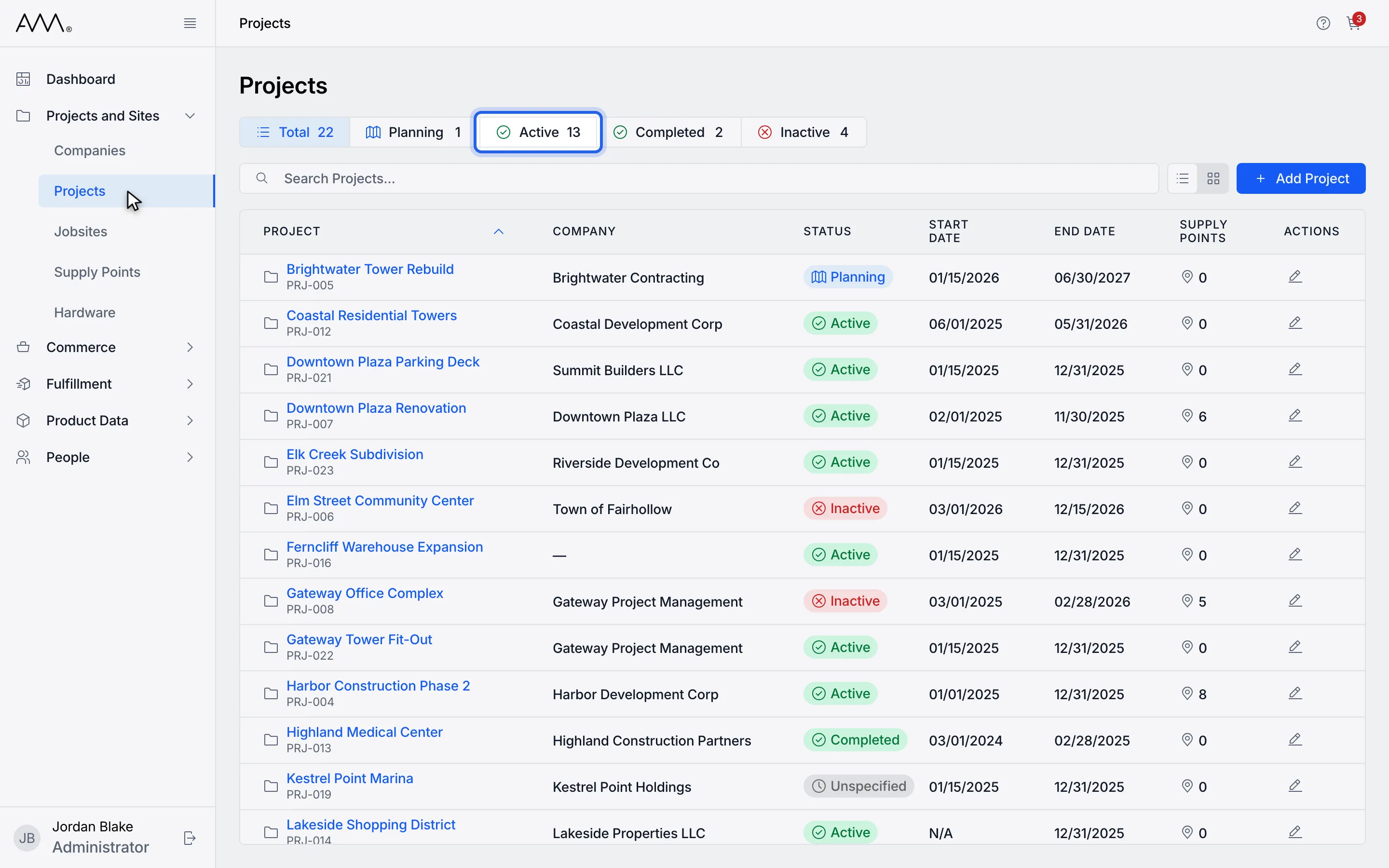
3Click a status pill such as Active to show only projects in that status.
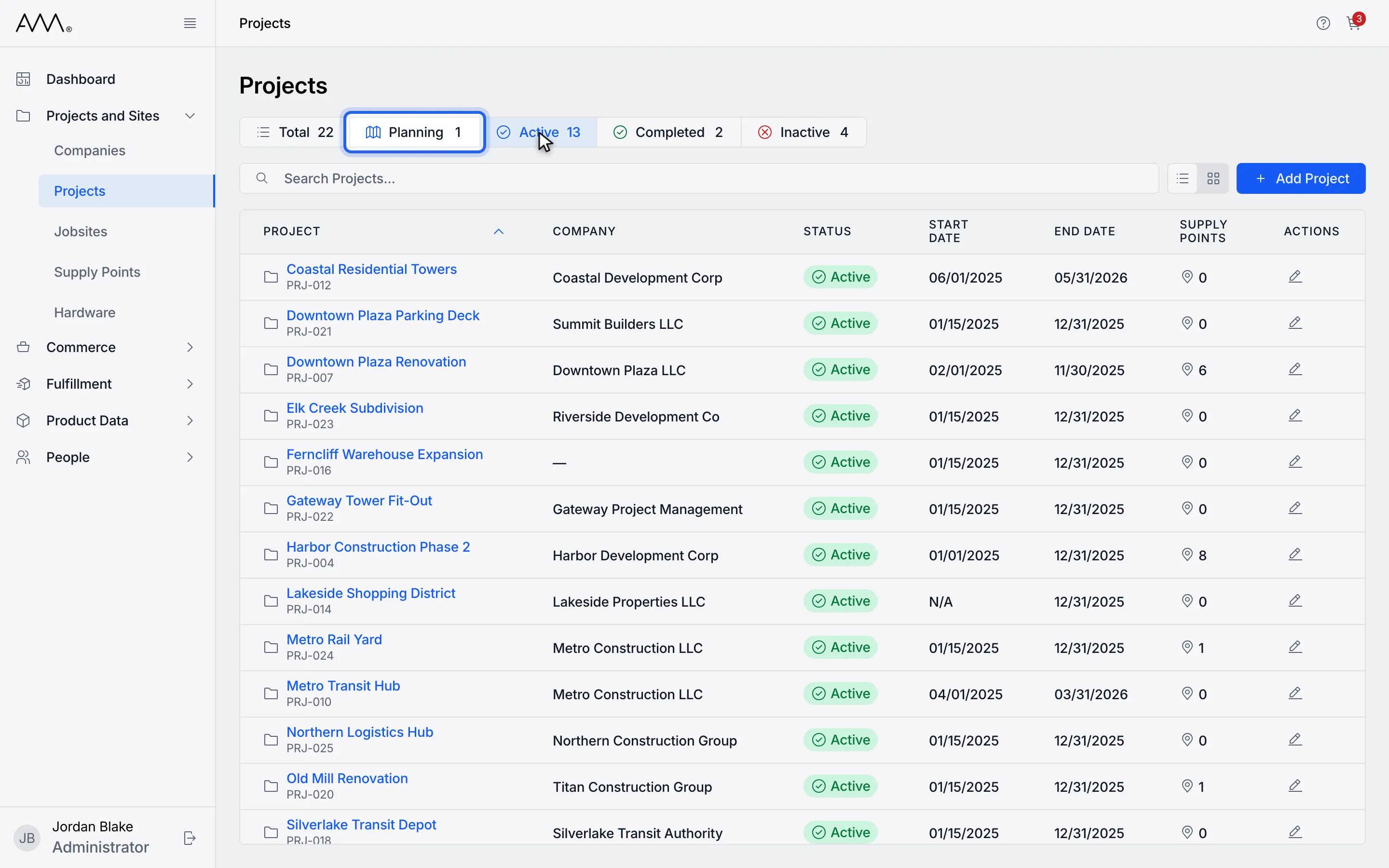
4Click a second pill, such as Planning, to include that status too.
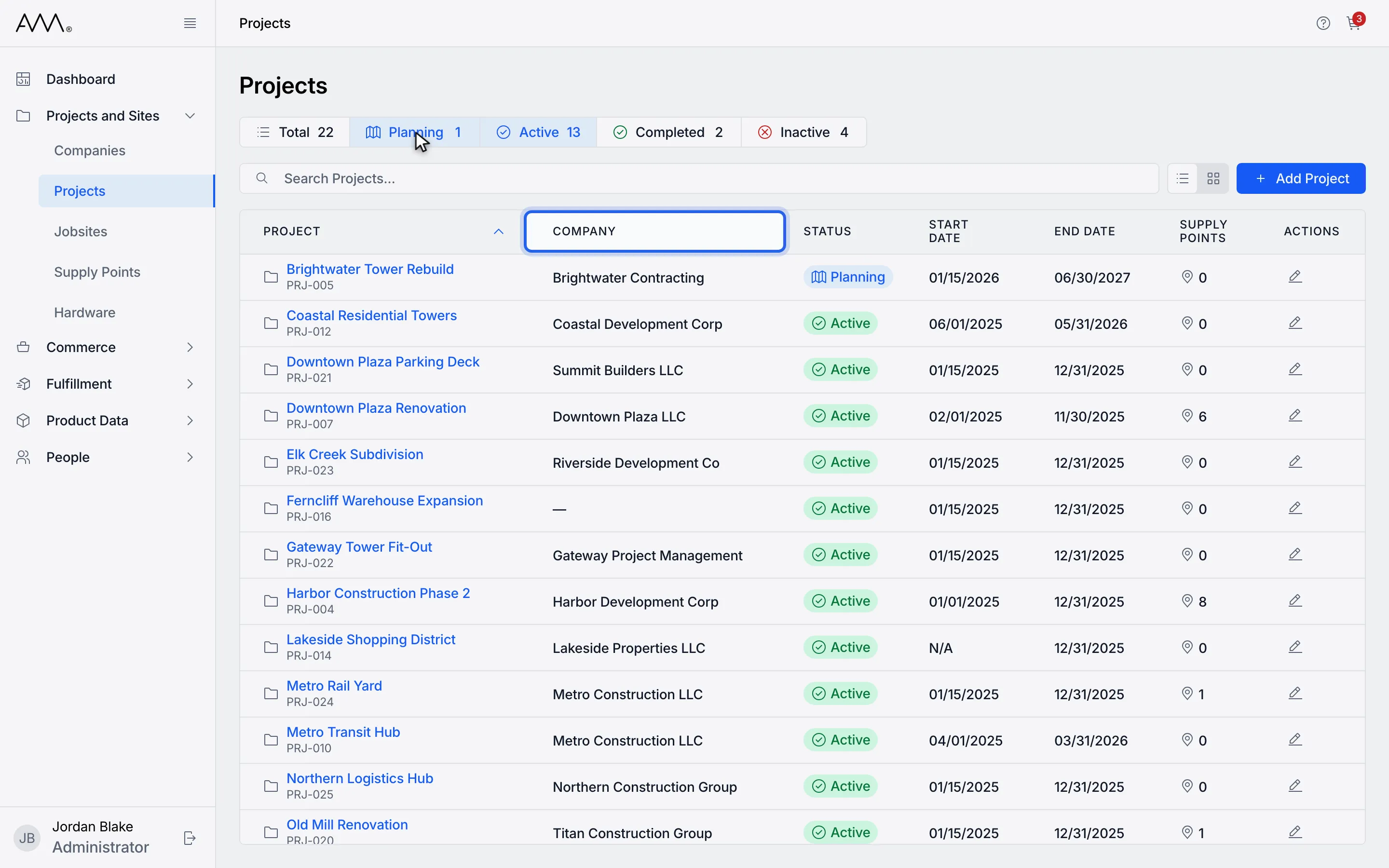
5Click a column heading such as Company to sort the list.
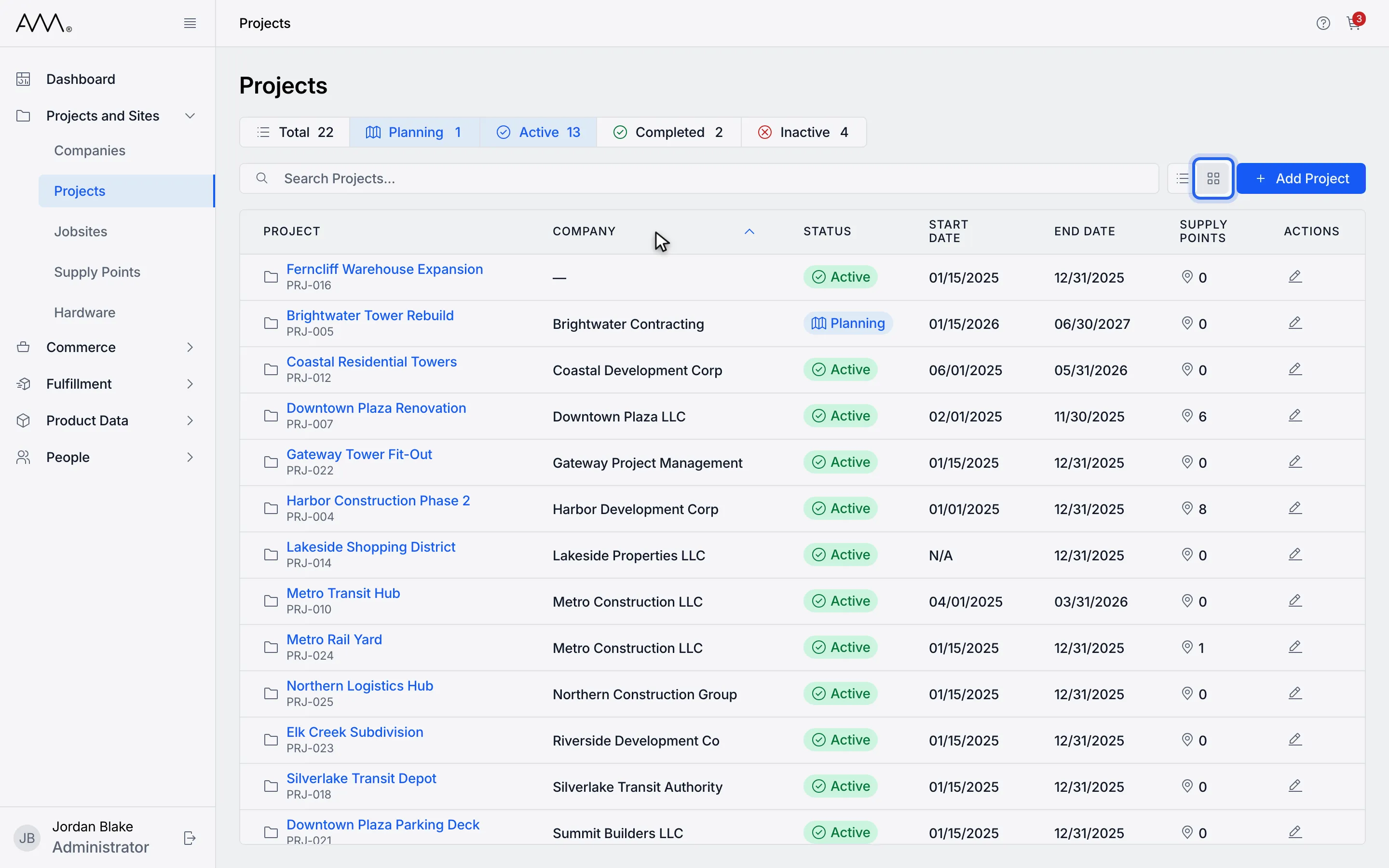
6Use the view toggle to switch between List view and Card view.
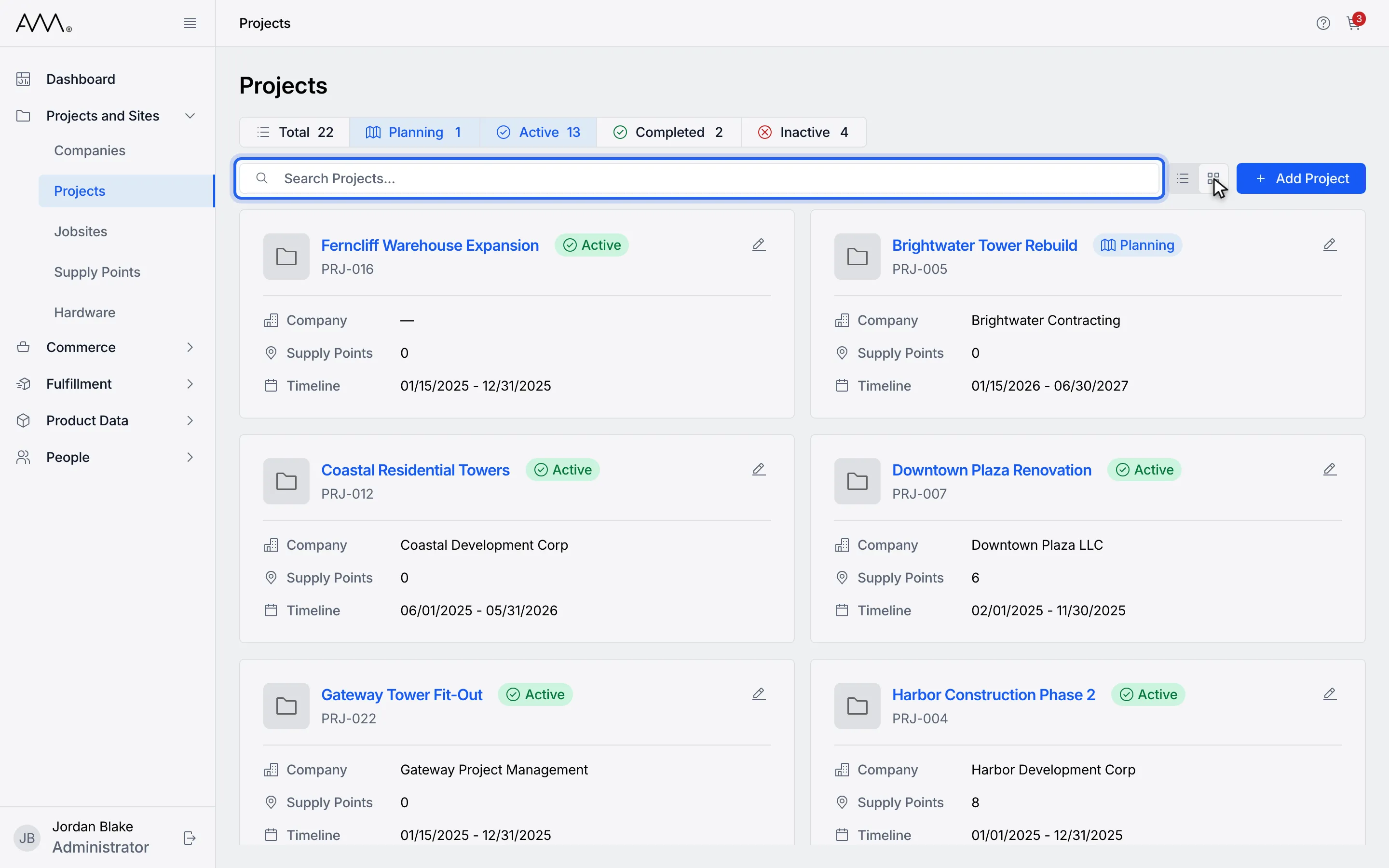
7Type part of a project or company name in Search Projects...
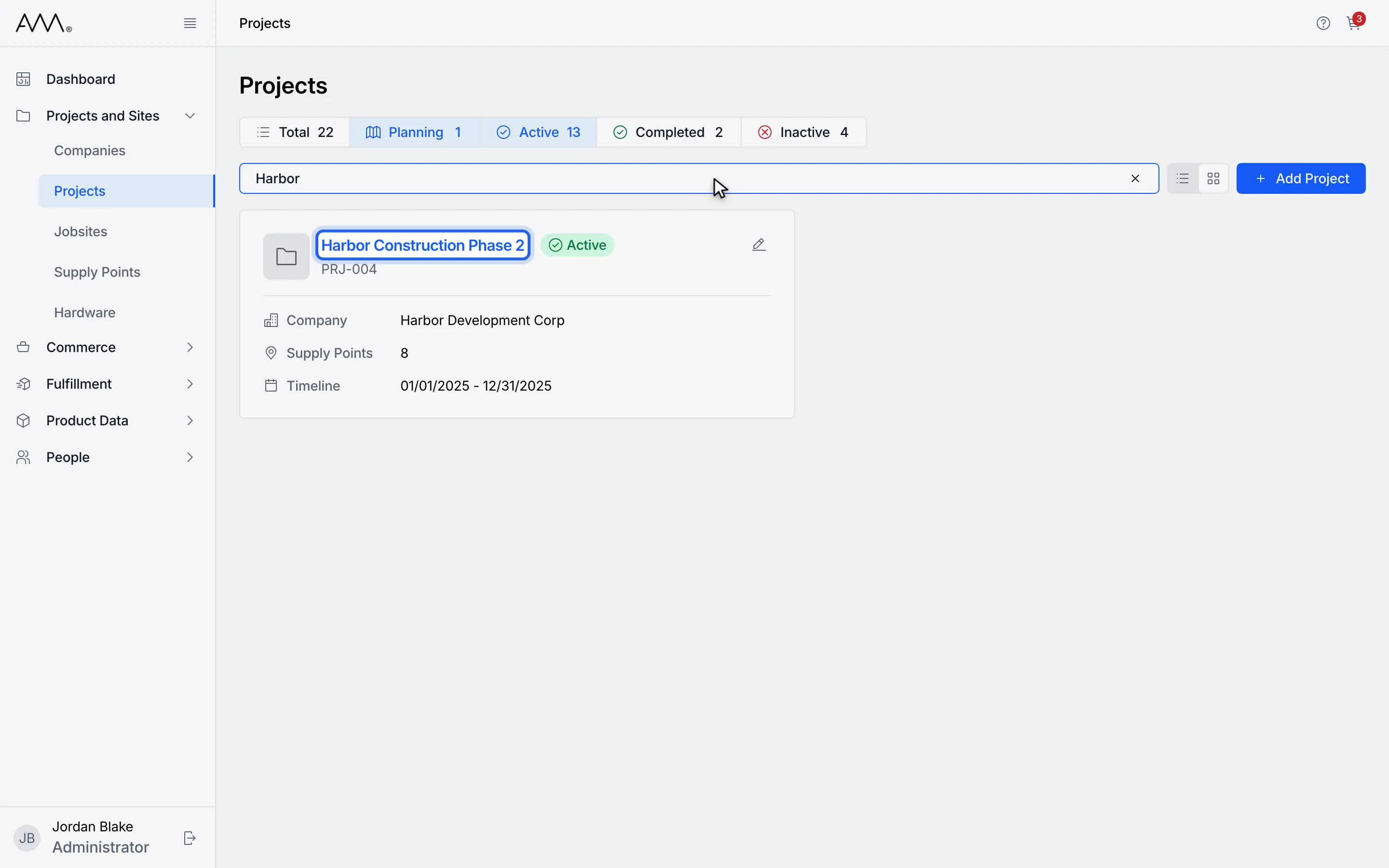
8Click the project name to open it.
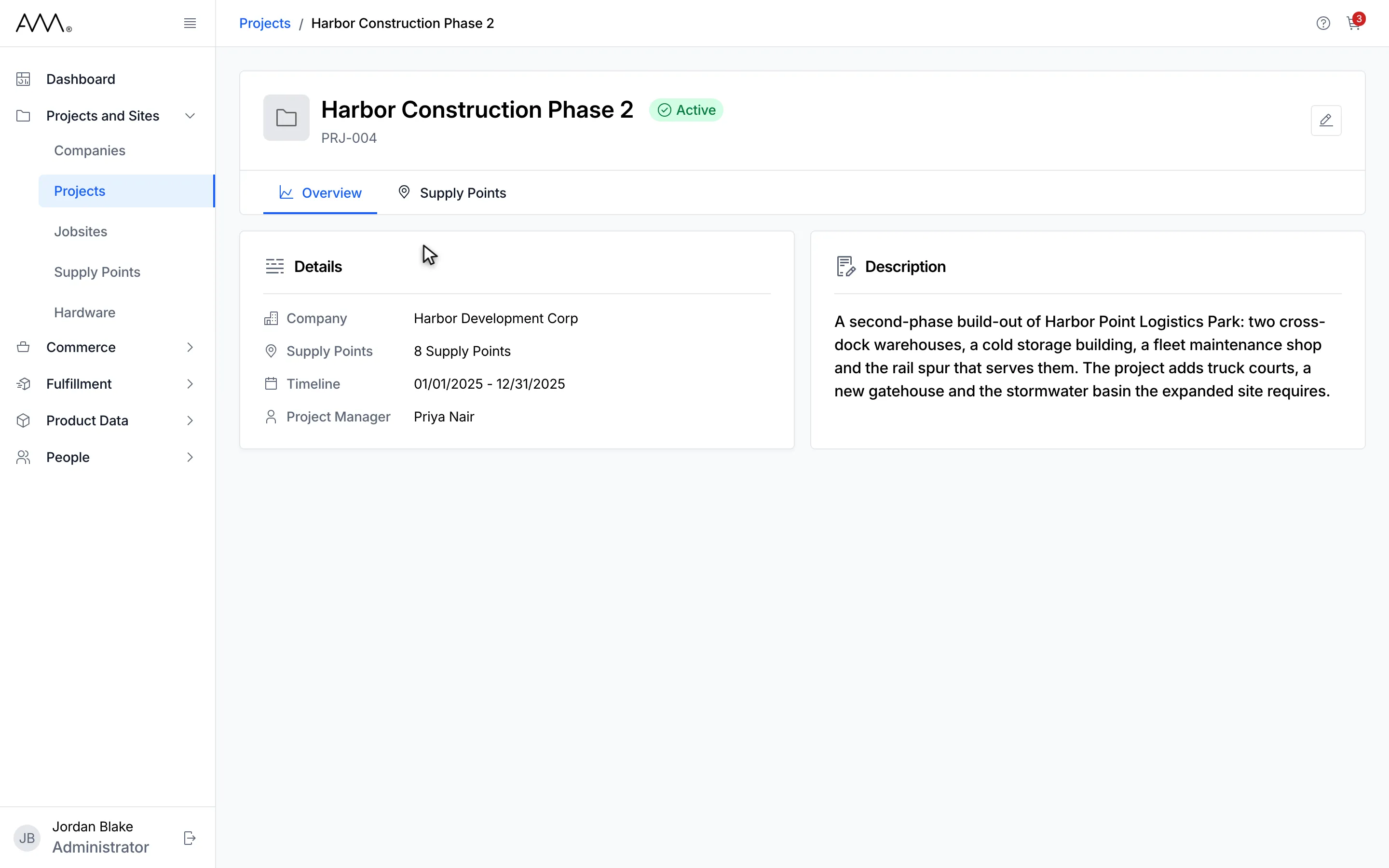
9The project opens on its Overview tab.
Watch this as a video (find a project)
What happens next
Section titled “What happens next”The project opens on its Overview tab. If no project matches your search or filter, the list reads No projects found. Clear the search box or click Total to start again. As you scroll, more projects load; if that fails, the list reads Couldn’t load more. with a Retry button.