Find products
The grid opens showing Draft and Active products, newest change first. Combine the status chips, a column sort, the search box and the filter panel to get to the products you need.
- In the sidebar, open Product Data and choose Products (PIM).
- Click a status such as Discontinued to add it to the view, or click a selected status to remove it. Total shows every status, including Deleted.
- Click a column header such as PRODUCT NAME to sort by it. Click it again to reverse the order. Every column sorts.
- Type in Search by name, item number, SKU, manufacturer, or category. The grid updates a moment after you stop typing.
- Click Filter to open the filter panel, then choose one or more values in Manufacturer, Category or Vendor, or type a Min or Max under List Price, Vendor Cost or Lead Time (days). The lists are in alphabetical order with Other last.
- Press Escape to close an open list.
- Check the chips under the toolbar. Each search term and filter has one, such as Search: saw or Category: Tool. Click a chip’s x to remove that filter, or Clear Filters to remove them all, including the status selection.
Find products1 / 11
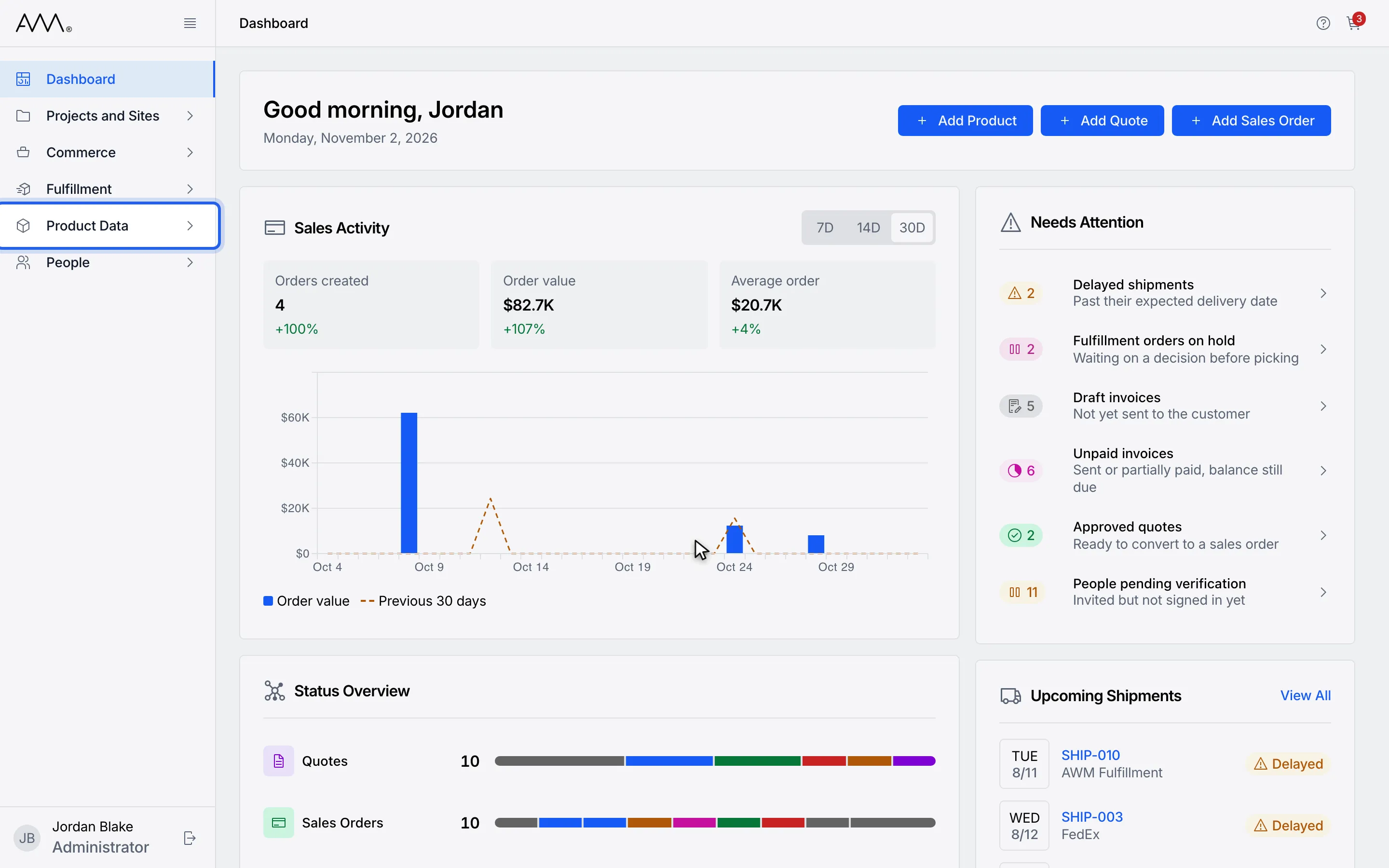
1In the sidebar, open Product Data.
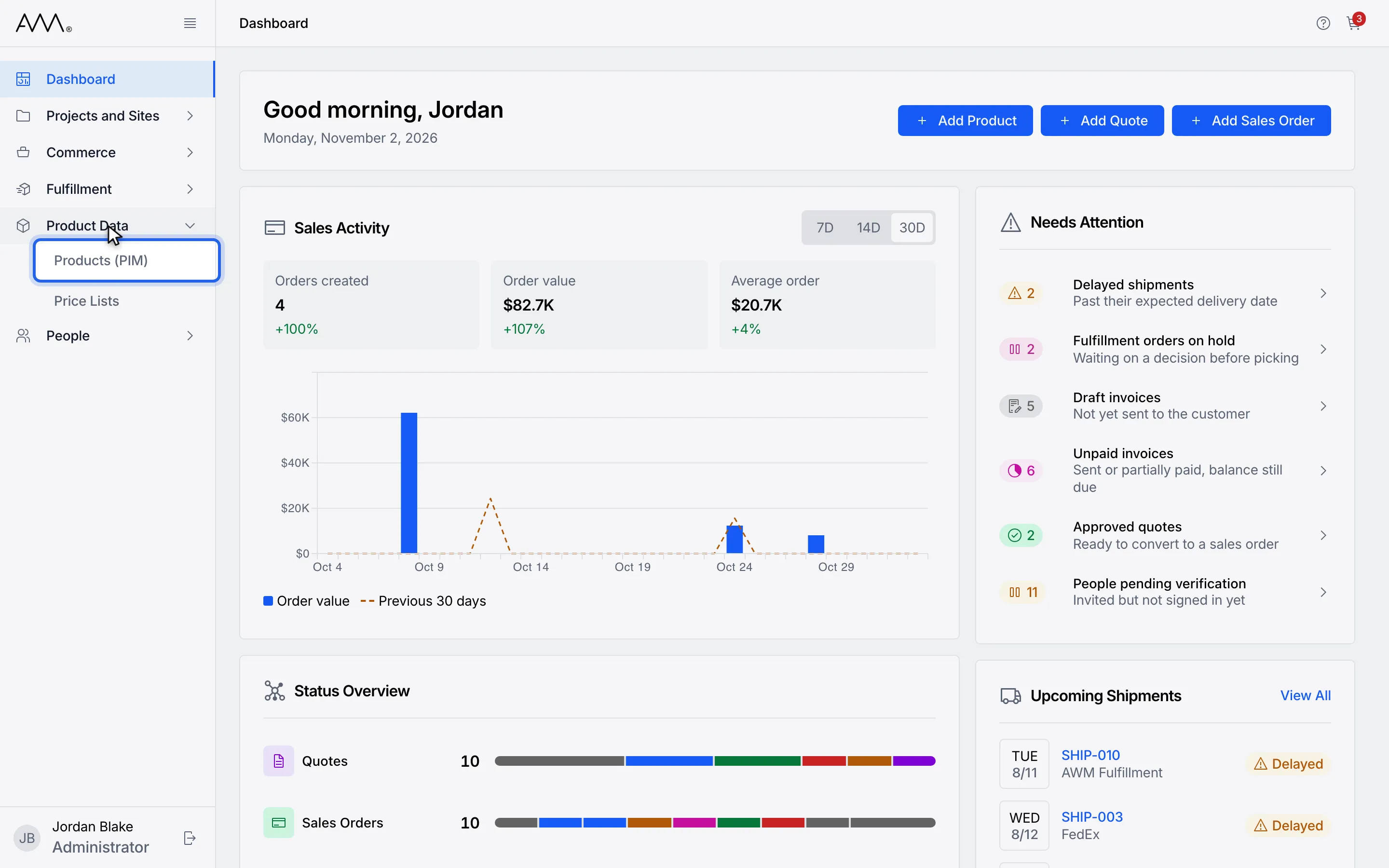
2Choose Products (PIM).
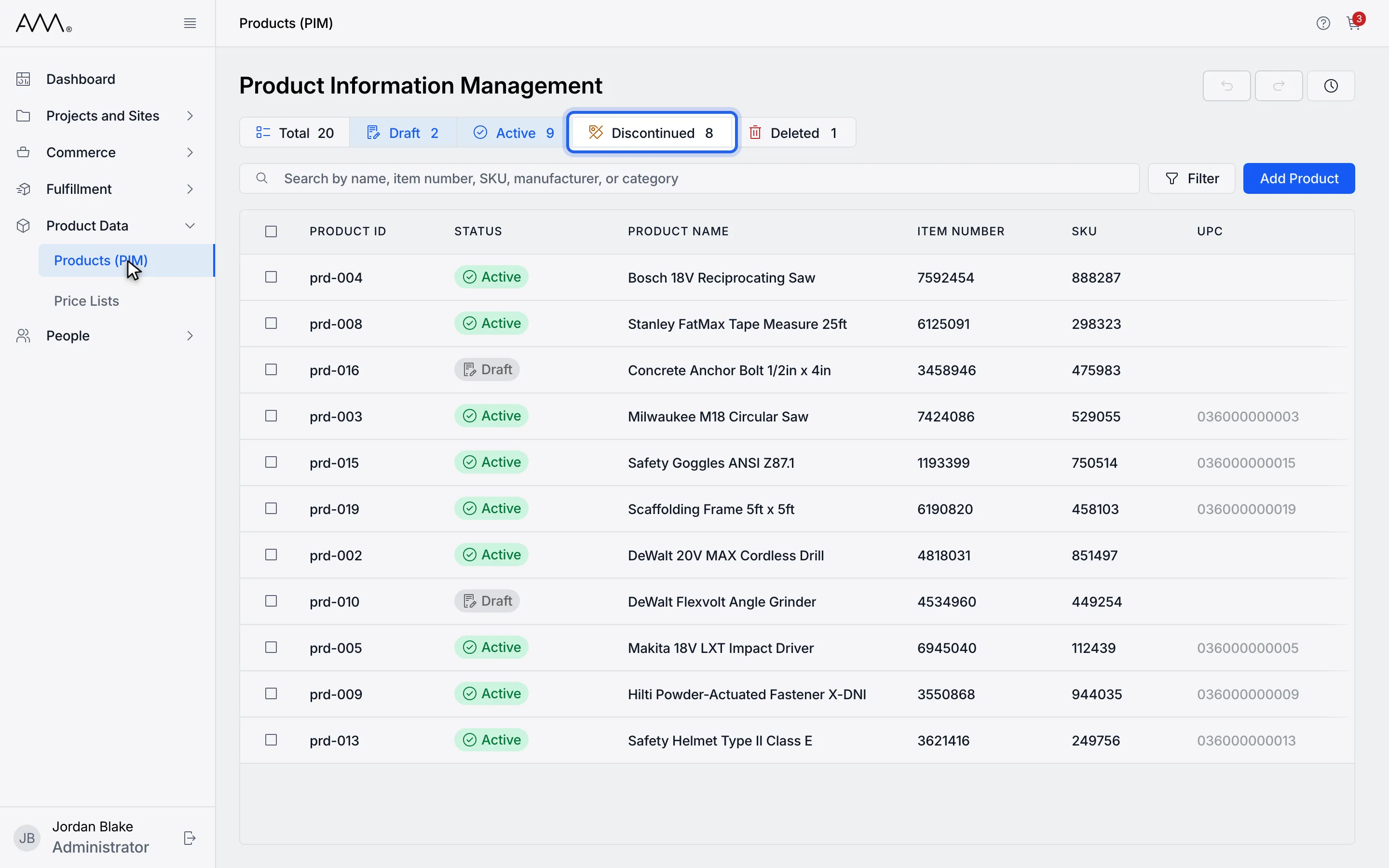
3Click a status to add or remove it. Draft and Active show by default.
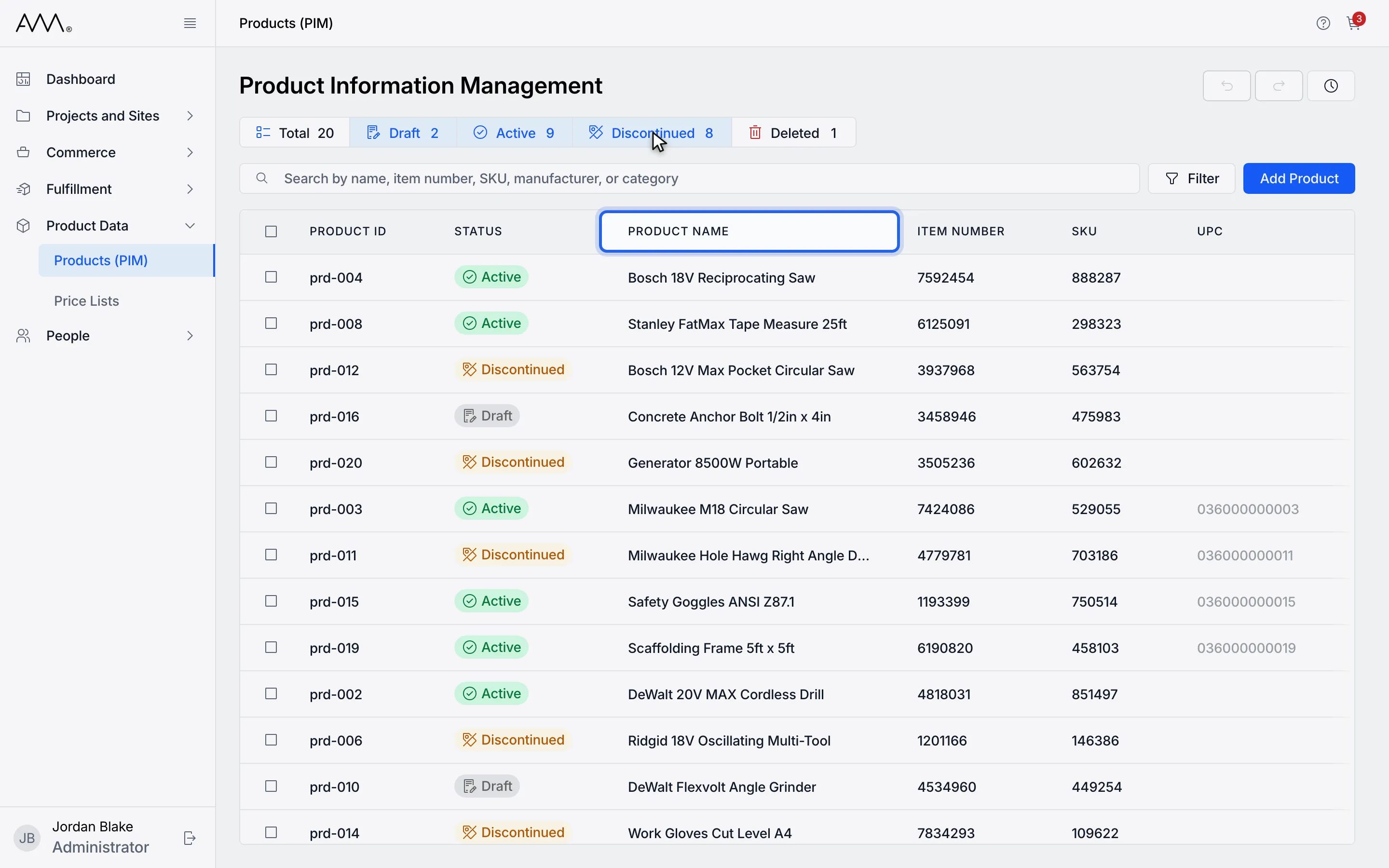
4Click a column header to sort by it.
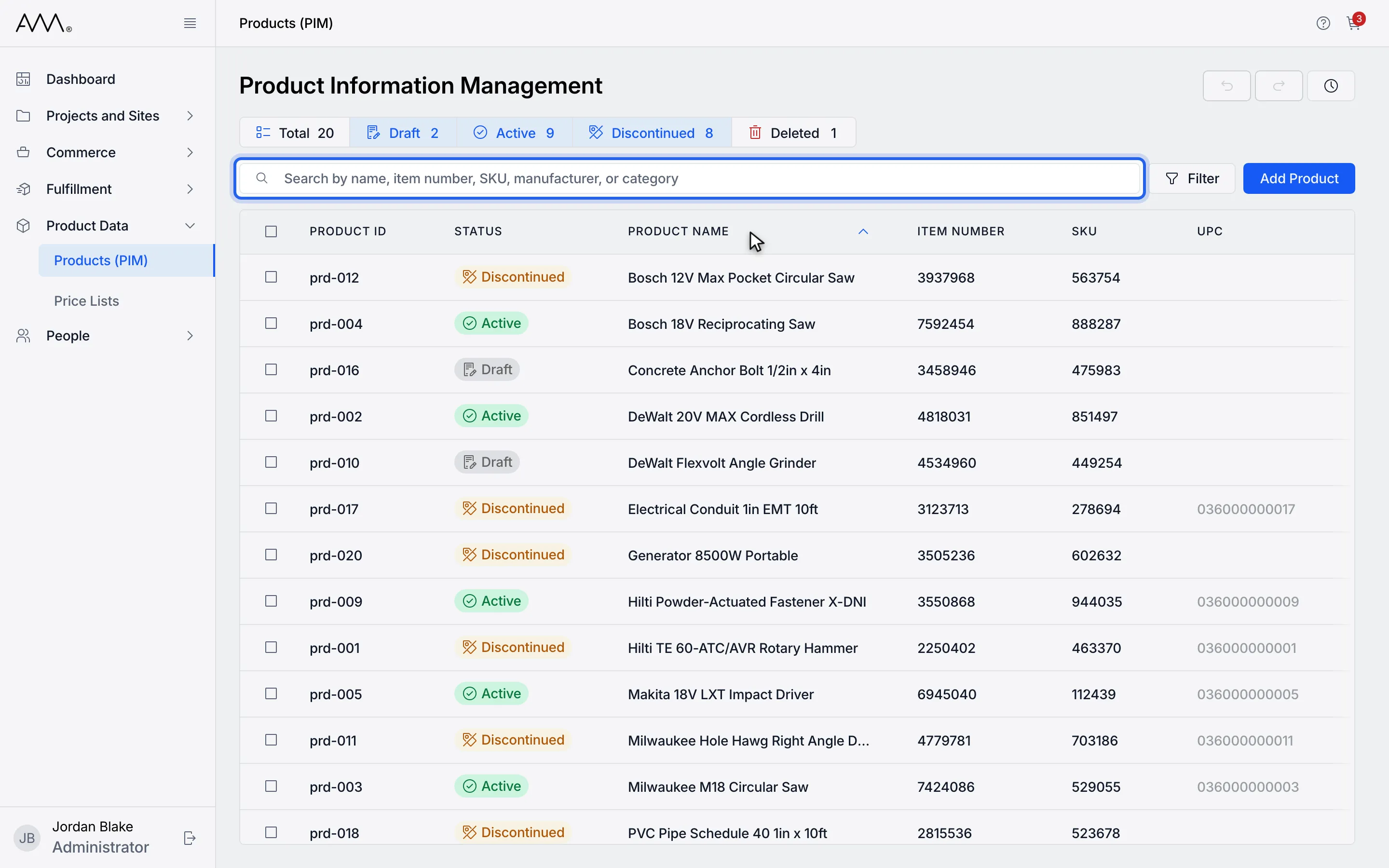
5Type in the search box. It matches name, item number, SKU, manufacturer or category.
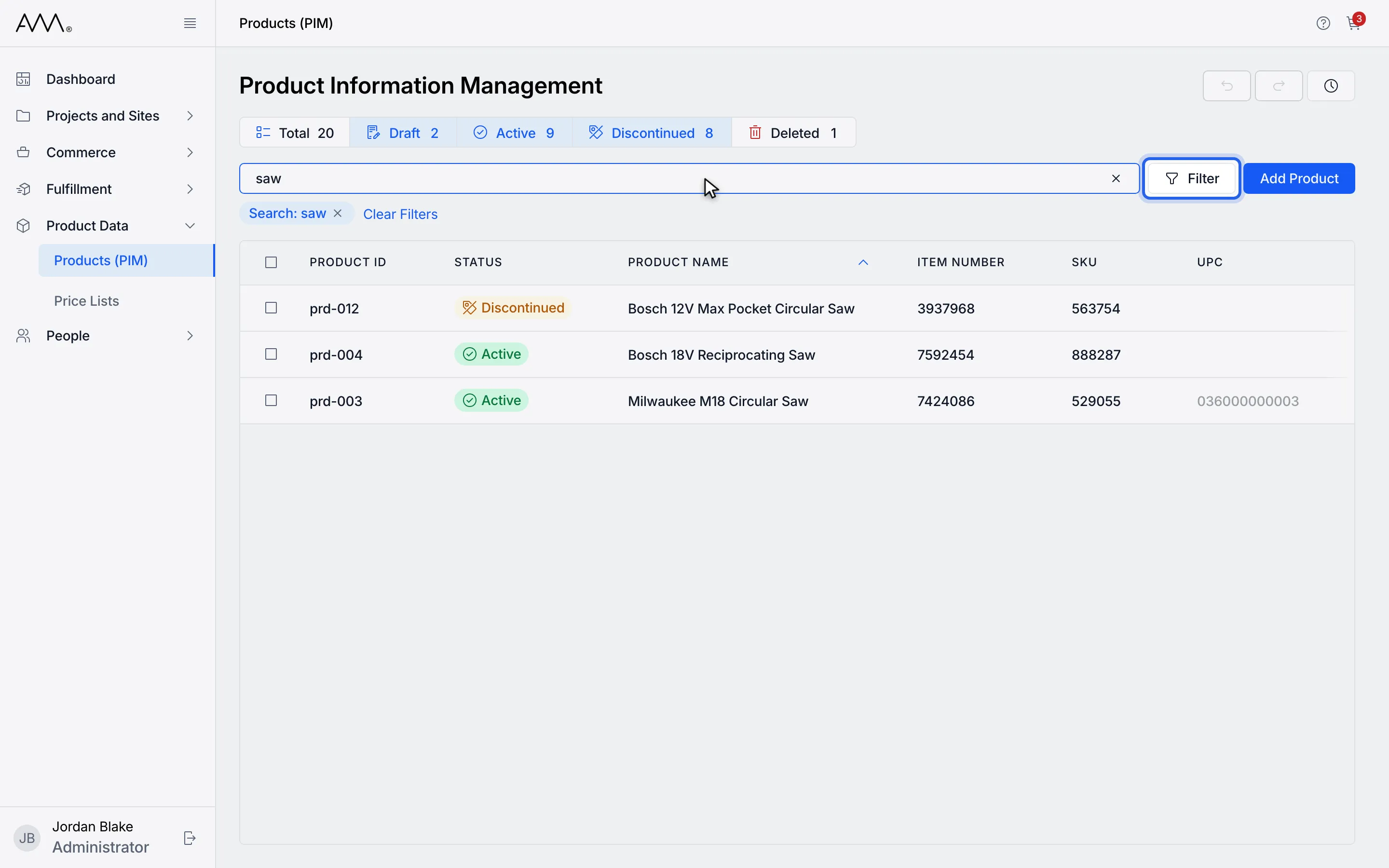
6Click Filter to open more filters.
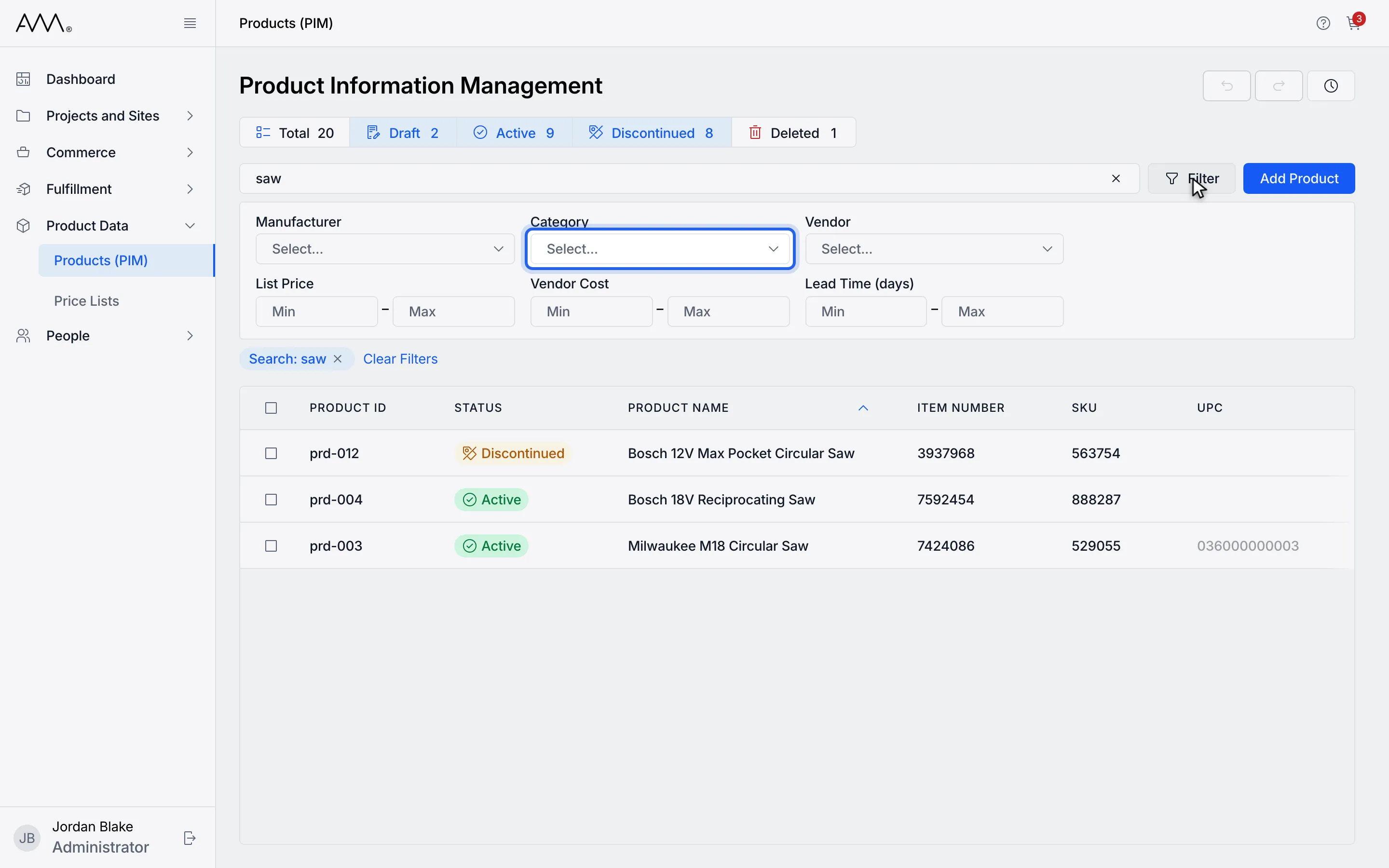
7Open Manufacturer, Category or Vendor, or set a price, cost or lead time range.
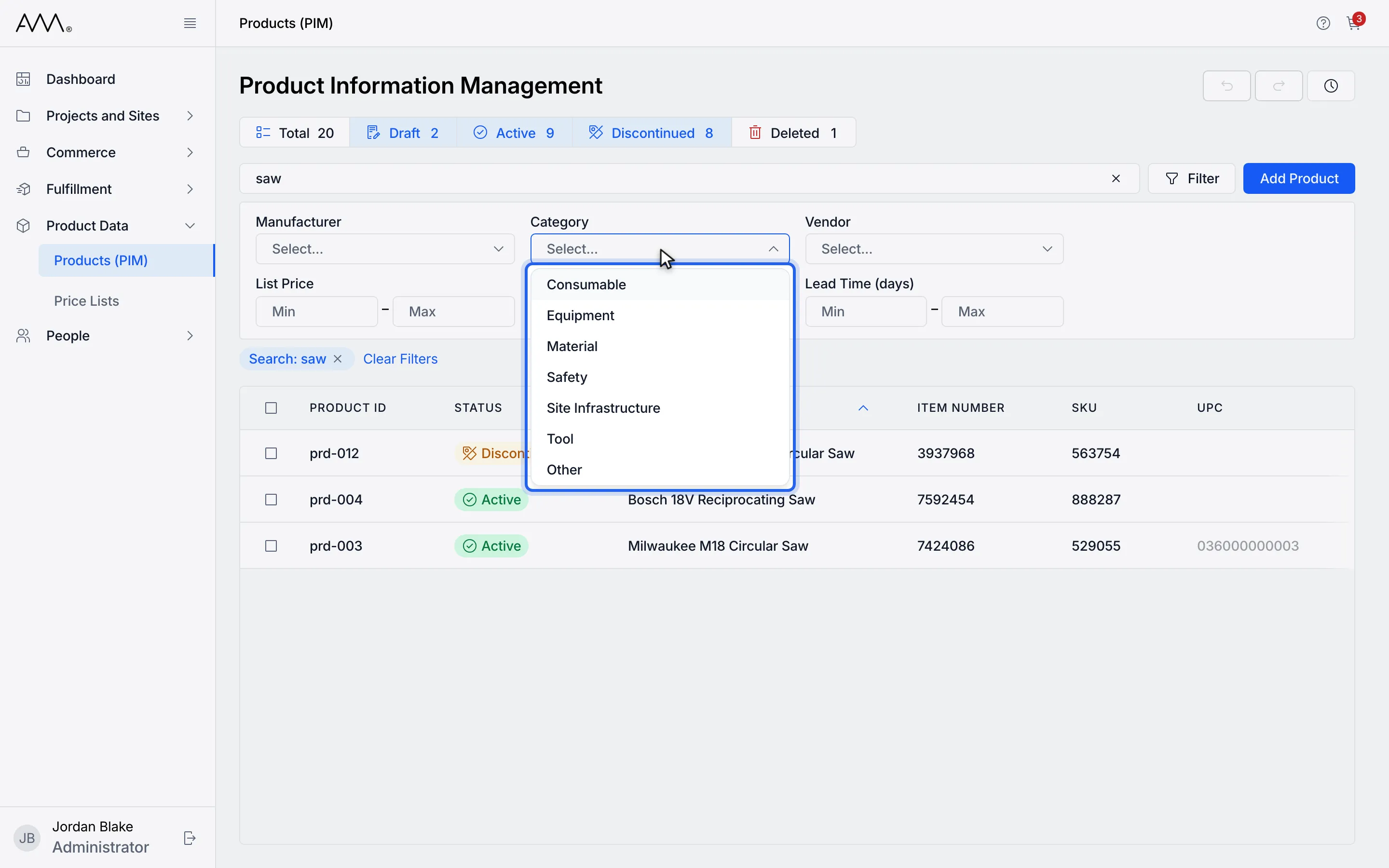
8Pick a value from the list.
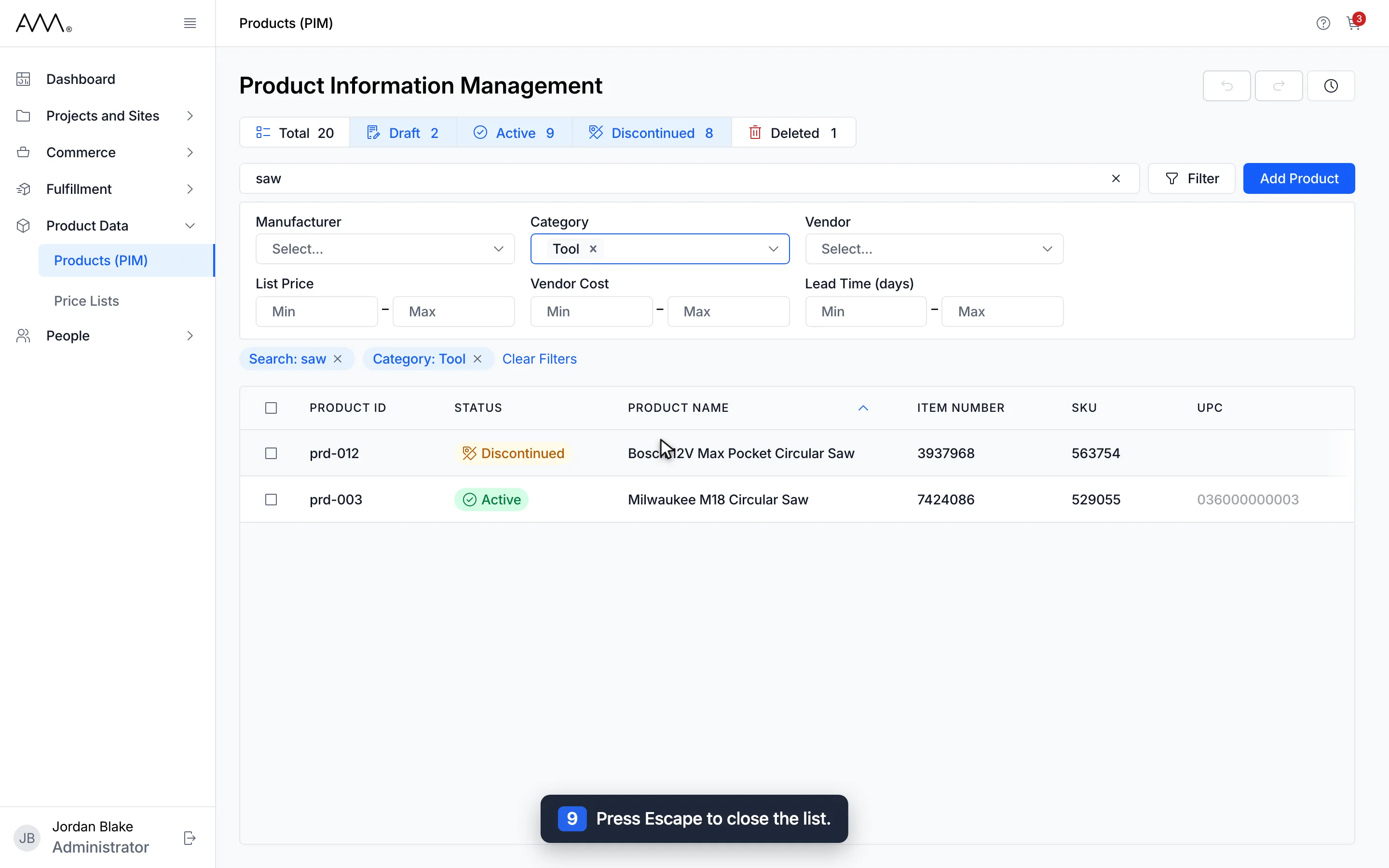
9Press Escape to close the list.
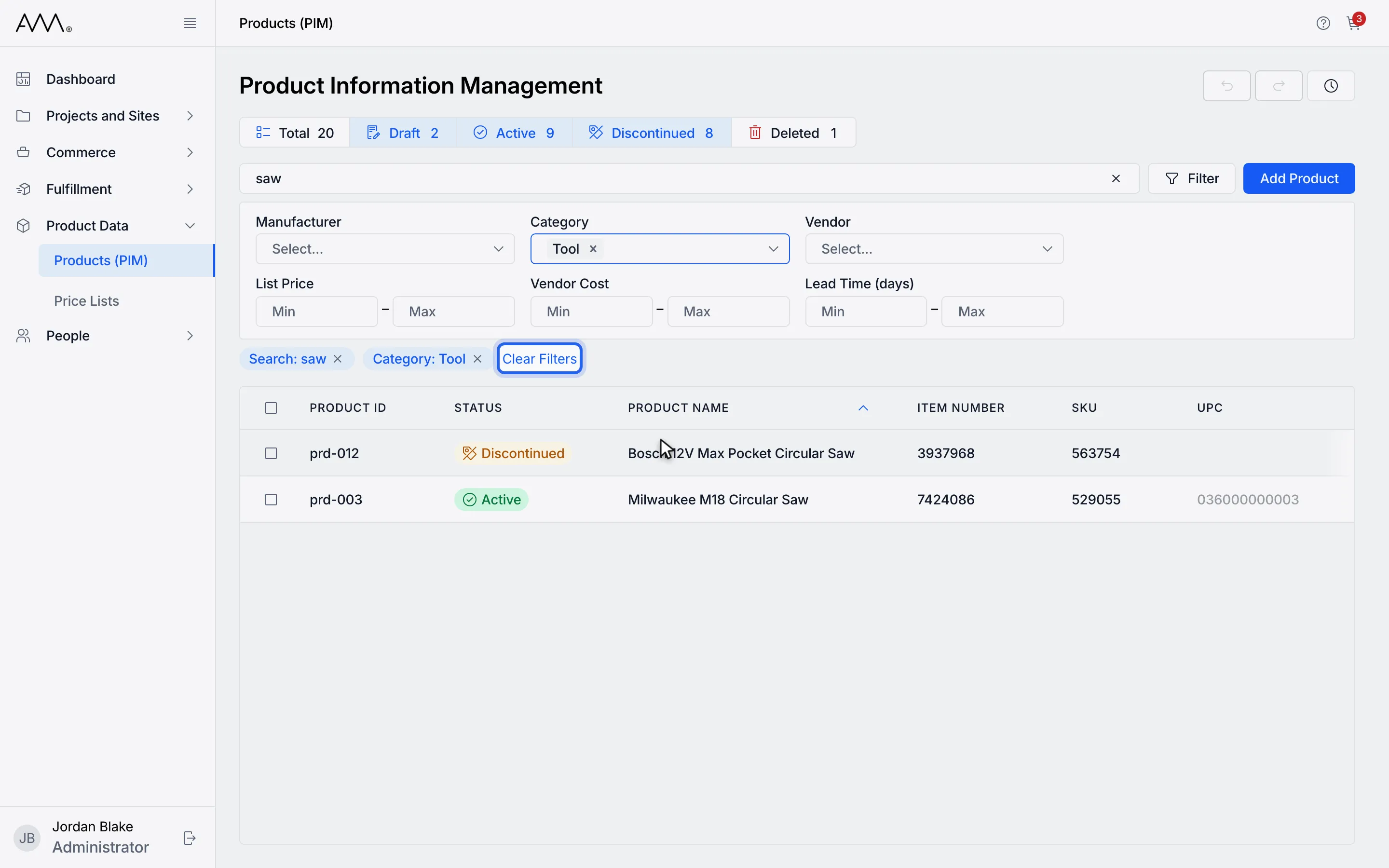
10Active filters show as chips. Remove one with its x or click Clear Filters.
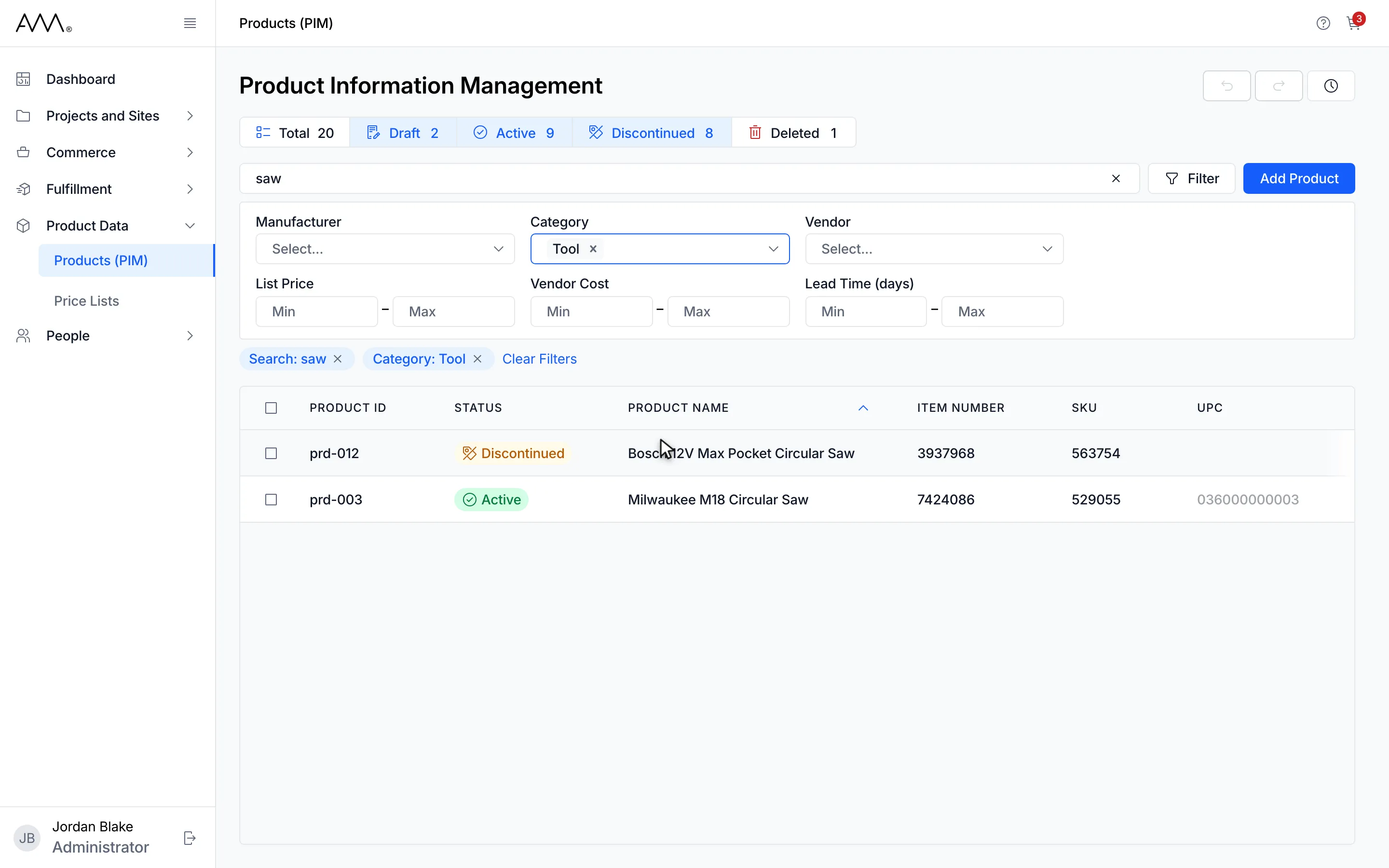
11The grid shows only products matching every filter.
Watch this as a video (find products)
What you see
Section titled “What you see”- The counts on the status chips cover all products and do not change with search or filters.
- Range chips read List Price: 10 – 50, List Price: ≥ 10 or List Price: ≤ 50 depending on which boxes you filled, and the same for Vendor Cost and Lead Time.
- Sorting by UPC from A to Z puts products without a UPC first; from Z to A they come last.
- When nothing matches, the grid shows No Results Found and Check the spelling or try removing filters.
- The grid loads more rows as you scroll down. If more rows cannot be loaded, a Couldn’t load more line with Retry appears under the grid.