View a product's history and restore a change
The History drawer shows the changes made to products: who changed which field, when, and from what to what. From there you can restore a change’s earlier values. Unlike Undo, which only covers your own changes on this visit, history is kept for everyone.
- In the sidebar, open Product Data and choose Products (PIM).
- Click the clock icon at the end of a product’s row to see that product’s history. Or click History at the top right of the page to see changes to all products.
- Read the drawer that opens on the right. For one product it is titled with the product ID, for example prd-004 History, with the line Change history for this product; for all products it is titled History with Change history. While it loads it shows Loading history…. A product with no changes shows No activity yet for this product.; the all-products view shows No activity yet. Click Load more at the bottom to see older changes.
- To put back the values a change replaced, click Restore on that change.
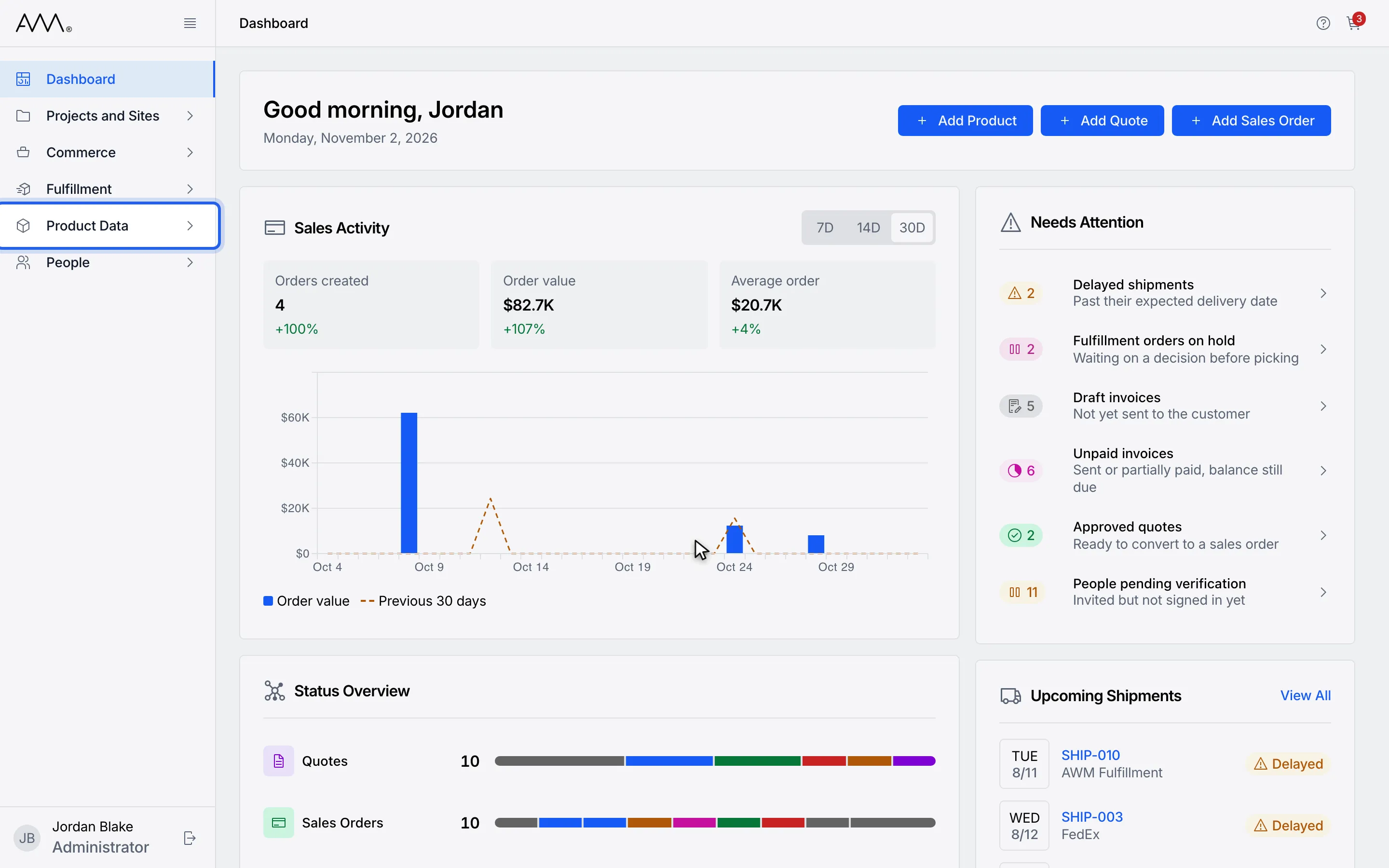
1In the sidebar, open Product Data.
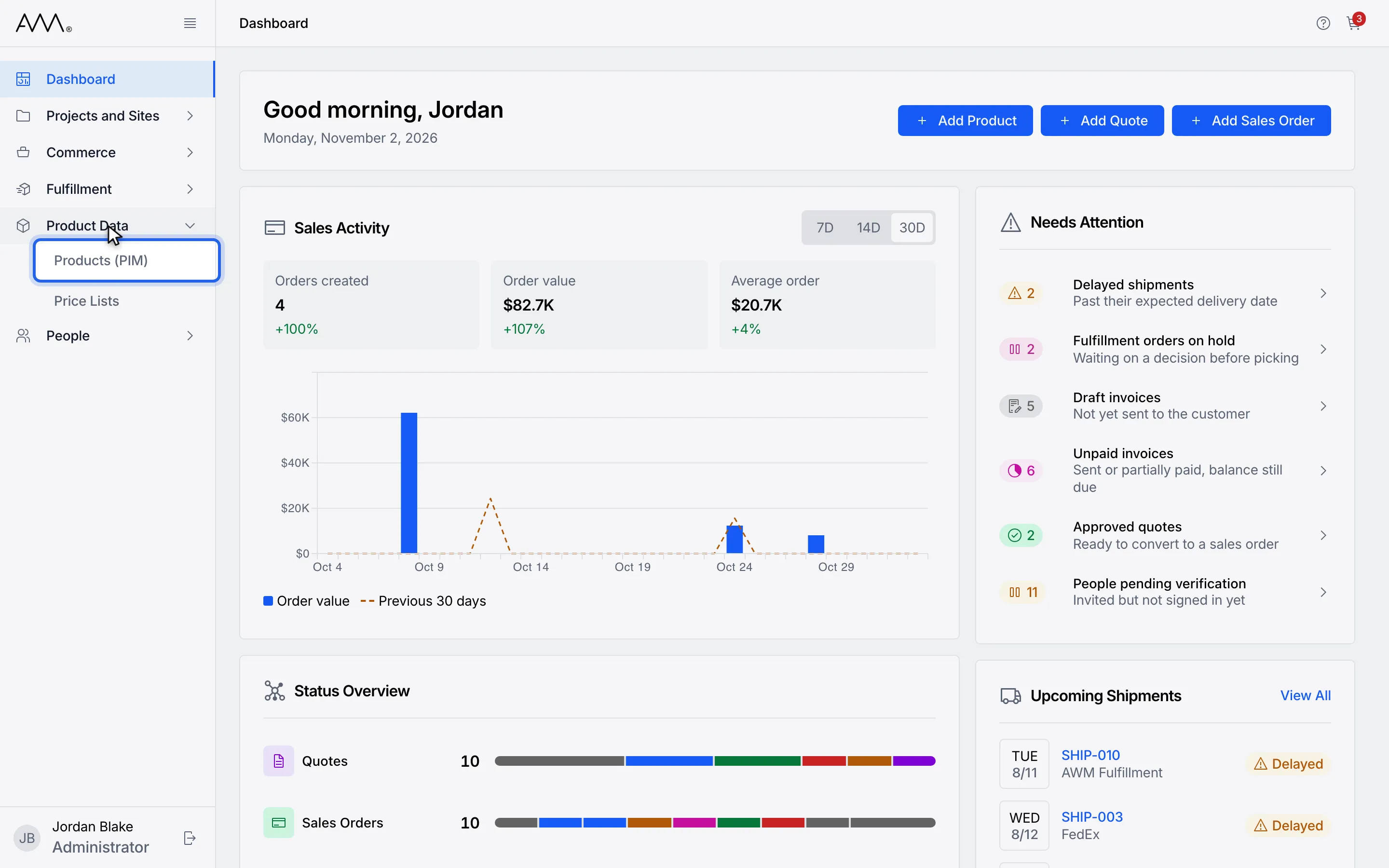
2Choose Products (PIM).
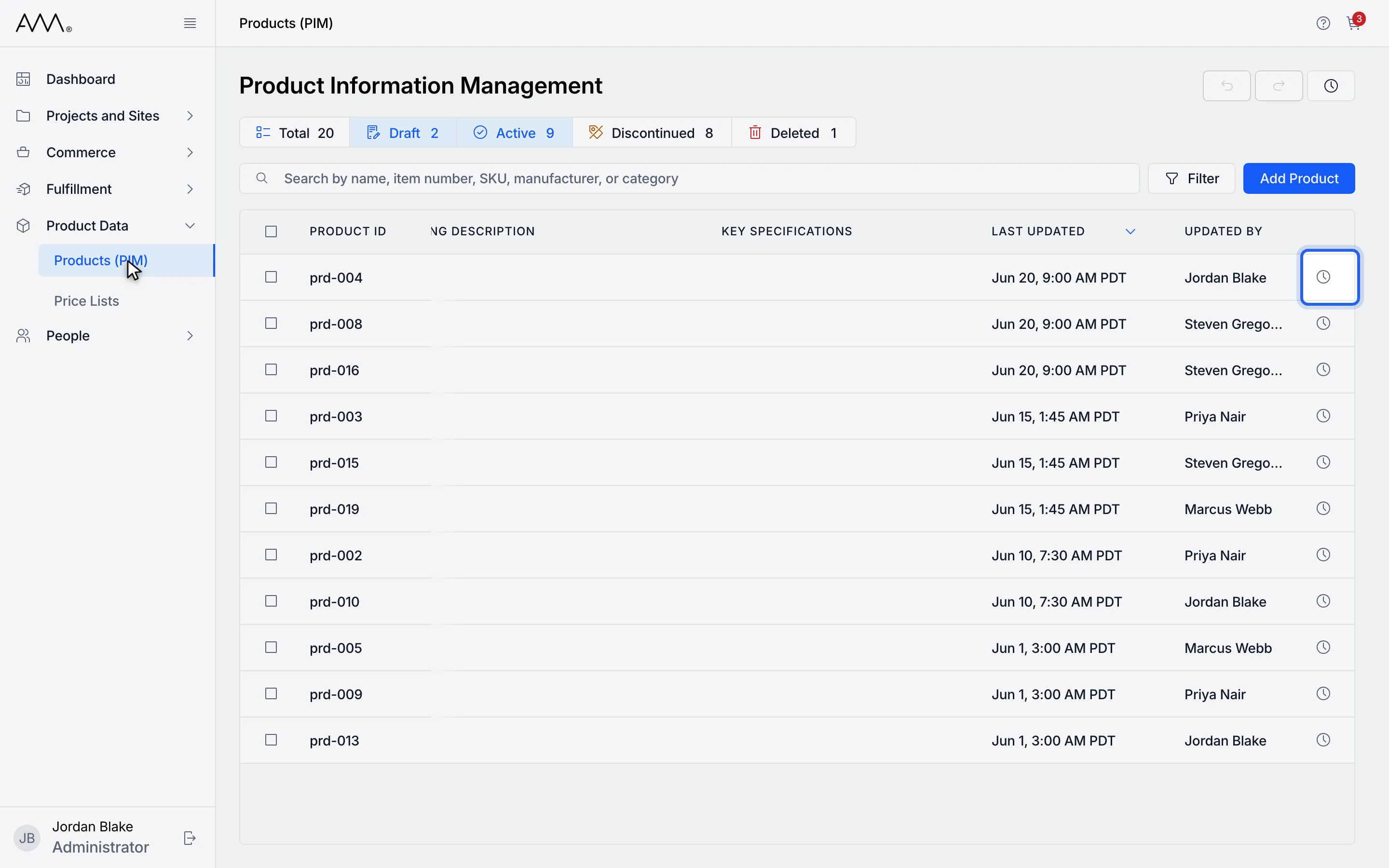
3Click the clock icon at the end of a product row.
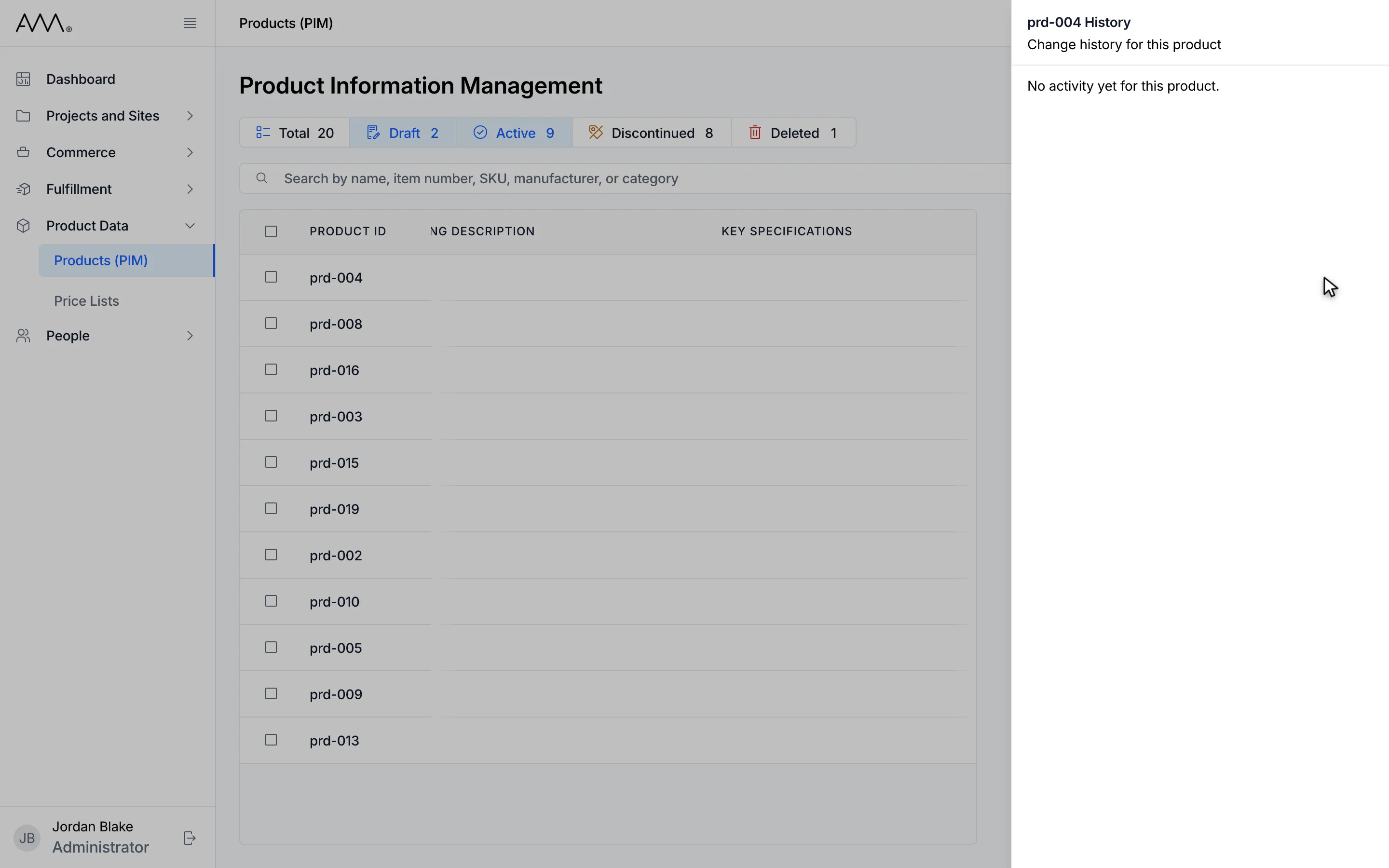
4The History drawer opens on the right, titled with the product ID.
5A product with no changes yet shows No activity yet for this product.
Watch this as a video (view product history)
What a change looks like
Section titled “What a change looks like”Each change is a card with:
- A title naming what changed. Vendor changes read Vendor Set, Vendor Updated, Vendor Removed or Vendor Changed. A bulk edit adds how many products it touched, for example · 2 products.
- Who made it and when.
- The product ID, and for each field its label, the old value struck through and the new value after it. An empty value is shown as (empty).
Restore writes the old values back as a new change, so the history itself is never rewritten and the restore appears as its own entry. A Restored. message confirms it, and the restore is added to your undo list. Restore is not offered for the entry that created a product or for changes to fields that cannot be edited in the grid. If a restore fails, an error message explains why.