Delete a company
Delete a company you no longer need. Deleting removes the company from Omni. If you only want to keep it out of new records, set its status to Inactive instead with Edit a company.
- In the Companies list, click the edit icon on the company’s row or card. The Edit Company dialog opens. You can also open the company and click Edit in the page header.
- Click Delete Company at the bottom left of the dialog.
- Read the Delete Company? confirmation. Click Delete Company to delete the company, or Cancel to keep it.
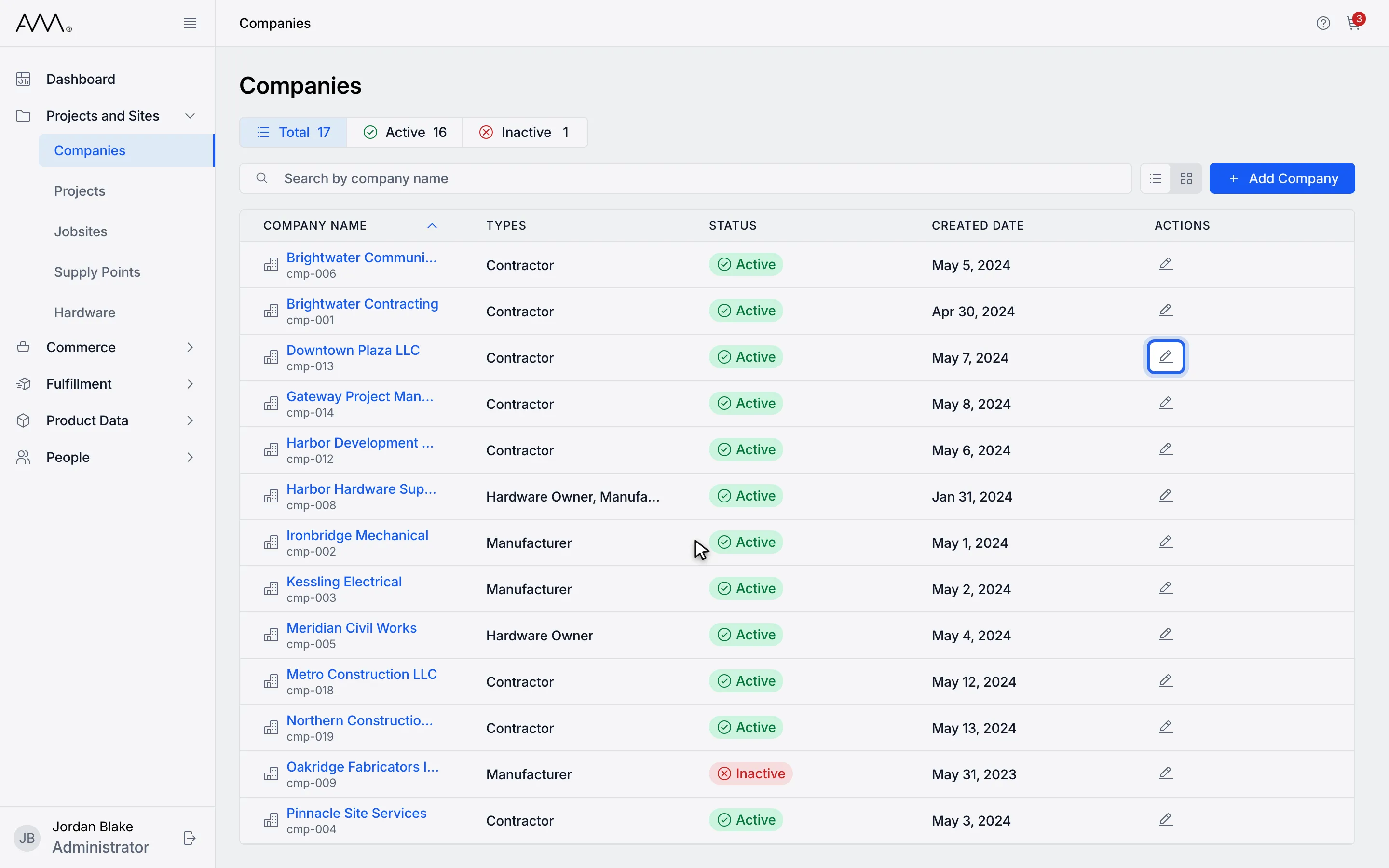
1Click the edit icon on the company you want to delete.
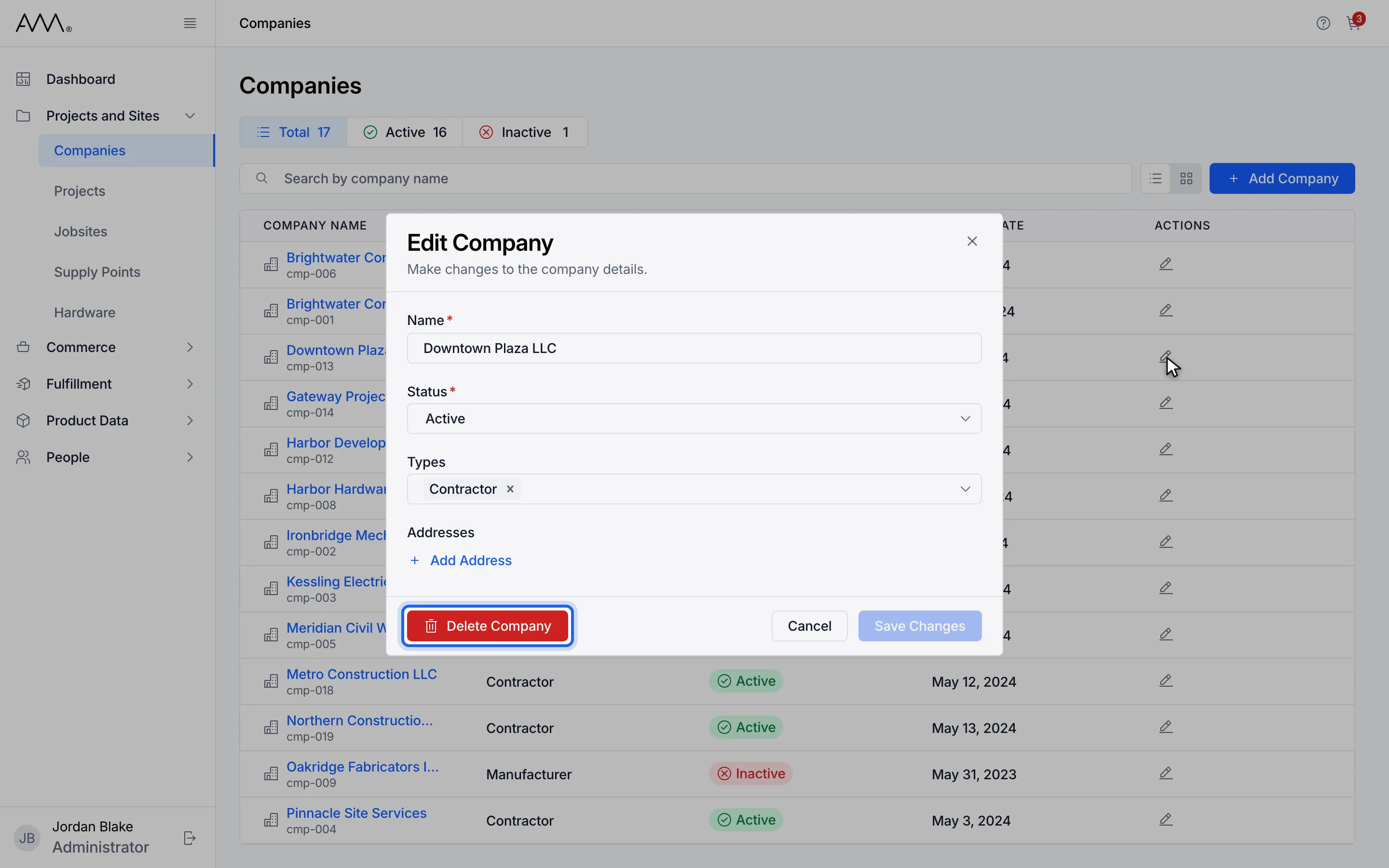
2Click Delete Company at the bottom of the dialog.
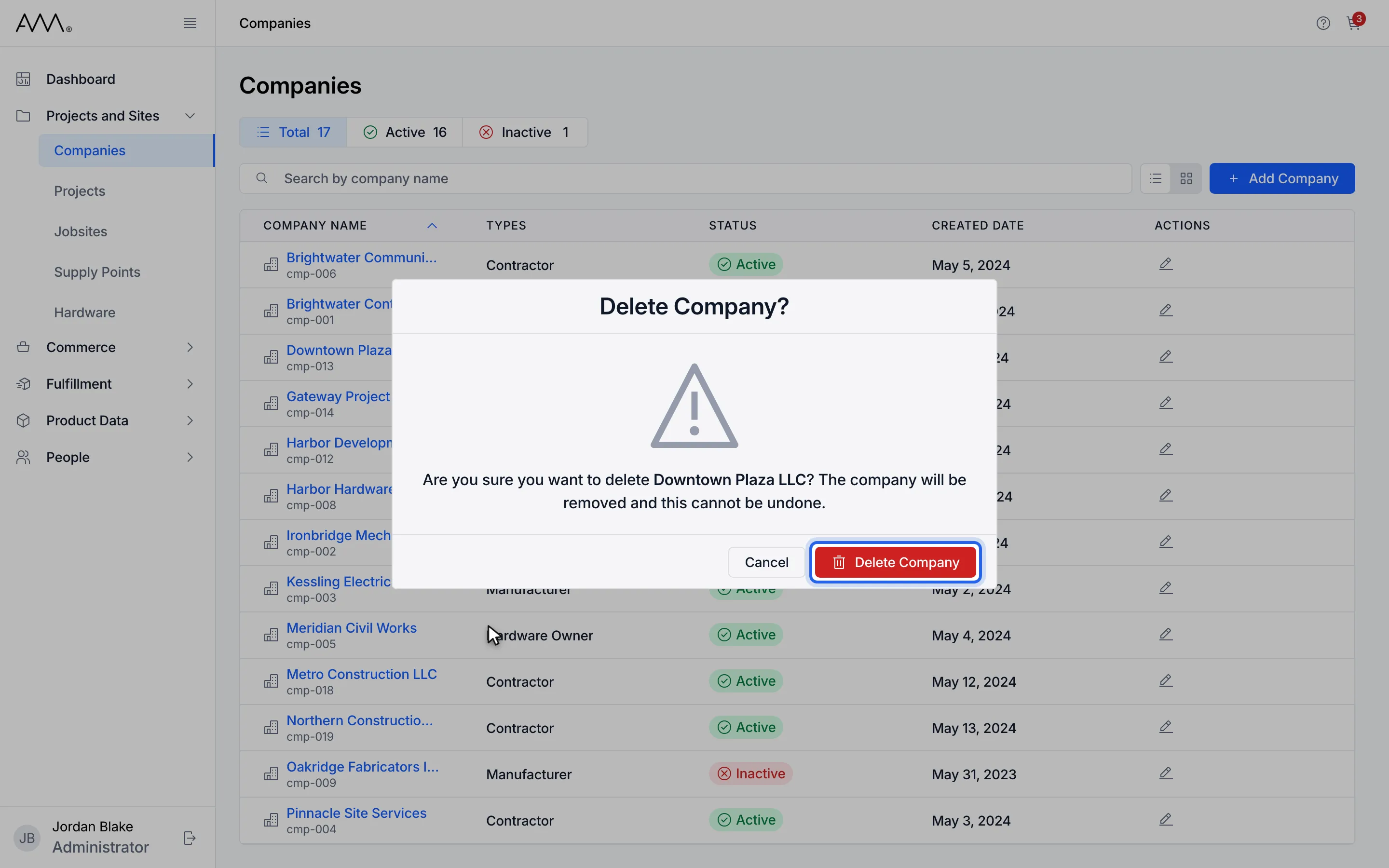
3Read the confirmation. The company will be removed and this cannot be undone.
4Click Delete Company to confirm.
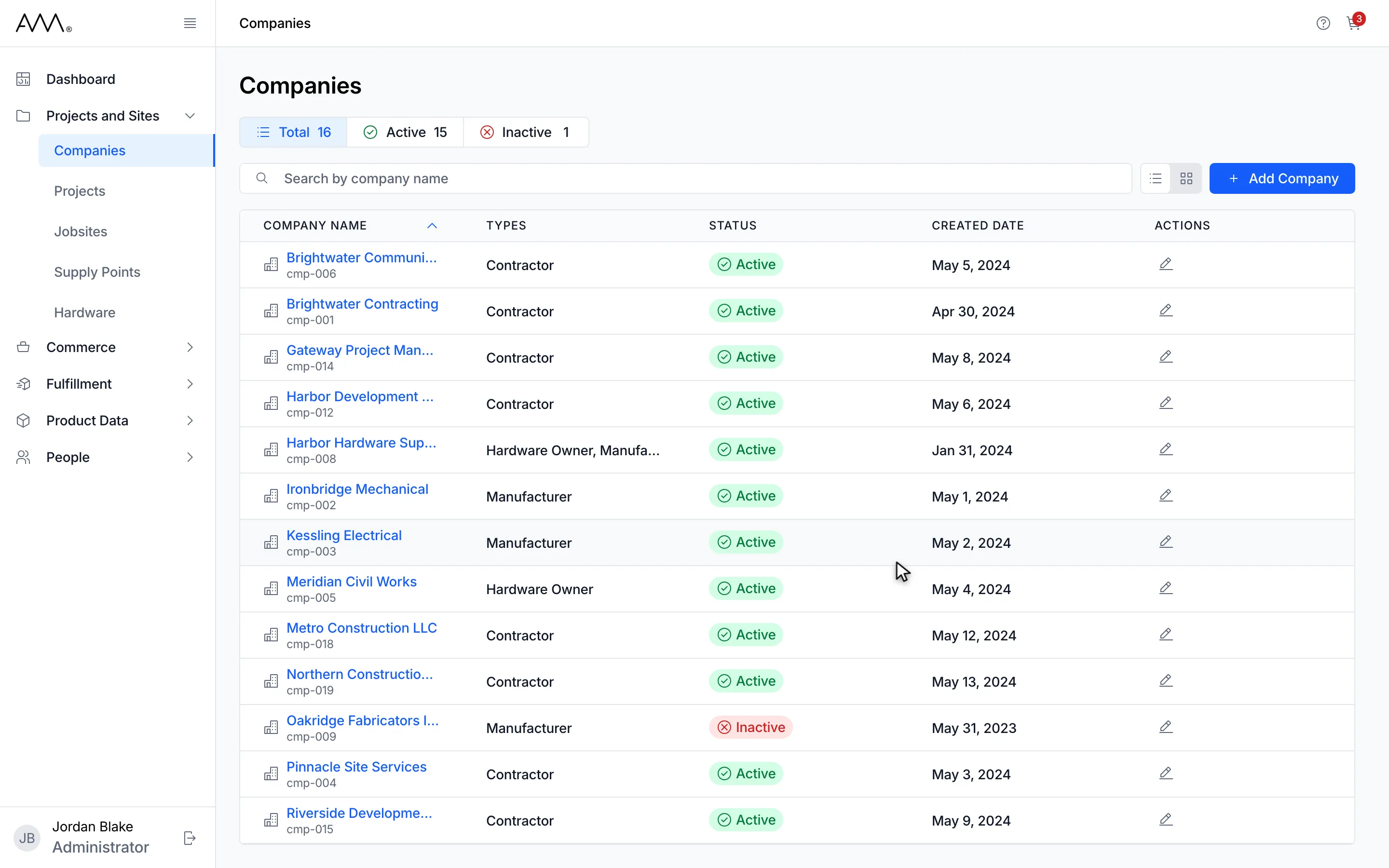
5The company is gone from the list and the counts drop.
Watch this as a video (delete a company)
What happens next
Section titled “What happens next”There is no success message. Both dialogs close. In the list, the company’s row disappears and the status counts drop. If you deleted from the company page, Omni returns to the Companies list.
People who were linked to the company keep their records. Their Company now shows (Deleted) followed by the company name. The company is no longer offered when you choose a company for a person, project, jobsite, supply point, quote or sales order, and its old page shows Company not found with It may have been deleted.
If the deletion fails, the confirmation stays open and shows Failed to delete company. Please try again.