Confirm pick and pack
Confirming pick and pack closes the picking work on an order, moves it to Packed and downloads its packing slip, ready to add to a shipment. If any line is short, the missing quantities go to a new backorder.
- Open the order and click the Pick Tasks tab.
- Check the Picked column. Any line short of its Quantity will go to a backorder.
- Click Confirm Pick & Pack. The Confirm Pick & Pack dialog asks you to Enter packing slip information.
- Enter the Number of Packages (at least 1) and, if useful, Packing Notes.
- Click Confirm Pick & Pack. The button reads Packing… while it works, and your browser downloads the packing slip PDF as soon as the order is packed.
- If some lines were short, read the Some Items Were Not Fully Picked dialog and click Okay.
| Field | Required | What to enter |
|---|---|---|
| Number of Packages | Yes | How many packages you packed. Defaults to 1. |
| Packing Notes | No | Anything the shipper should know, up to 4,000 characters. |
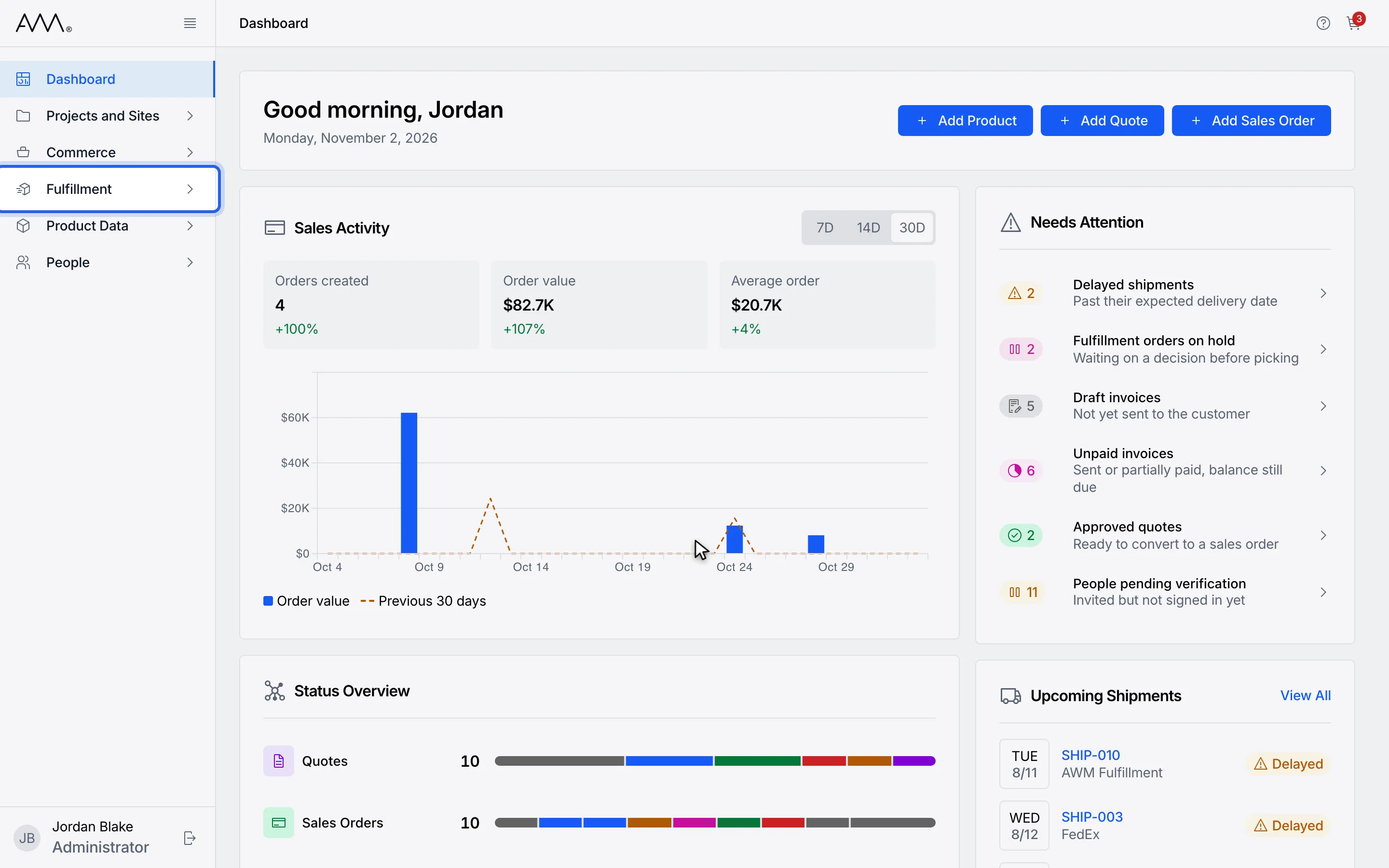
1In the sidebar, open Fulfillment.
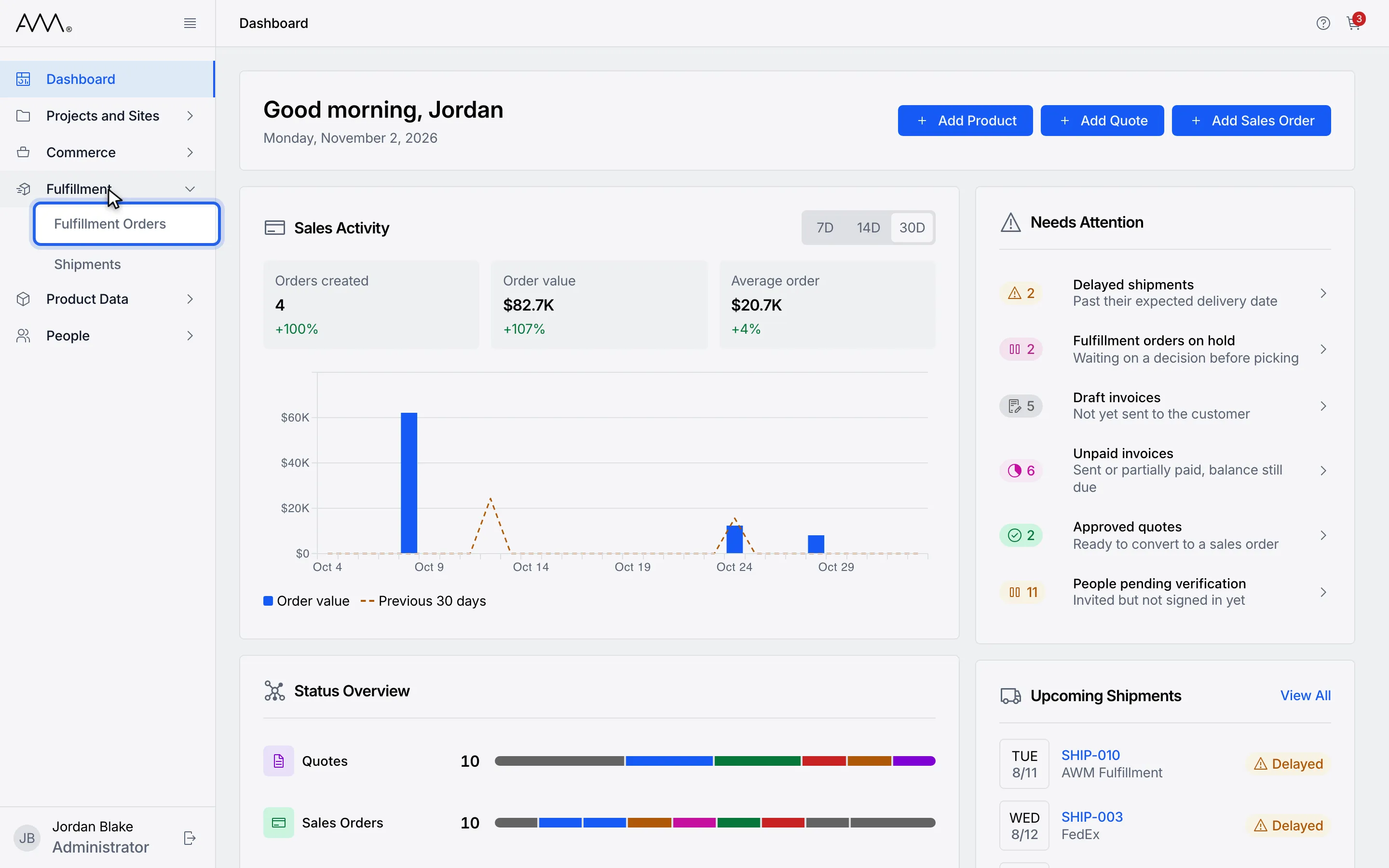
2Choose Fulfillment Orders.
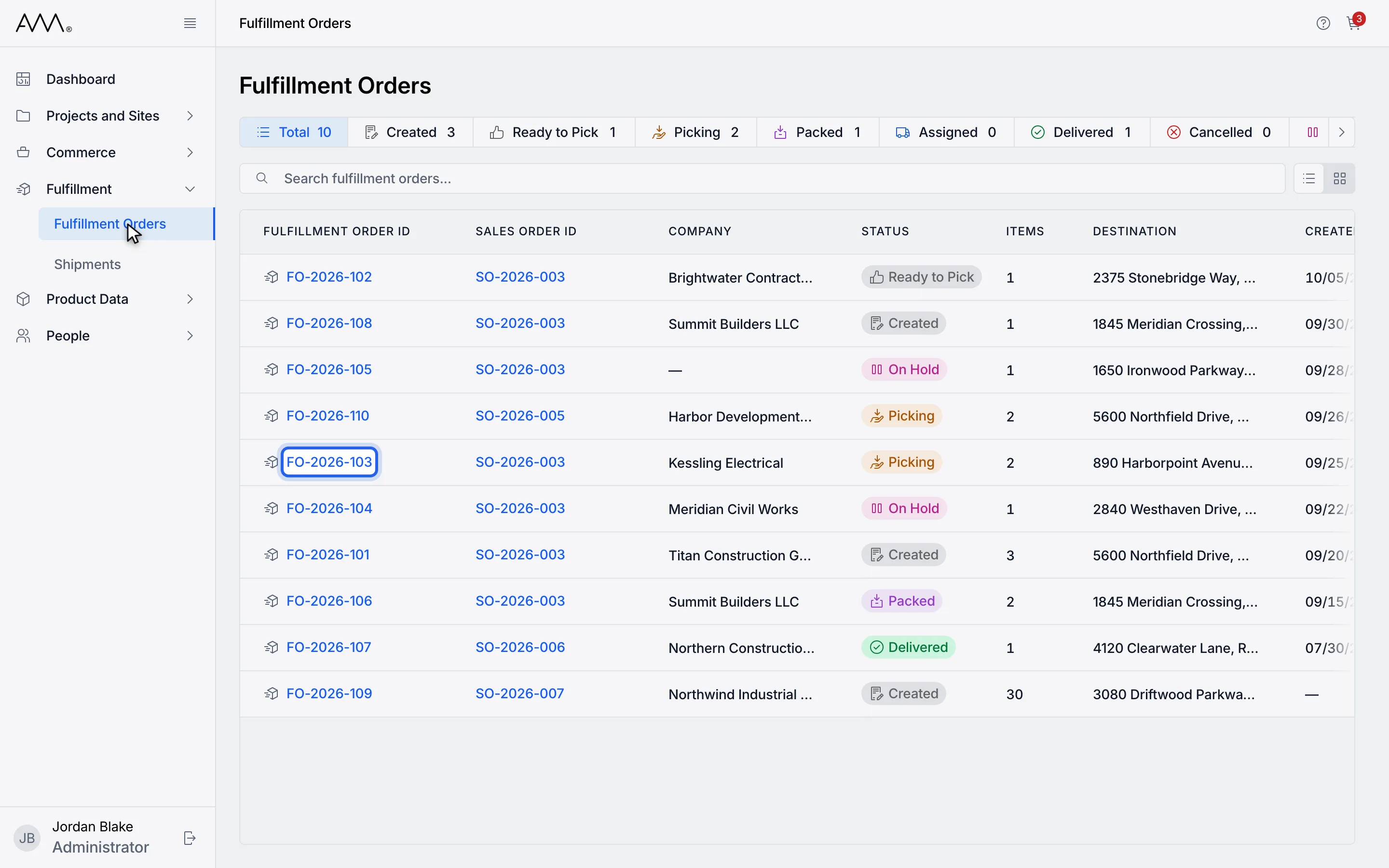
3Open the order you have been picking.
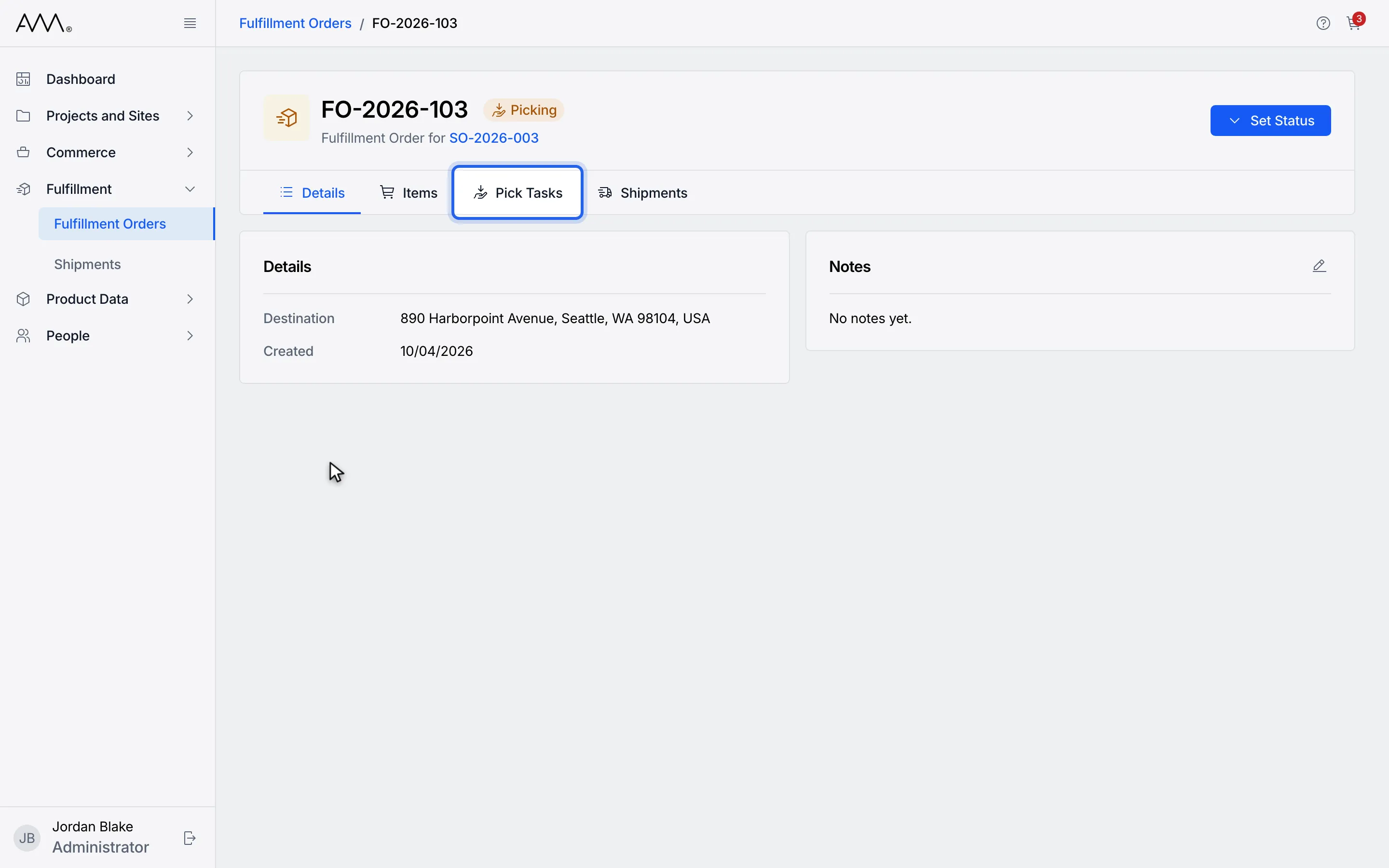
4Open the Pick Tasks tab.
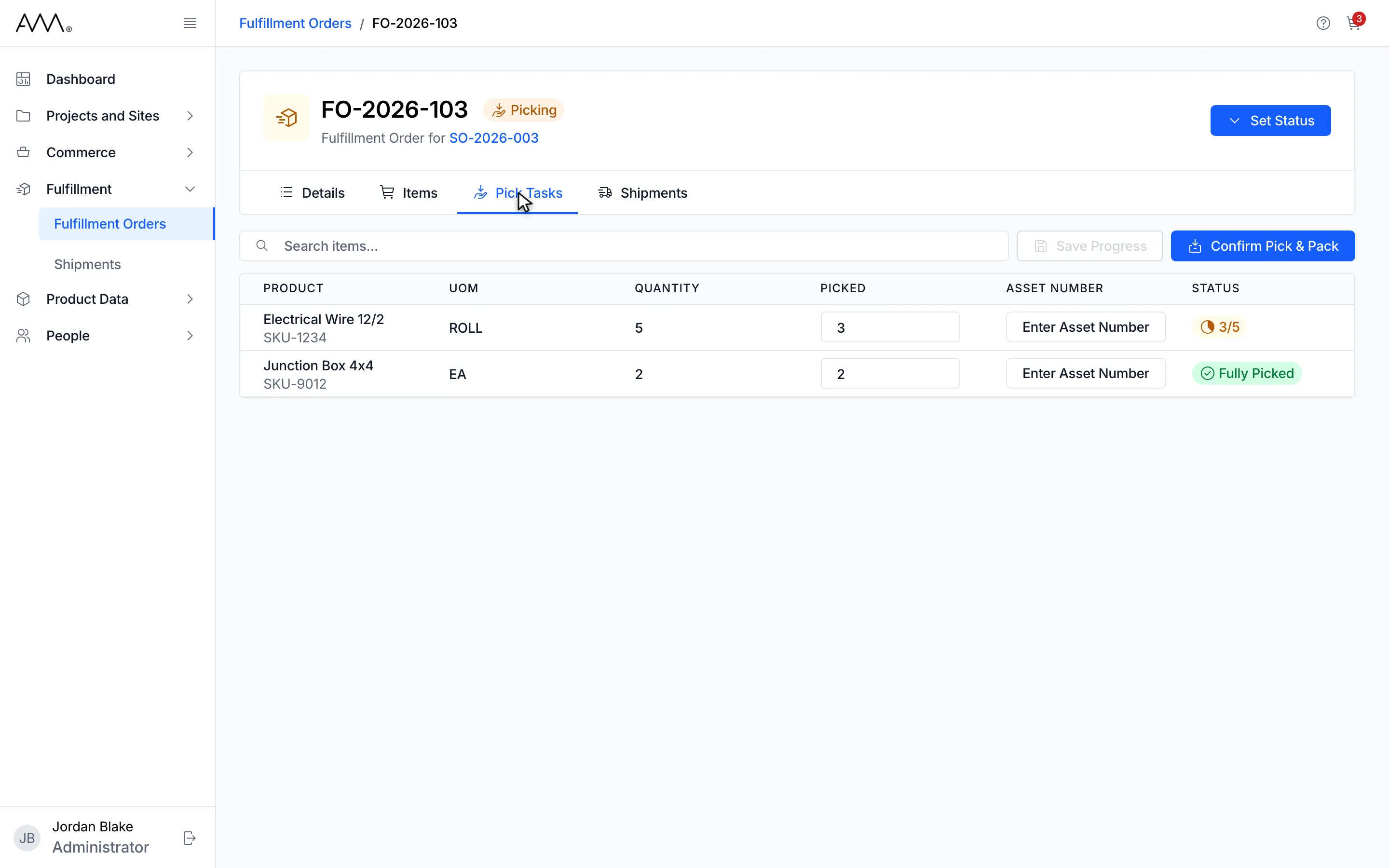
5Check the Picked column. Any line short of its quantity goes to a backorder.
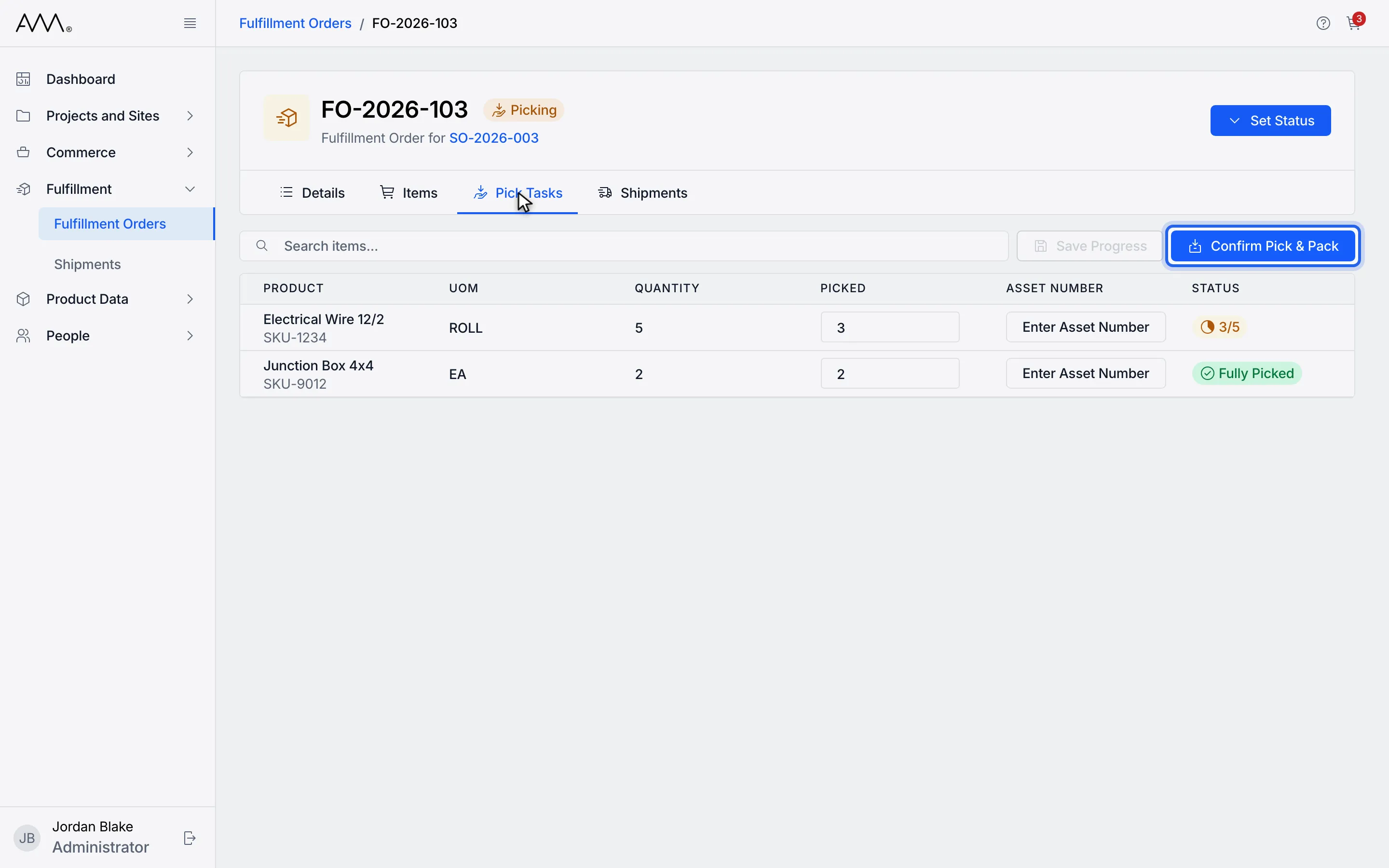
6Click Confirm Pick & Pack.
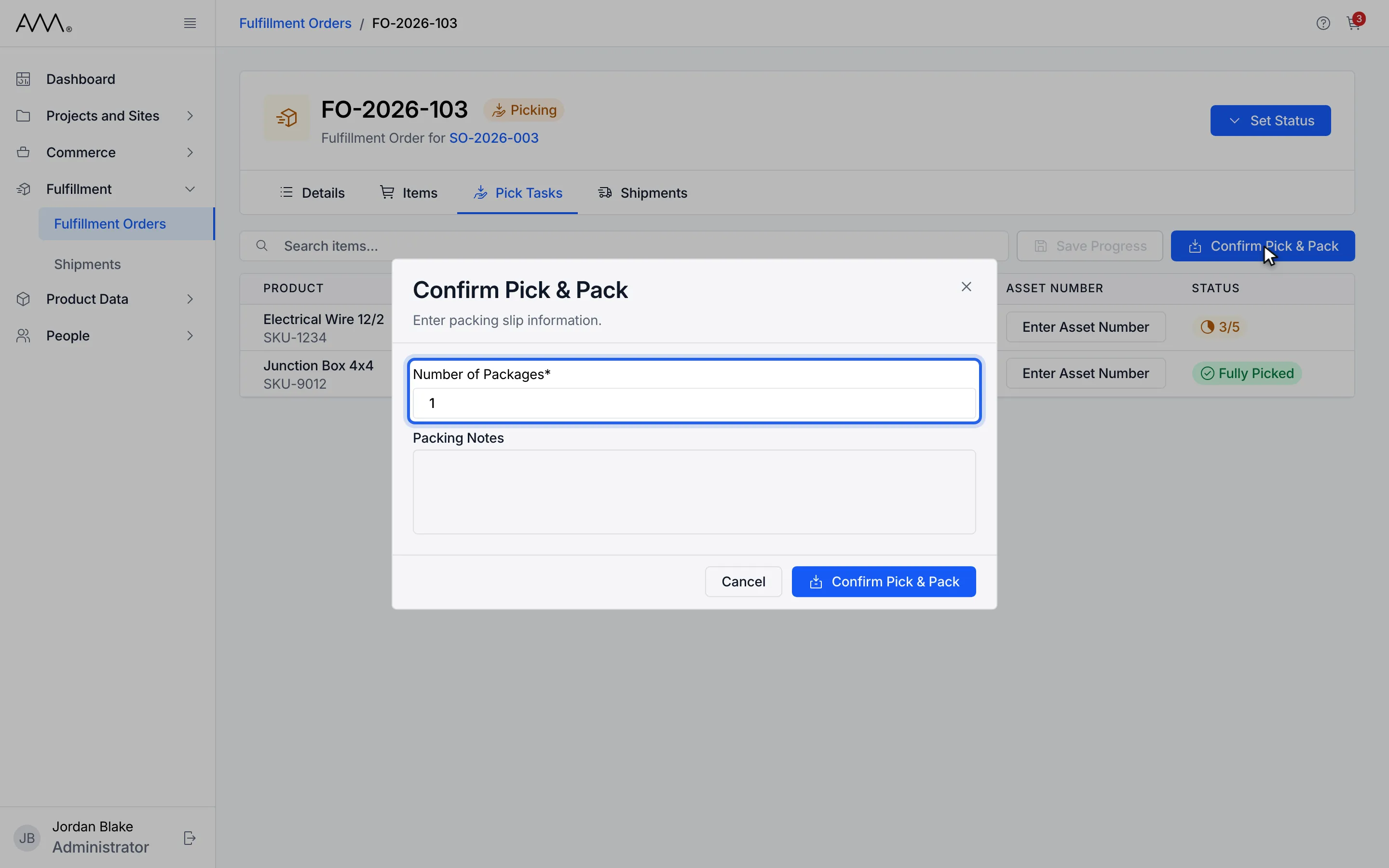
7Enter the Number of Packages.
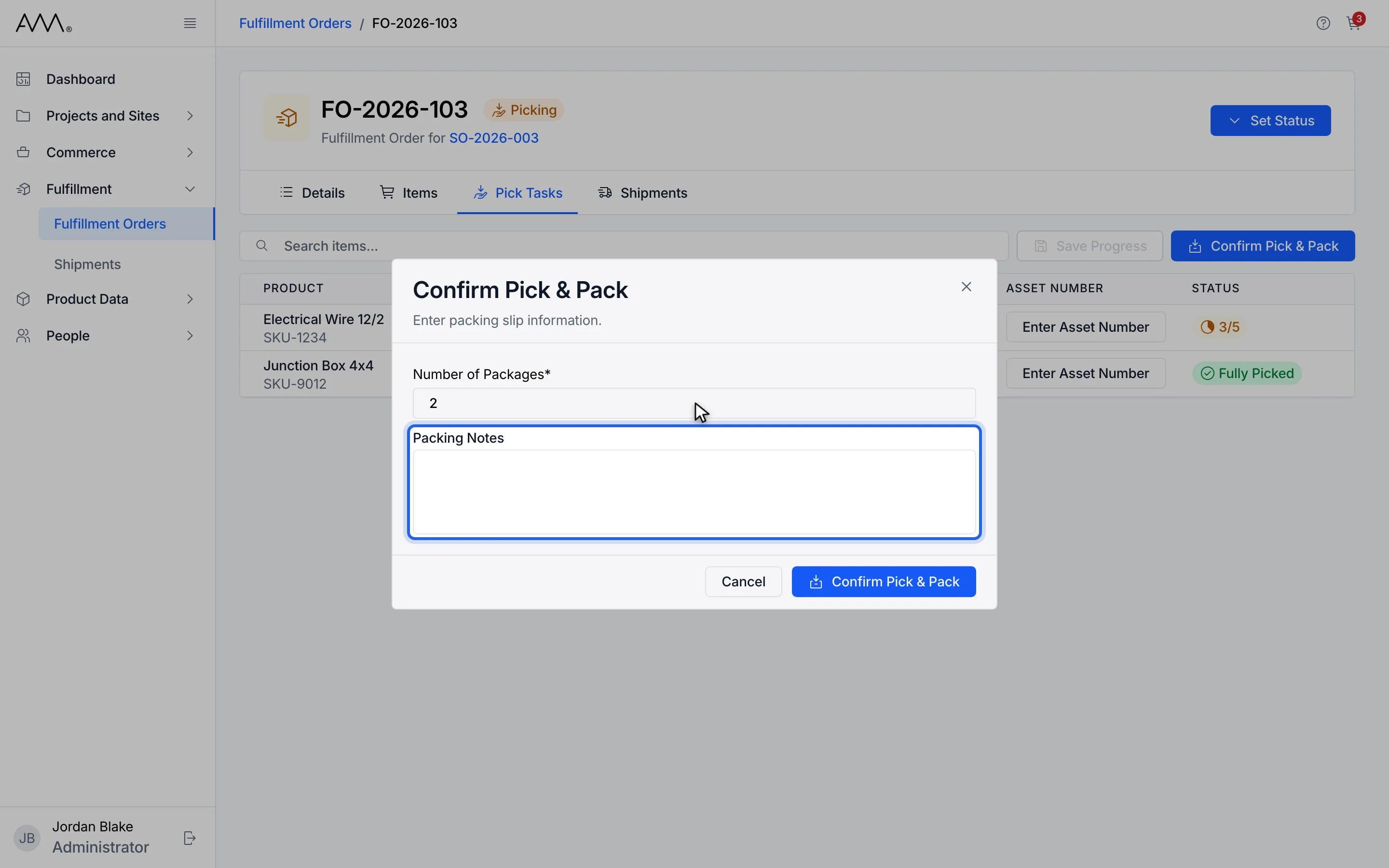
8Add Packing Notes if needed.
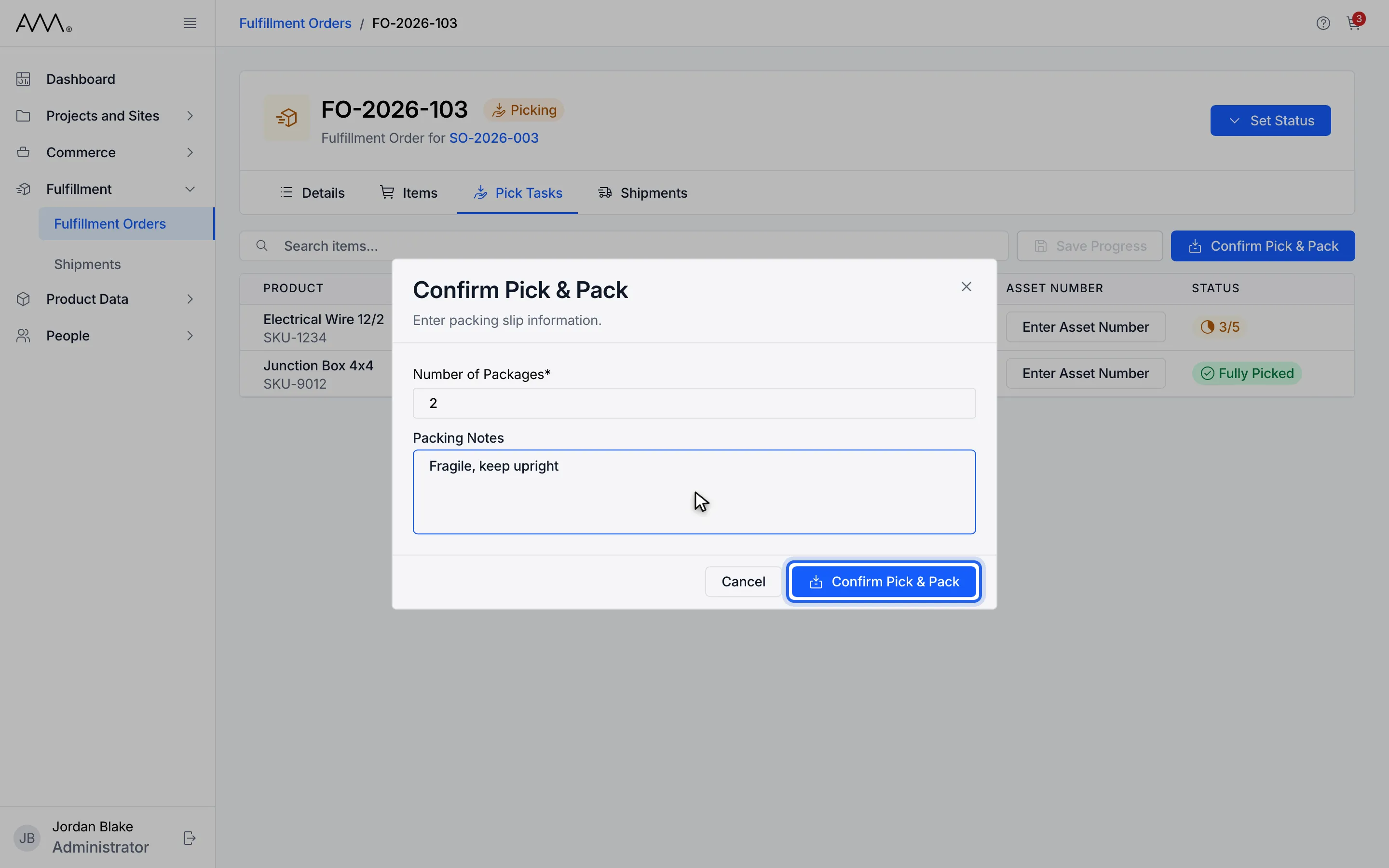
9Click Confirm Pick & Pack. The packing slip PDF downloads as the order packs.
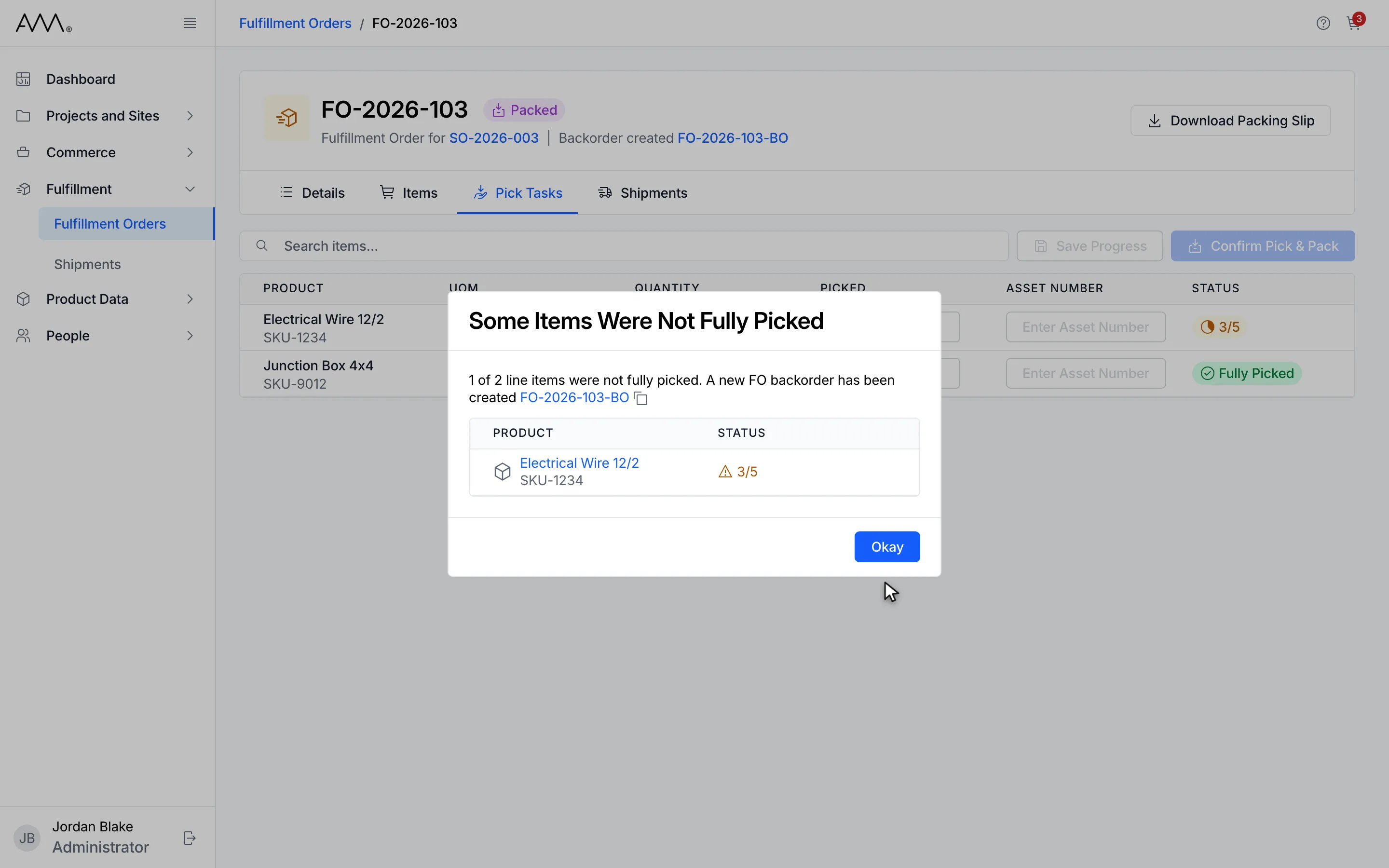
10Some Items Were Not Fully Picked names the new backorder and lists the short lines.
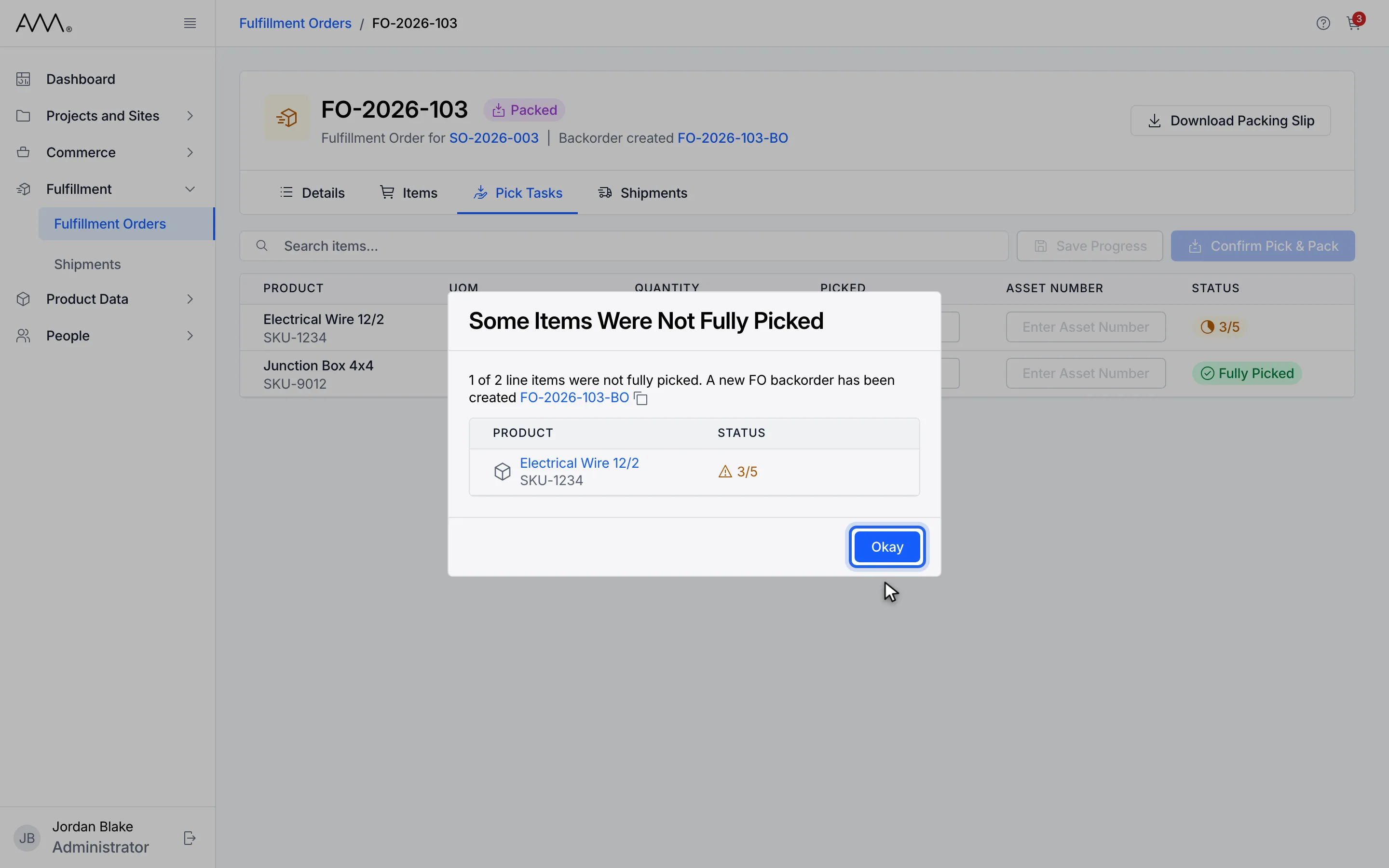
11Click Okay.
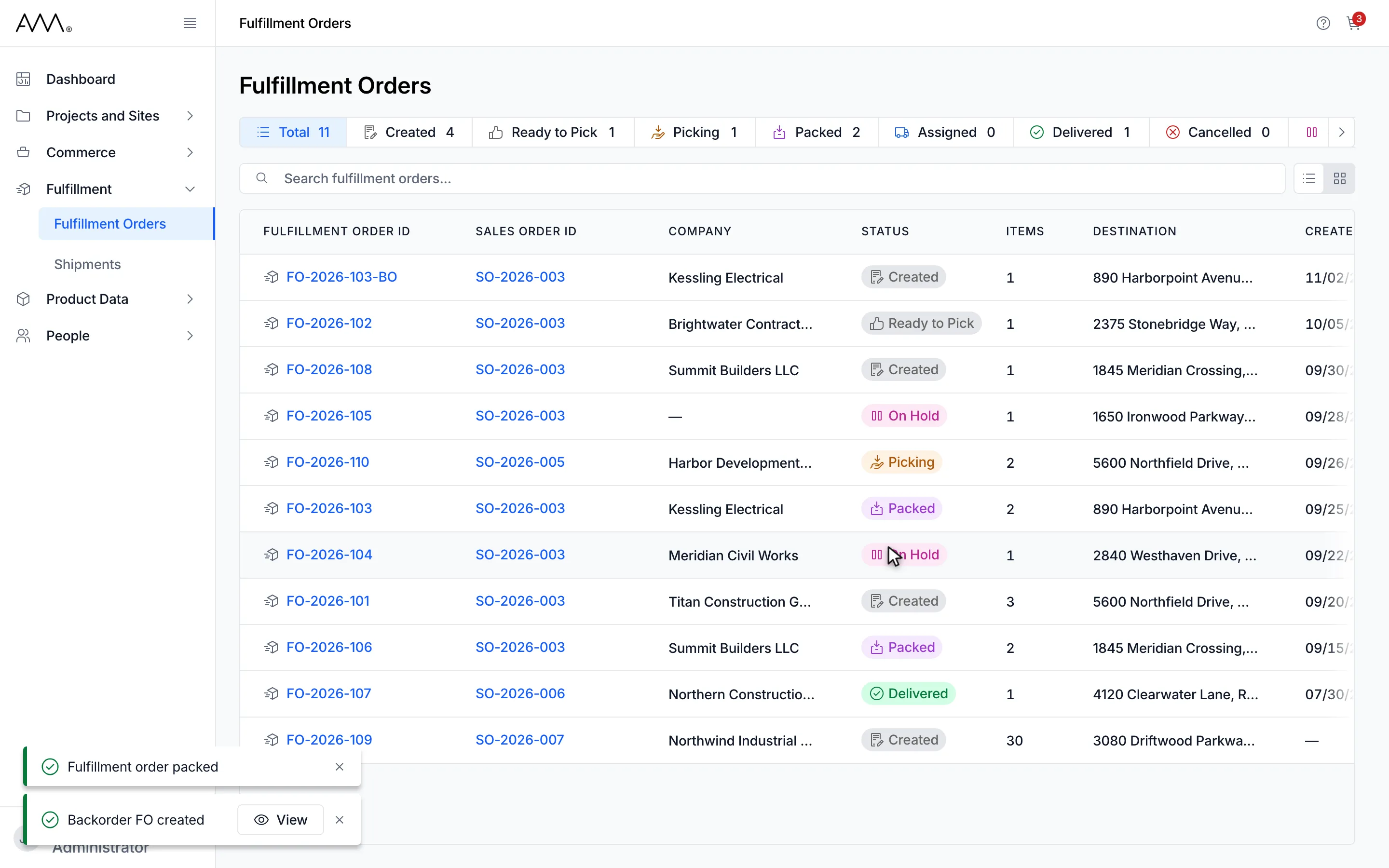
12Back on the list, toasts confirm the pack and the new backorder, which starts in Created.
13The order is Packed and a backorder holds the short quantities.
Watch this as a video (confirm pick and pack)
What happens next
Section titled “What happens next”The packing slip is saved by your browser as a PDF named after its packing slip number. If that download fails, a warning toast says Packing slip could not be downloaded. Use Download Packing Slip on the fulfillment order to try again. The order is packed all the same; see Download the packing slip.
When every line was fully picked, you return to the Fulfillment Orders list and a toast confirms Fulfillment order packed.
When any line was short, the Some Items Were Not Fully Picked dialog tells you how many of the line items were not fully picked and that A new FO backorder has been created, with the backorder’s number, a copy icon and the list of short lines. After Okay you return to the list with two toasts: Fulfillment order packed and Backorder FO created with a View button. The backorder starts in Created with the remaining quantities, and the two orders link to each other in their headers as Backorder created and Backorder of. If the backorder is not ready when you click View, a warning says The backorder is not ready yet. Try again in a moment.
If packing fails, the dialog shows Could not pack the order. Please try again. or the reason given.
A packed order shows Download Packing Slip in its header instead of Set Status. It keeps its Pick Tasks tab, but every control on it is disabled. You can still edit its notes.
When the sales order is Ship Complete
Section titled “When the sales order is Ship Complete”The sales order’s fulfillment rule is set when the order is created (see Sales Orders). If it is Ship Complete, a short pack is refused before anything is sent: the Cannot Ship Partial dialog explains that the sales order is set to Ship Complete, so it can’t be shipped partially, lists the short lines, and asks you to Pick and pack all items in full to confirm this fulfillment order. Click Back to Pick Tasks. Nothing changes and your picks are kept.
1In the sidebar, open Fulfillment.
2Choose Fulfillment Orders.
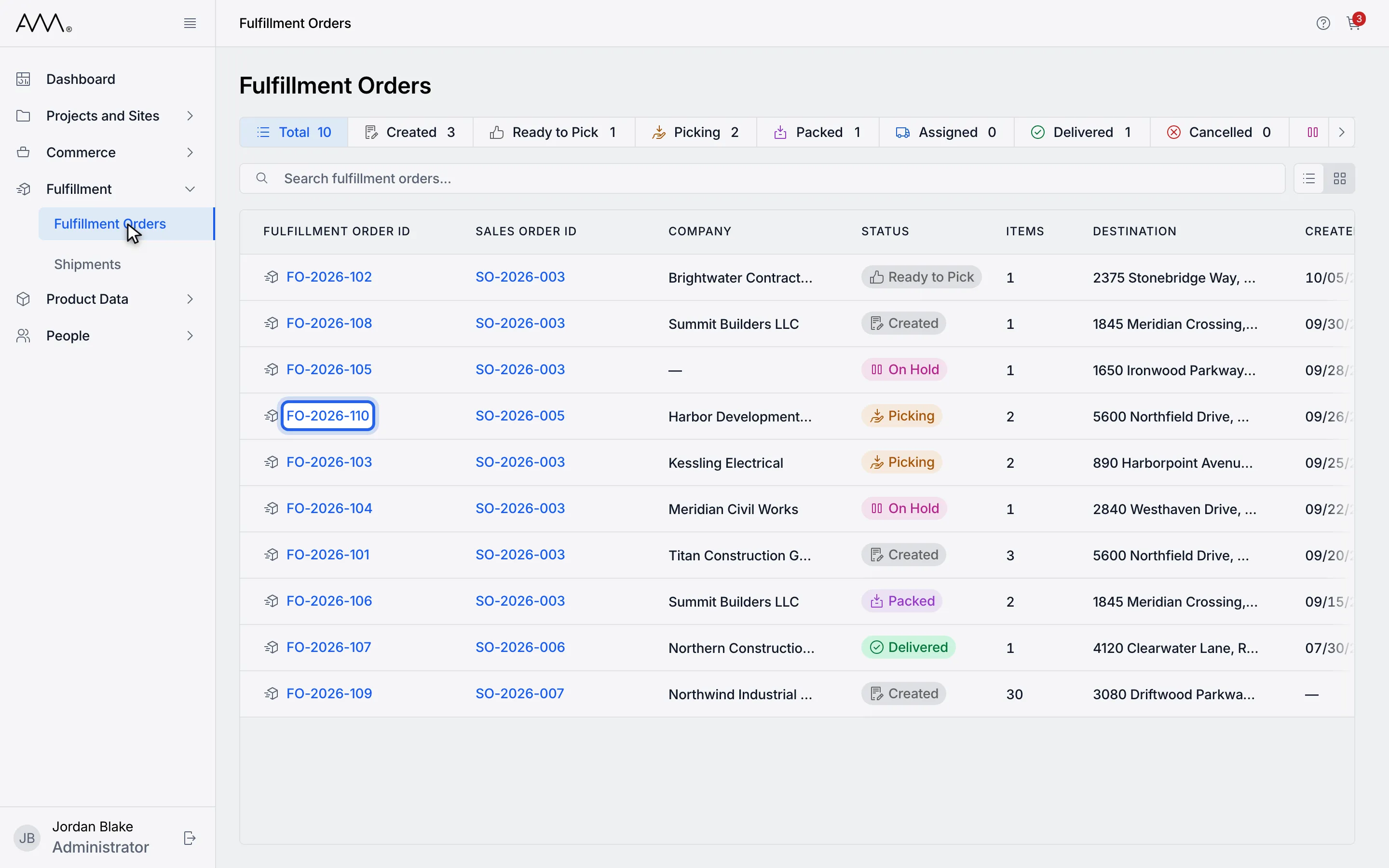
3Open an order whose sales order is set to Ship Complete.
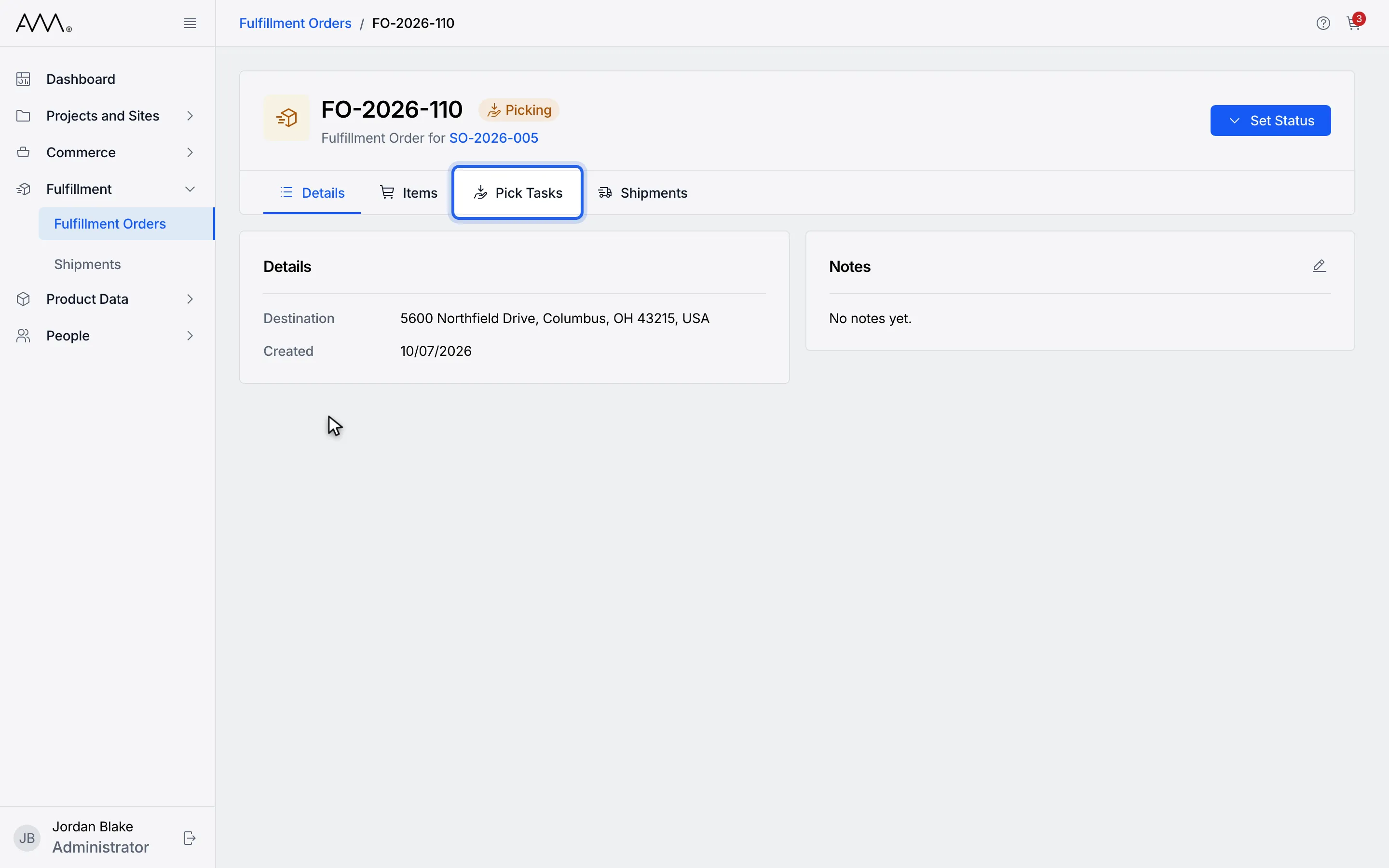
4Open the Pick Tasks tab. One line is short.
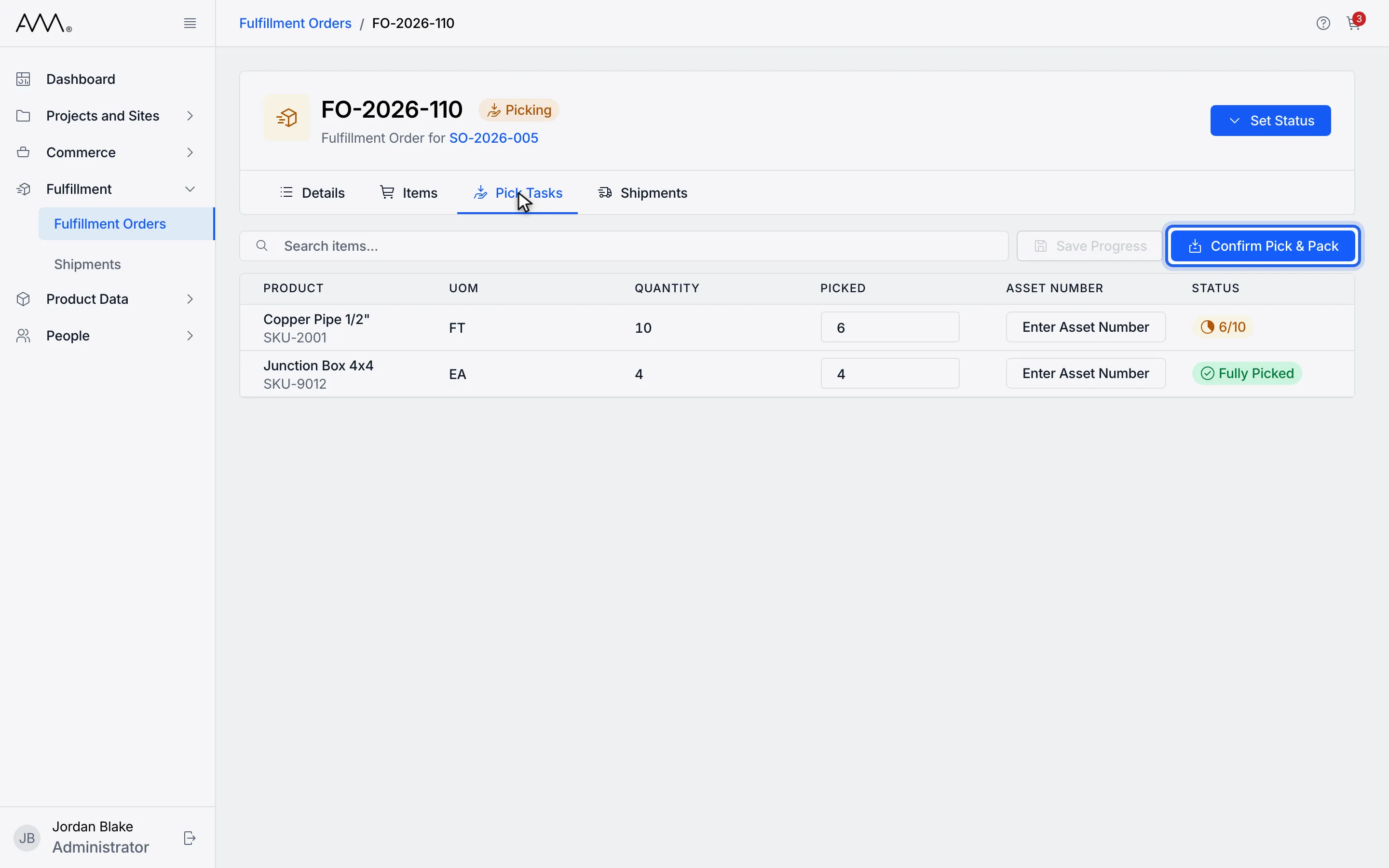
5Click Confirm Pick & Pack.
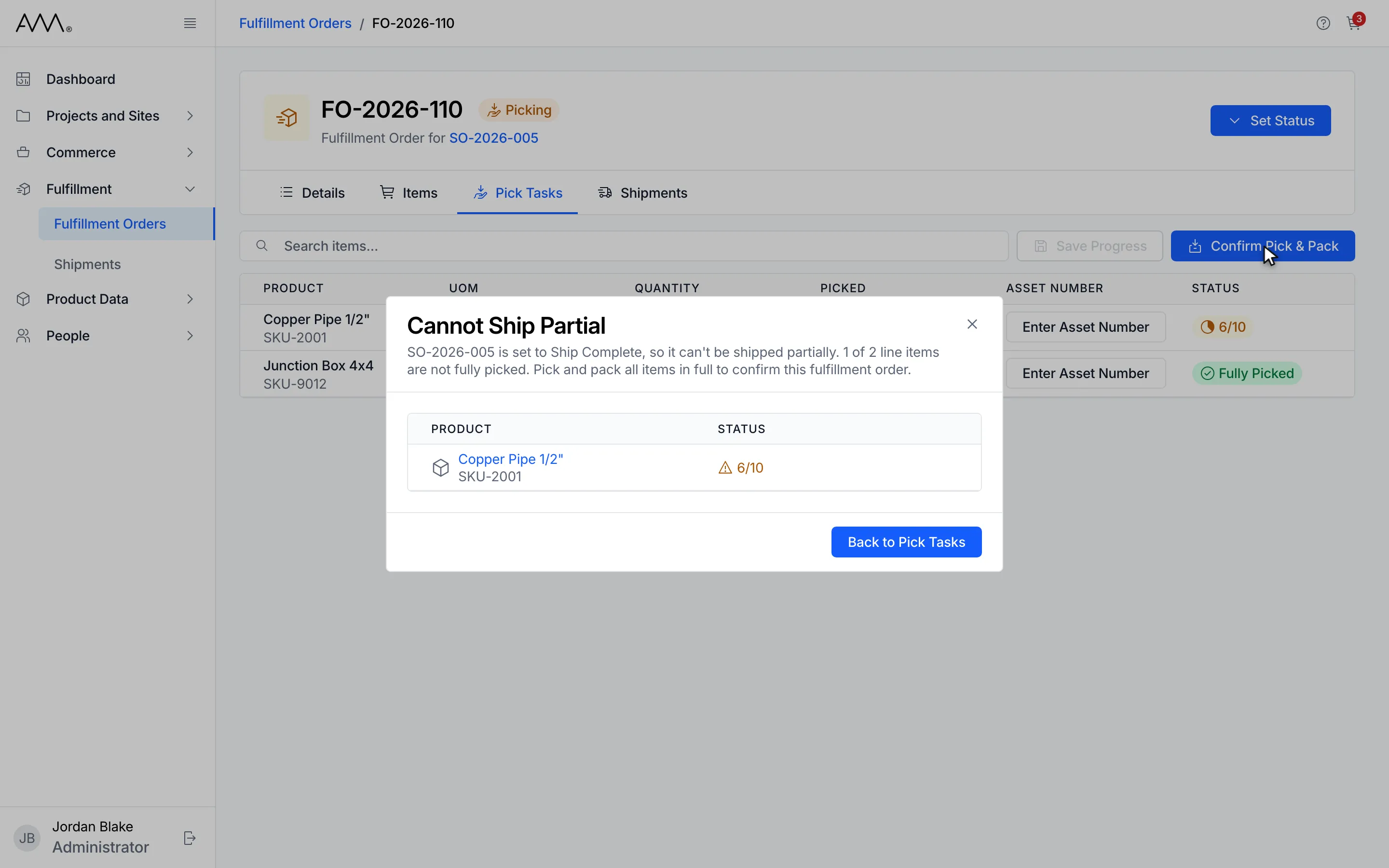
6Cannot Ship Partial lists the short lines. Nothing is packed and your picks are kept.
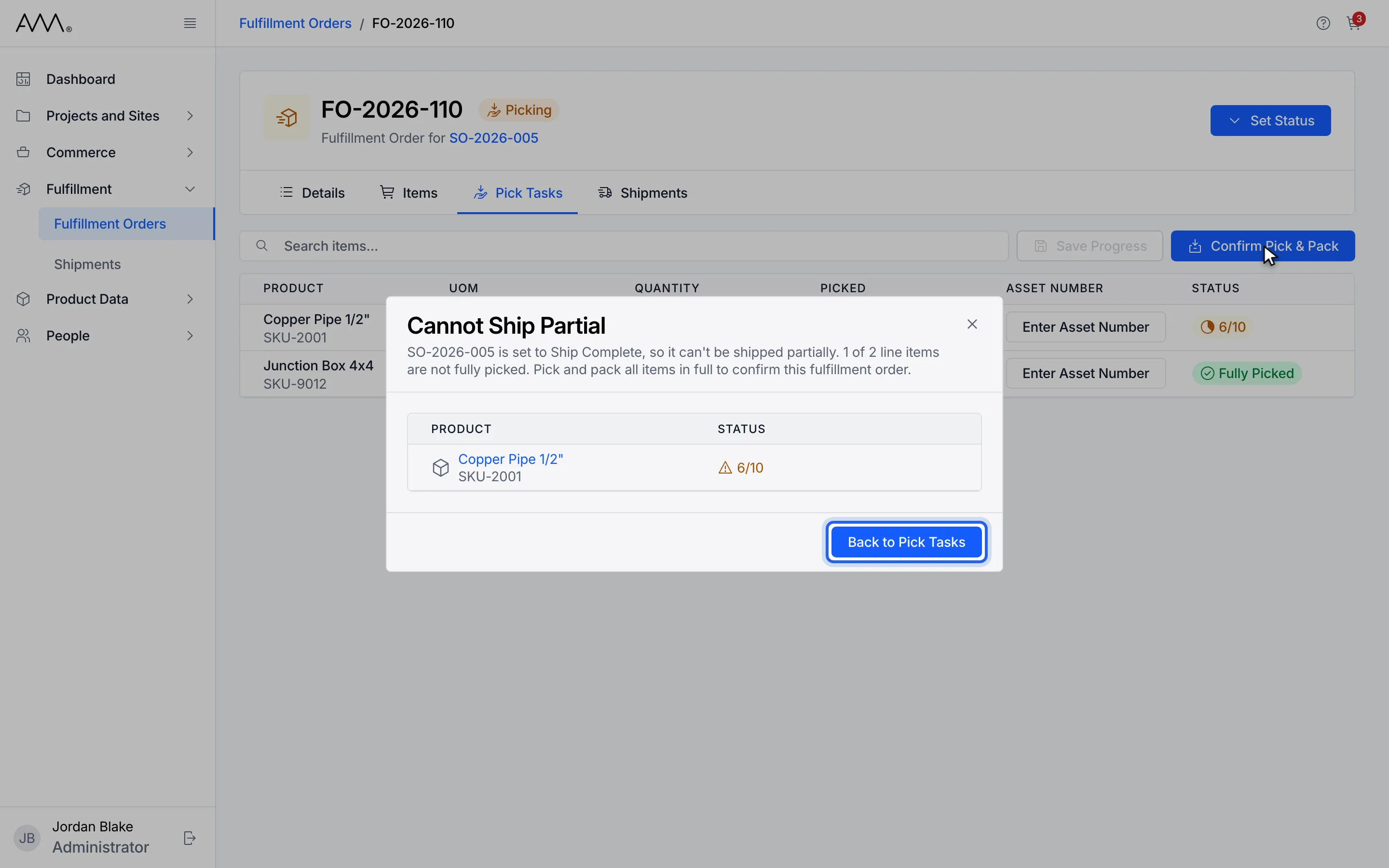
7Click Back to Pick Tasks and finish picking the short lines.
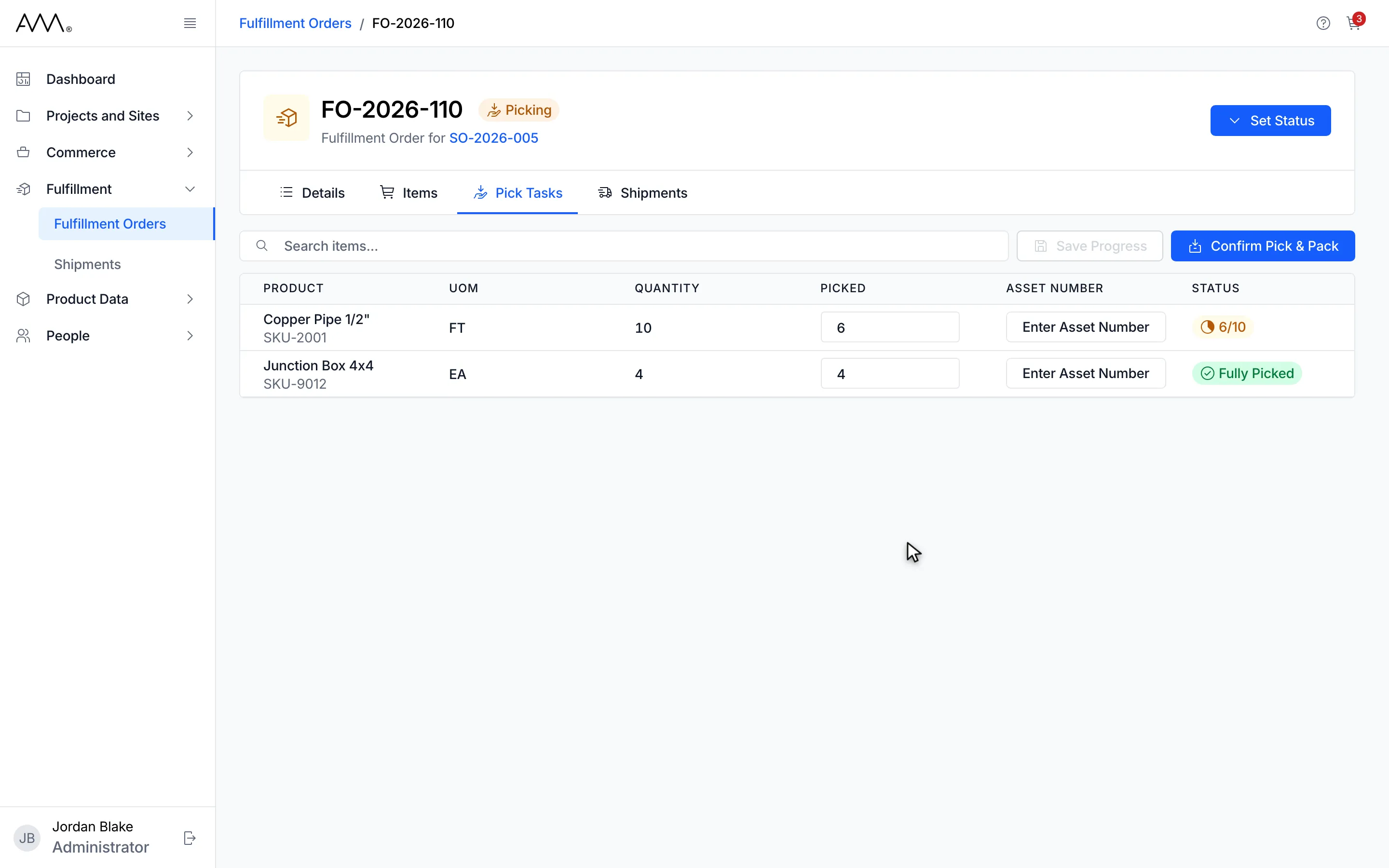
8The order stays in Picking with its picks intact.