Duplicate or renew a quote
Rejected and Expired quotes cannot be edited or sent again. Instead, make a copy: Duplicate and revise on a Rejected quote and Renew Quote on an Expired quote both create a new Draft with the same details and line items, which you then edit and send as usual. The original quote is unchanged.
- In the Quotes list, click the Rejected status button to show rejected quotes.
- Open the rejected quote.
- Click Duplicate and revise. There is no confirmation; the new Draft copy opens straight away.
- To renew an expired quote instead, go back to the Quotes list and click the Expired status button.
- Open the expired quote. The header reads Quote Expired - This quote expired on (date). You can duplicate this quote to create a new one with updated pricing.
- Click Renew Quote. The new Draft copy opens.
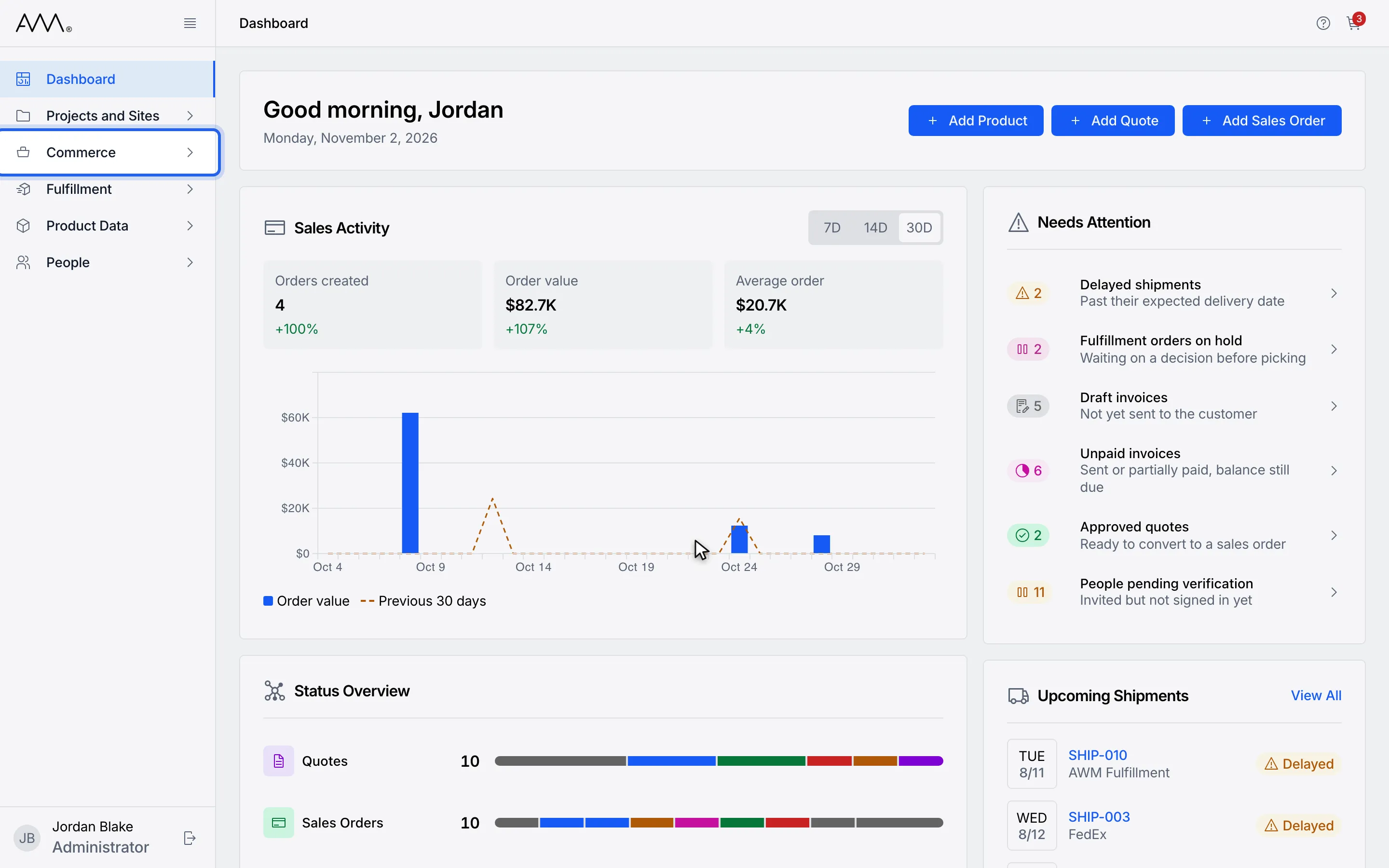
1In the sidebar, open Commerce.
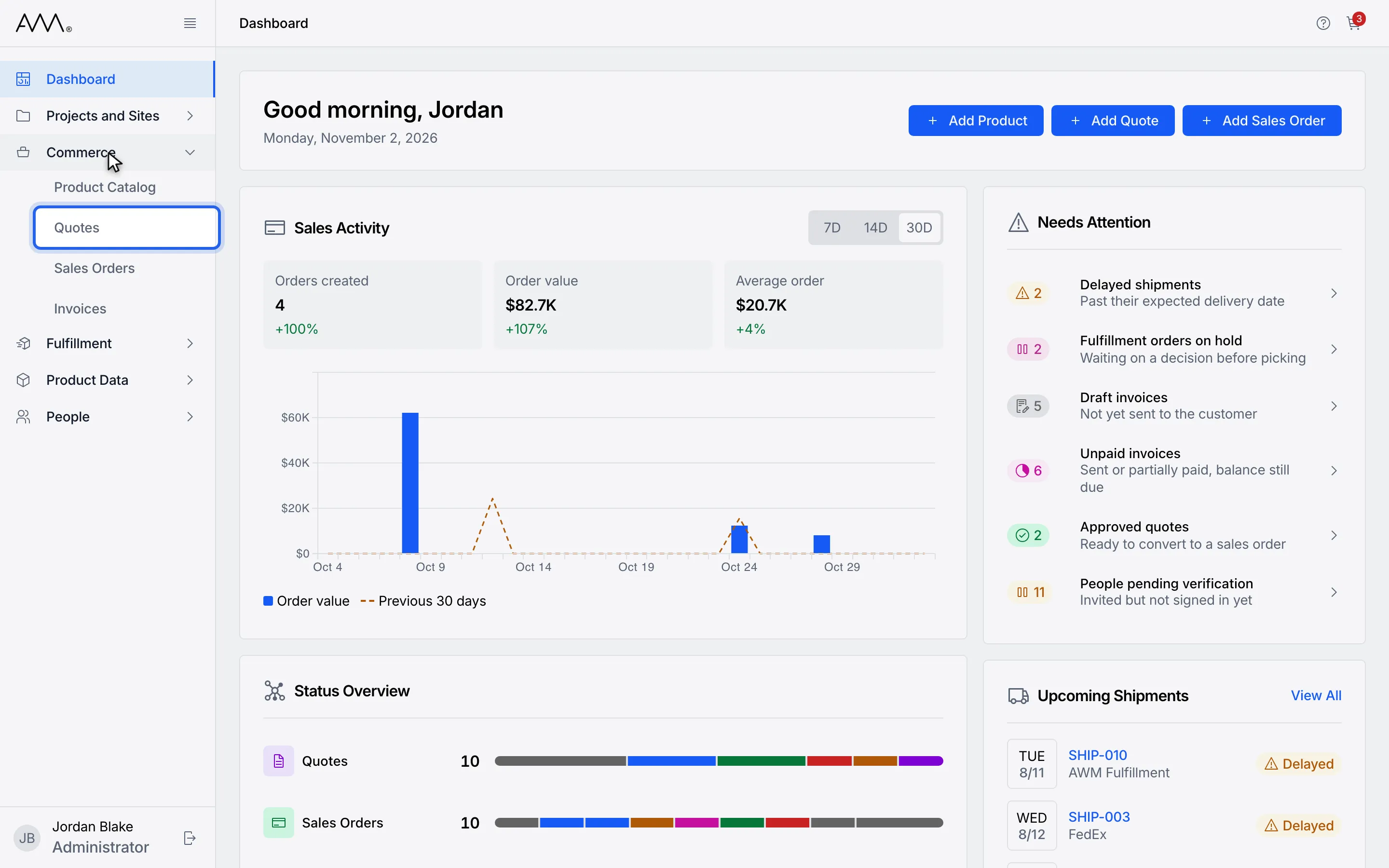
2Choose Quotes.
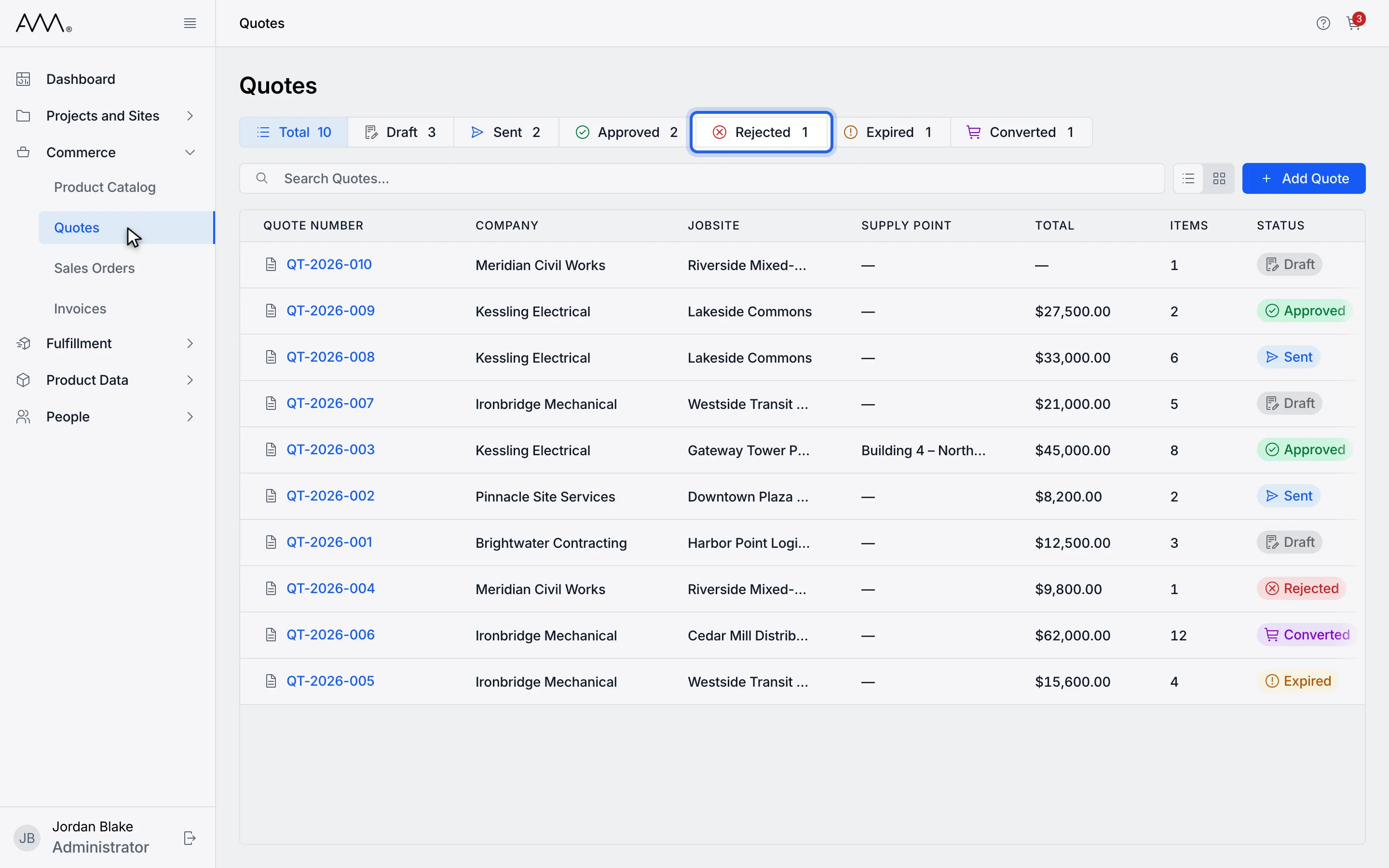
3Click the Rejected status button to show rejected quotes.
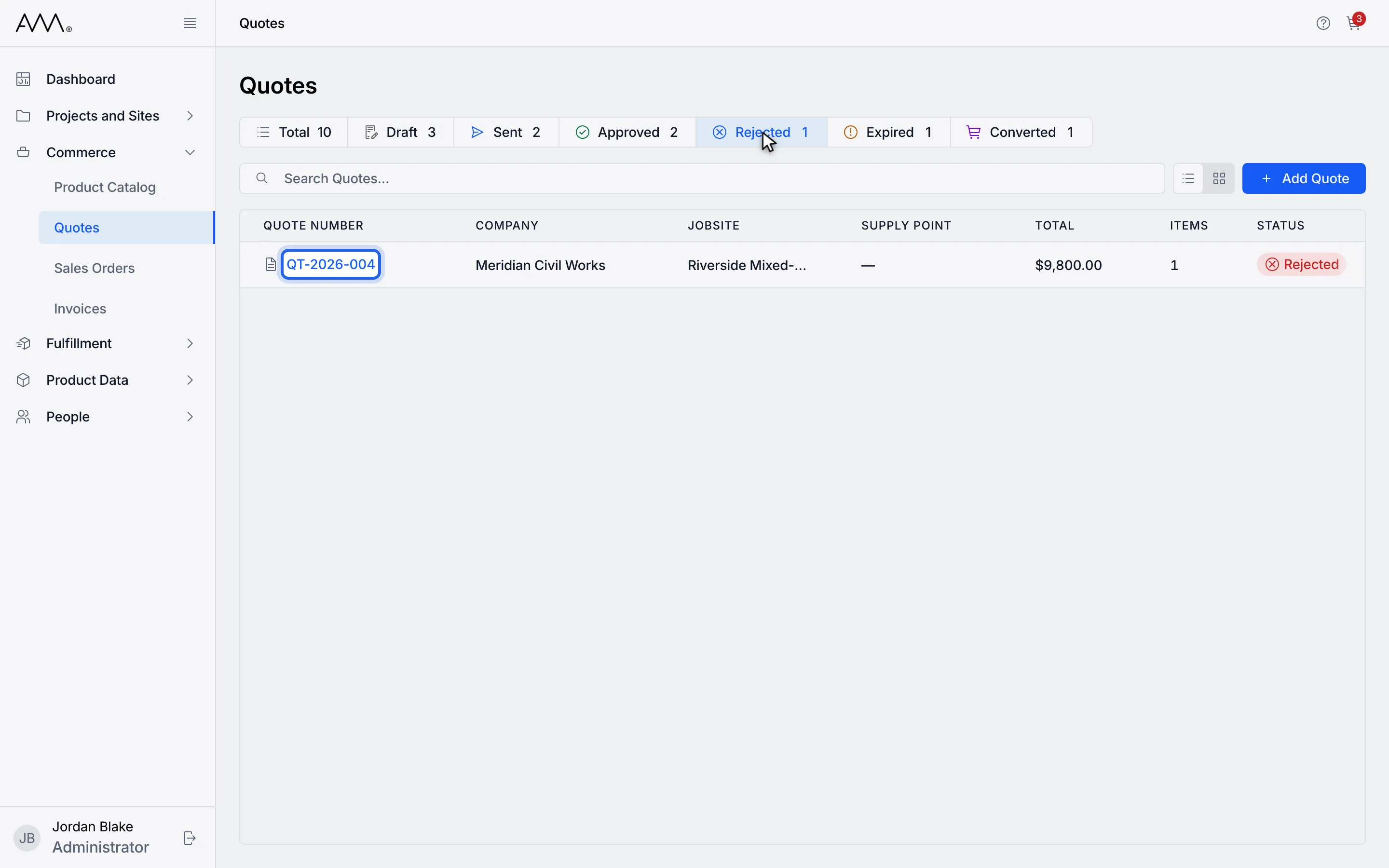
4Open the rejected quote.
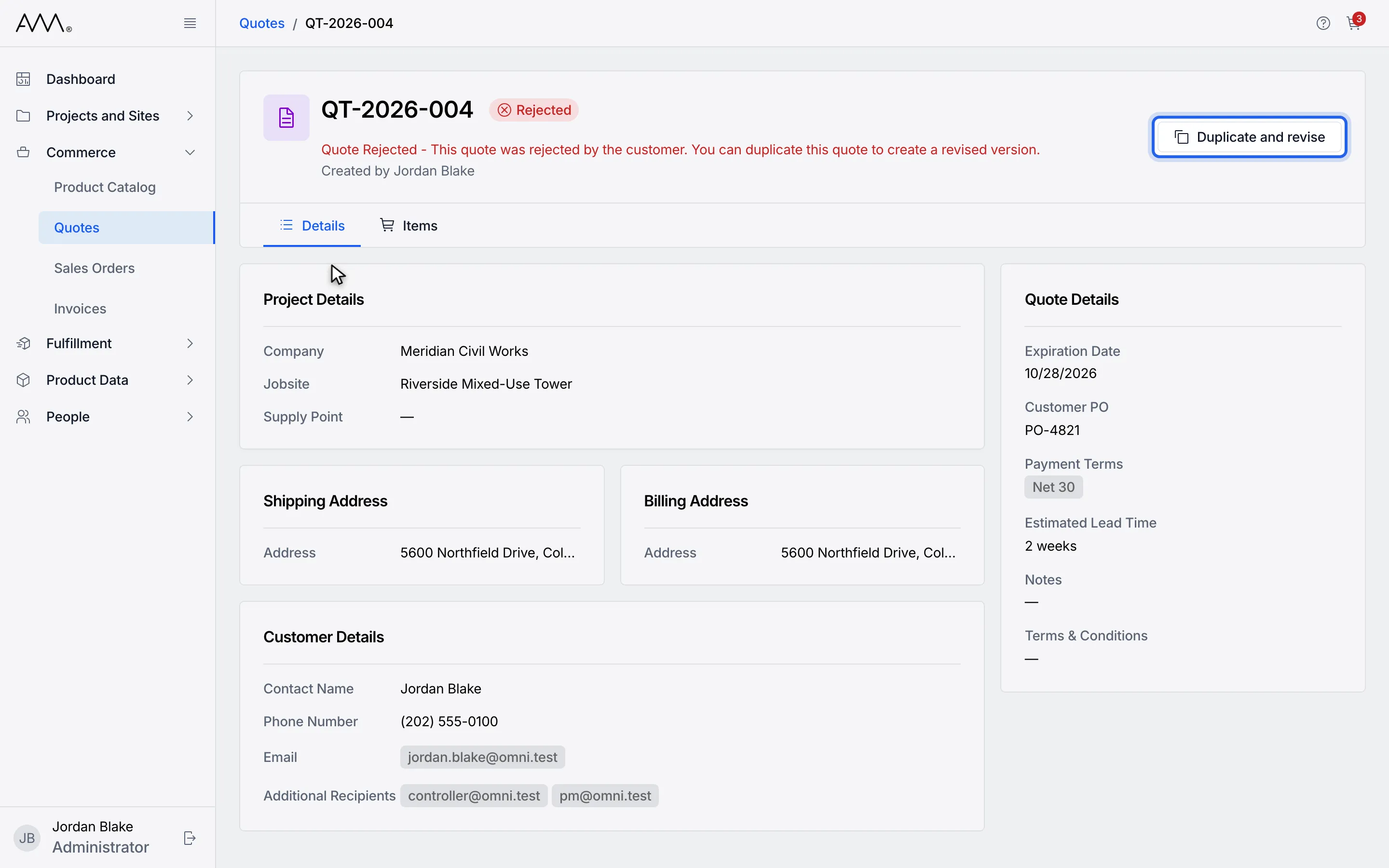
5Click Duplicate and revise.
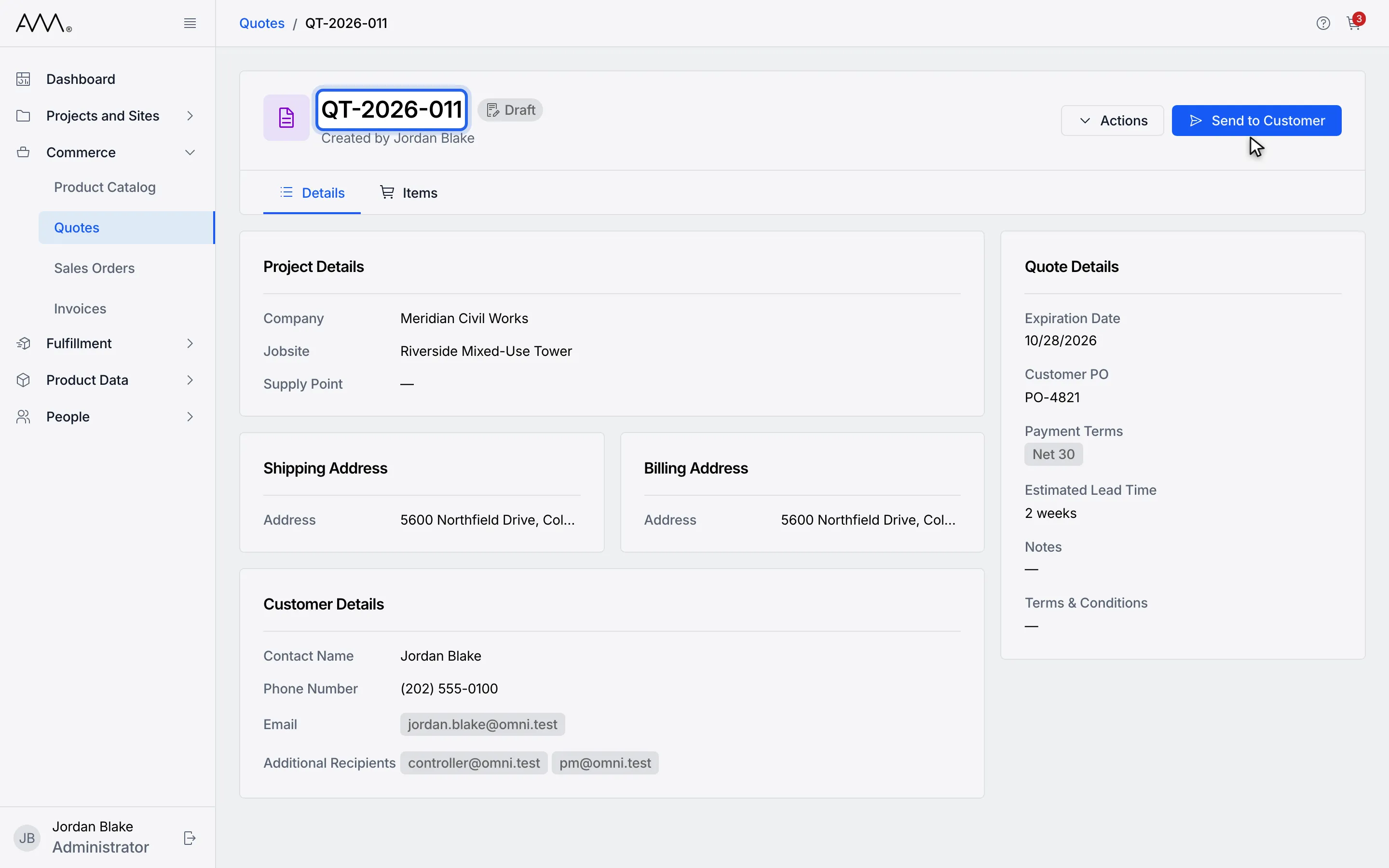
6A new Draft copy opens with the same details and line items.
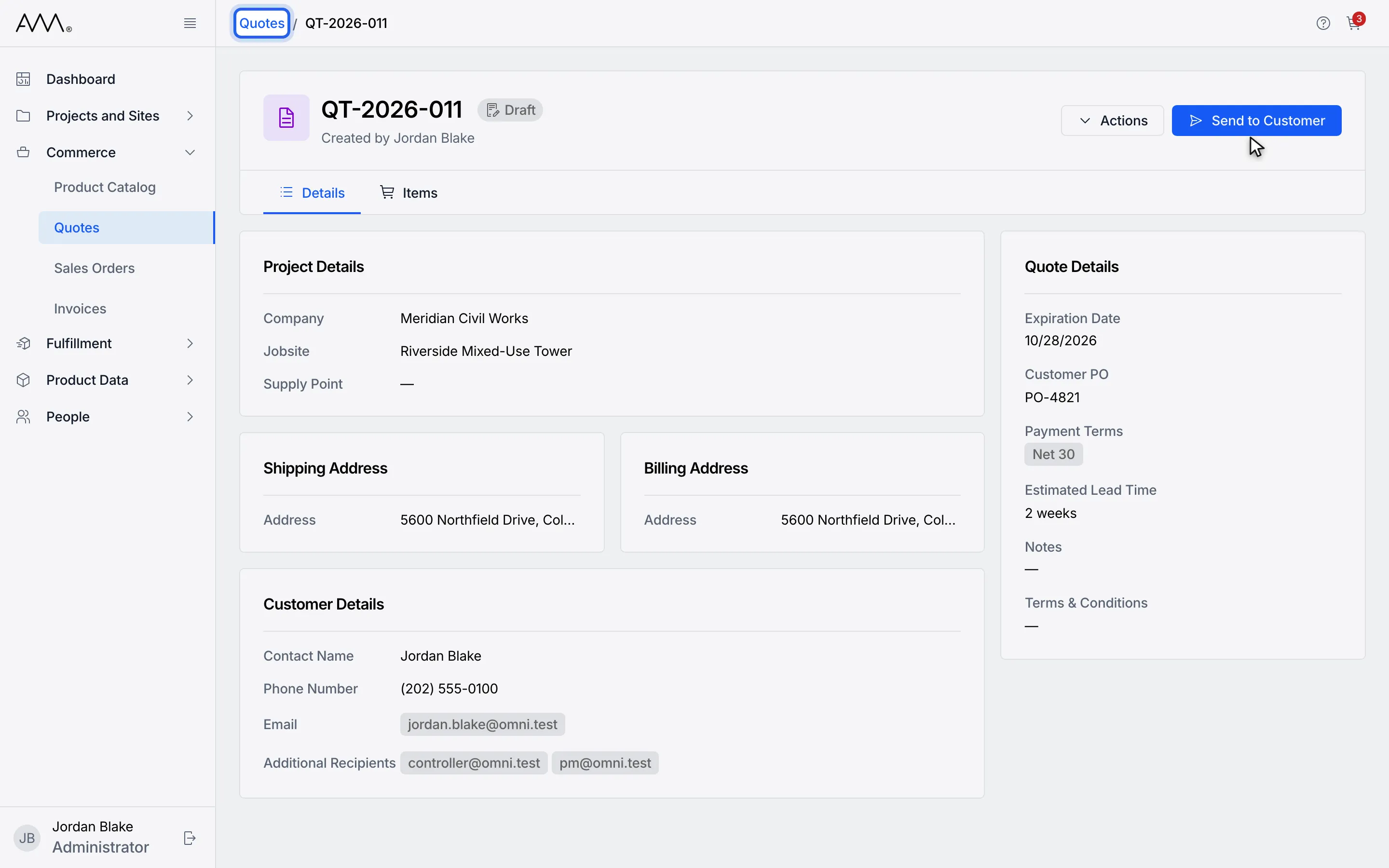
7To renew an expired quote instead, go back to the Quotes list.
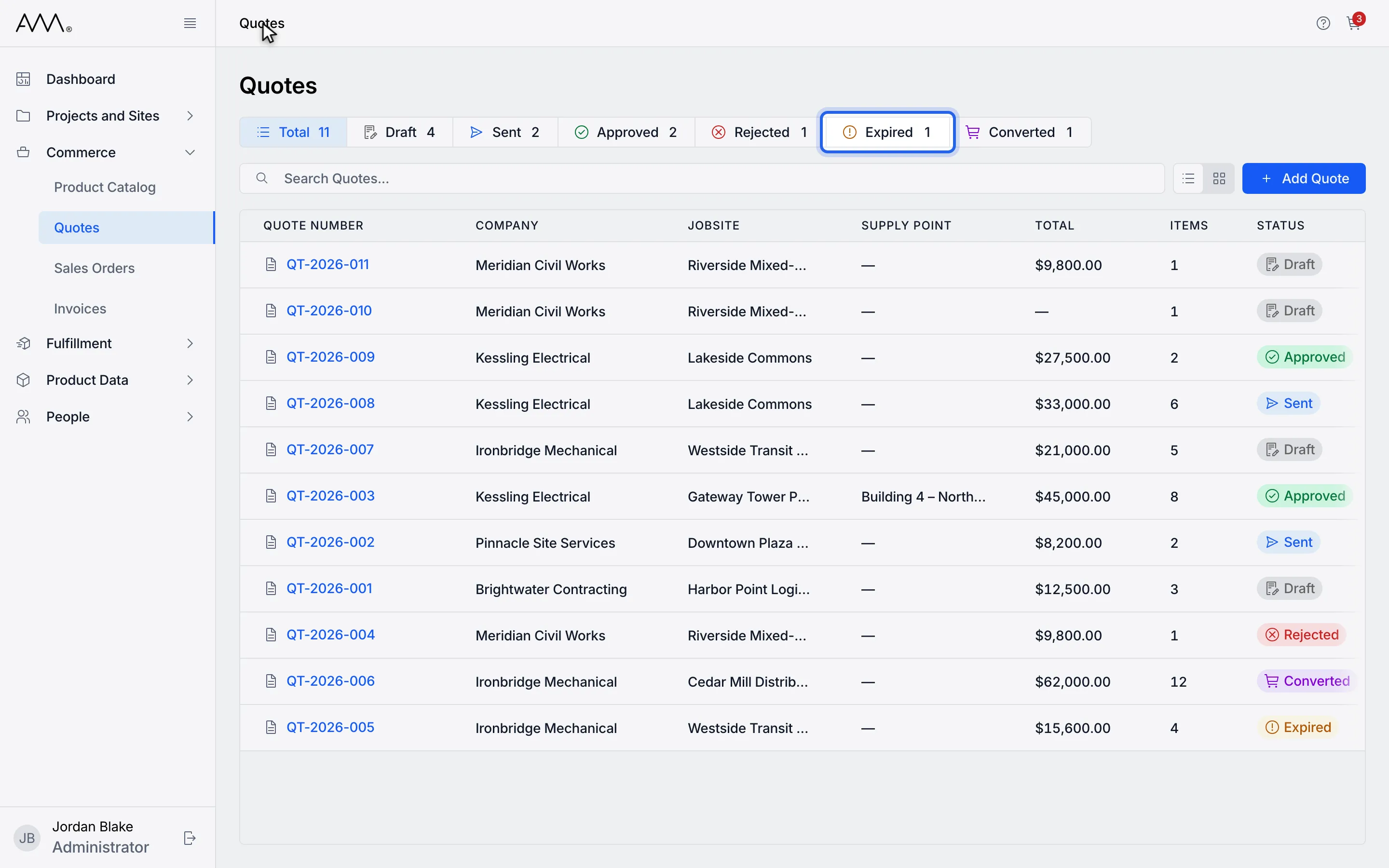
8Click the Expired status button to show expired quotes.
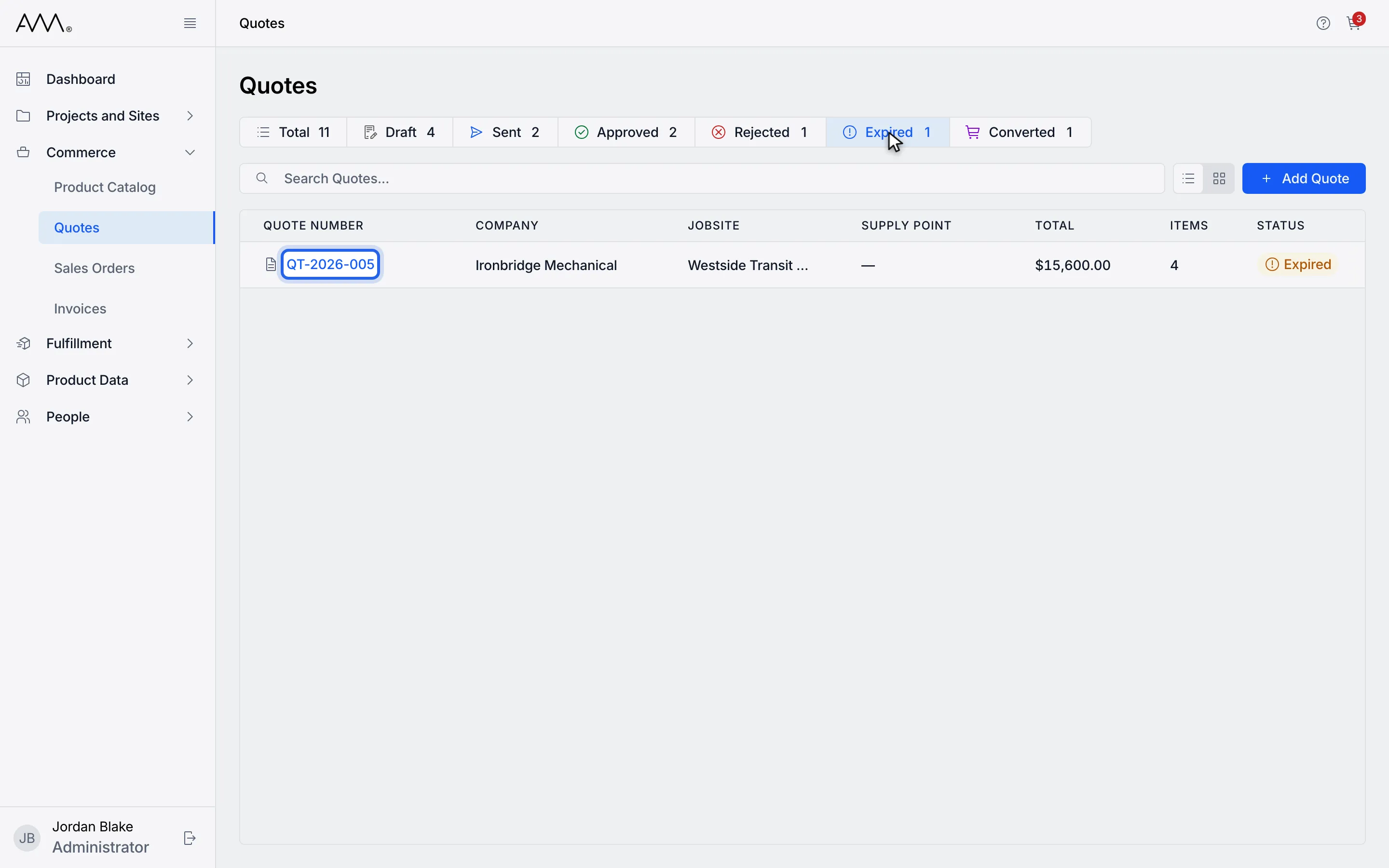
9Open the expired quote.
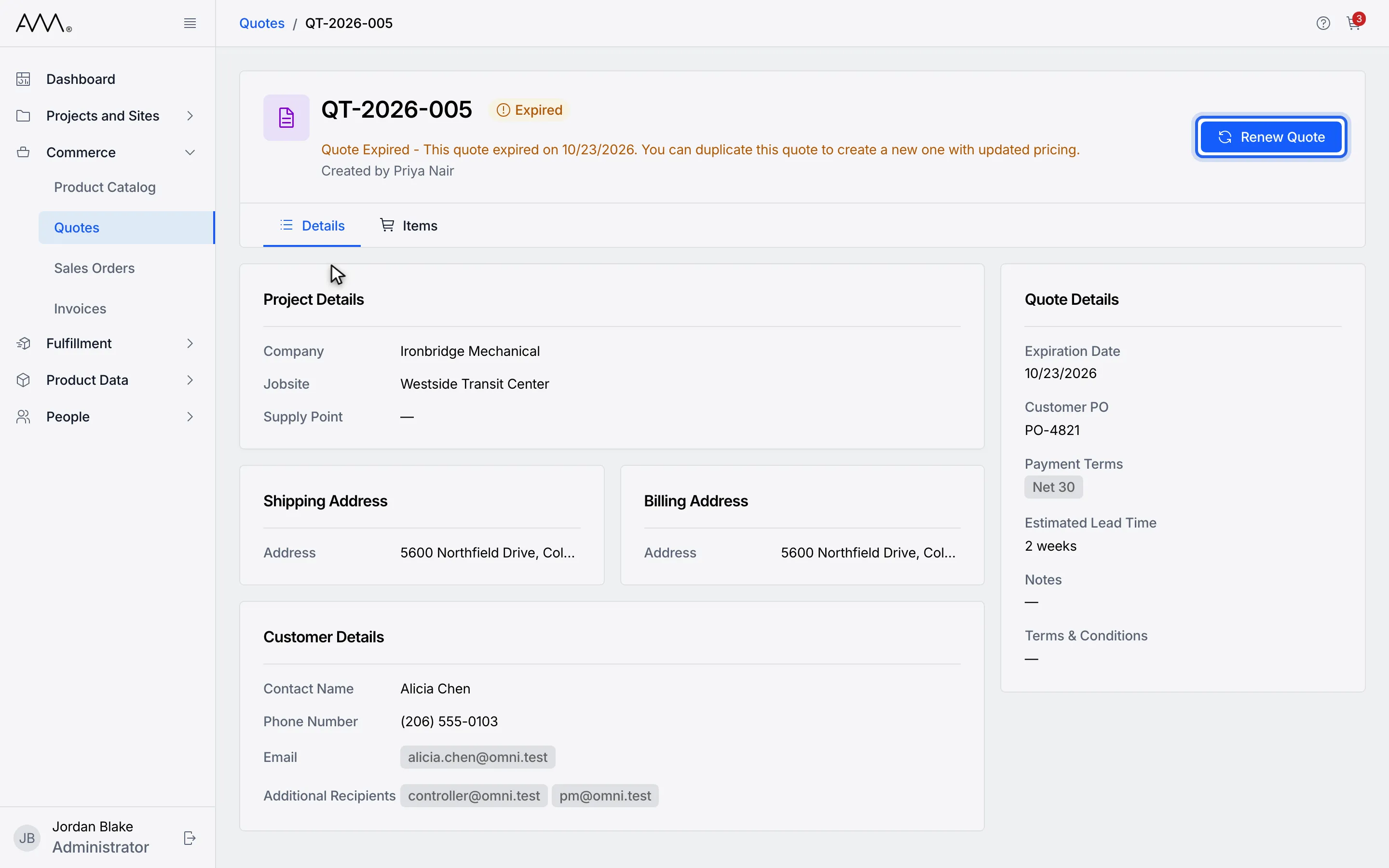
10Click Renew Quote.
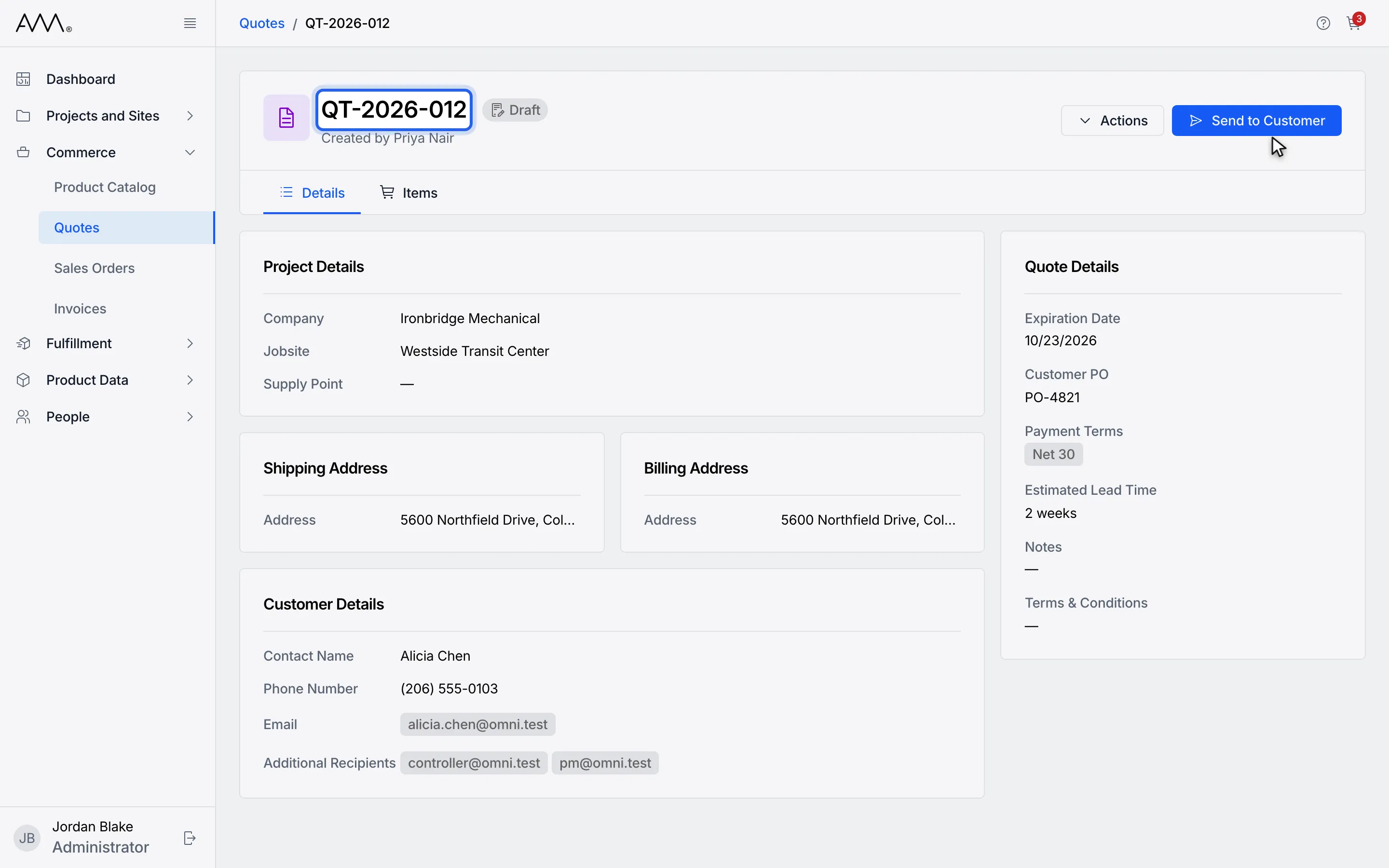
11A new Draft opens with the same details and line items.
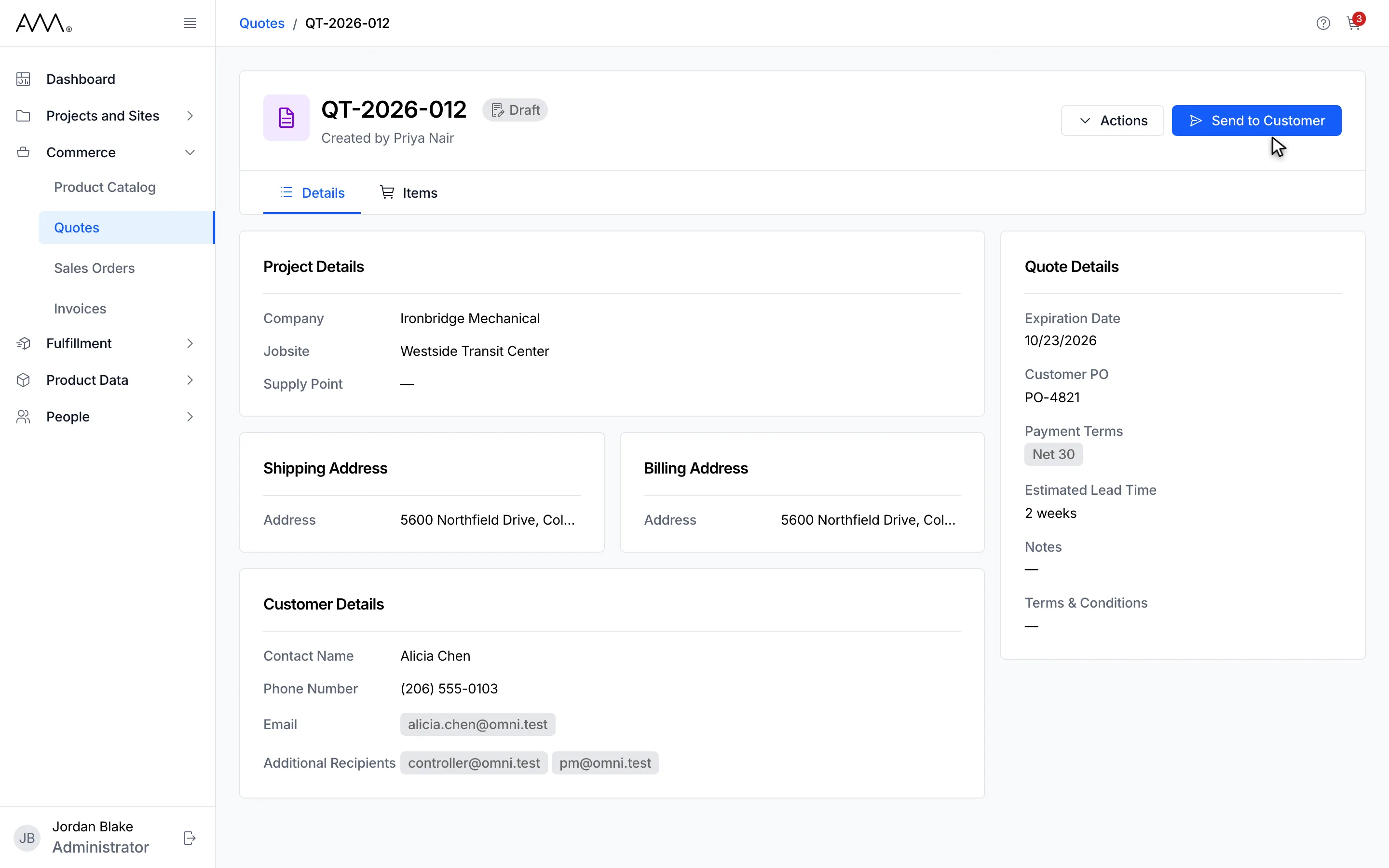
12The renewed quote is a new Draft. Update its expiration date and prices before sending.
Watch this as a video (duplicate or renew a quote)
What happens next
Section titled “What happens next”The copy gets a new quote number and the status Draft. It keeps the original’s expiration date and prices, so open it with Actions > Edit, set a new Expiration Date, check the unit prices, make your changes and send it. See Edit a quote and Send a quote to the customer.
If the copy cannot be created, the message appears under the header buttons: Could not duplicate the quote. Please try again. or Could not renew the quote. Please try again.