Sales Orders
A Sales Order is the customer’s commitment to buy: the products, quantities and prices, who the order is for, where it ships and how it is billed. It is the record that drives fulfillment. You create a sales order from the cart, or Omni creates one when a quote is converted (see Quotes). Once the order is confirmed, fulfillment ships it through one or more Fulfillment Orders, and each delivered Fulfillment Order produces an Invoice.
You need the Sales Orders: Read permission to see Sales Orders in the sidebar.
The Sales Orders list
Section titled “The Sales Orders list”In the sidebar, open Commerce and choose Sales Orders. The newest orders are listed first.
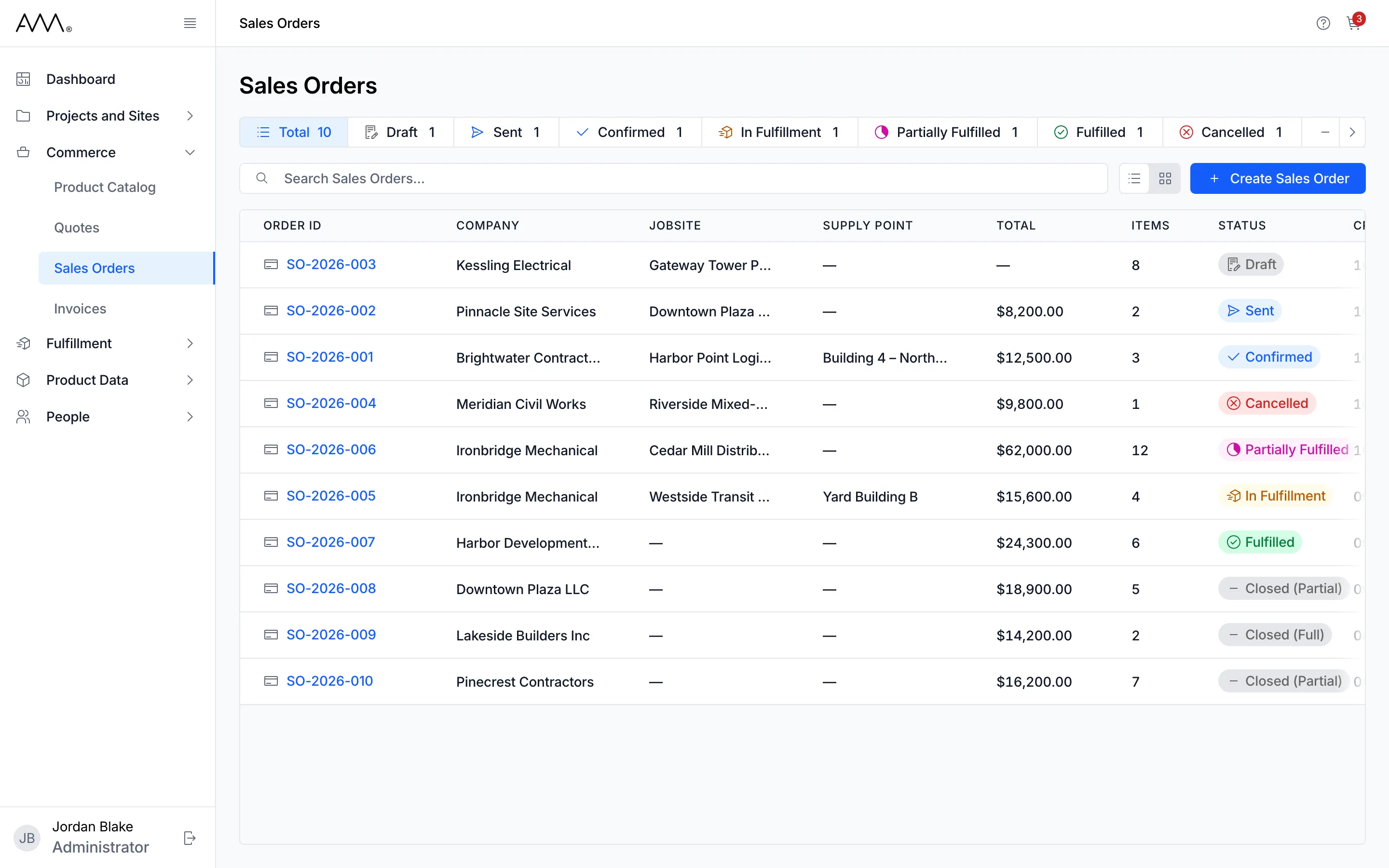
- Status chips show a count for each status: Total, Draft, Sent, Confirmed, In Fulfillment, Partially Fulfilled, Fulfilled, Cancelled, Closed (Full) and Closed (Partial). Click a chip to show only that status, more chips to combine them, and Total to clear the filter.
- Search Sales Orders… filters the list by order number or company name.
- Click a column header to sort by that column; click it again to reverse the order.
- The view toggle switches between List view and Card view.
- Create Sales Order opens the Product Catalog to start a new order. You need Sales Orders: Create and Product Catalog: Read to see it.
Each row shows Order ID, Company, Jobsite, Supply Point, Total, Items (the number of distinct products), Status and Created. Click the Order ID to open the order.
The sales order page
Section titled “The sales order page”The header shows the order number, its status badge, Requested by and the person’s name, the action buttons for the current status, and an Actions menu with Edit, Add More Products and, on a Sent order, Resend. Below the header are two tabs.
Details shows:
- Project Details: Company, Jobsite and Supply Point.
- Shipping Address and Billing Address.
- Customer Details: Contact Name, Phone Number, Email and any Additional Recipients.
- Activity Timeline: every step in the order’s life, from Sales Order Created to its closing, including each Fulfillment Order’s delivery, with the date, time and person.
- Related Records: the source quote under Quotes, one entry per send under Sales Order Sends, and the order’s Fulfillment Orders and Invoices, each with a status badge.
- Sales Order Details: Approved by, Promise Date, Estimated Delivery Date, Payment Terms, Fulfillment Rule, Customer PO, Notes and Terms and Conditions.
Items lists every line with its Quantity, Unit Price and Total, beside the Sales Order Summary of Subtotal, Tax, Shipping and Total.
Statuses
Section titled “Statuses”| Status | Meaning | Buttons in the header | Actions menu |
|---|---|---|---|
| Draft | Saved, not yet sent to the customer | Send to Customer, Confirm Order, Cancel Order | Edit, Add More Products |
| Sent | Emailed to the customer | Confirm Order, Cancel Order | Edit, Add More Products, Resend |
| Confirmed | Accepted; fulfillment can start | Cancel Order | Edit, Add More Products |
| In Fulfillment | At least one Fulfillment Order is in progress | Cancel Order | None |
| Partially Fulfilled | Some Fulfillment Orders have been delivered | Close Order | None |
| Fulfilled | Every Fulfillment Order has been delivered | Close Order | None |
| Cancelled | Read-only. The header reads This sales order is cancelled and is now read-only. | None | None |
| Closed (Full) | Closed after everything was delivered | None | None |
| Closed (Partial) | Closed with the undelivered items cancelled | None | None |
In Fulfillment, Partially Fulfilled and Fulfilled are set by fulfillment. Details can be changed, and products added from the cart, only while an order is Draft, Sent or Confirmed.
How-tos
Section titled “How-tos”- Find and open a sales order
- Create a sales order from the cart
- Add more products to a sales order
- Edit a sales order
- Send and confirm a sales order
- Cancel a sales order
- Close a sales order
- Sales order reference