Put an order on hold and resume picking
Put an order On Hold when picking has to stop, for example while you wait for stock. The order keeps its picks, and the first pick you save afterwards moves it back to Picking.
- Open the order.
- Click Set Status in the header and choose On Hold.
- In the Put On Hold? dialog, say why the order is paused in Notes. The field starts with the order’s current notes, so edit them rather than adding a second copy.
- Click Put on Hold. The button reads Putting on hold… while it works.
- To resume, open the Pick Tasks tab. The Picked boxes stay editable while the order is On Hold, so change a value or add asset numbers as usual.
- Click Save Progress. The order returns to Picking.
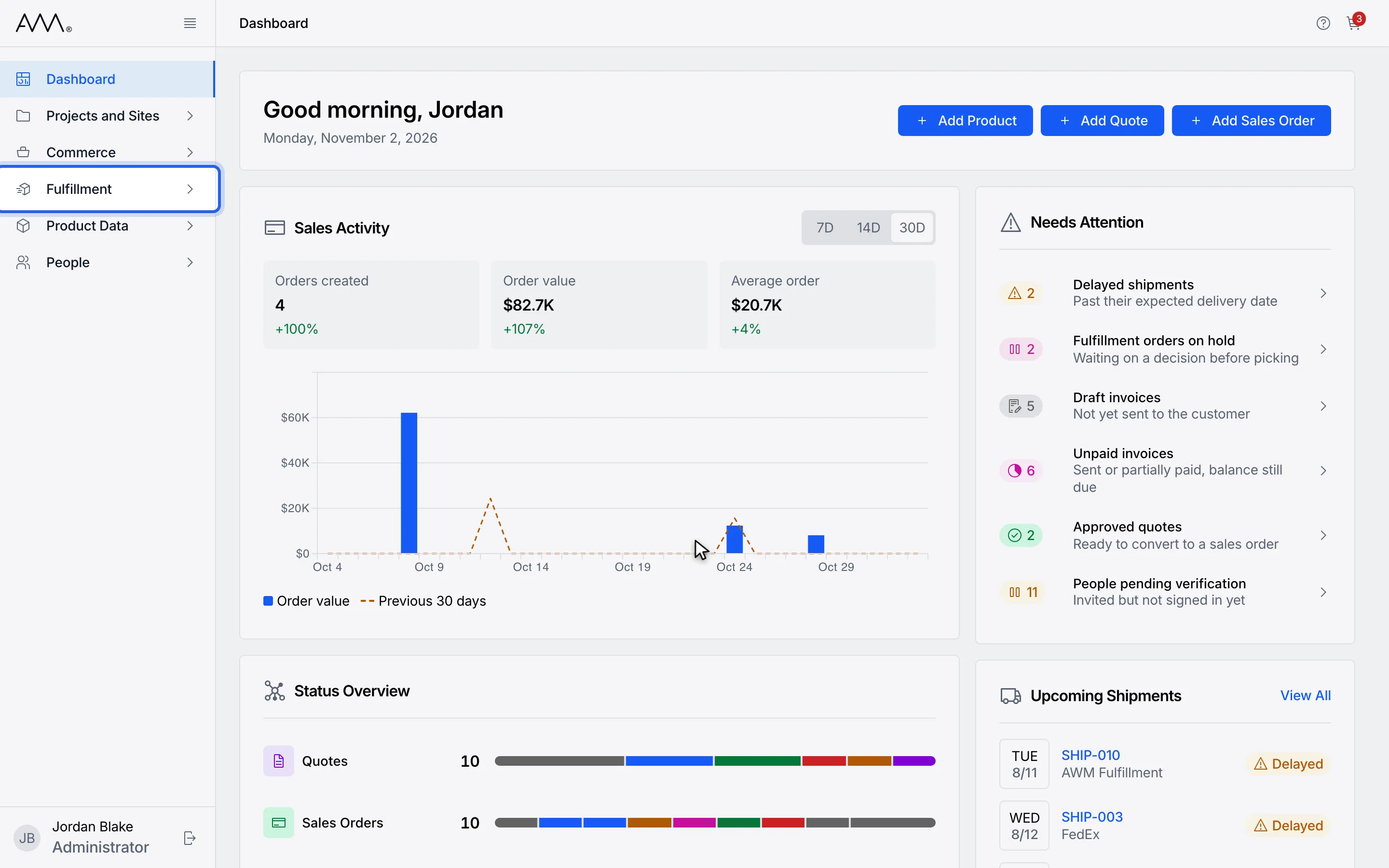
1In the sidebar, open Fulfillment.
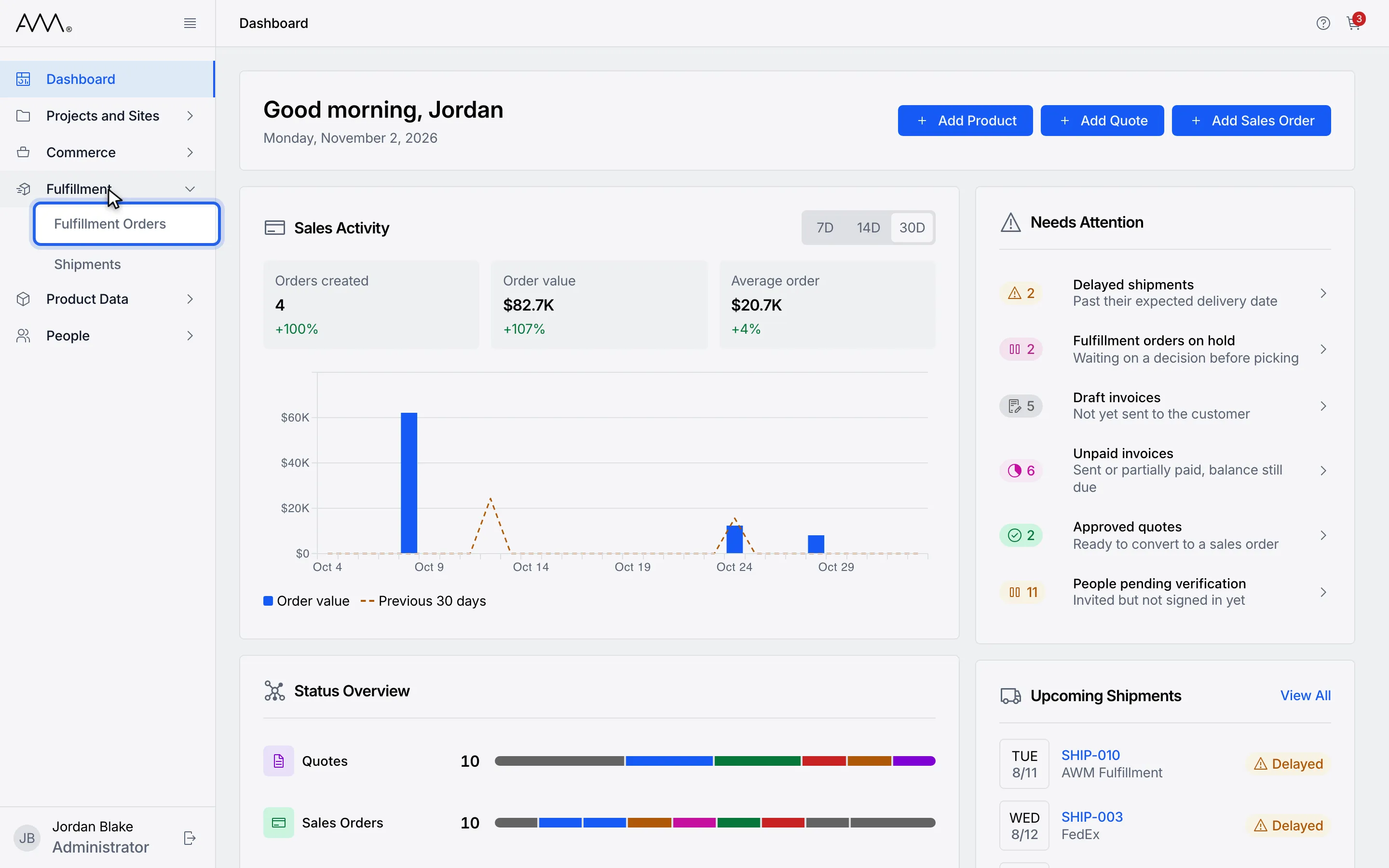
2Choose Fulfillment Orders.
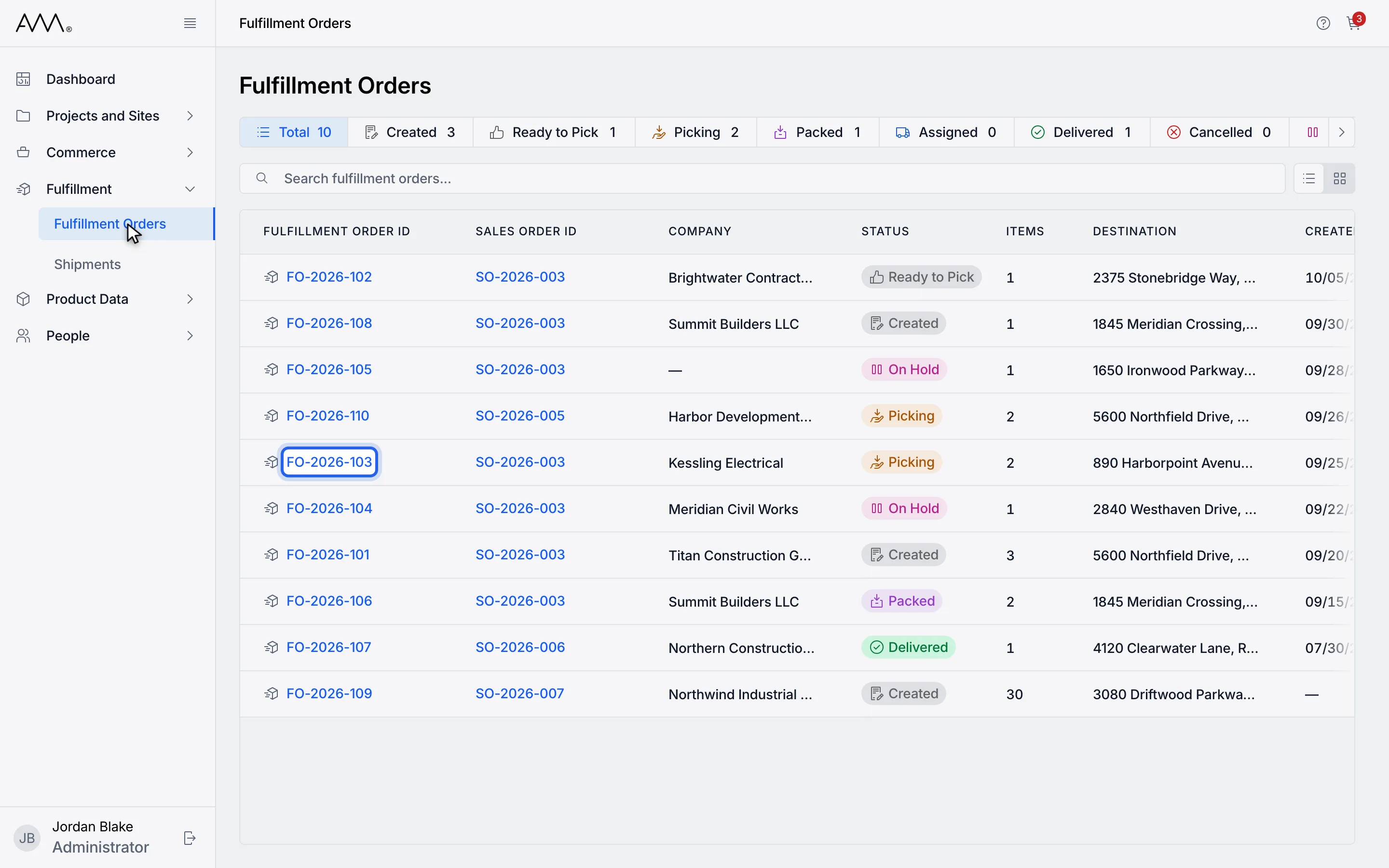
3Open the order.
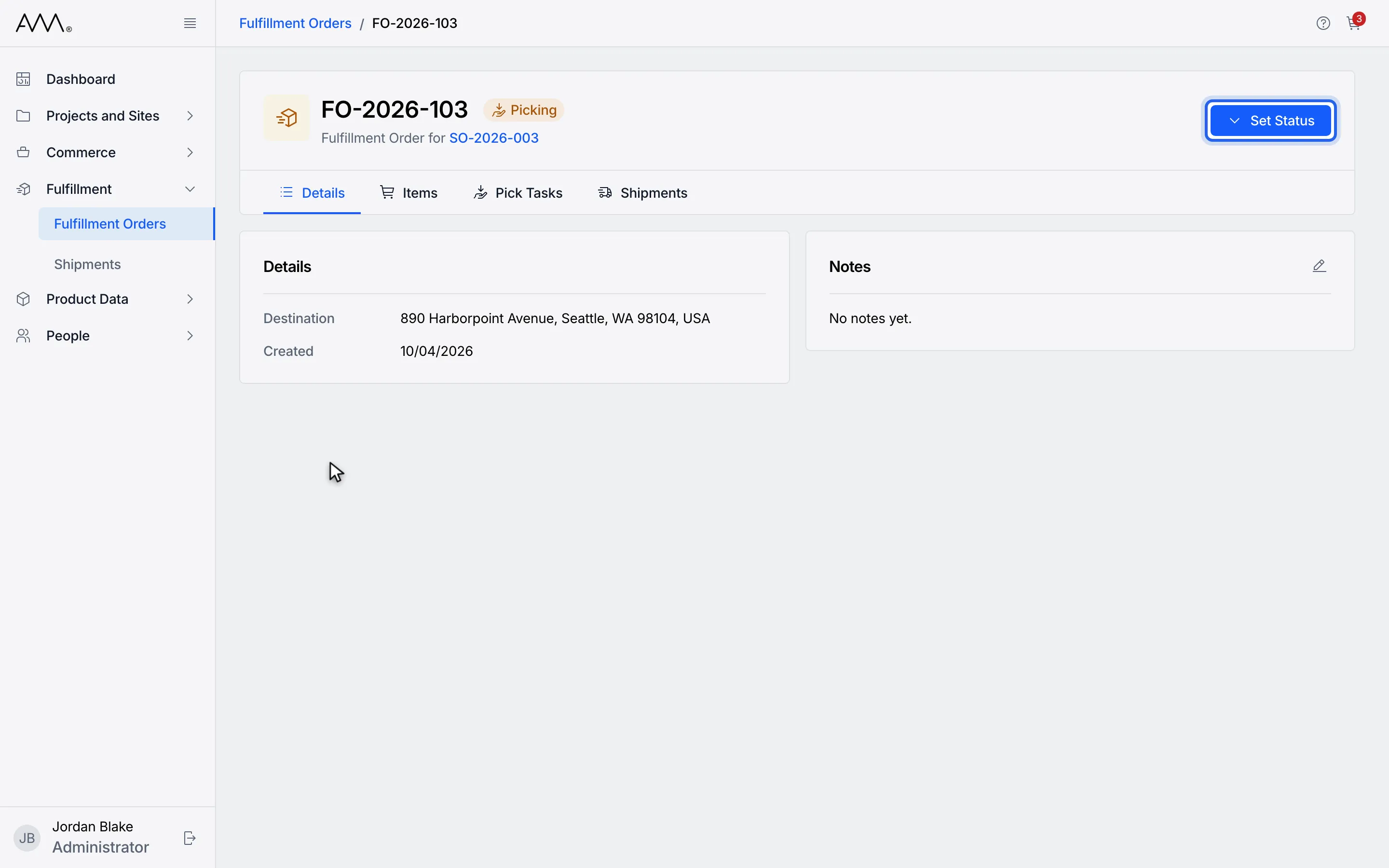
4Click Set Status in the header.
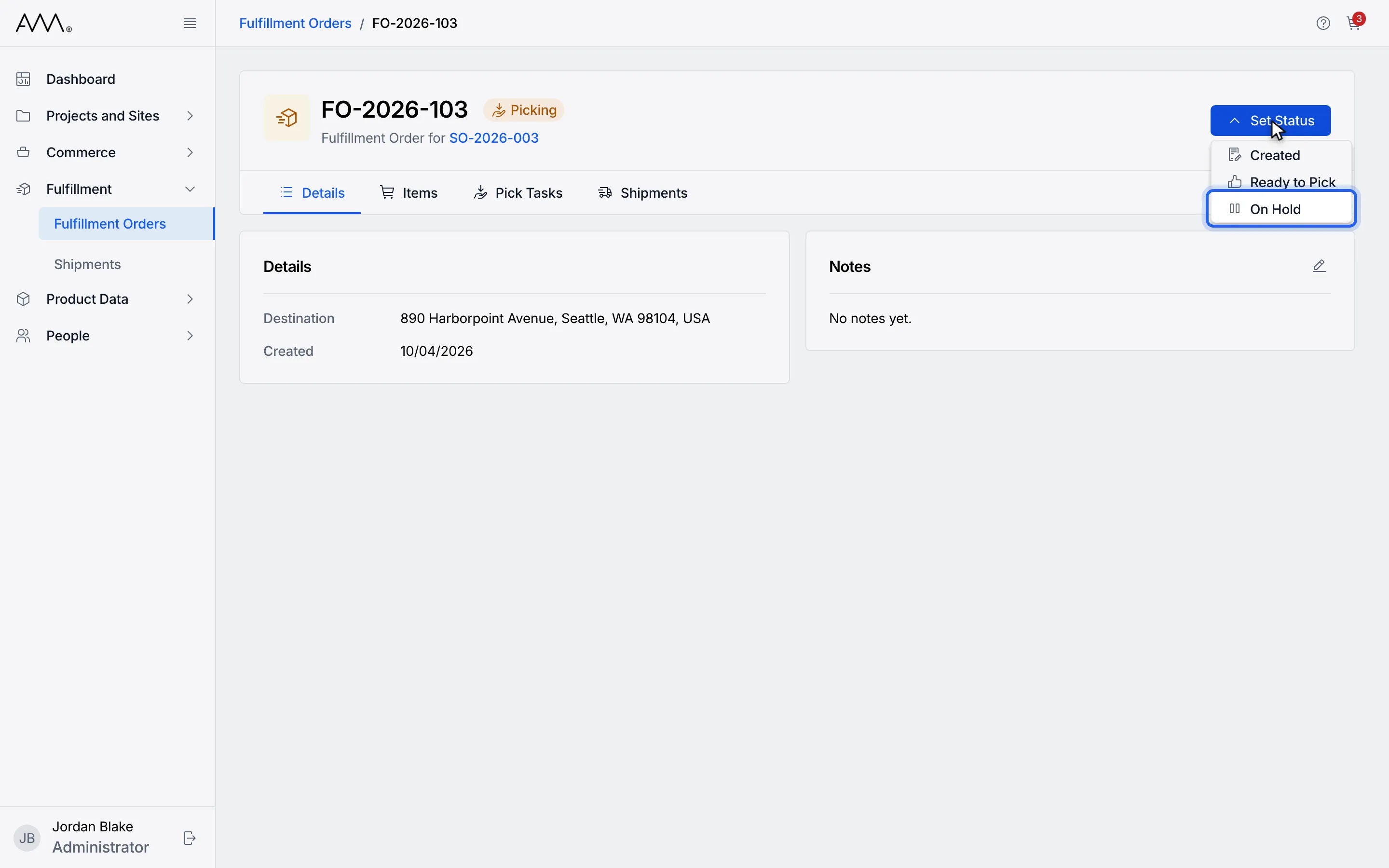
5Choose On Hold.
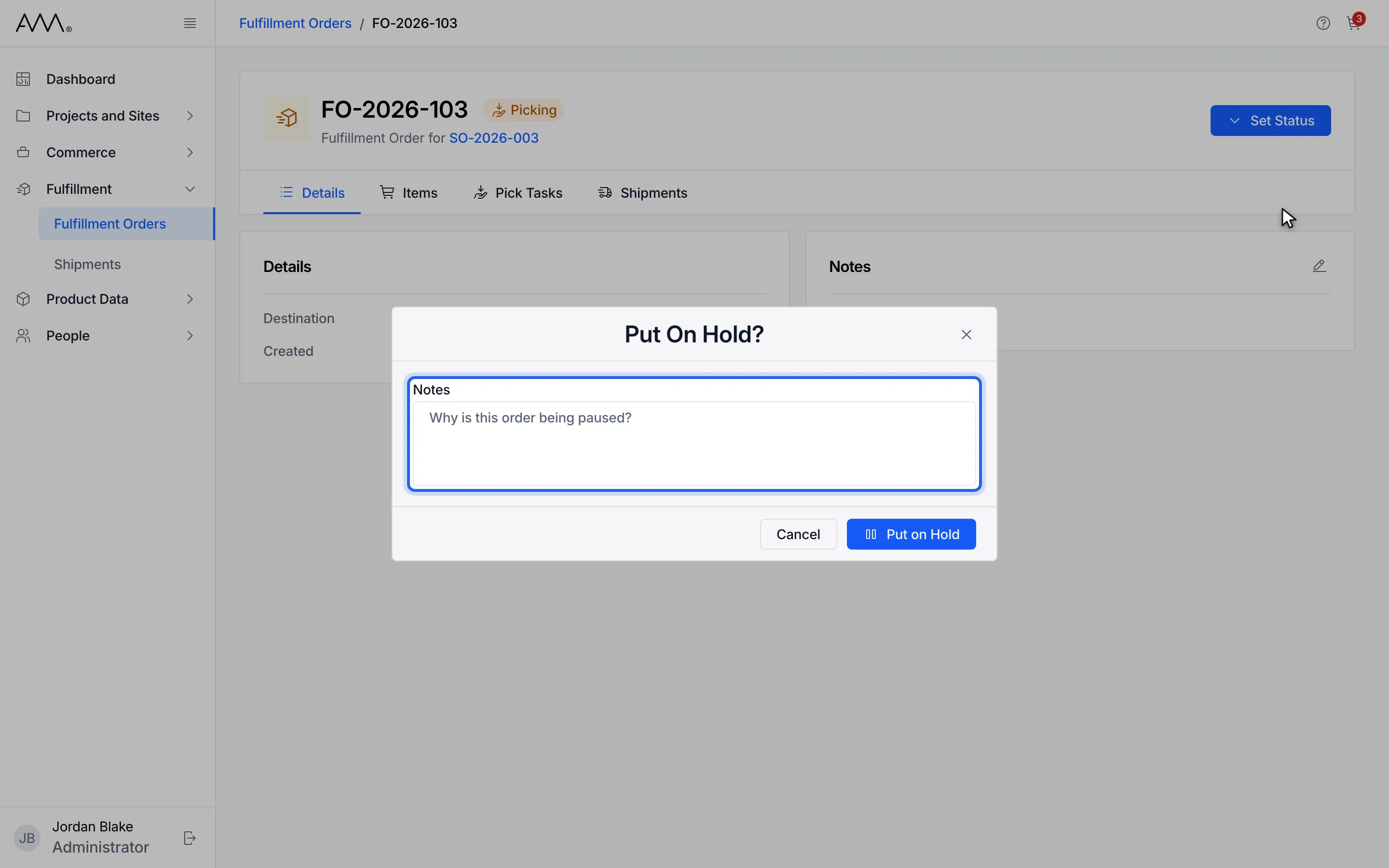
6Say why the order is paused in Notes. This replaces the order notes.
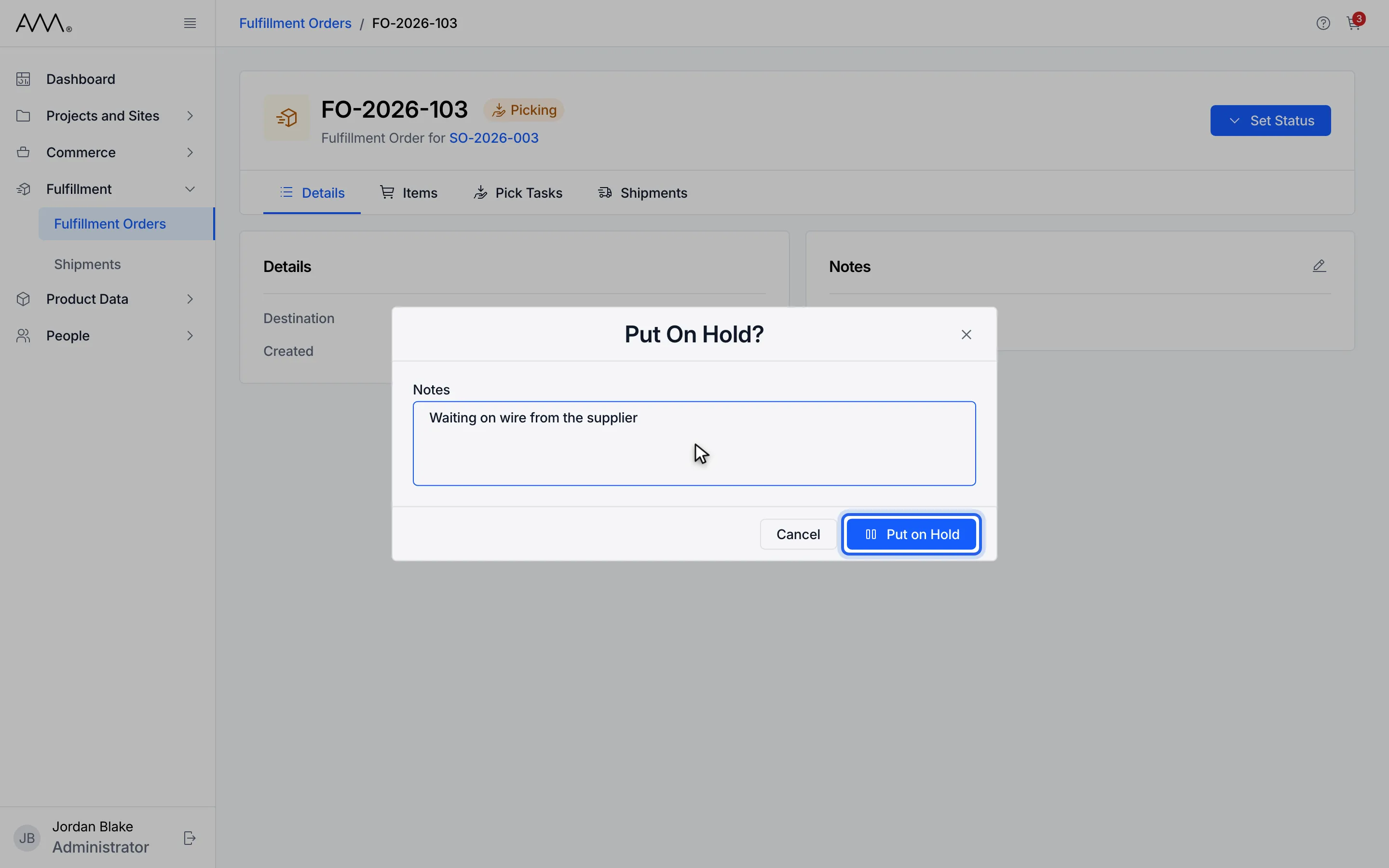
7Click Put on Hold.
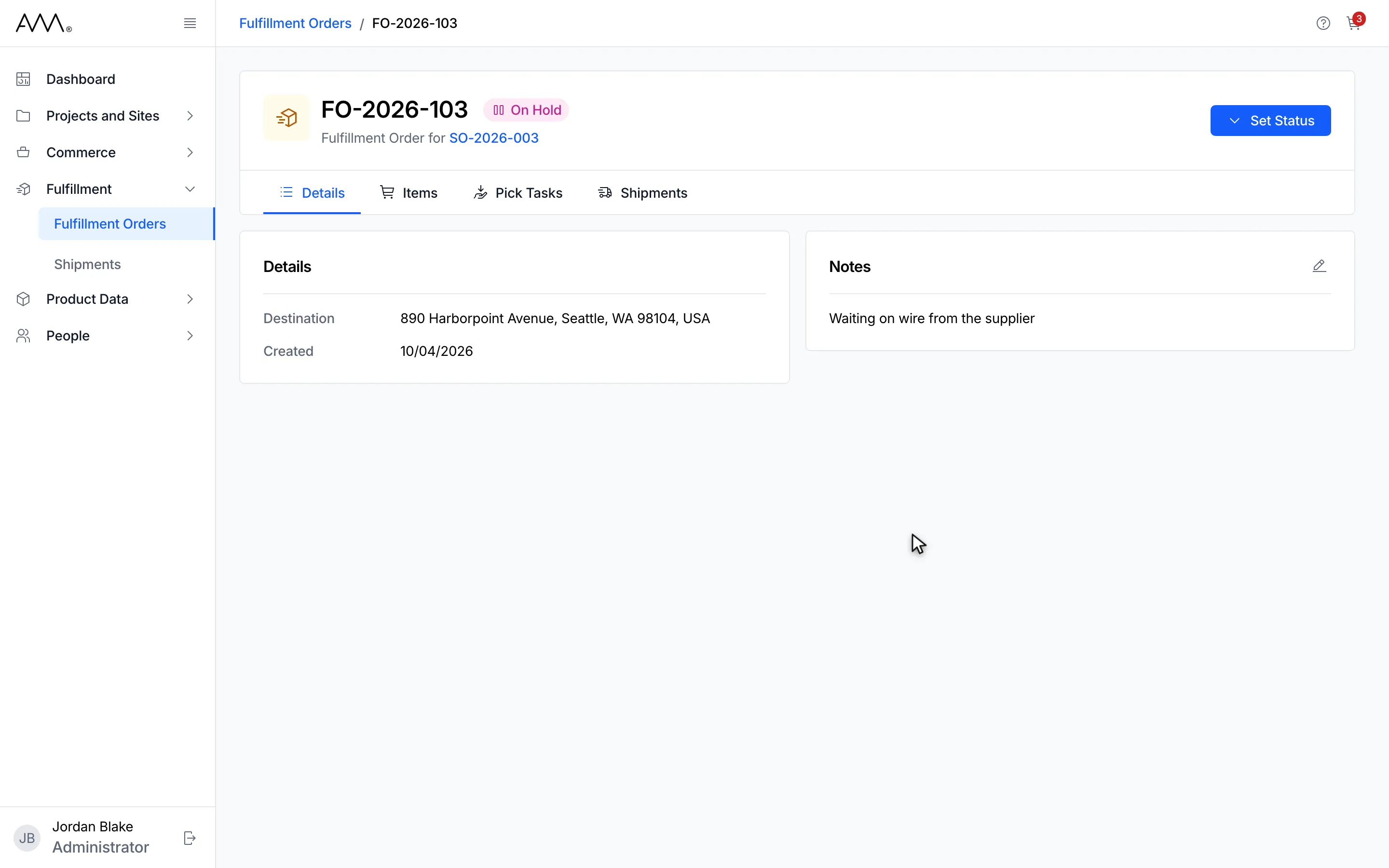
8The status is On Hold and the note shows on the Details tab.
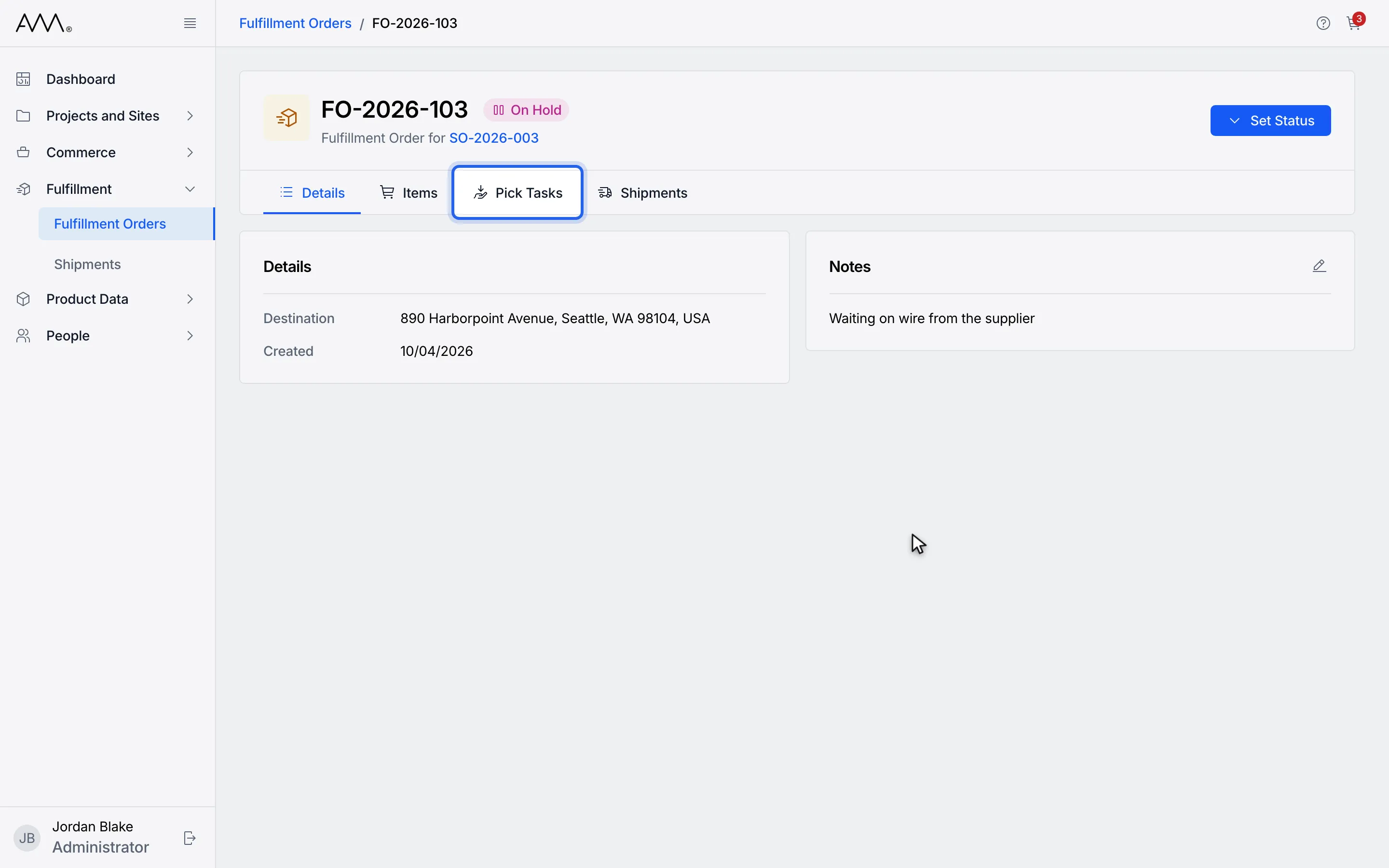
9To resume, open Pick Tasks. The Picked boxes stay editable while On Hold.
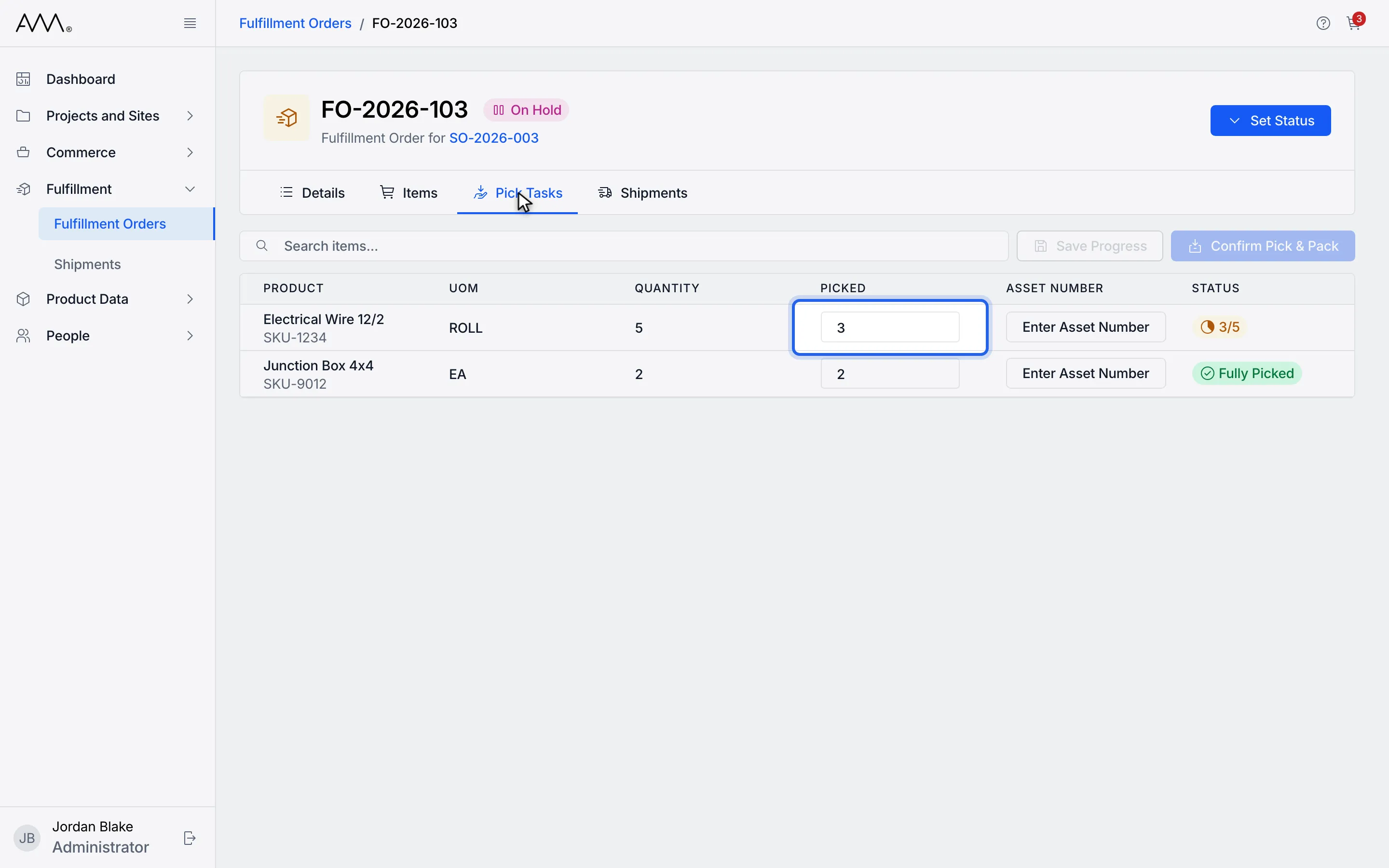
10Enter the new picked quantity.
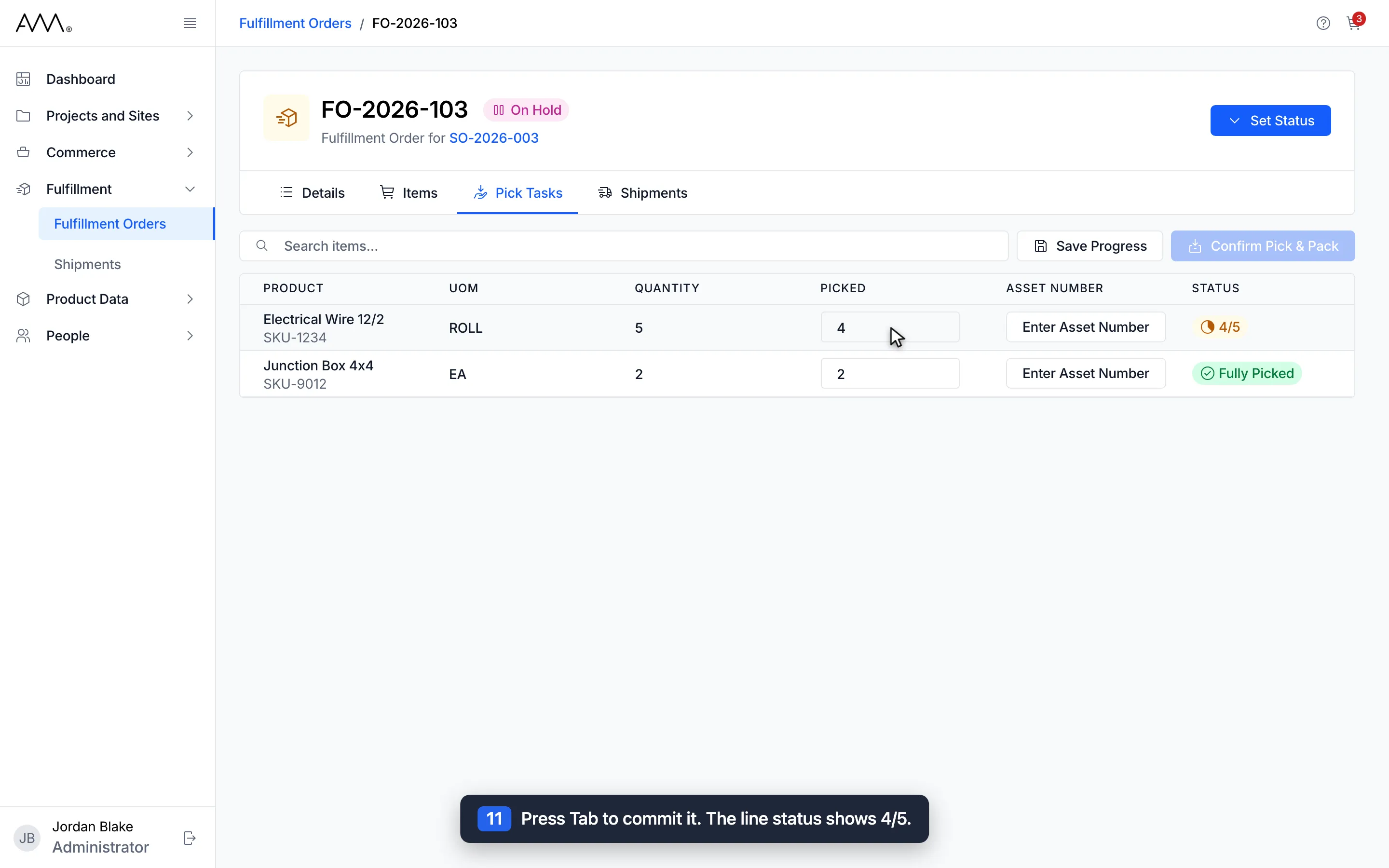
11Press Tab to commit it. The line status shows 4/5.
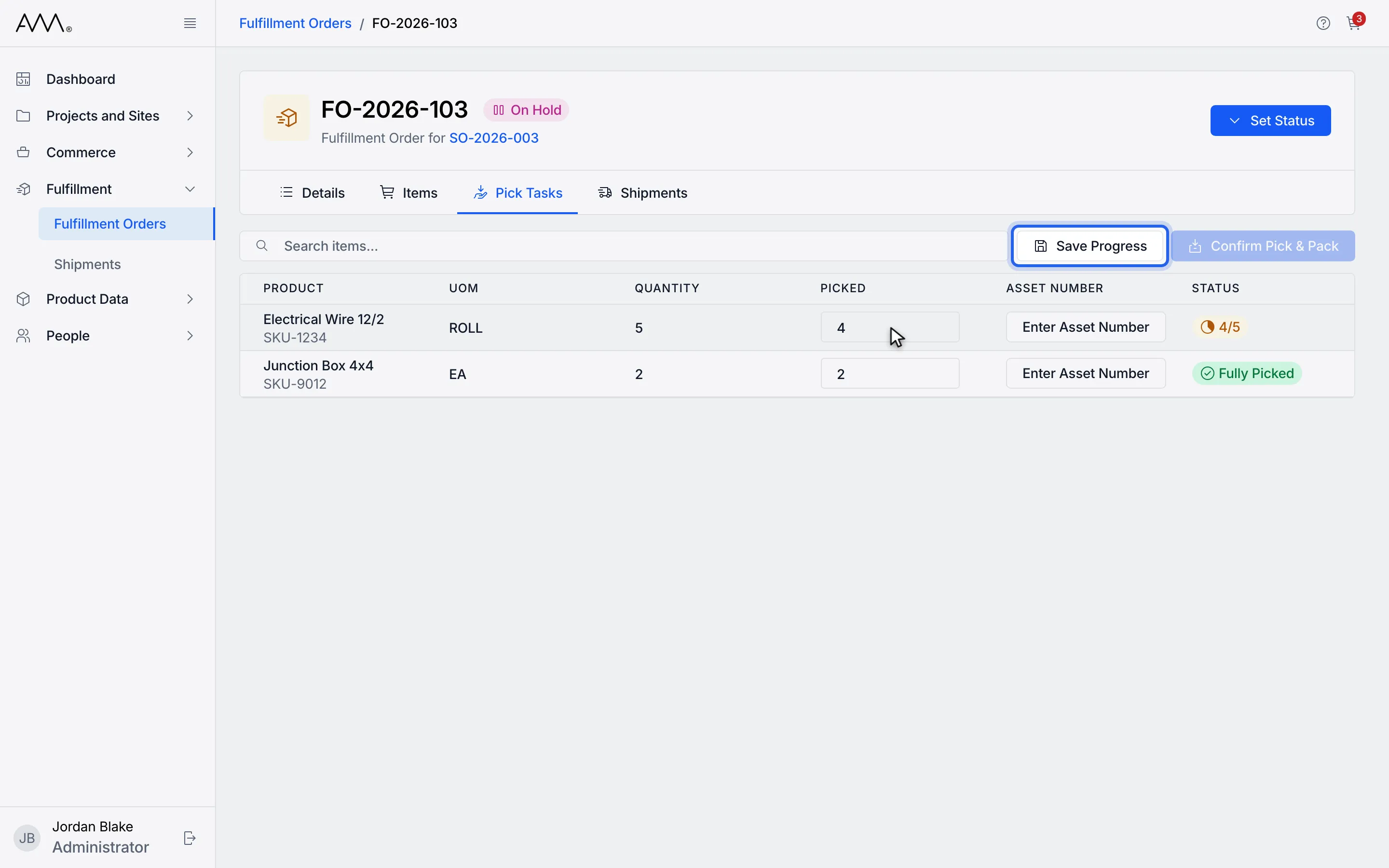
12Click Save Progress. Saving a pick moves the order back to Picking.
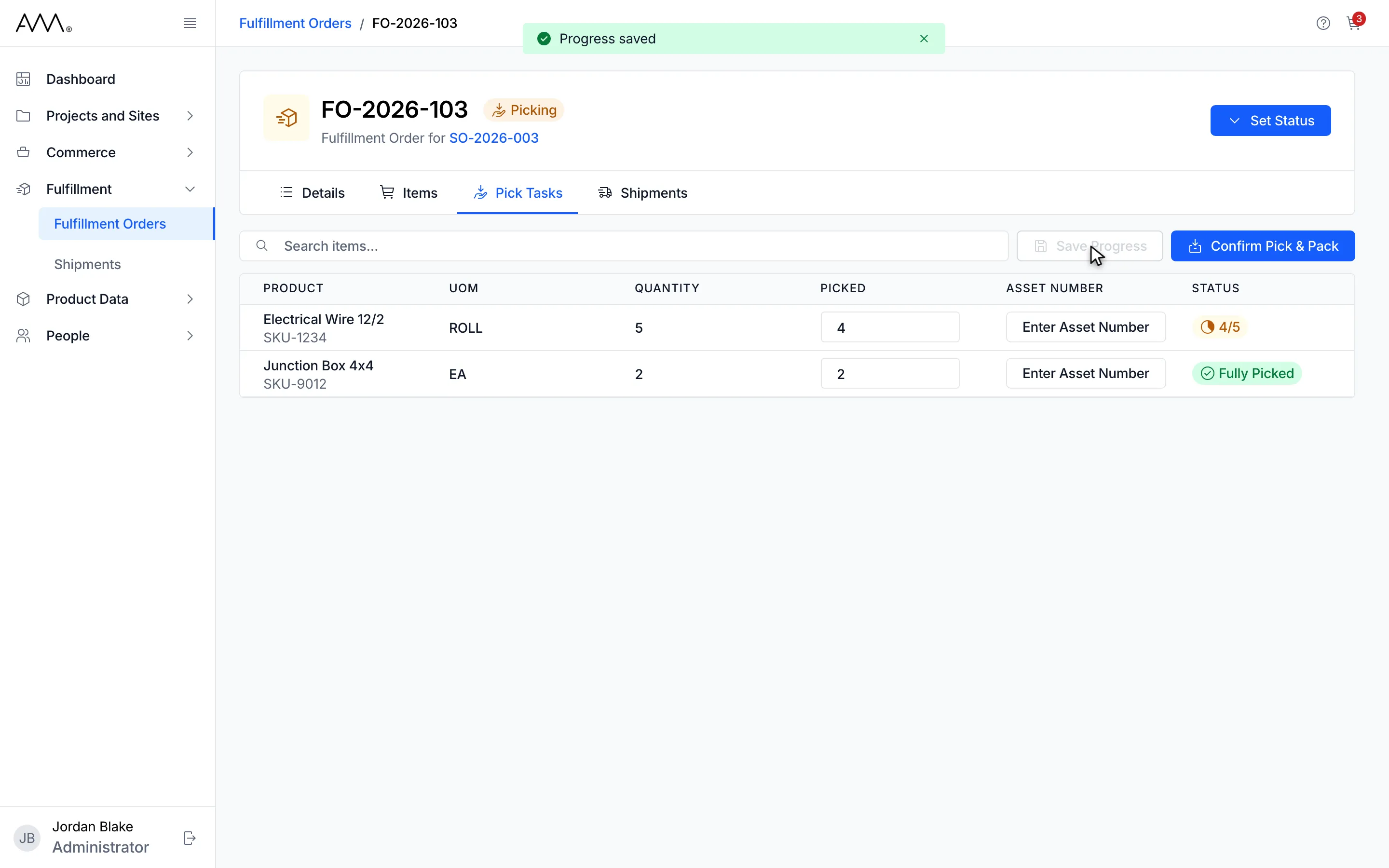
13A toast confirms Progress saved and the header badge reads Picking again.
14The order is back in Picking with the new pick saved.
Watch this as a video (put an order on hold and resume picking)
What happens next
Section titled “What happens next”After Put on Hold, the header badge shows On Hold and your note appears in Notes on the Details tab. There is no toast. If the hold fails, the dialog shows Could not put the order on hold. Try again. or the reason given. The pick icon on the list still shows for an order on hold.
After Save Progress, a toast confirms Progress saved and the badge reads Picking again. Confirm Pick & Pack is disabled while an order is On Hold, so save at least one pick before you pack.
An order held before any pick was made works the same way: enter a pick and save it, or use Set Status to move it to Created or Ready to Pick.