Change status with Set Status
Set Status in the order header lists the statuses you can move the order to from where it is now. Picking and packing move the order forward on their own; use Set Status to queue an order, send it back, or pause it.
- Open the order.
- Click Set Status in the header. The menu shows only the statuses available from the current one.
- Choose the new status. Created and Ready to Pick apply at once, with no confirmation and no toast. On Hold opens the Put On Hold? dialog (see Put an order on hold).
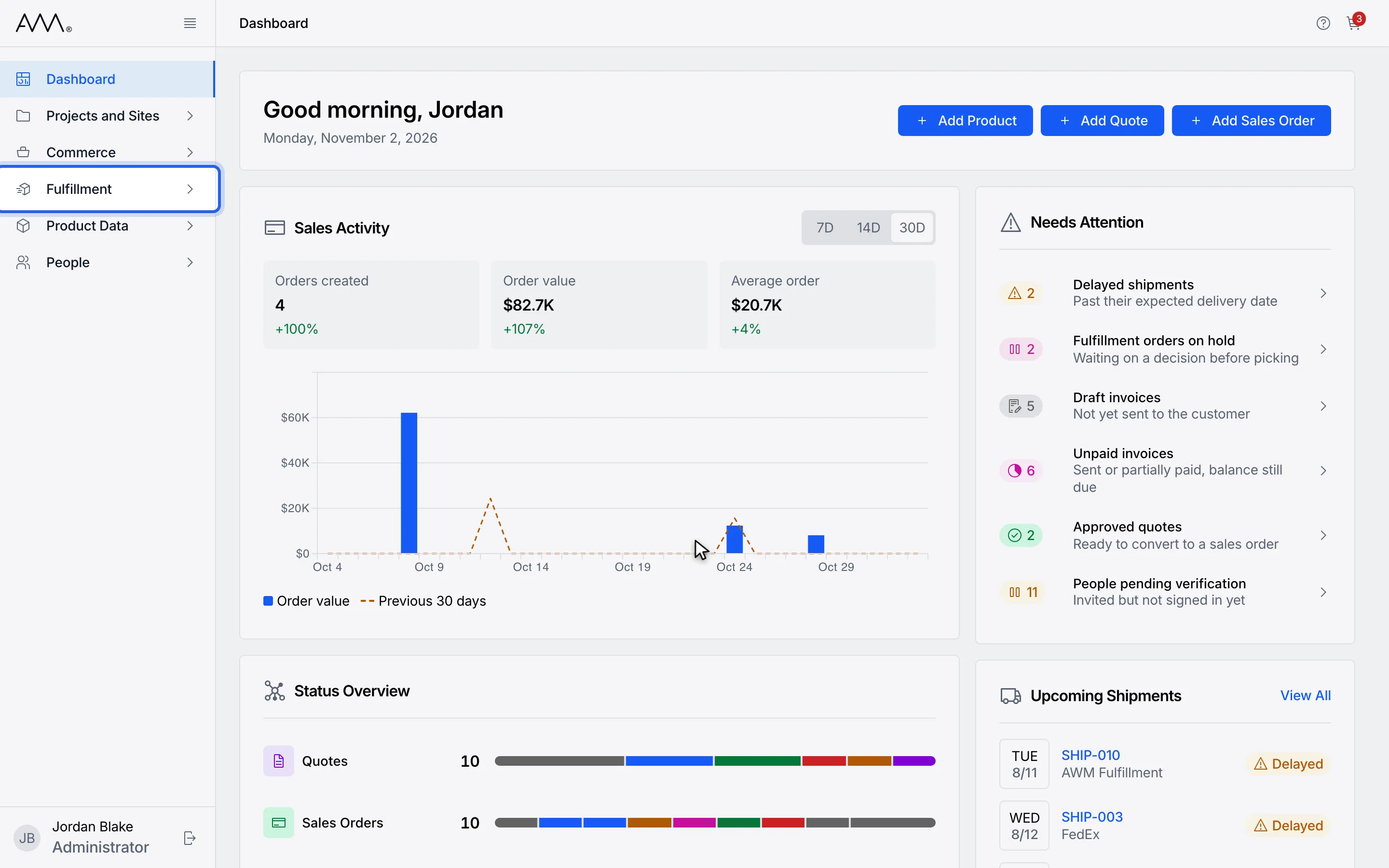
1In the sidebar, open Fulfillment.
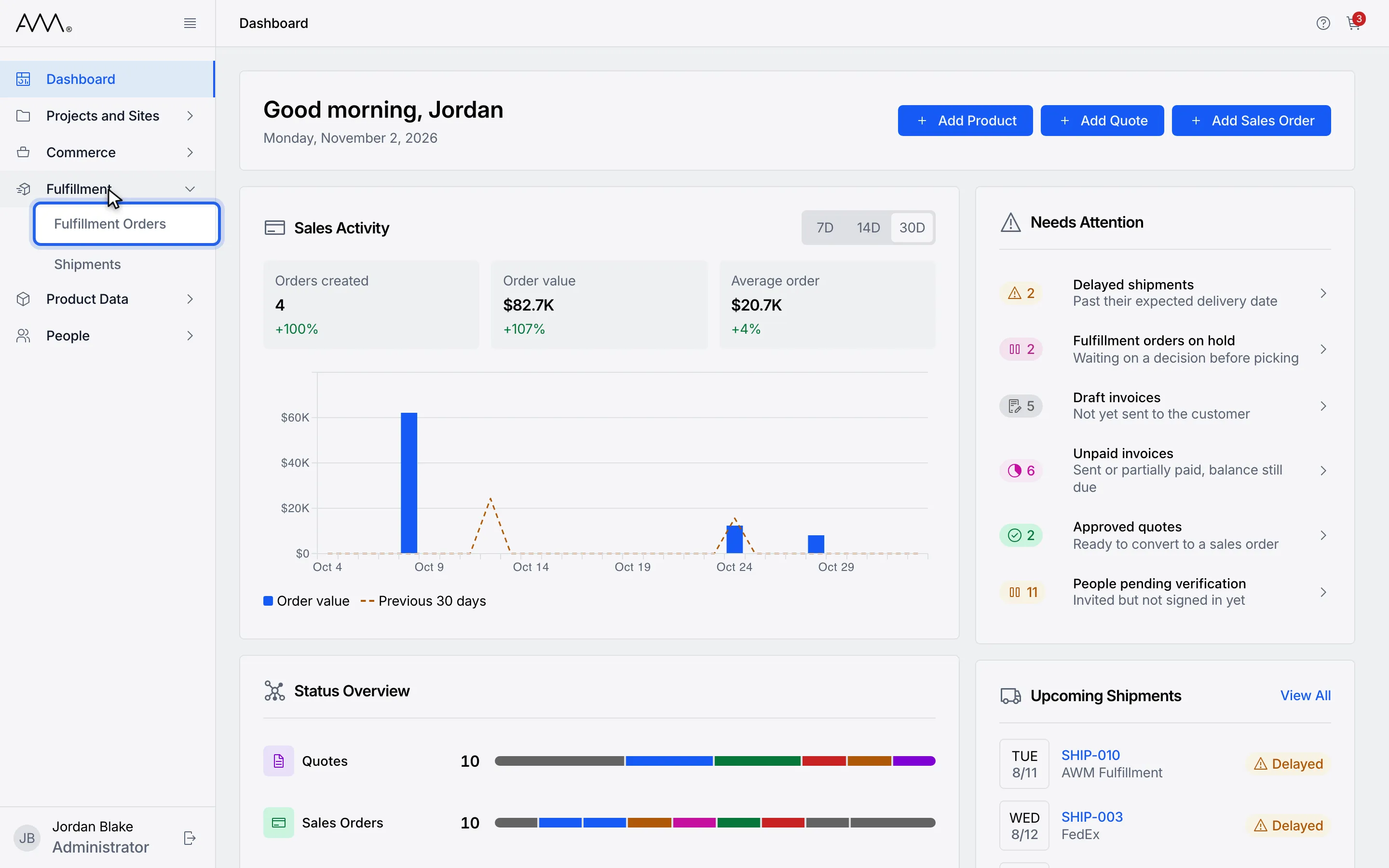
2Choose Fulfillment Orders.
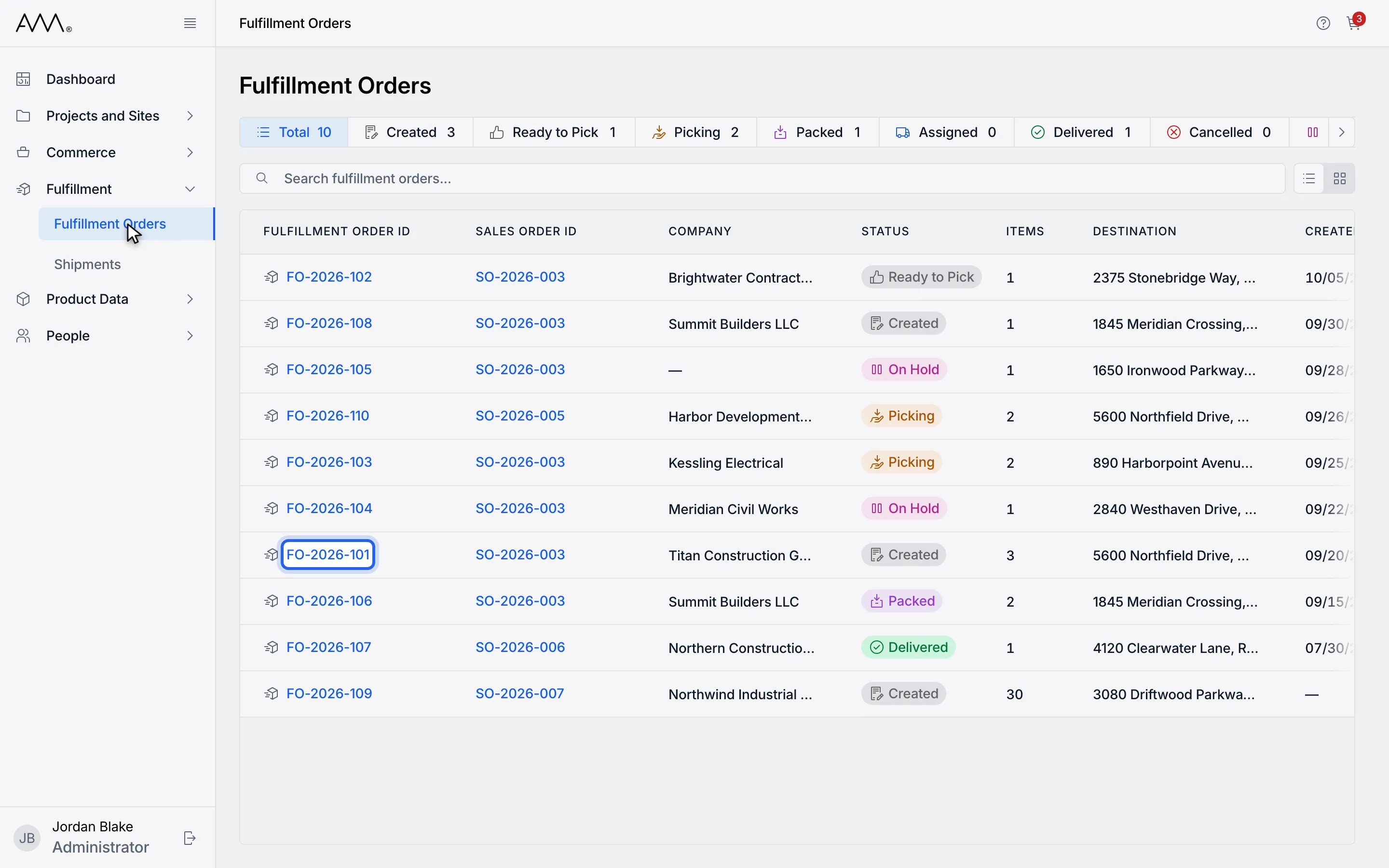
3Open the order.
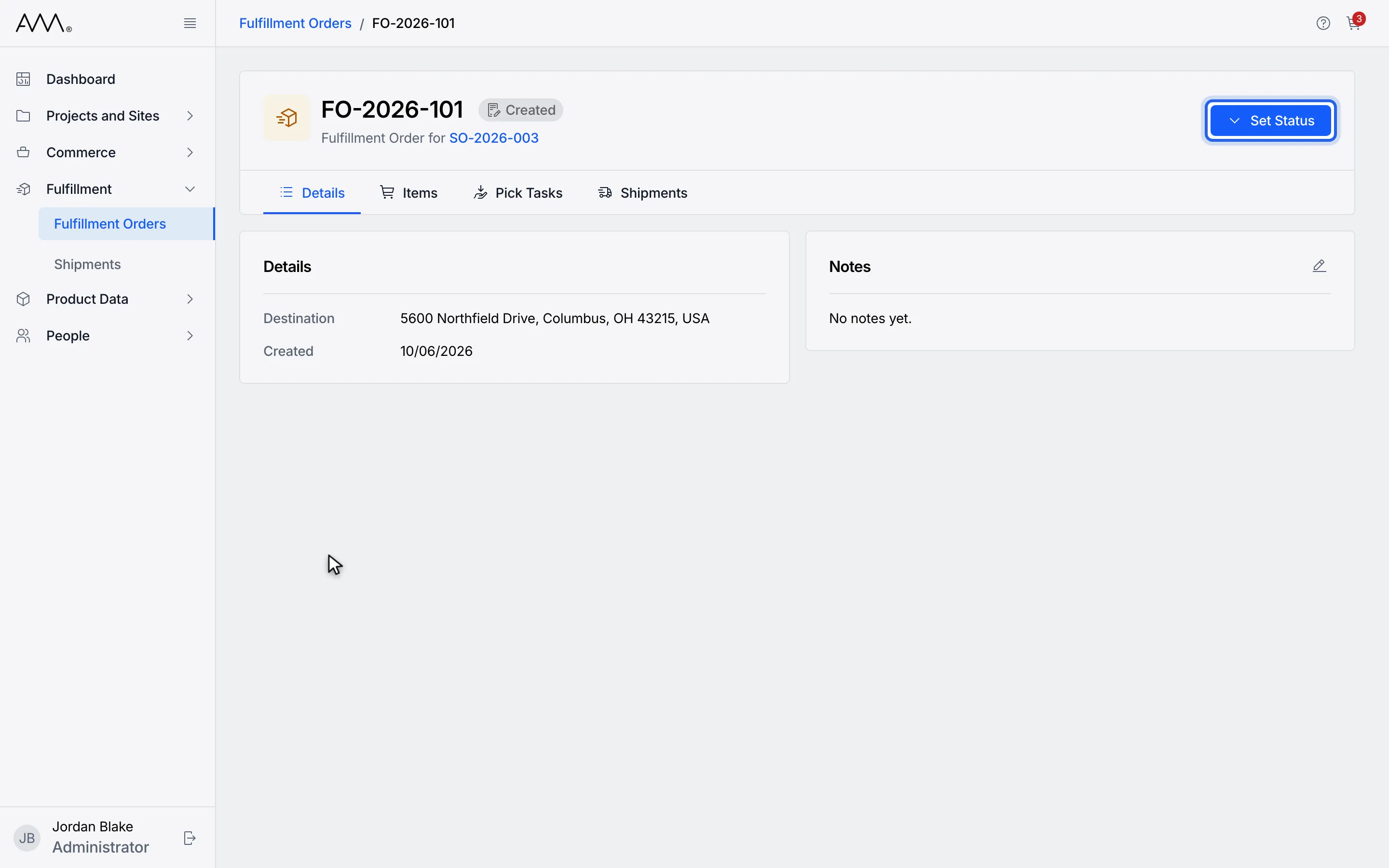
4Click Set Status. The menu lists the statuses you can move to.
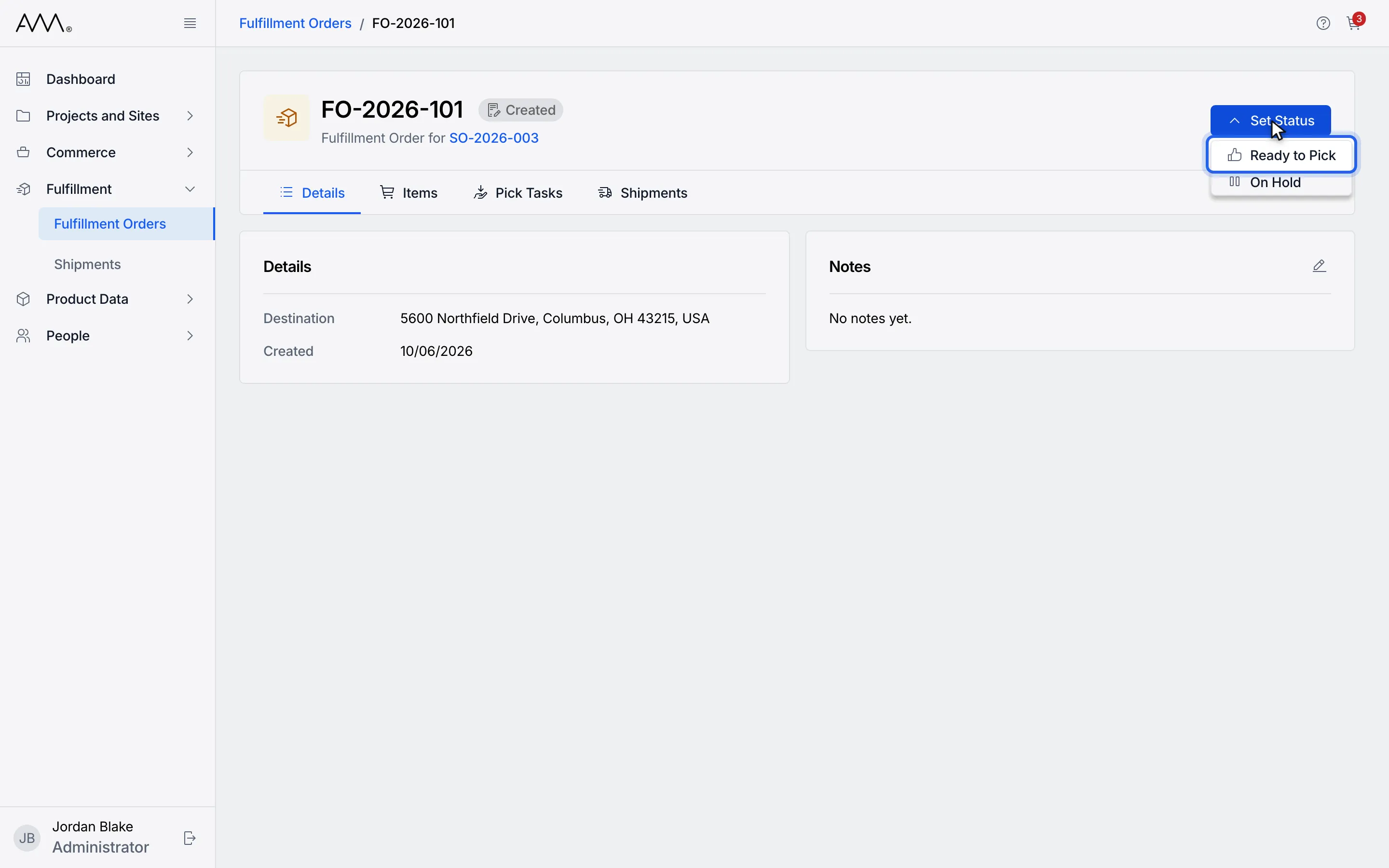
5Choose the new status. It applies at once, with no confirmation.
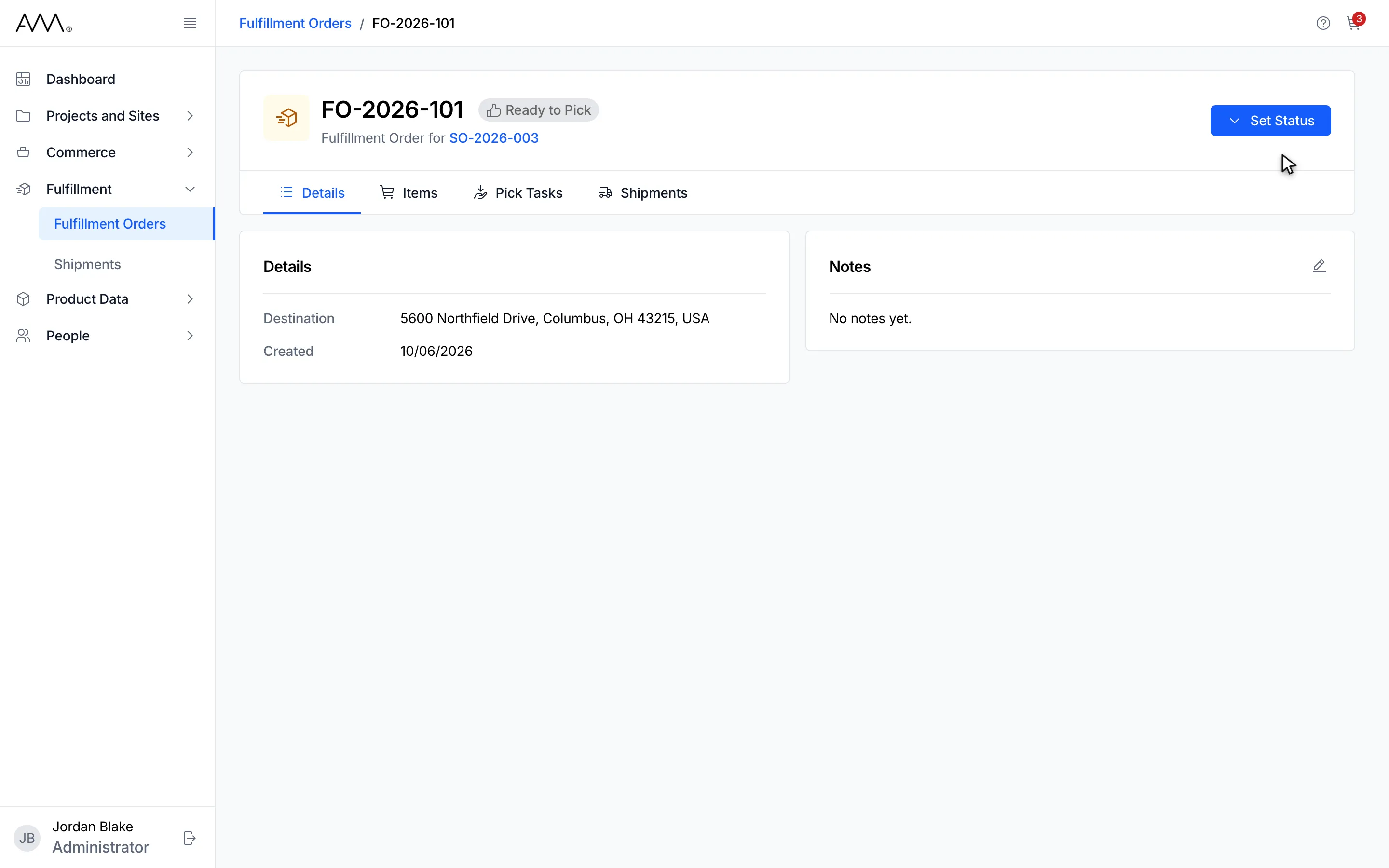
6The badge in the header shows the new status. There is no toast.
7The header badge shows the new status.
Watch this as a video (change status with set status)
| Current status | Set Status offers |
|---|---|
| Created | Ready to Pick, On Hold |
| Ready to Pick | Created, On Hold |
| Picking | Created, Ready to Pick, On Hold |
| On Hold | Created, Ready to Pick |
What happens next
Section titled “What happens next”The badge in the header shows the new status. If the change is refused, a toast explains why: You don’t have permission to do that., Something went wrong on our side. Please try again., Could not change the status. Please try again., or the reason given.
If someone else packed the order while you had it open, the Can’t Change Status notice says the order has already been packed, so its status can’t be changed manually. Click Okay. The order reloads as Packed and Set Status disappears.