Browse and search the catalog
The Product Catalog lists every active product. Use the search box, the column headers and the filter panel together to get to the products you want to add to a cart.
- In the sidebar, open Commerce and choose Product Catalog. The products open sorted by PRODUCT NAME from A to Z, with an arrow on that header.
- Type in the search box labelled Search by name, item number, SKU, manufacturer, or category. The list narrows as you type. Click the × in the box to clear it.
- Click a column header such as LIST PRICE (USD) to sort by that column. Click it again to reverse the order.
- Click Filters to show the filter panel. Clicking it again hides the panel; your filters stay applied.
- Under Manufacturer, Category or Vendor, click Select… and choose one or more values. The values are listed from A to Z, with Other last. You can type to find a value. The list updates at once.
- Under List Price, Vendor Cost or Lead Time (days), type a Min value, a Max value, or both.
- To remove a filter, click the × on a chosen value or clear the Min and Max fields. There is no Clear Filters button on this page.
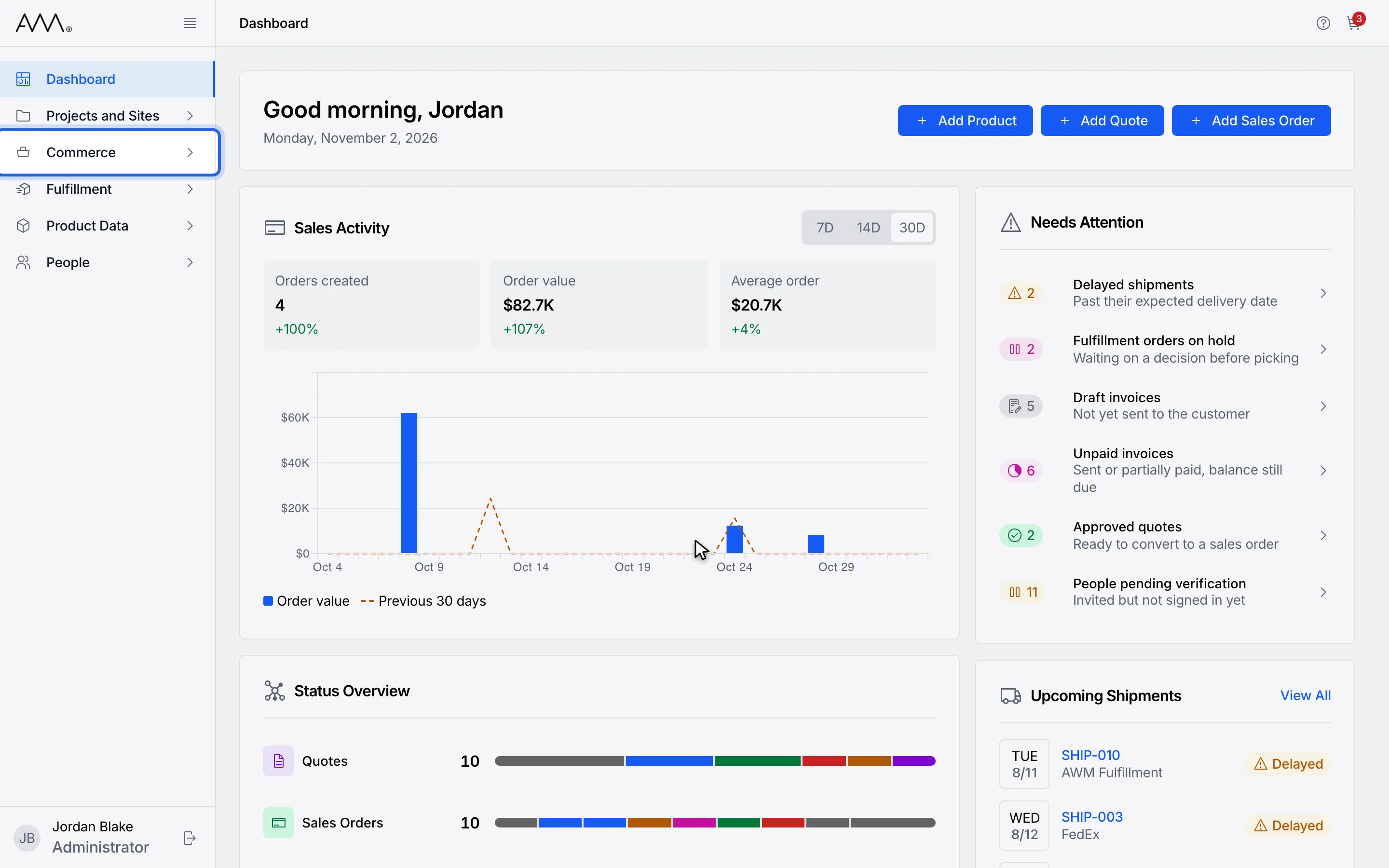
1In the sidebar, open Commerce.
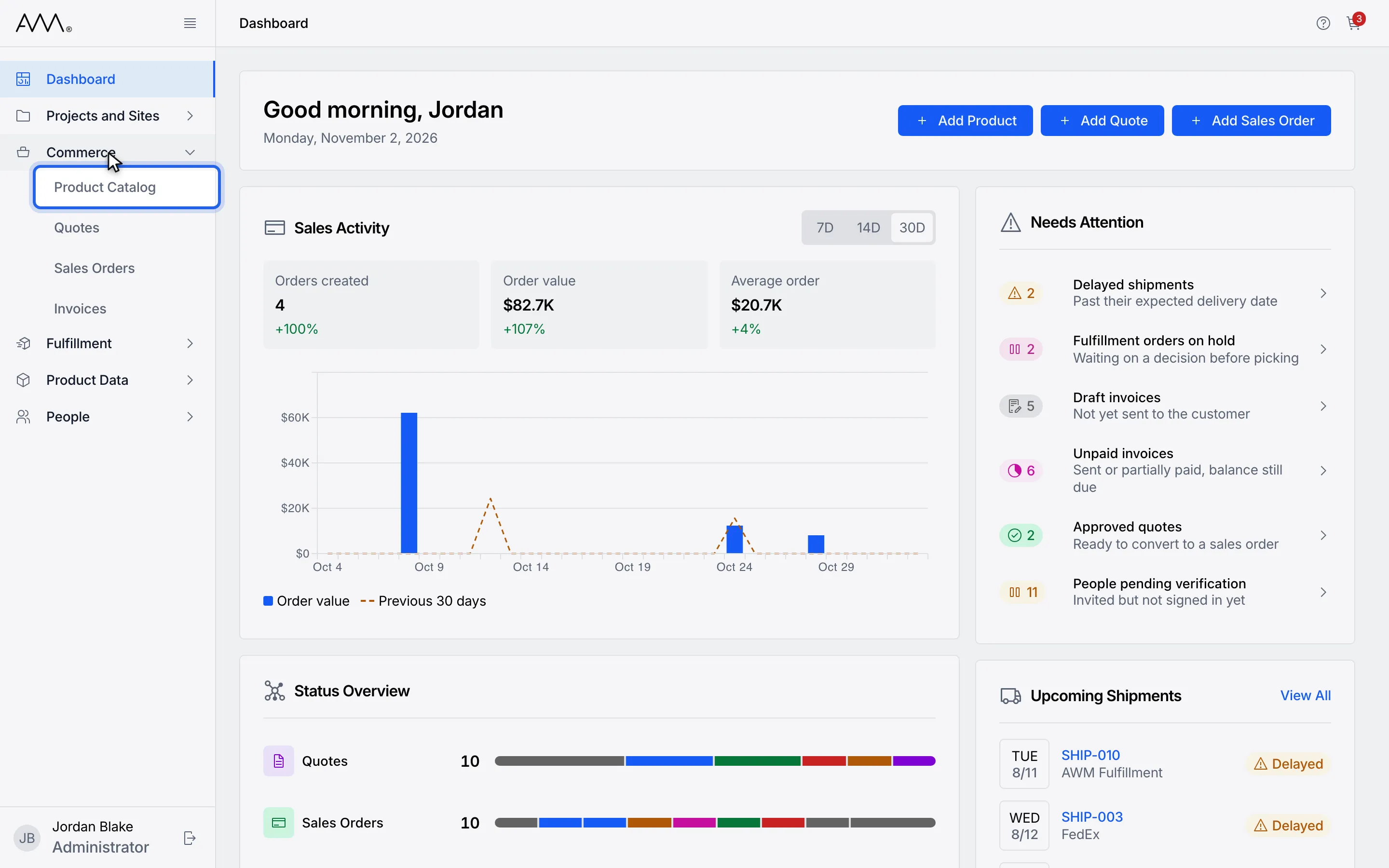
2Choose Product Catalog. Products open sorted by PRODUCT NAME, A to Z.
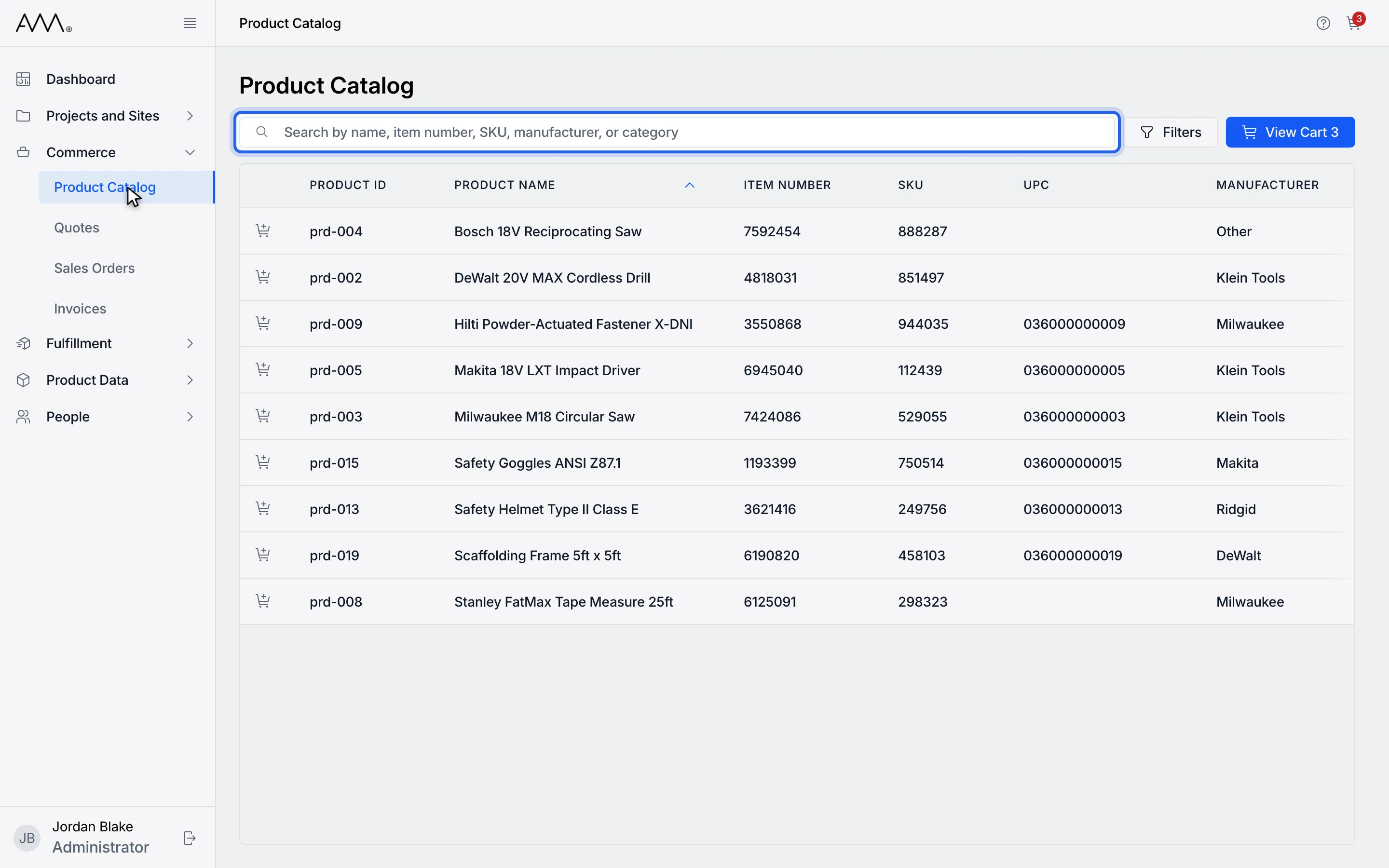
3Type in the search box. Results narrow as you type.
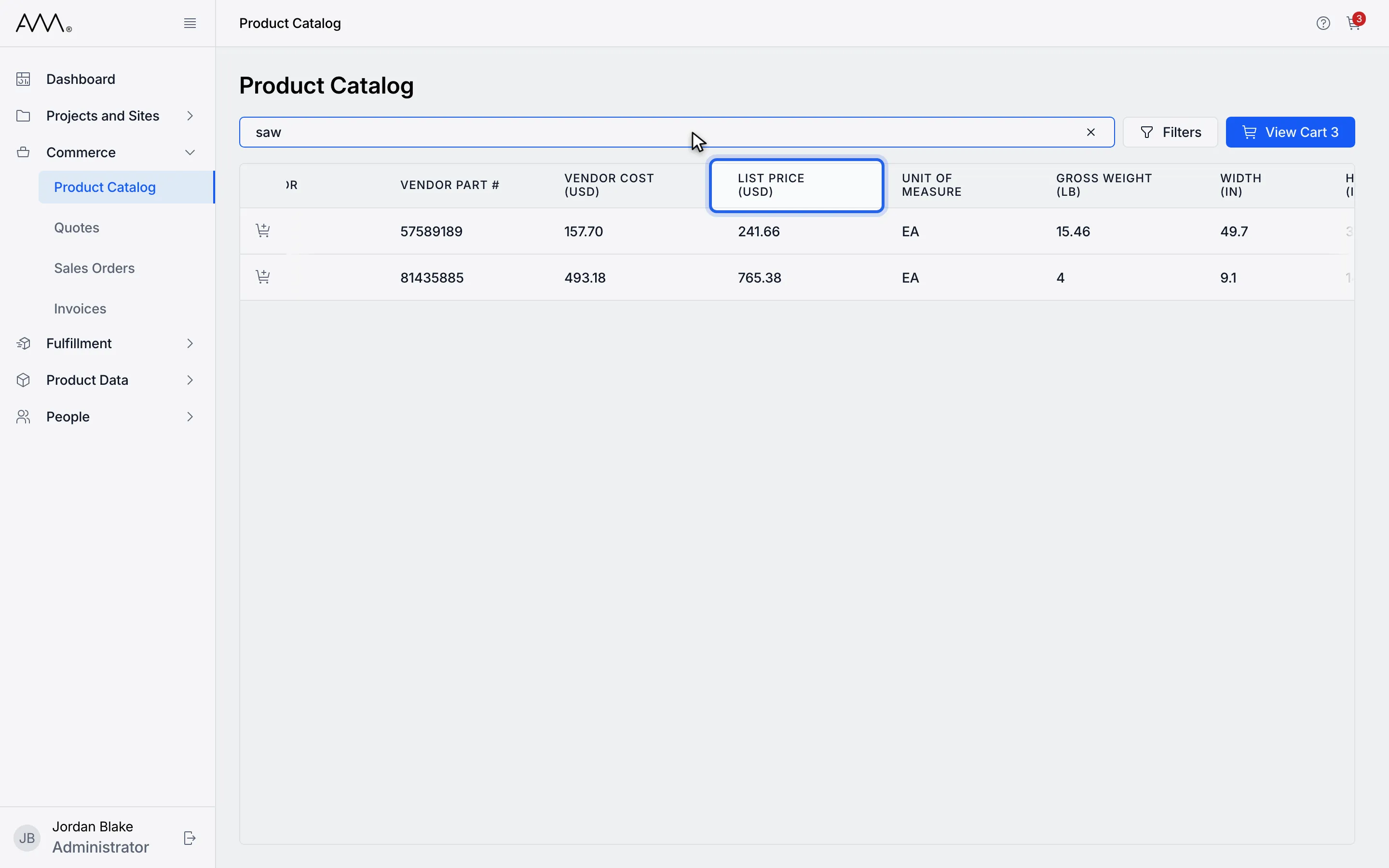
4Click a column header to sort by it. Click it again to reverse the order.
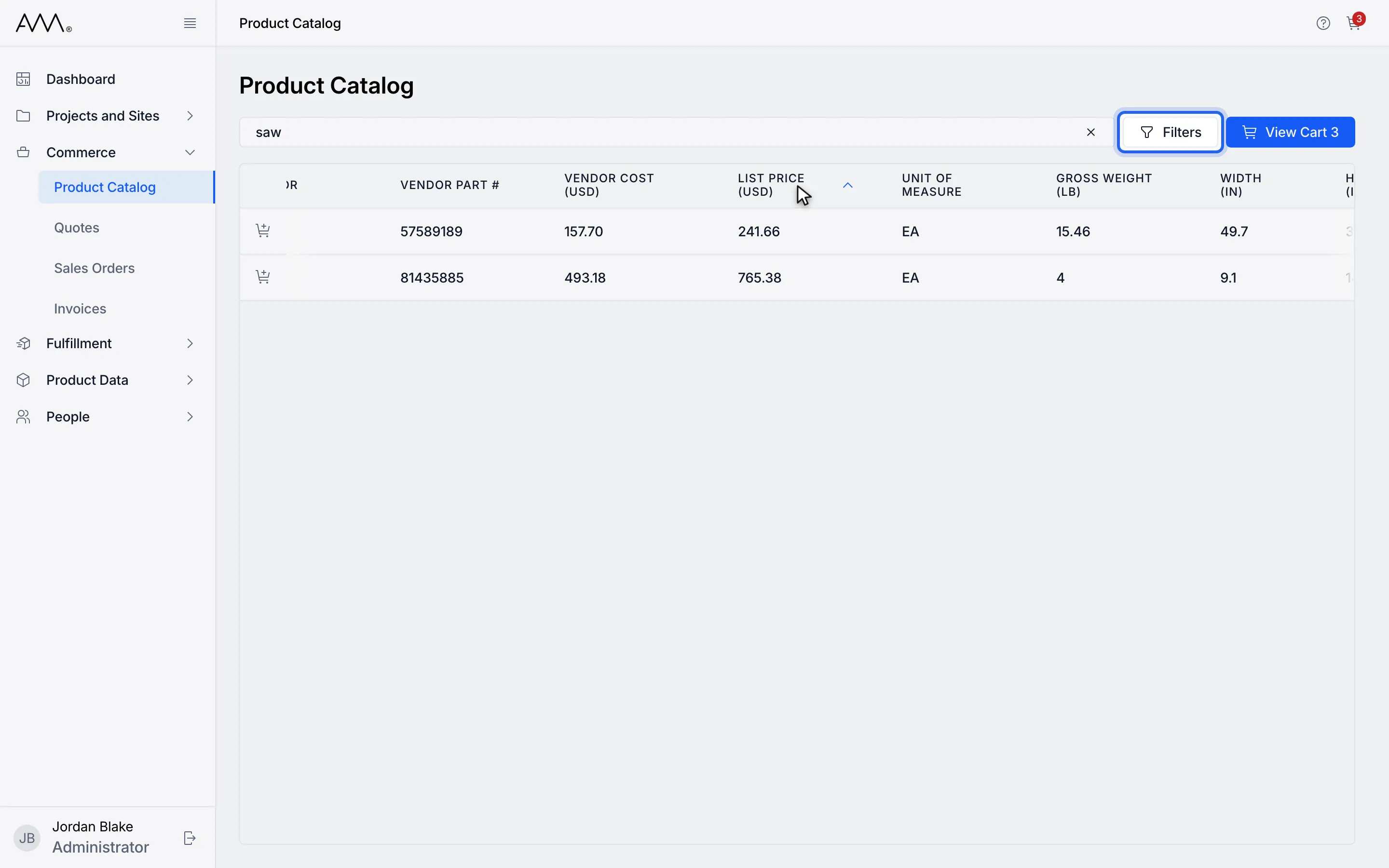
5Click Filters to show the filter panel.
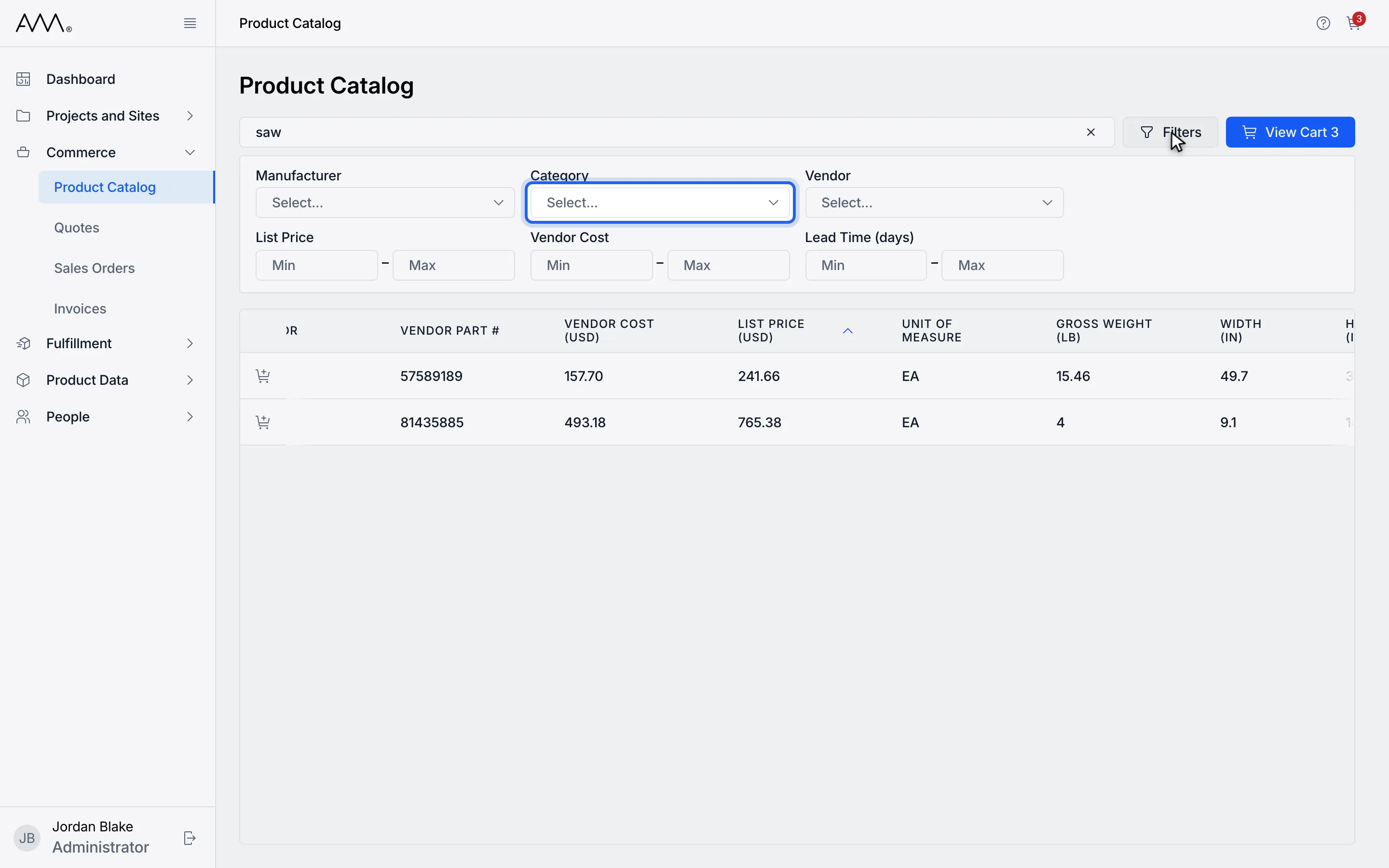
6Open Manufacturer, Category or Vendor to pick one or more values.
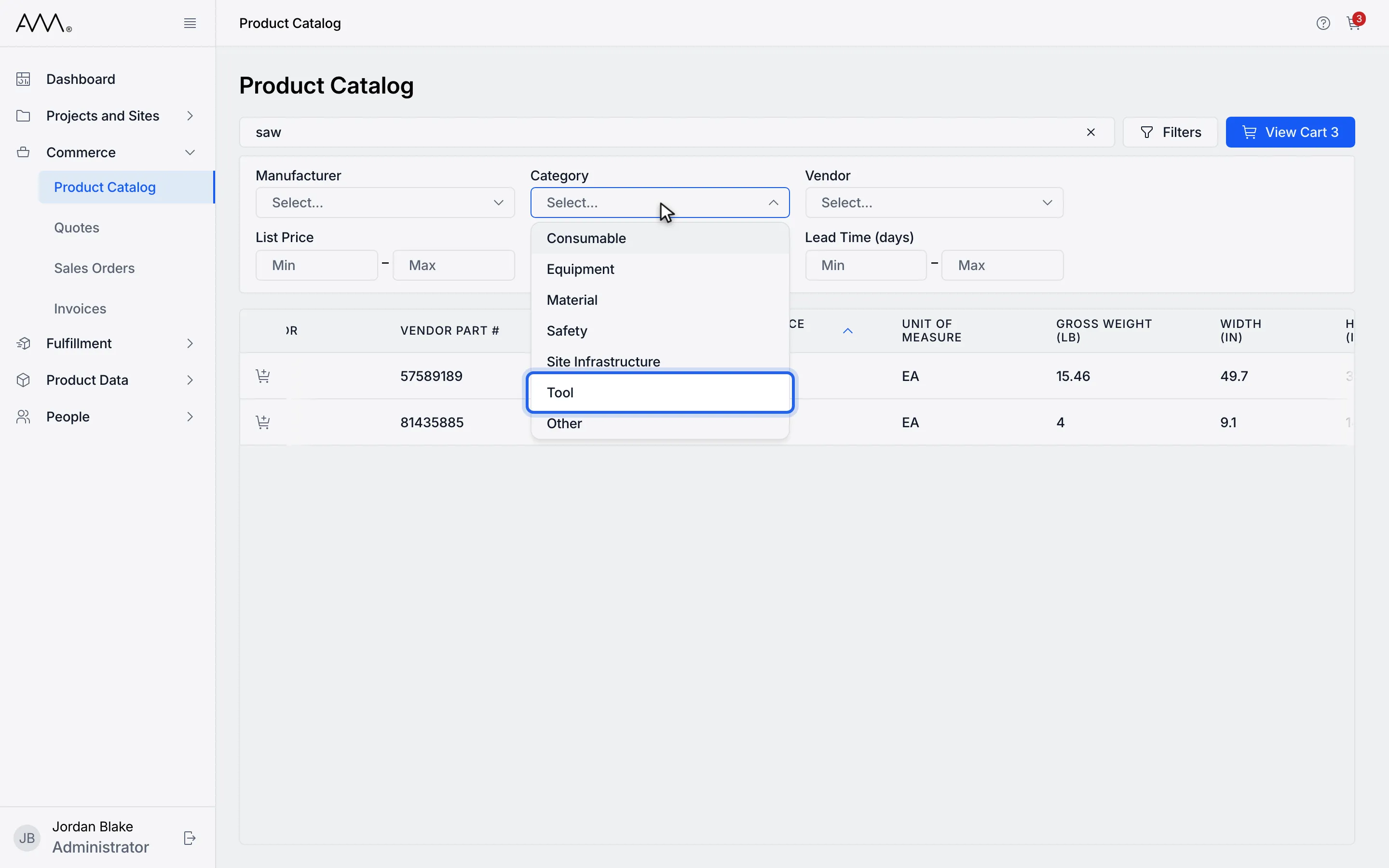
7Choose a value. The list updates at once.
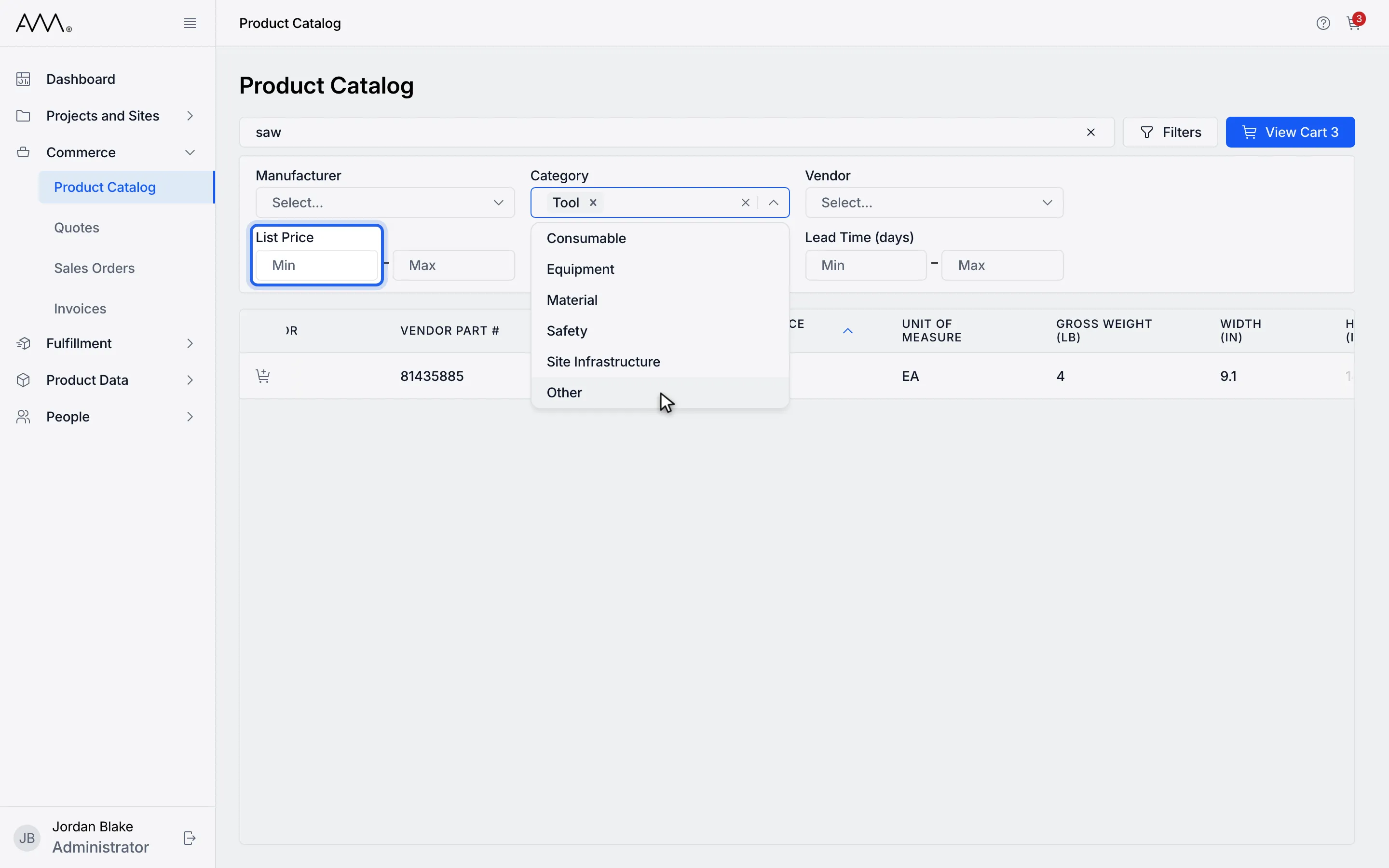
8Enter Min or Max for List Price, Vendor Cost or Lead Time (days).
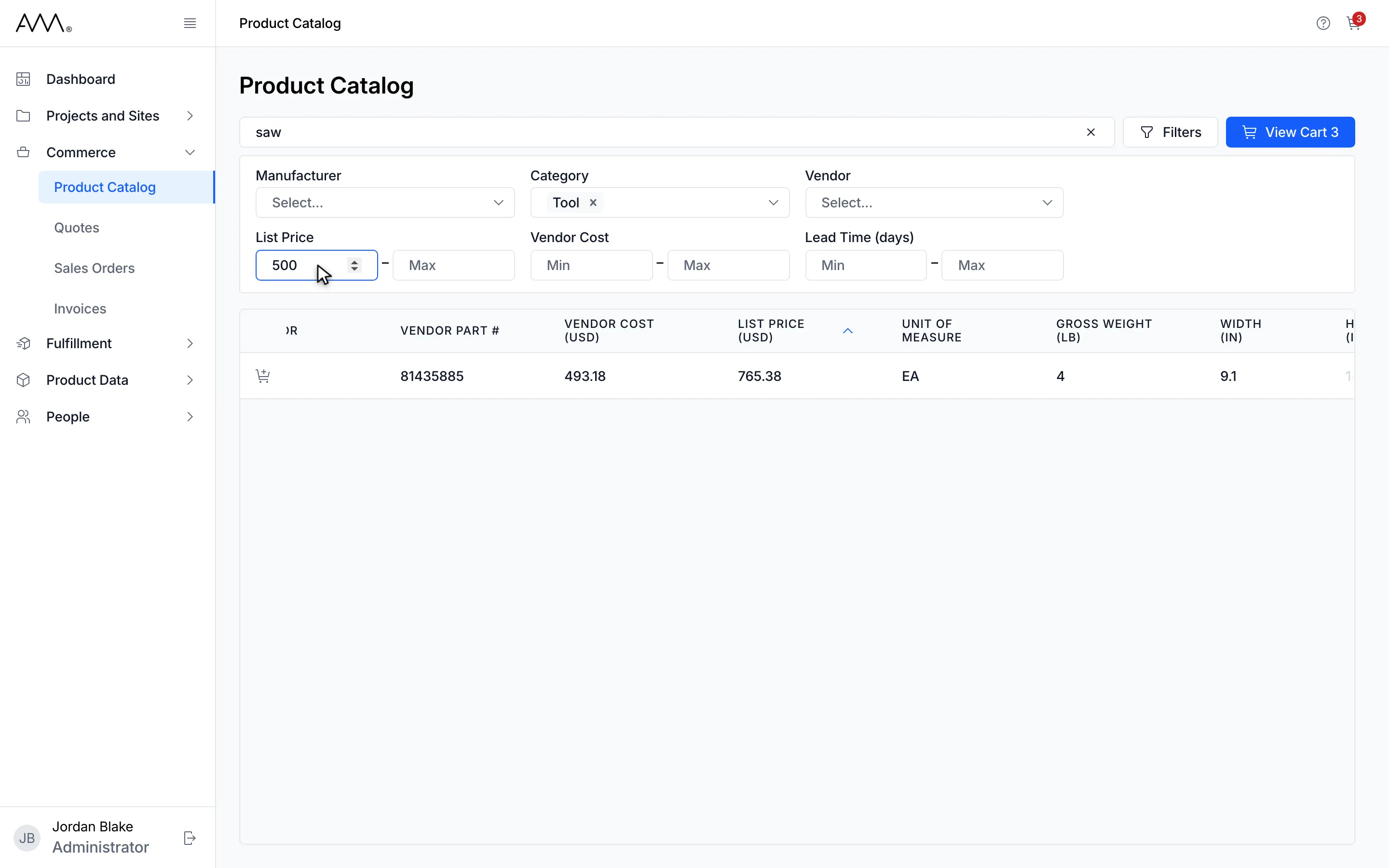
9The catalog shows only the products that match your search, sort and filters.
Watch this as a video (browse and search the catalog)
Reading the results
Section titled “Reading the results”- Your search, sort and filters are kept in the page address, so you can bookmark a view or share its link. The default sort is left out of the address.
- The table is wide; scroll sideways to see all the columns. The catalog is always a table, so there is no Card view toggle here.
- Every column can be sorted. Products without a UPC show a blank cell and come first when you sort by UPC ascending.
- If nothing matches you see No Results Found and Check the spelling or try removing filters.
- Long result sets load as you scroll (Loading more…). If a page fails to load, click Retry.
- If the catalog itself cannot be loaded you see Failed to load products.; reload the page to try again. Failed to load manufacturers., Failed to load categories. or Failed to load suppliers. means one of the filter lists could not be loaded.
Hover the add-to-cart button at the start of a row to see its name, Add followed by the product name and to cart. See Build a cart.