Manage a company's people
The People tab on a company page lists everyone linked to that company. From here you can add a person to the company without picking the company by hand.
- Open the company from the Companies list.
- Click the People tab.
- Click Add Person. The Add Person dialog opens with Company already set to this company. You cannot change it here.
- Enter the First Name, Last Name and Email. Add a Phone Number and Roles if you want.
- Click Add Person.
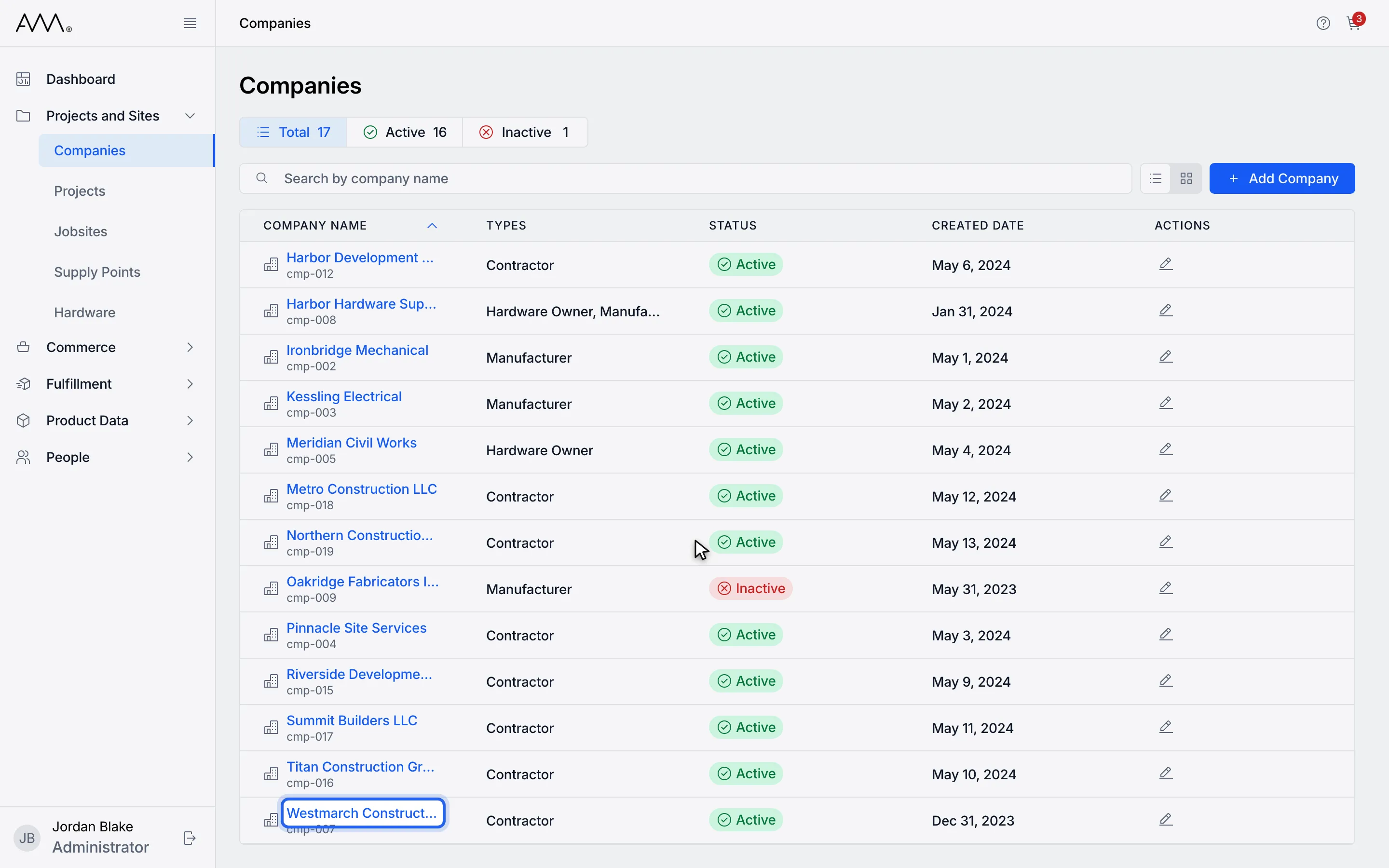
1Open the company.
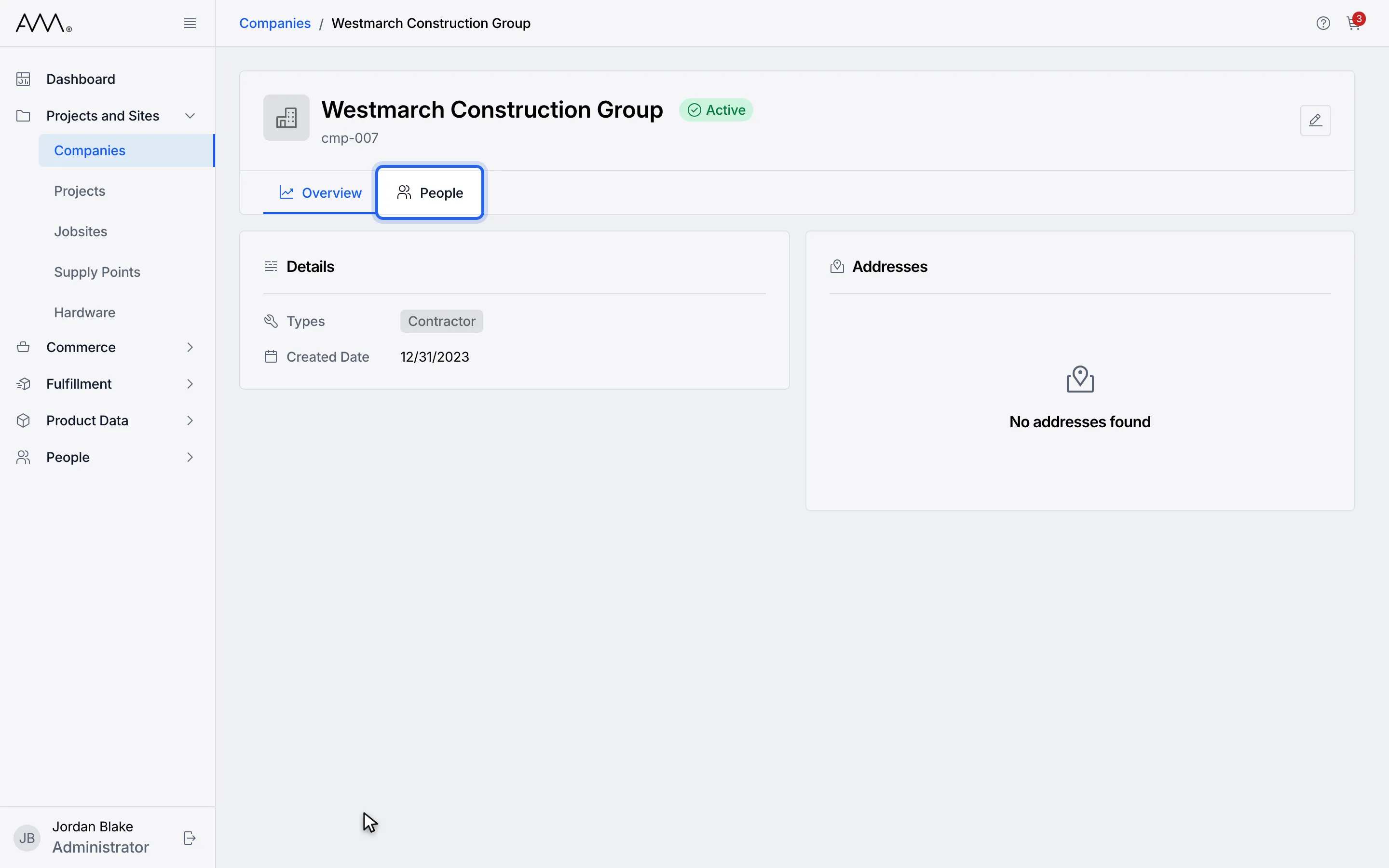
2Click the People tab.
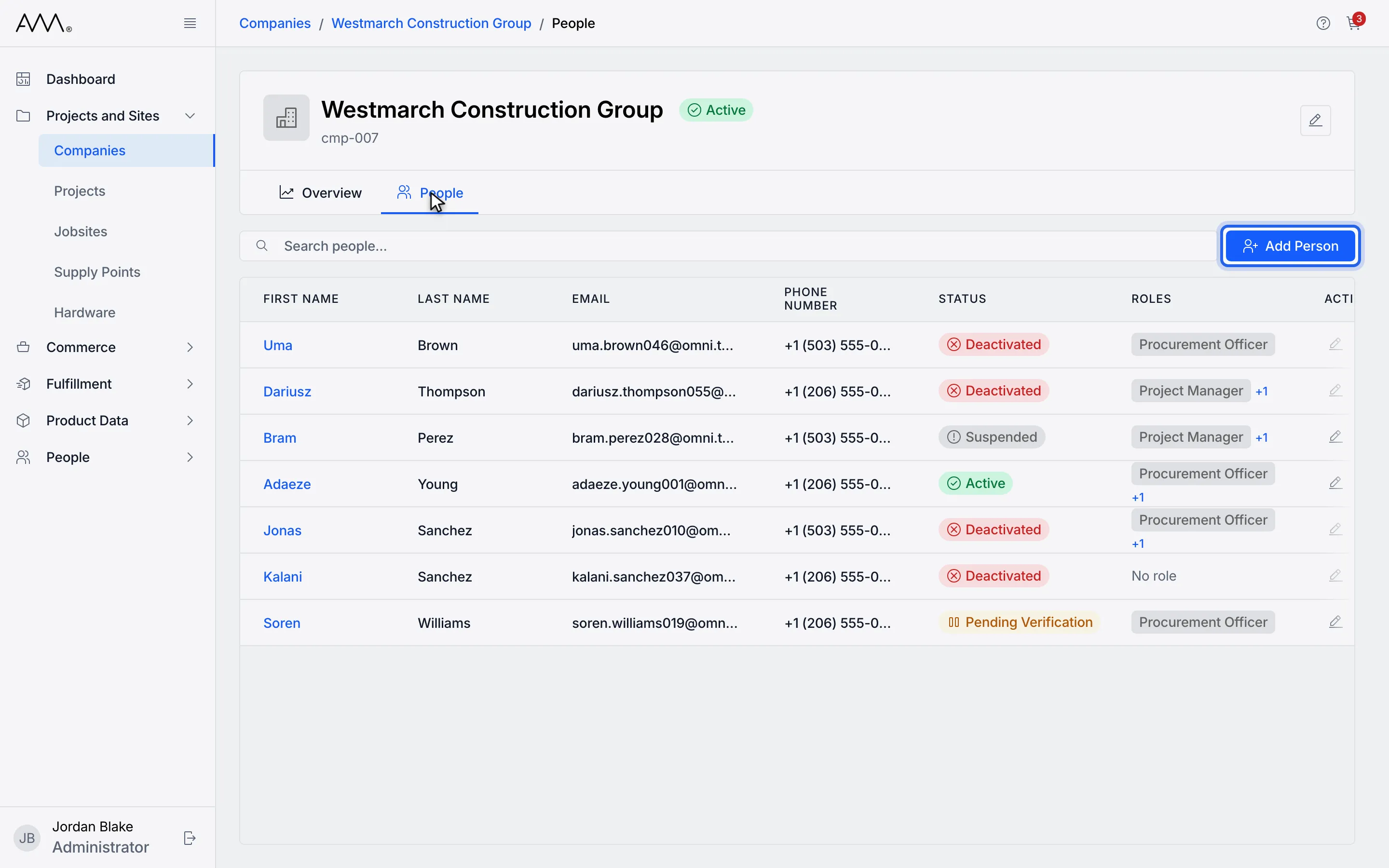
3Click Add Person.
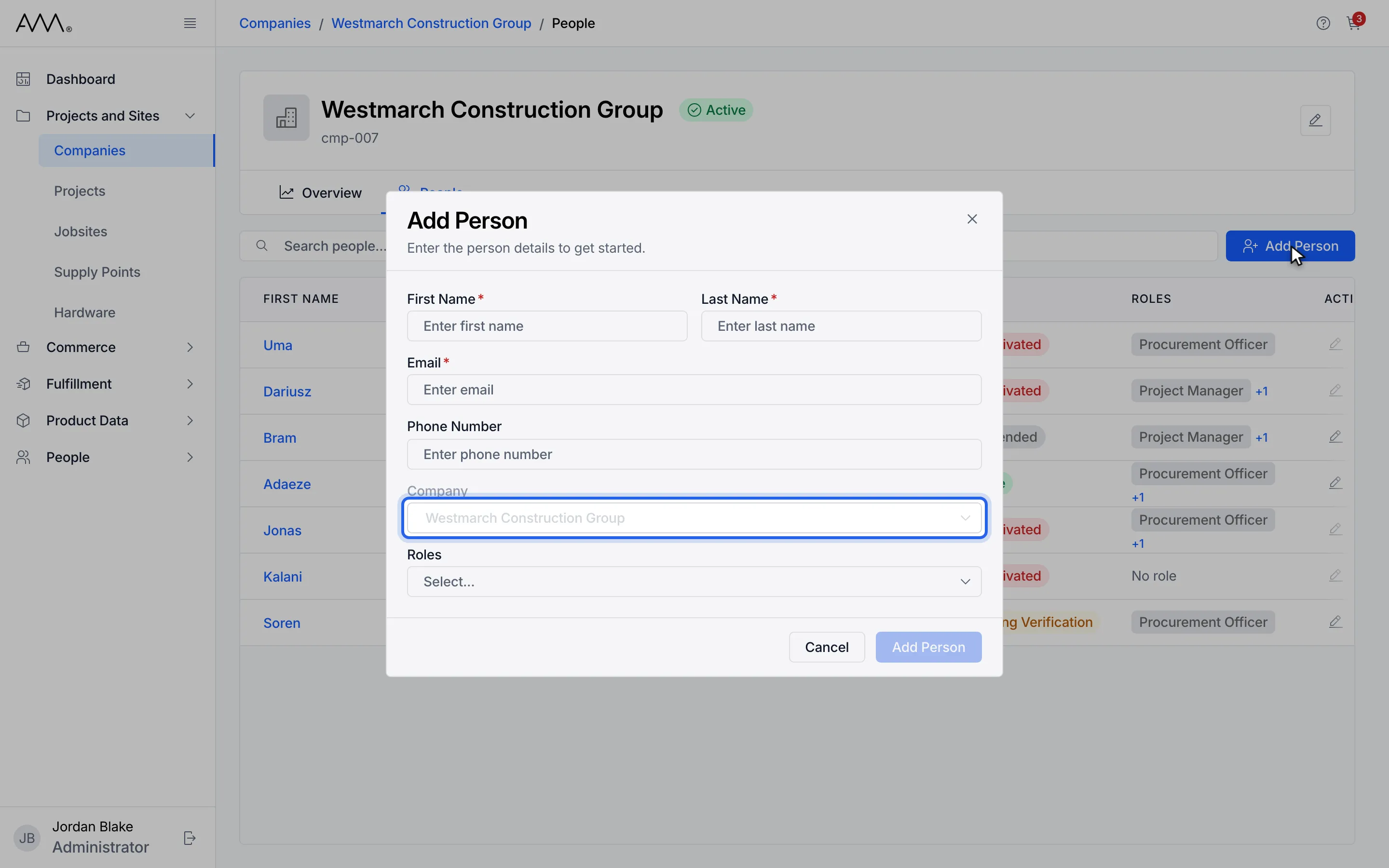
4Company is already set to this company and cannot be changed here.
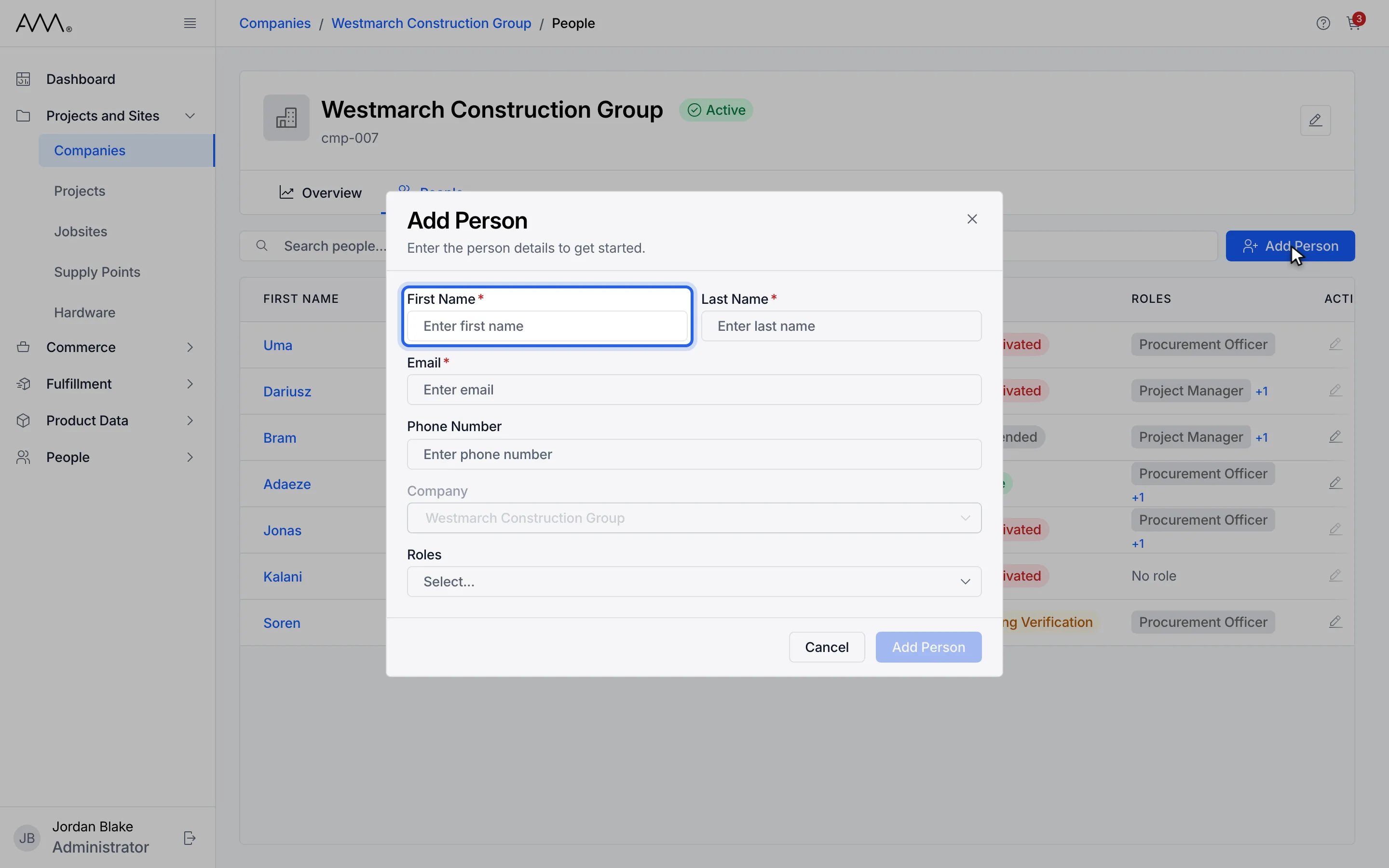
5Enter the first name.
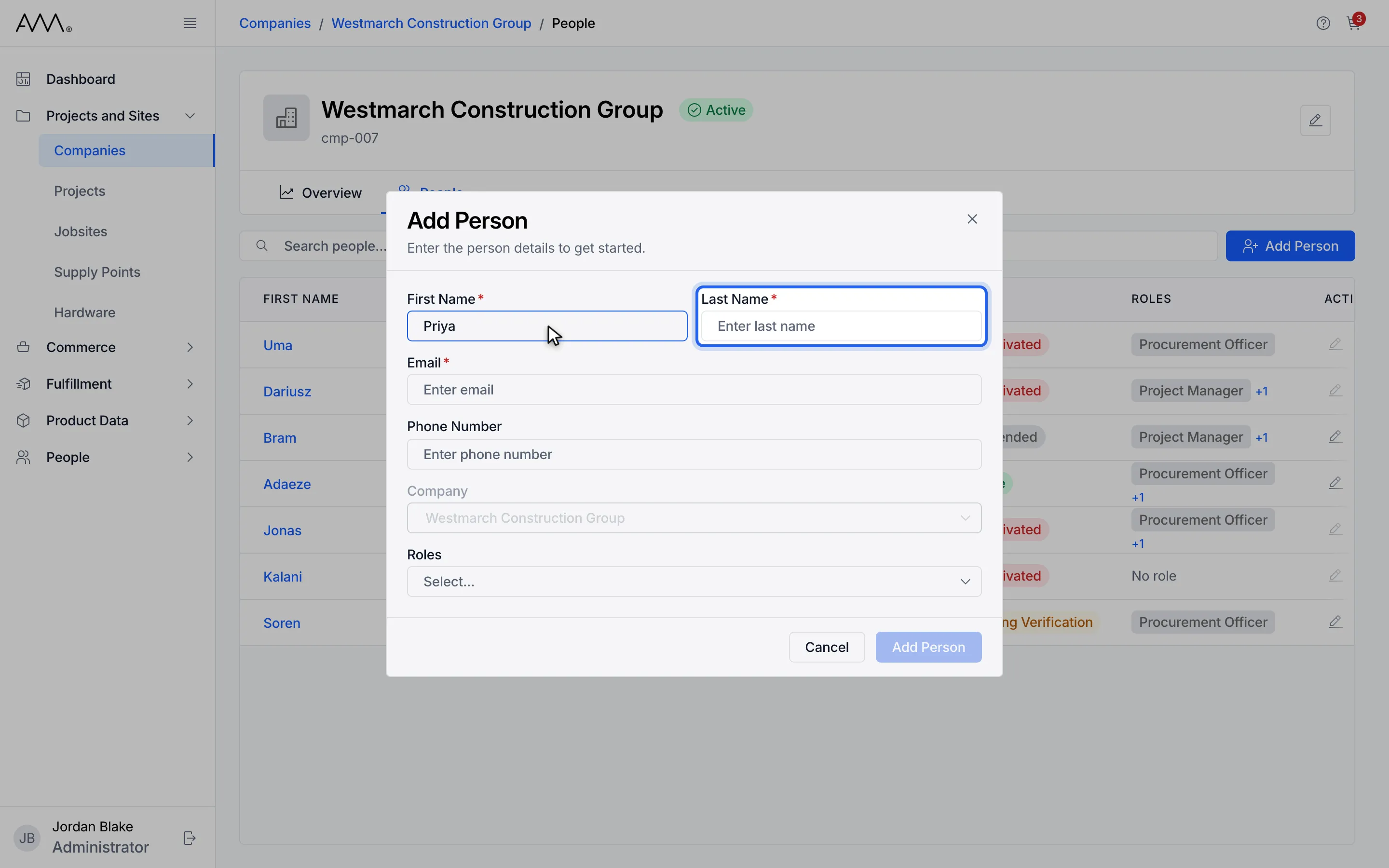
6Enter the last name.
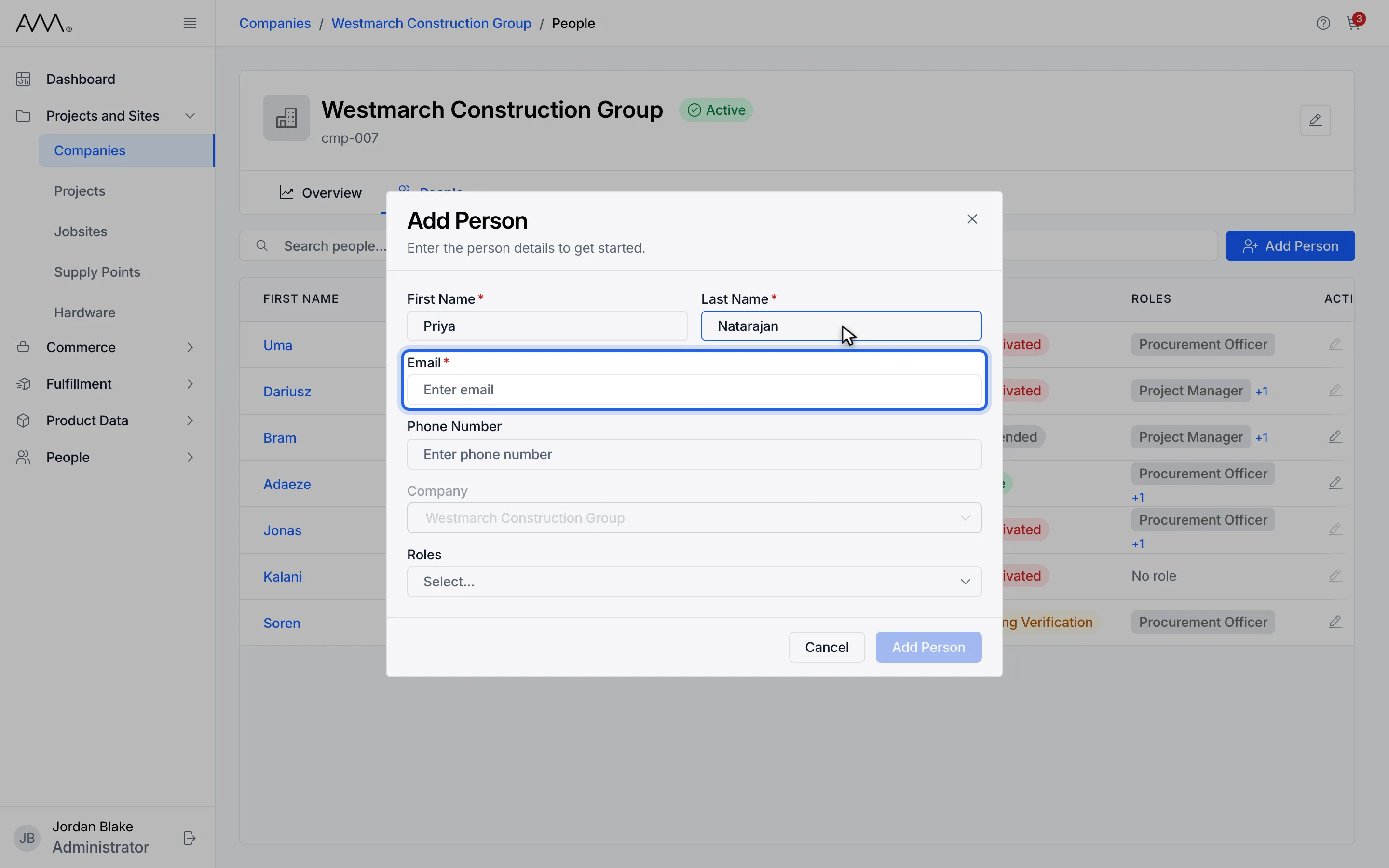
7Enter the email address.
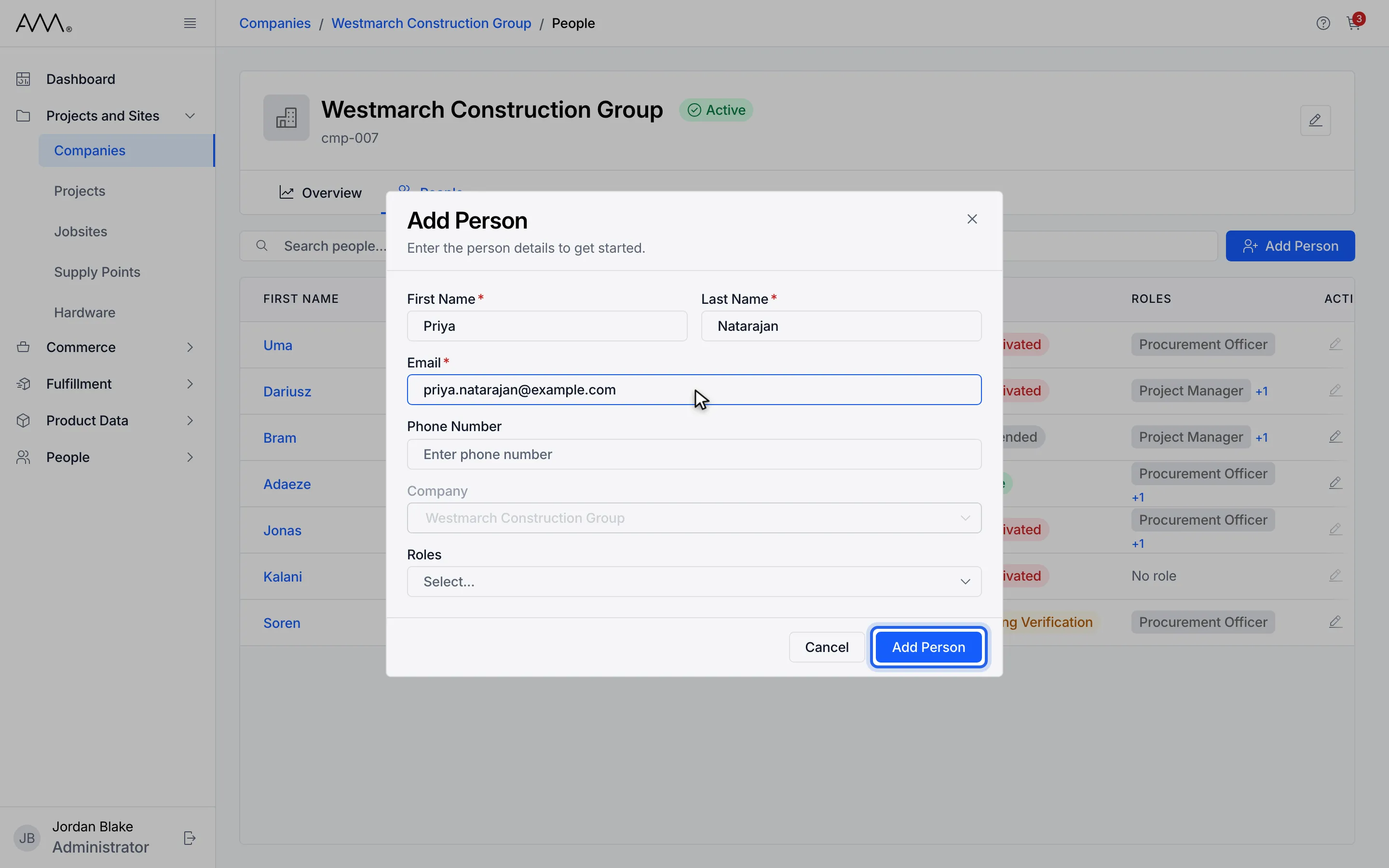
8Click Add Person.
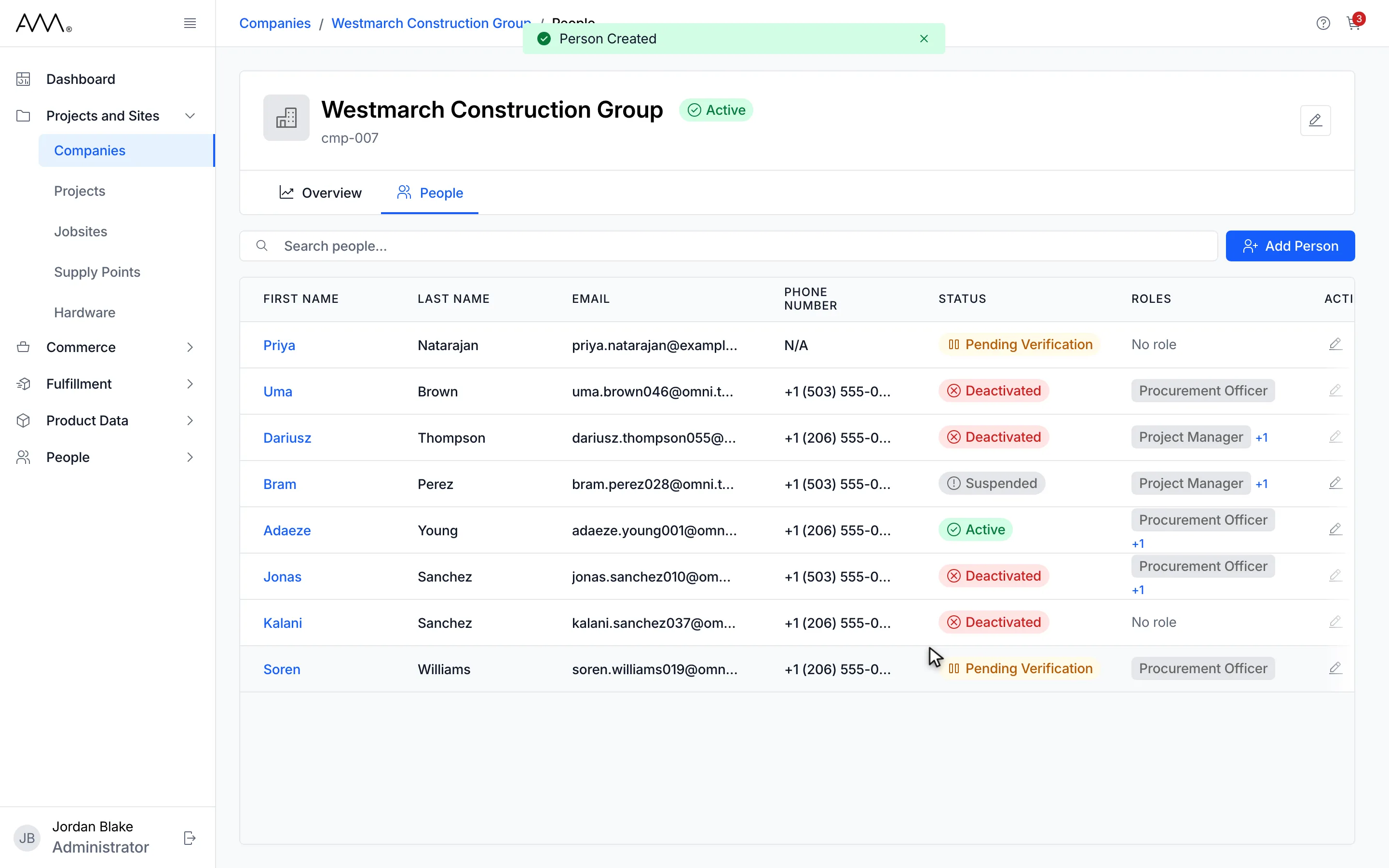
9Omni shows Person Created and the new person is listed under the company.
Watch this as a video (manage a company's people)
What happens next
Section titled “What happens next”Omni shows Person Created and the new person appears in the company’s list with the status Pending Verification. They receive an email to set up their sign-in.
To edit someone from this tab, click the edit icon on their row. The Edit Person dialog opens with Company locked to this company. To move a person to another company, edit them from the People list instead.
The tab works the same for an inactive company. Only a company that was deleted no longer has a page.