Shipments
A Shipment groups one or more packed Fulfillment Orders under a carrier, with an expected delivery date and time and a shipping charge in US dollars for each order. You create a shipment from packed orders, mark it in transit when it leaves, and mark each order delivered when it arrives.
Shipments lives under Fulfillment in the sidebar. You need the Shipments: Read permission to see it, Shipments: Create to create a shipment and Shipments: Update to change one.
Statuses and carriers
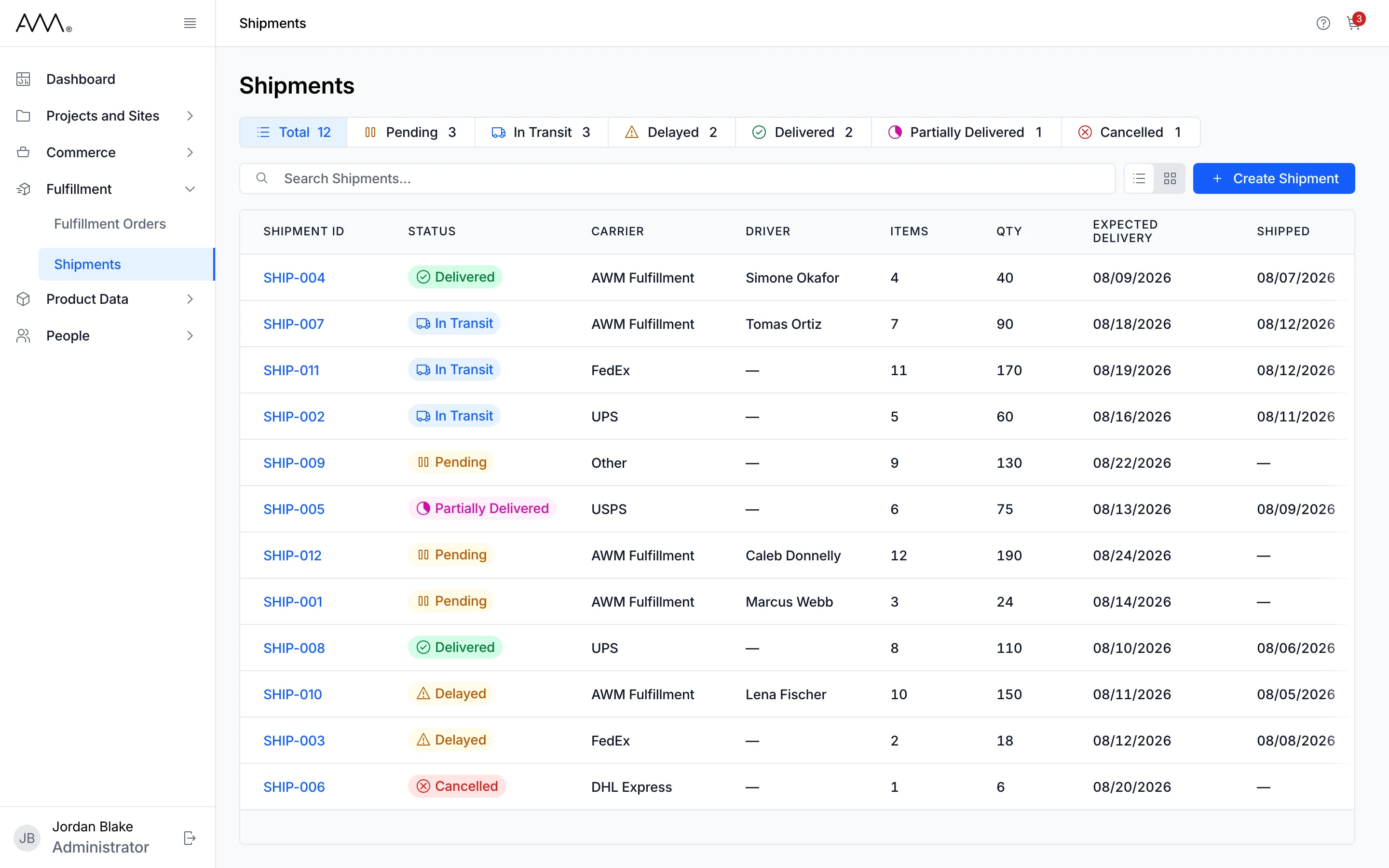
Section titled “Statuses and carriers”The status chips across the top of the list are, in order, Total, Pending, In Transit, Delayed, Delivered, Partially Delivered and Cancelled. Each shows a count. Click one or more chips to filter, and Total to clear the filter.
| Status | Meaning |
|---|---|
| Pending | Created, not yet departed |
| In Transit | Departed; orders can be delivered |
| Delayed | Held up on the way; orders can still be delivered |
| Delivered | Every remaining order was delivered |
| Partially Delivered | Some orders were delivered and the rest were removed or the shipment was cancelled |
| Cancelled | Cancelled with nothing delivered, or its last order was removed |
Delivered, Partially Delivered and Cancelled are final. Each order on a shipment is Assigned, Delivered or Removed.
The carriers are AWM Fulfillment, UPS, FedEx, USPS, DHL Express and Other. AWM Fulfillment shipments have a Driver and no tracking numbers; every other carrier takes tracking numbers for each order.
The list
Section titled “The list”The list opens with the most recently created shipments first. Each row shows the Shipment ID, Status, Carrier, Driver, Items, Qty, Expected Delivery (the planned date), Shipped (the departure date, or a dash) and Delivered (the delivery date in green with a check mark, or a dash). Click any column heading except Delivered to sort, and click it again to reverse the order. On a narrower screen, scroll the table sideways to reach Delivered. Search Shipments… matches the shipment number, driver, fulfillment order number, sales order number, company and supply point name, but not the carrier. Create Shipment sits above the table when you can create shipments. Card view shows the same fields on one card per shipment.
The shipment page
Section titled “The shipment page”The header shows the shipment number, its status badge and the actions available in that status: Mark as In Transit, Mark as Delayed and Cancel Shipment. Final statuses show no actions. On a phone, Cancel Shipment sits in the Shipment actions menu and the forward action in a bar at the bottom of the screen.
- Details: the Shipment Details card (Carrier, Driver, Items, Quantity, Number of Packages, Shipped, Expected Delivery and Delivered, each date with its time), Related Records (the sales orders with their current status, then every fulfillment order on the shipment with its line status, including removed ones) and Destinations (each distinct Supply Point, or the address when an order has no Supply Point).
- Fulfillment Orders: one row per order with Fulfillment Order ID, Sales Order, Company, Destination, Items, Qty, Packages, Shipping Charge, Tracking (not shown for AWM Fulfillment), Status and Actions (Remove and Deliver). Assigned rows show no status badge. Click a heading to sort, except Shipping Charge, Tracking and Actions. The table is wide, so scroll it sideways to reach the last columns.
A fulfillment order number, a sales order number or a Supply Point on these pages is a link when you can view that record; otherwise it is plain text.