Find a price list
The Price Lists page shows every price list, sorted by name from A to Z. Use the status buttons, the search box and the column headers together to get to one quickly.
- In the sidebar, open Product Data and choose Price Lists.
- Press a status button such as Active to show only price lists in that status. Each button shows a count.
- Press another status, such as Draft, to add it to the filter. Press a status again to remove it, or press Total to clear the filter and show every price list.
- Type part of a name in Search Price Lists…. The list filters as you type.
- Click the name to open the price list.
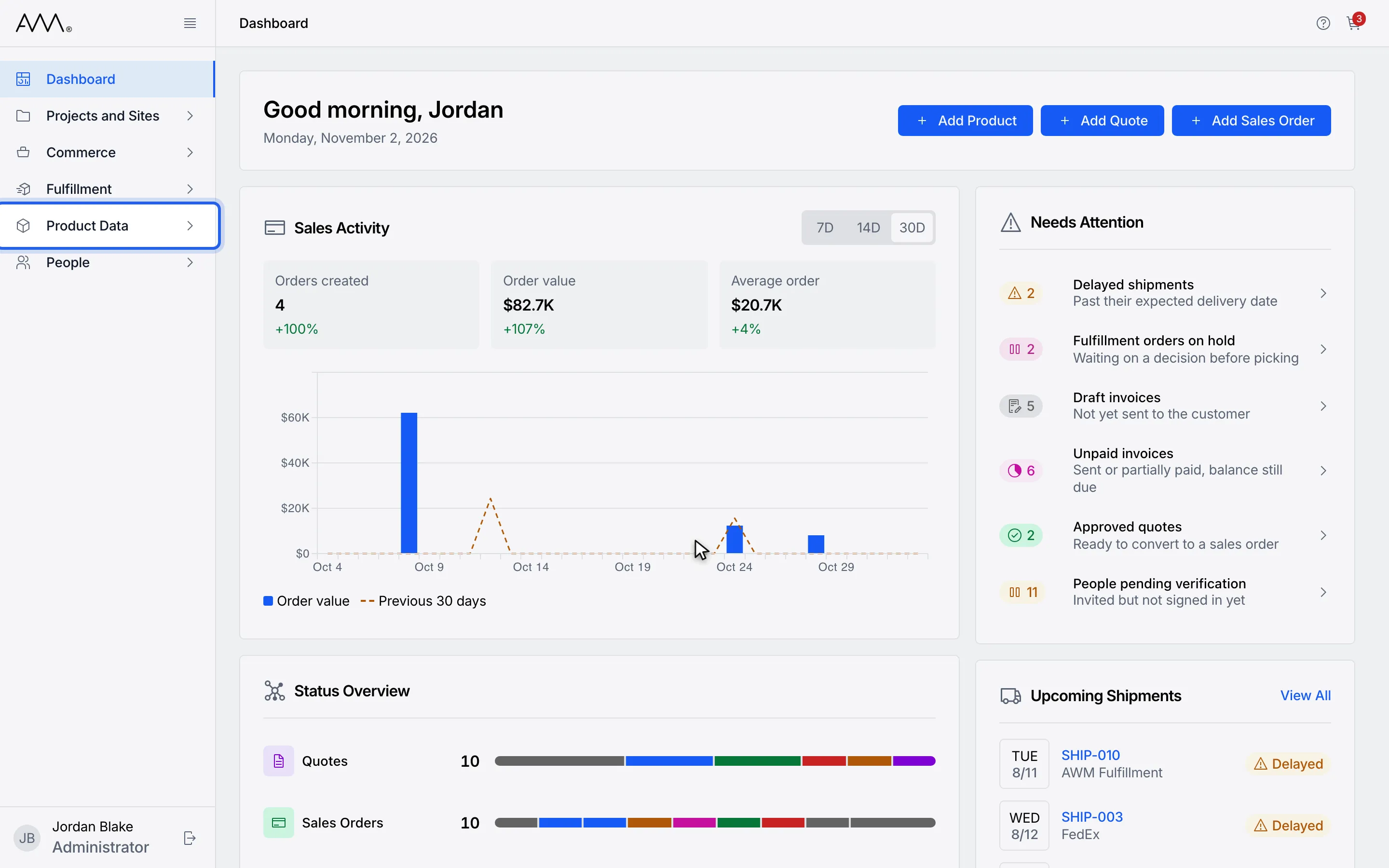
1In the sidebar, open Product Data.
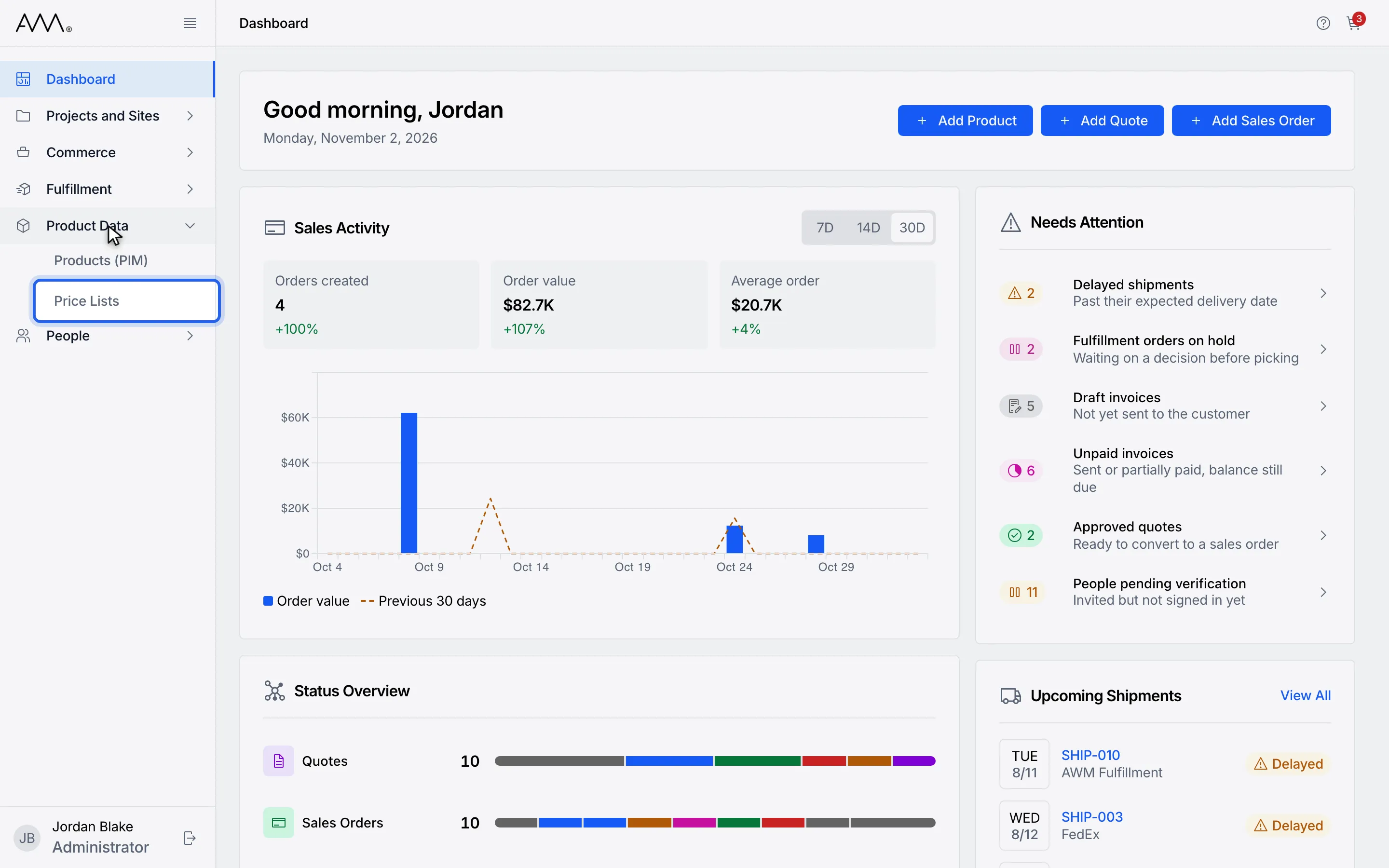
2Choose Price Lists. The list opens sorted by name, A to Z.
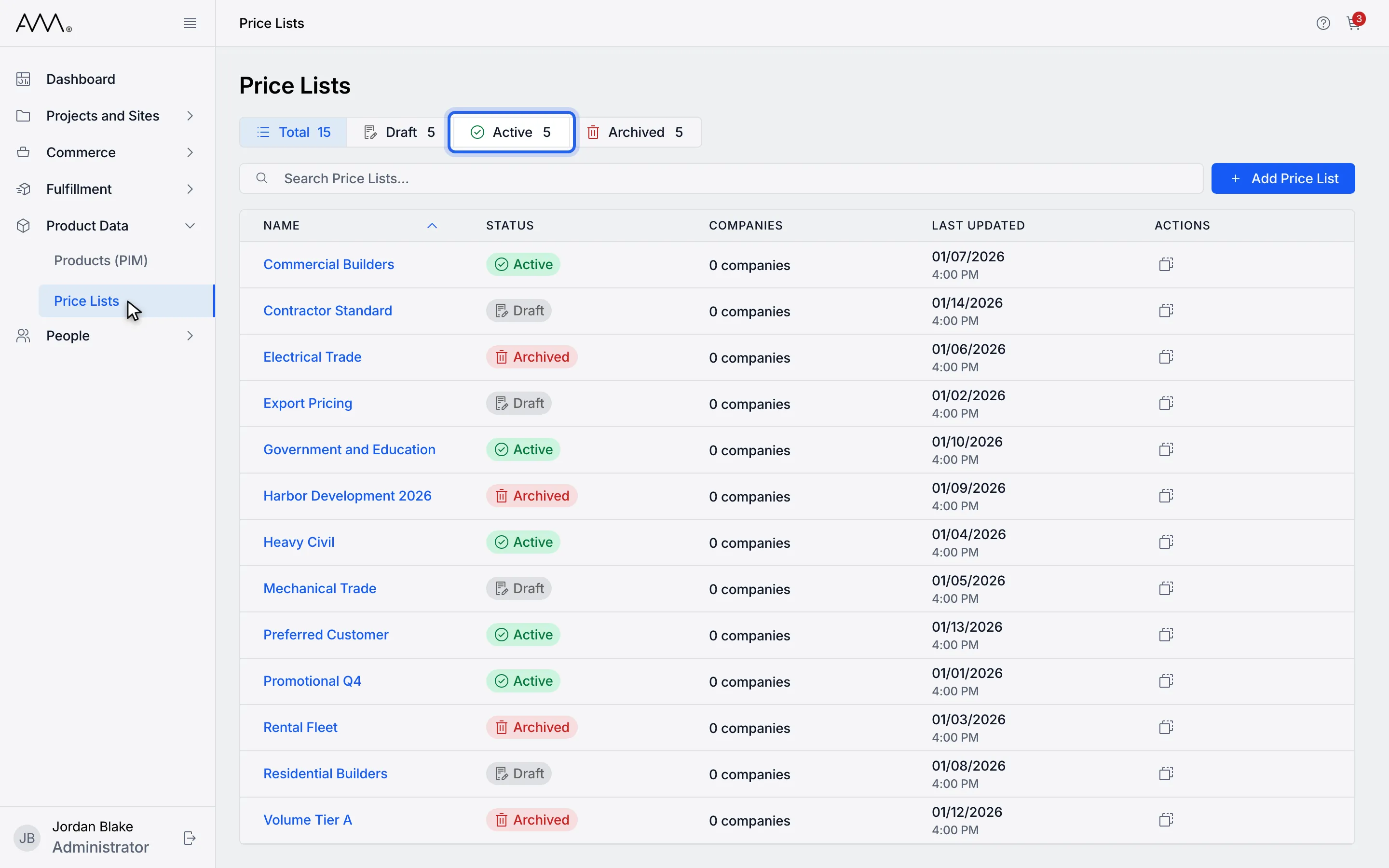
3Press a status such as Active to show only that status. Each button shows a count.
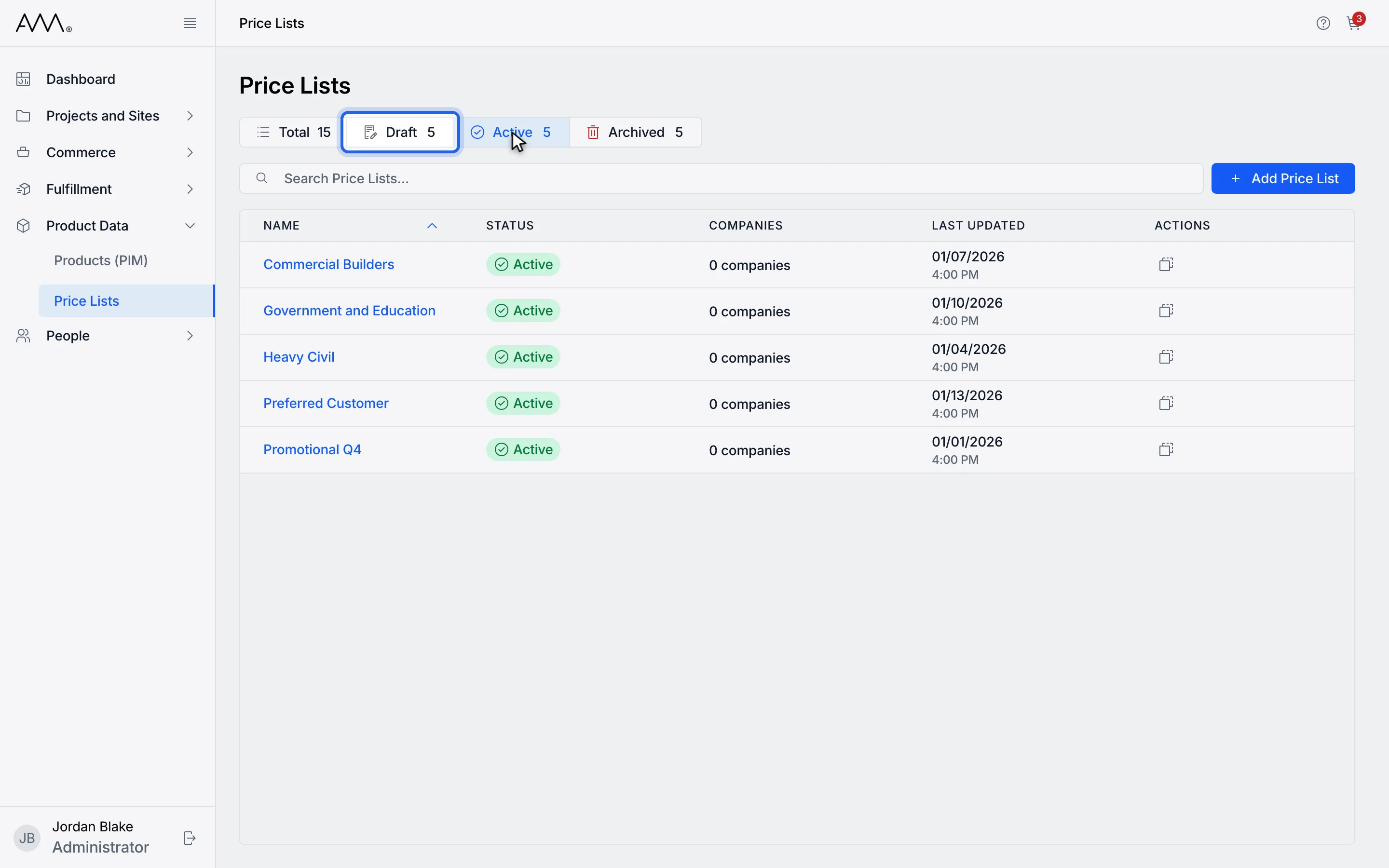
4Press another status to add it. Press Total to clear the filter.
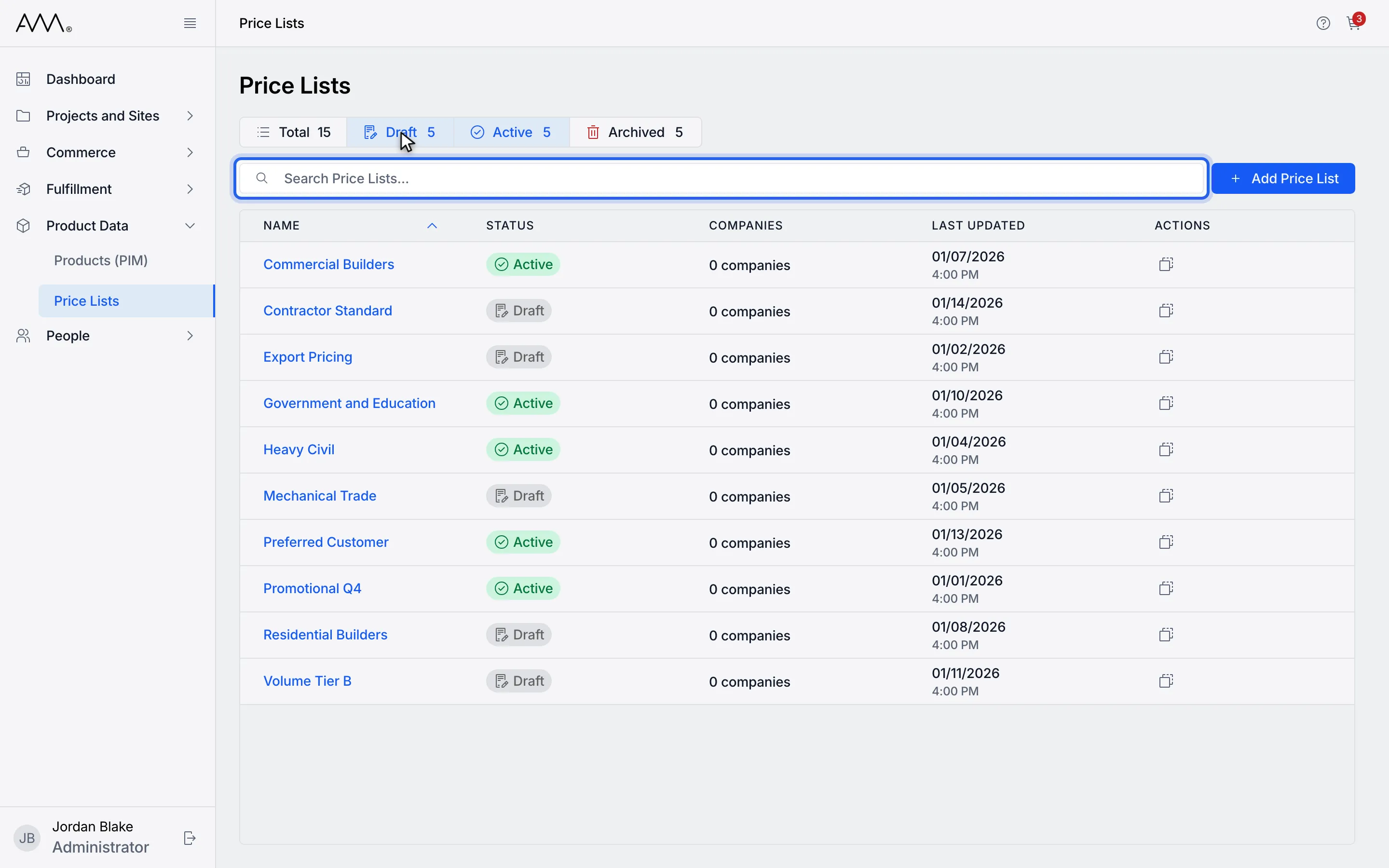
5Type part of a name in the search box. The list filters as you type.
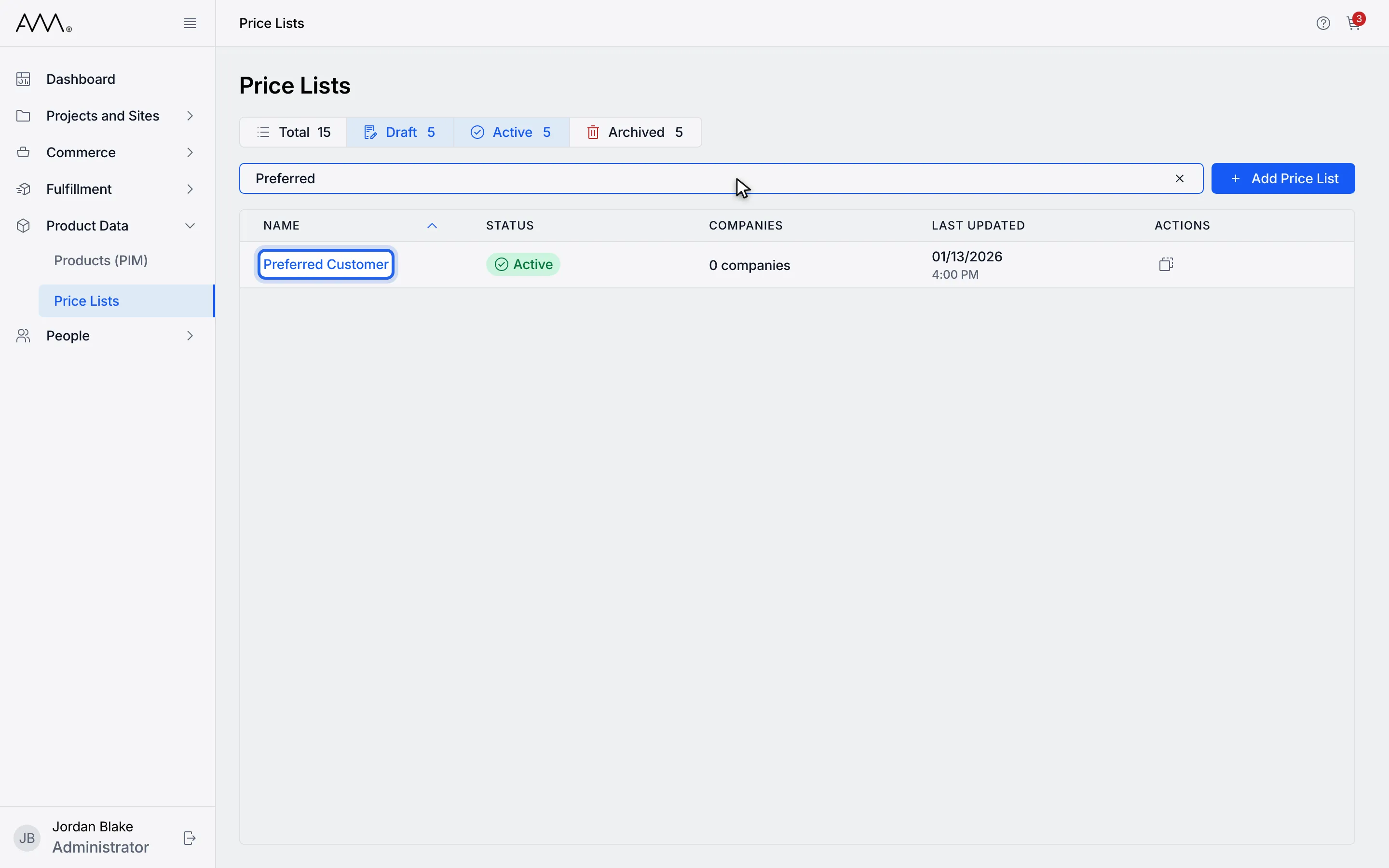
6Click the name to open the price list.
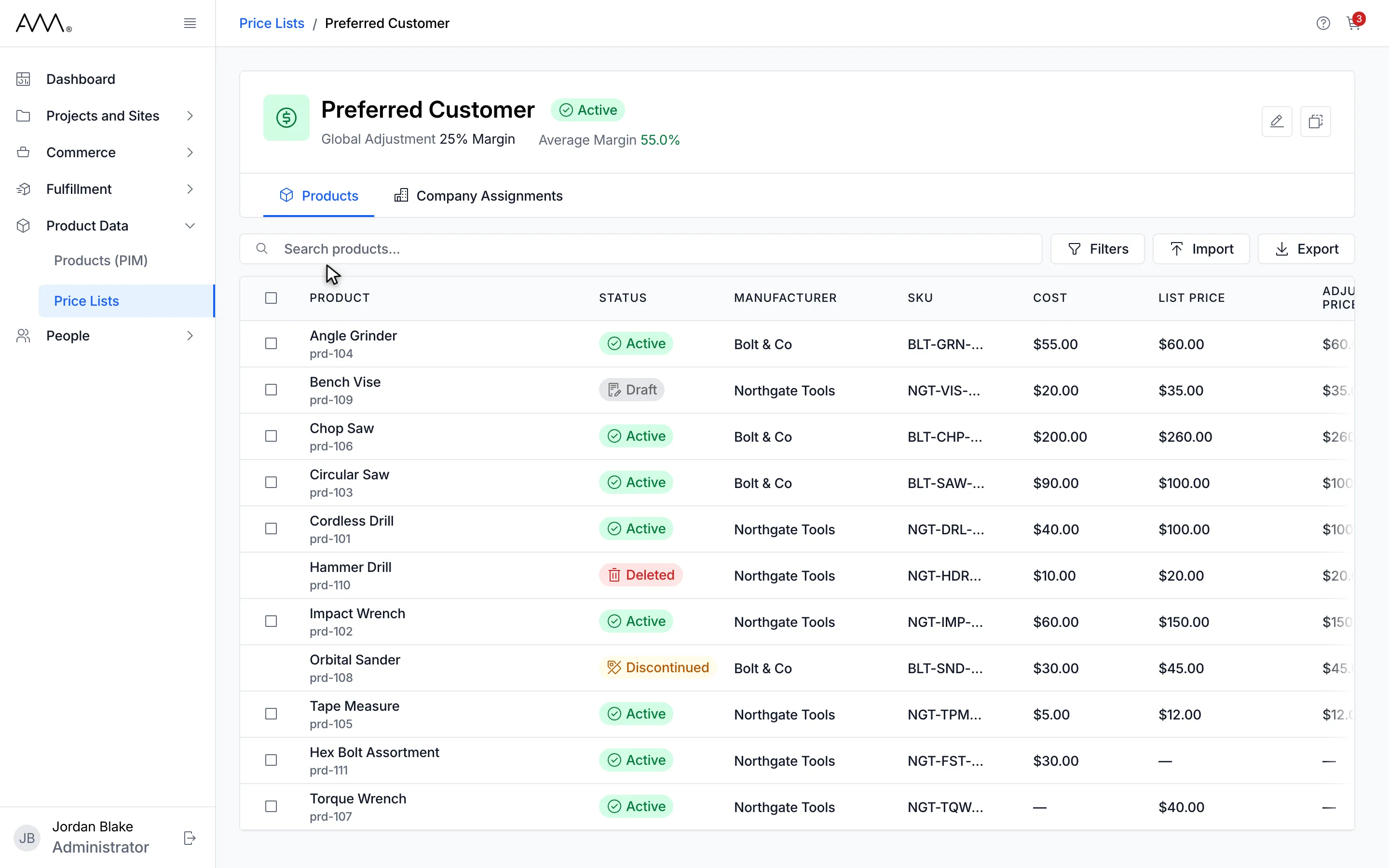
7The price list opens on its Products tab, and the breadcrumb shows its name.
Watch this as a video (find a price list)
What happens next
Section titled “What happens next”The price list opens on its Products tab. The breadcrumb at the top of the page reads Price Lists followed by the price list’s name; click Price Lists there to return to the list. If nothing matches your search or status filter, the page shows No price lists found with the hint Try adjusting your search or filter criteria.