Find hardware
The Hardware list shows every unit AWM owns. Use the status chips, the column headers and the search box together to get to the unit you want.
- In the sidebar, open Projects and Sites and choose Hardware.
- Click a status such as Available to show only units in that status. Each chip shows a count.
- Click a second status, such as In Progress, to include it too. Click a selected status again to remove it, or click Total to show every unit.
- In List view, click a column header to sort by that column. Click it again to reverse the order. The list opens sorted by serial number from A to Z.
- Type a serial number or hardware ID in Search hardware…. The list updates a moment after you stop typing.
- Switch between List view and Card view with the toggle next to the search box.
Find hardware1 / 9
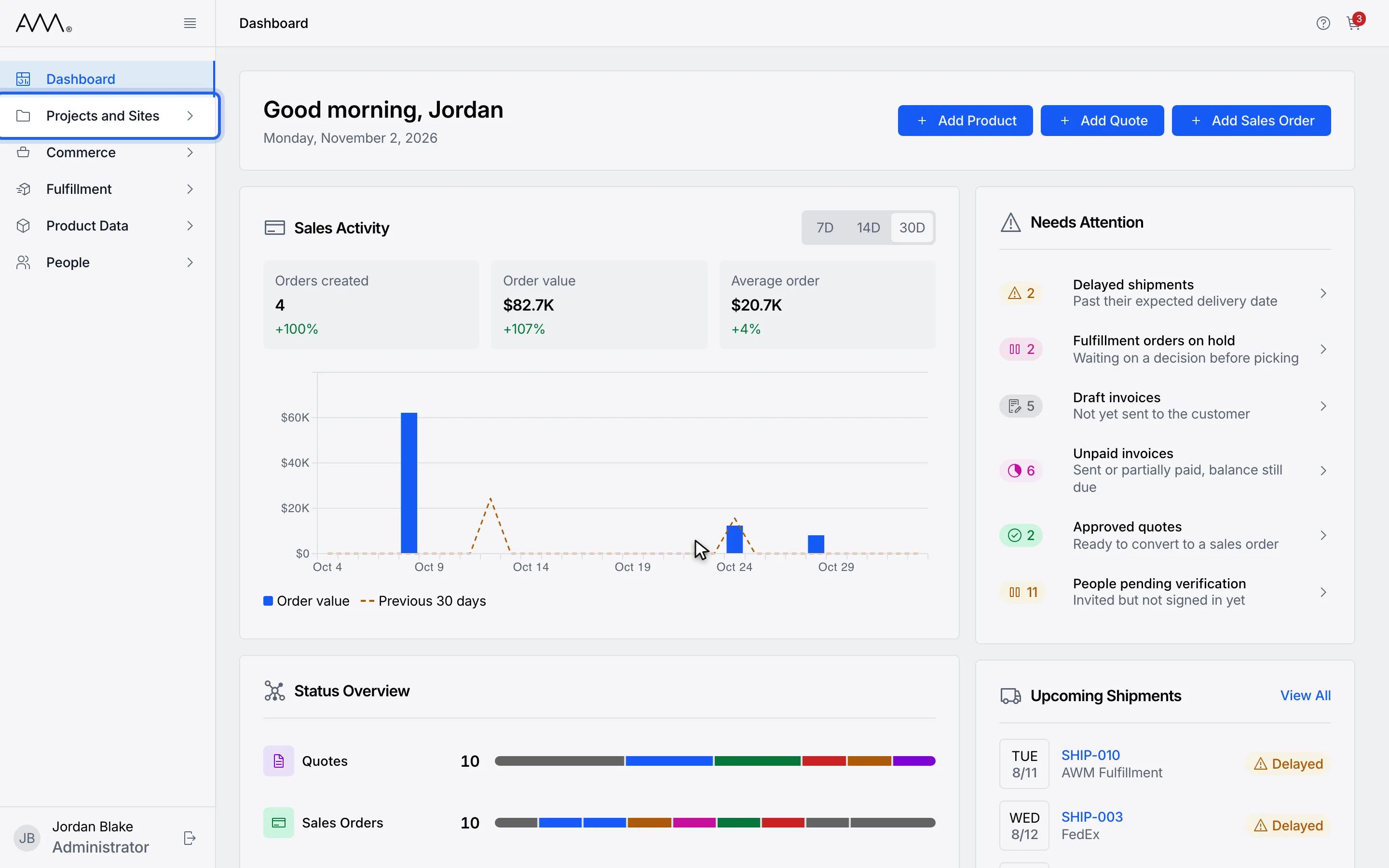
1In the sidebar, open Projects and Sites.
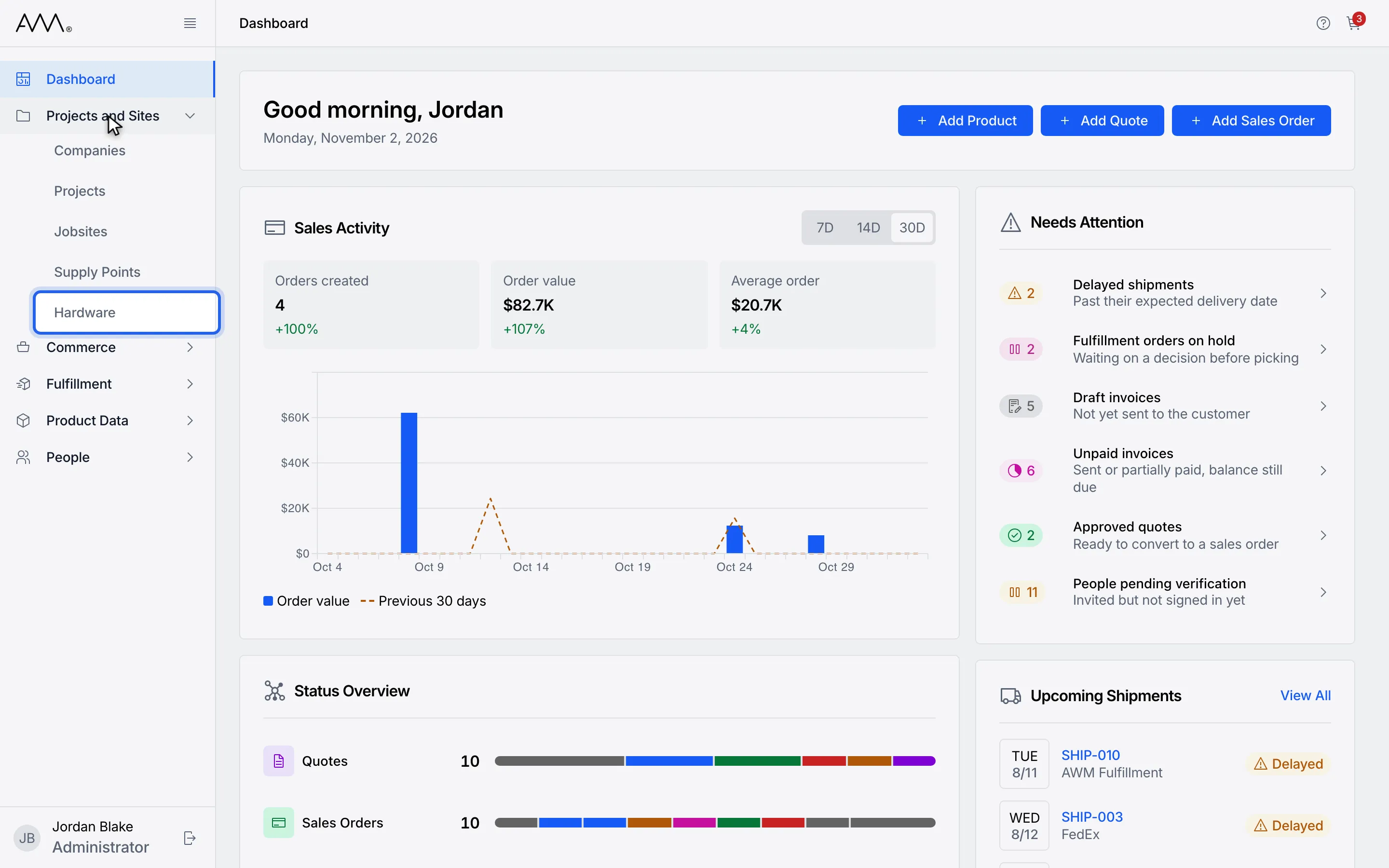
2Choose Hardware.
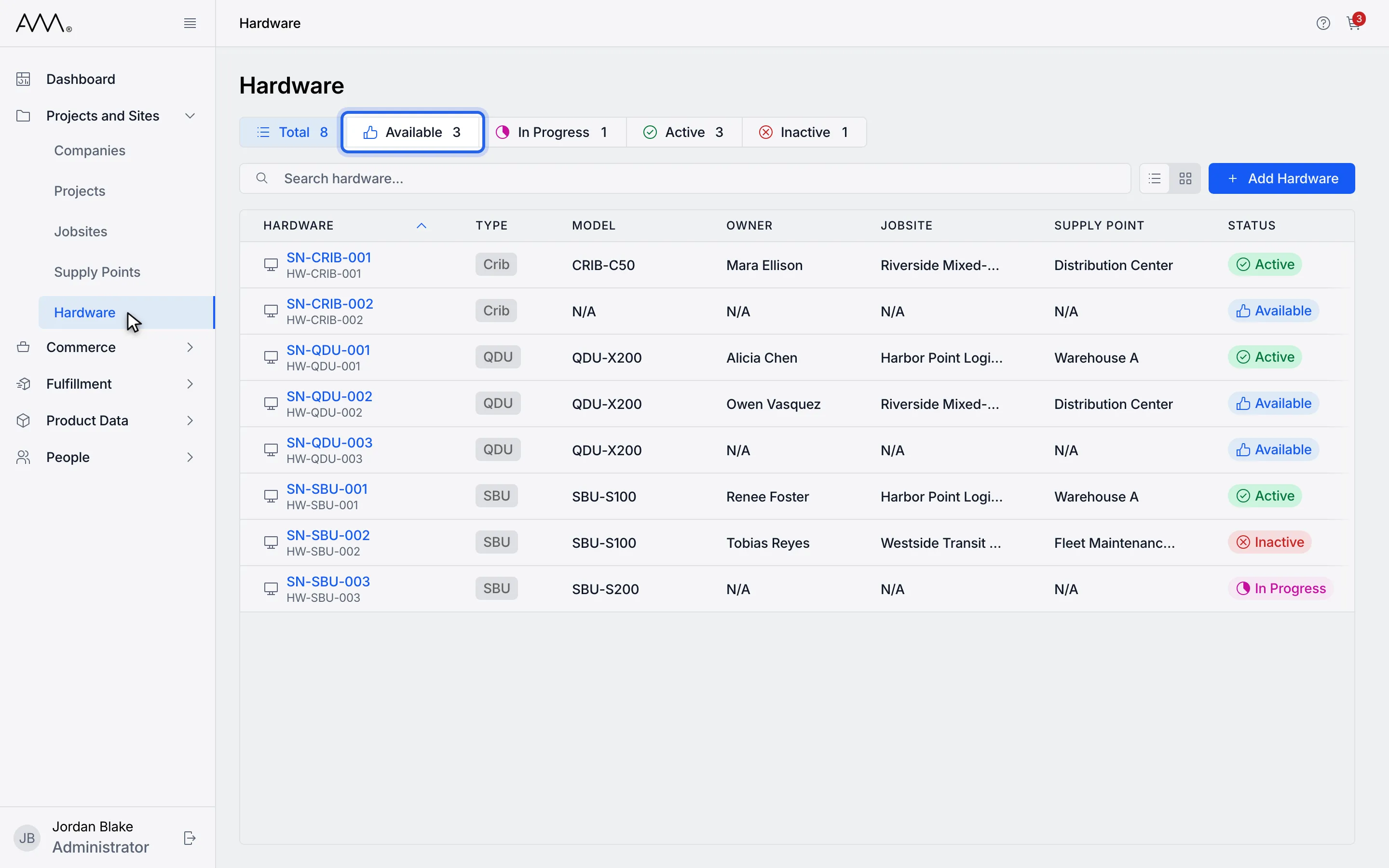
3Click a status such as Available to show only those units.
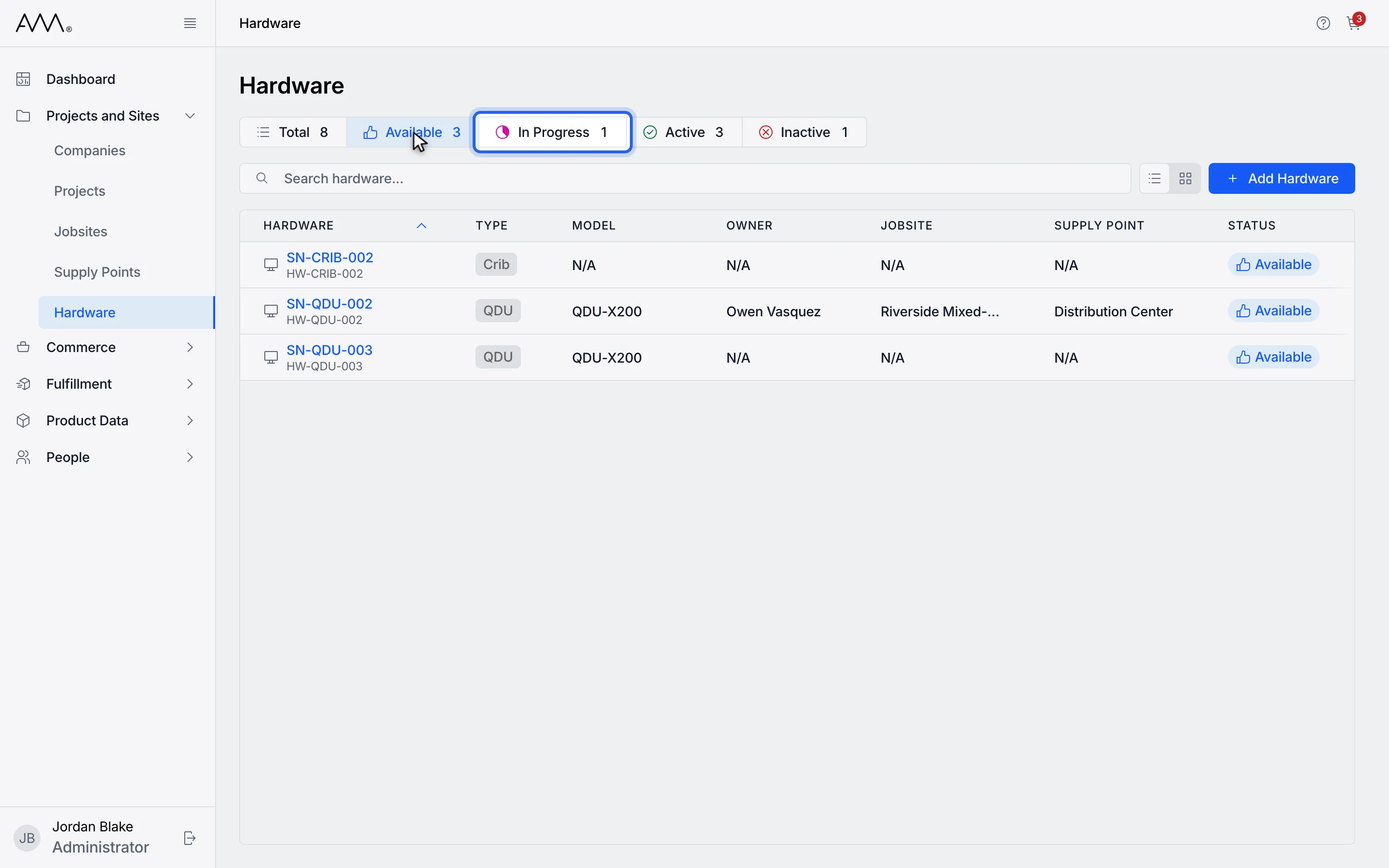
4Click a second status, such as In Progress, to include it too.
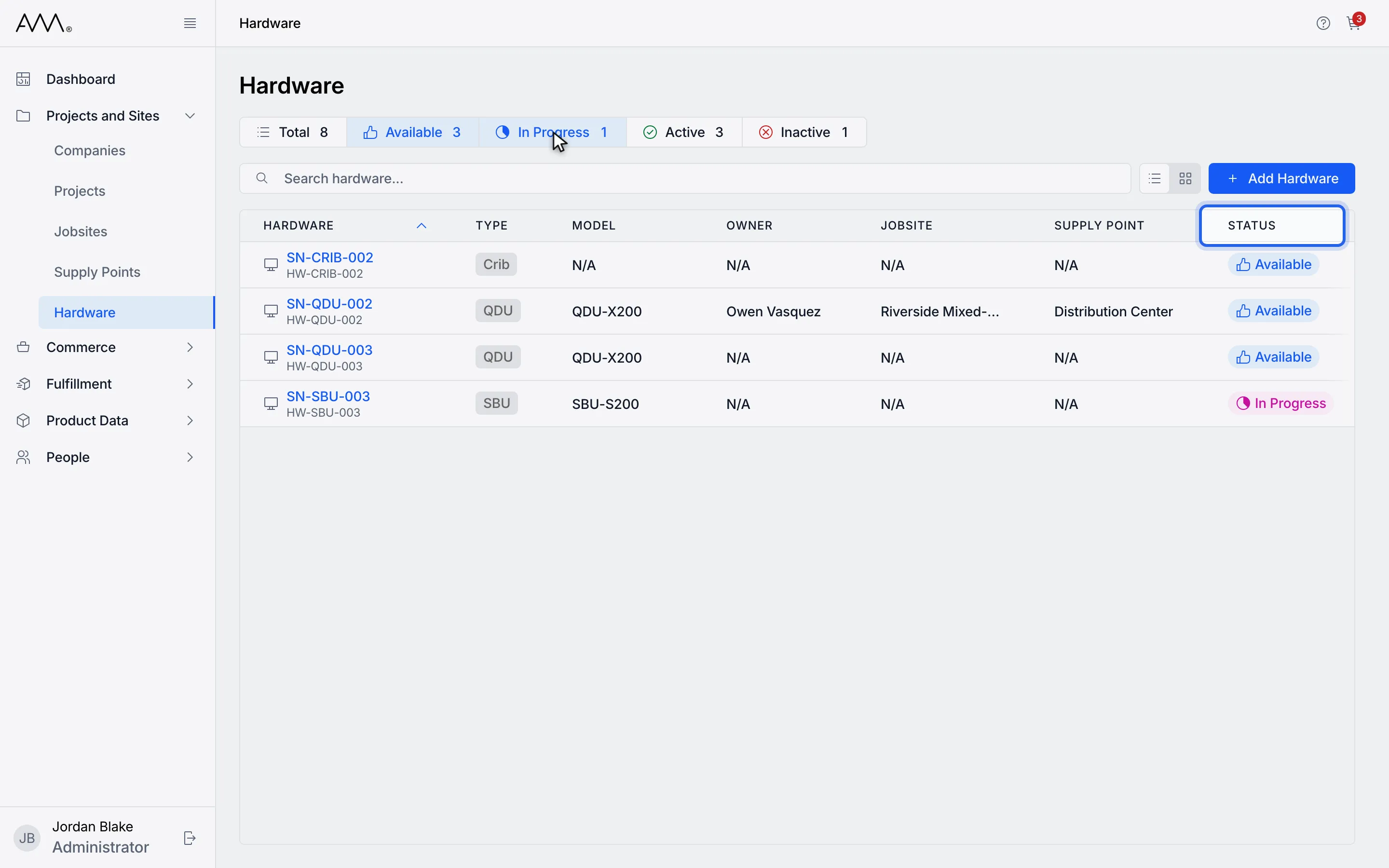
5In List view, click a column header to sort by it. Click again to reverse.
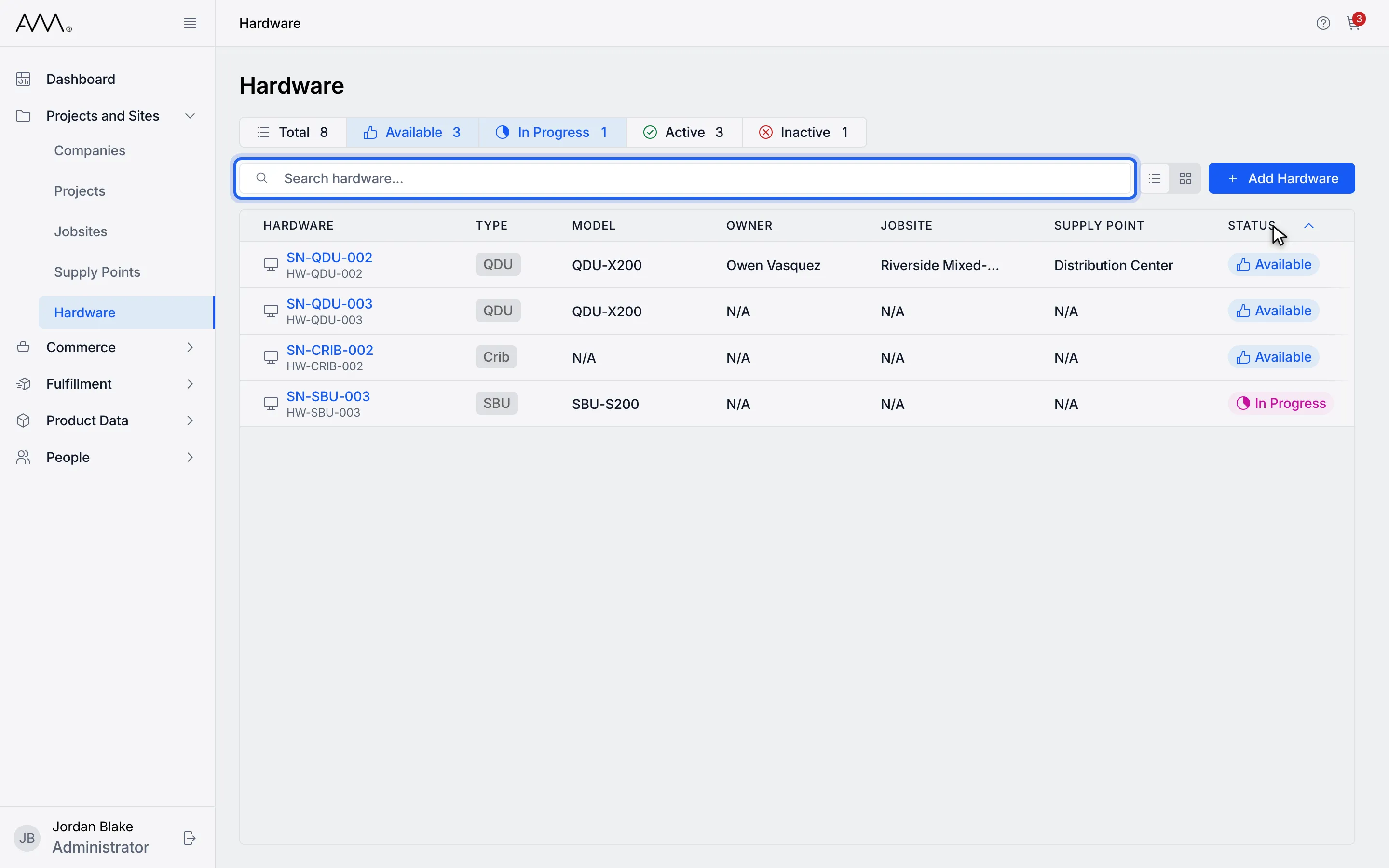
6Type a serial number or hardware ID in Search hardware...
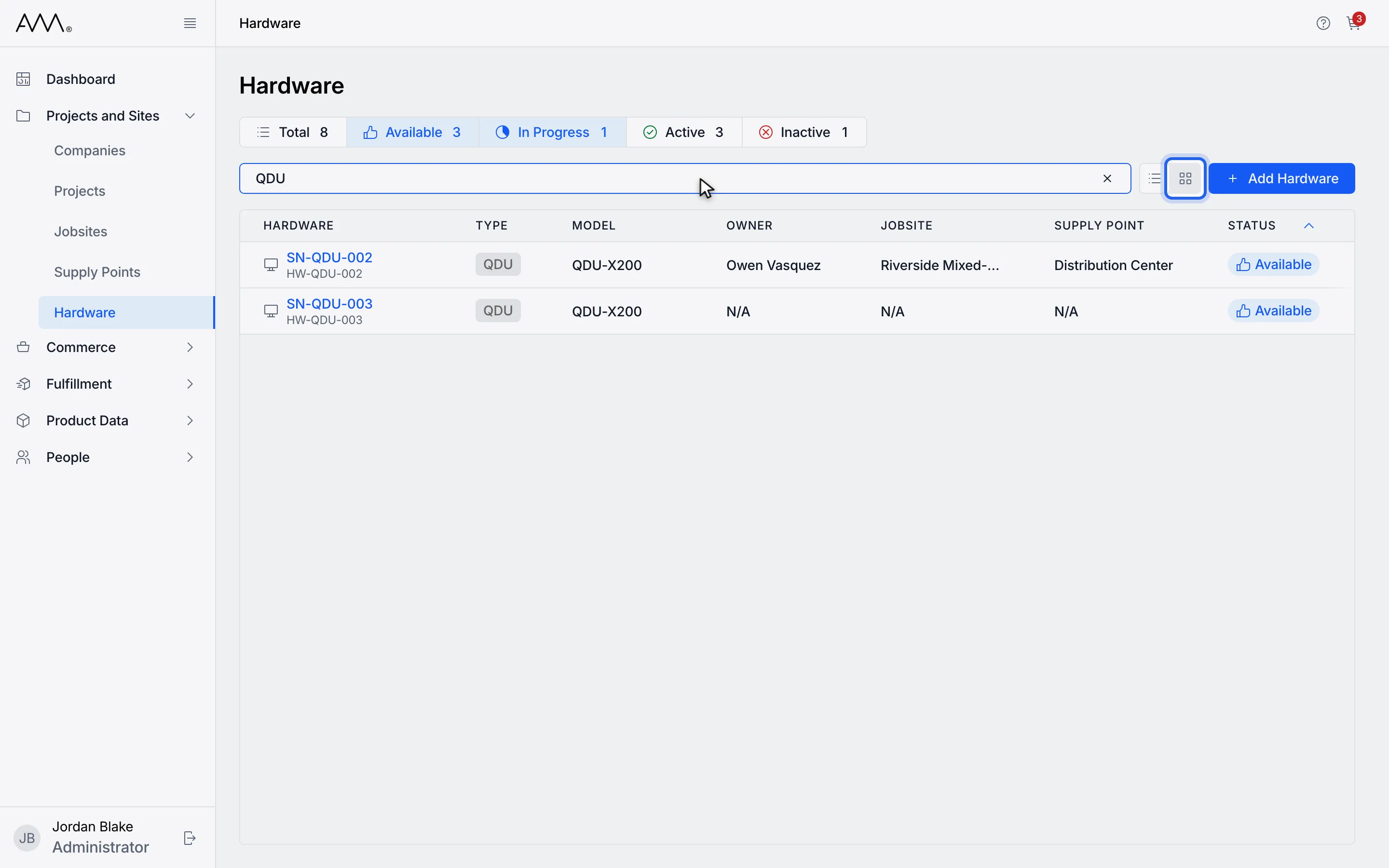
7Switch between List view and Card view with the toggle.
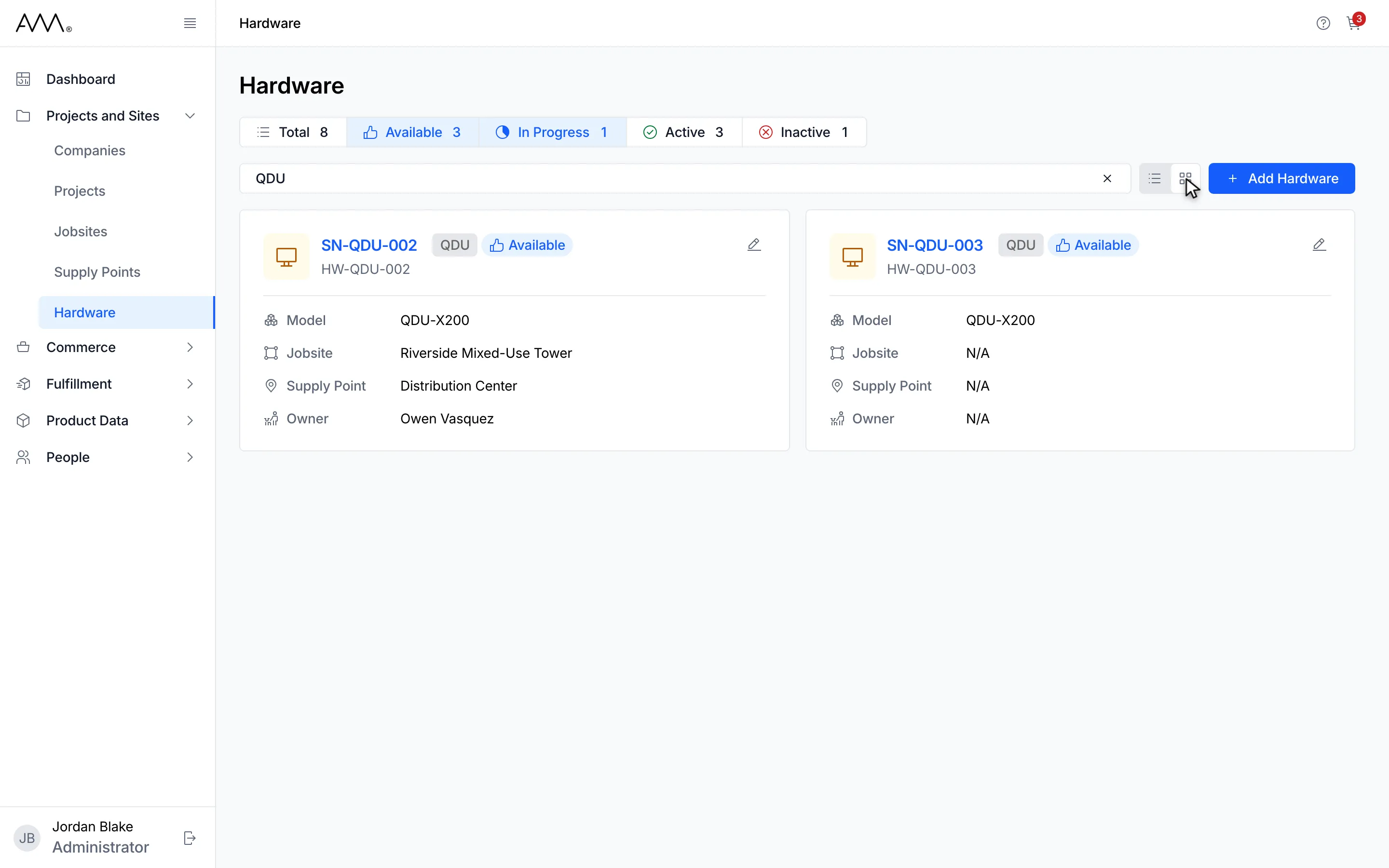
8Only Available or In Progress units whose serial or ID contains QDU are shown.
9The list shows only the units that match the statuses and the search.
Watch this as a video (find hardware)
What you see
Section titled “What you see”- The counts on the chips cover all units. They do not change when you search.
- Blank fields show as N/A.
- If nothing matches, the page shows No hardware found and Try adjusting your search or filter criteria. Clear the search box or click Total.
- The list loads more rows as you scroll down.
- Card view has no sort control; sort in List view first if the order matters.