Set your password from an invitation
When an administrator creates your Omni account, you receive an invitation email with a link. The link opens the Set Your Password page, where you choose the password you will sign in with.
- Open the link in your invitation email. The Set Your Password page opens with Create a password for your account.
- In Password, enter the password you want to use.
- Click the eye icon (Show password) to check what you typed. The page asks for the password once and does not ask you to confirm it.
- Click Set Password. The button reads Setting password… while Omni saves it.
Set your password1 / 5
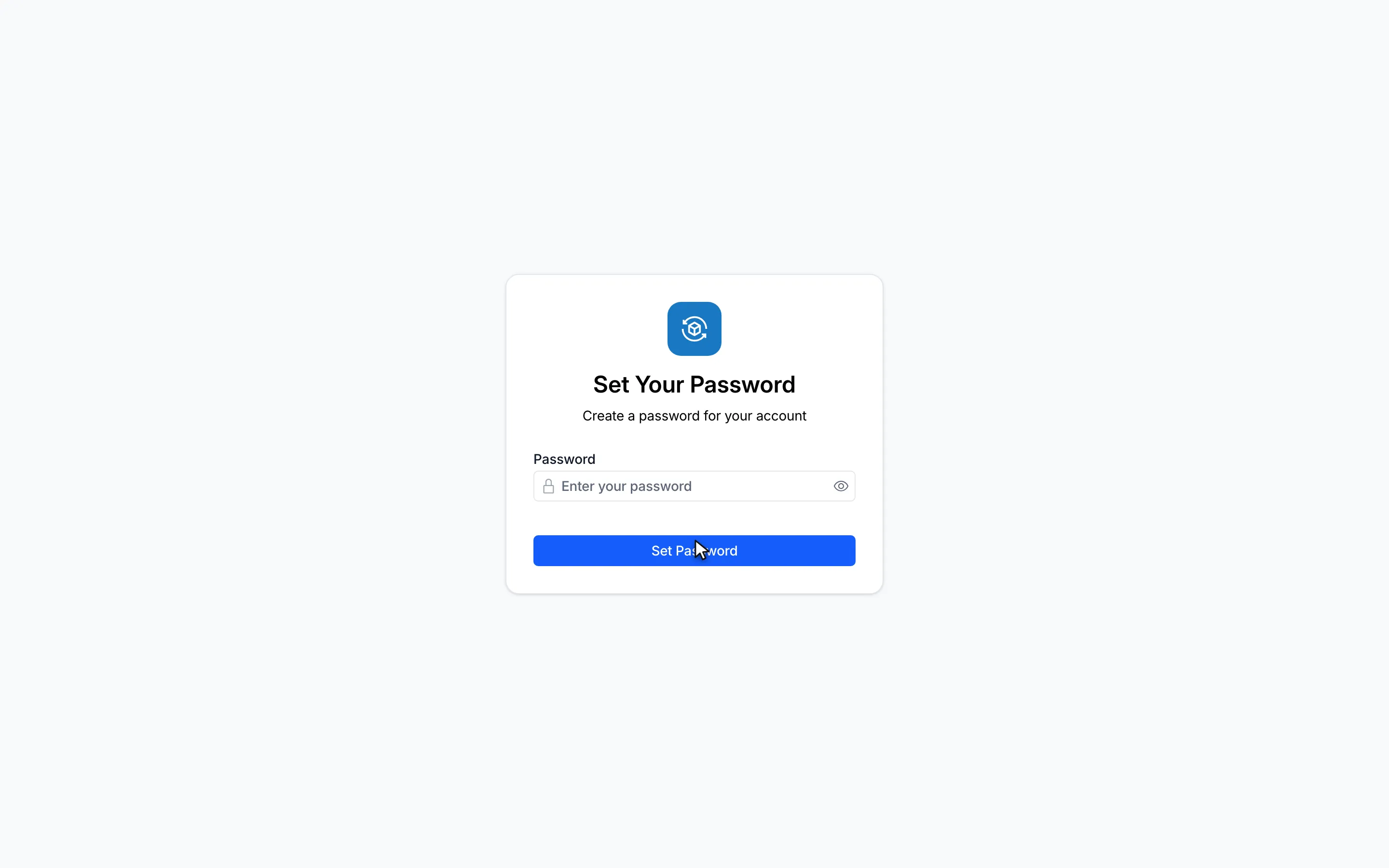
1Open the link in your invitation email. The Set Your Password page opens.
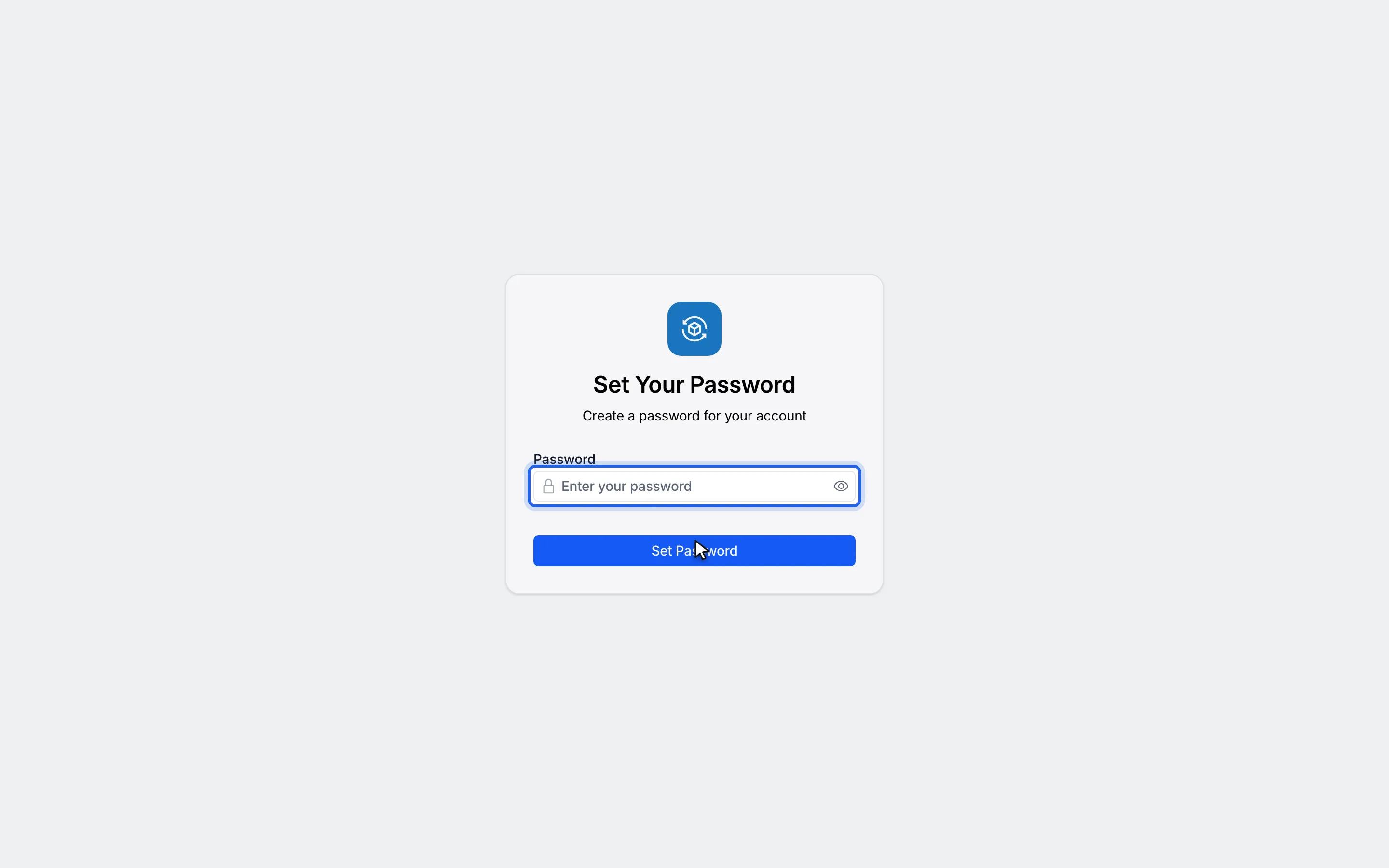
2In Password, enter the password you want to use.
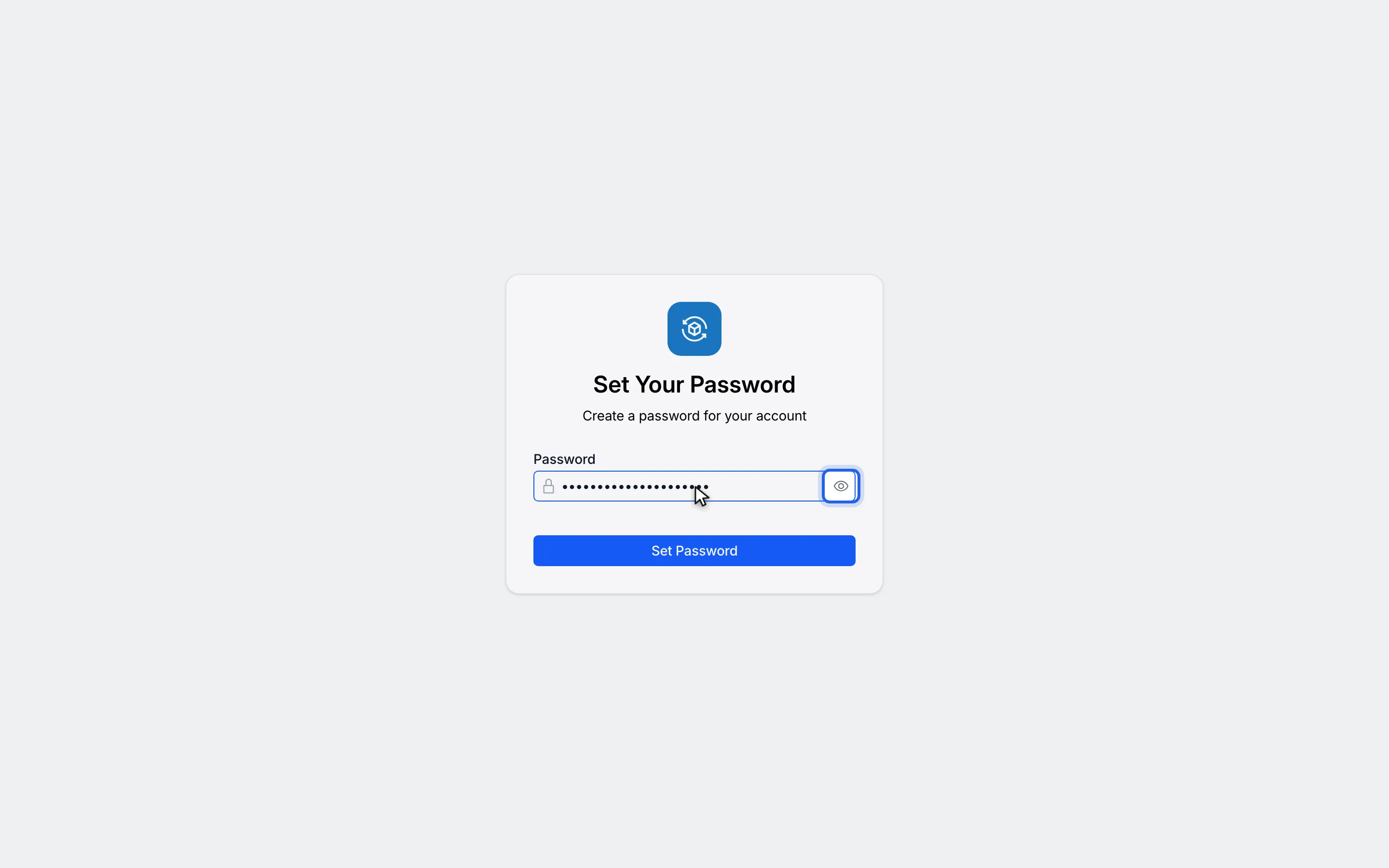
3Click the eye icon (Show password) to check what you typed.
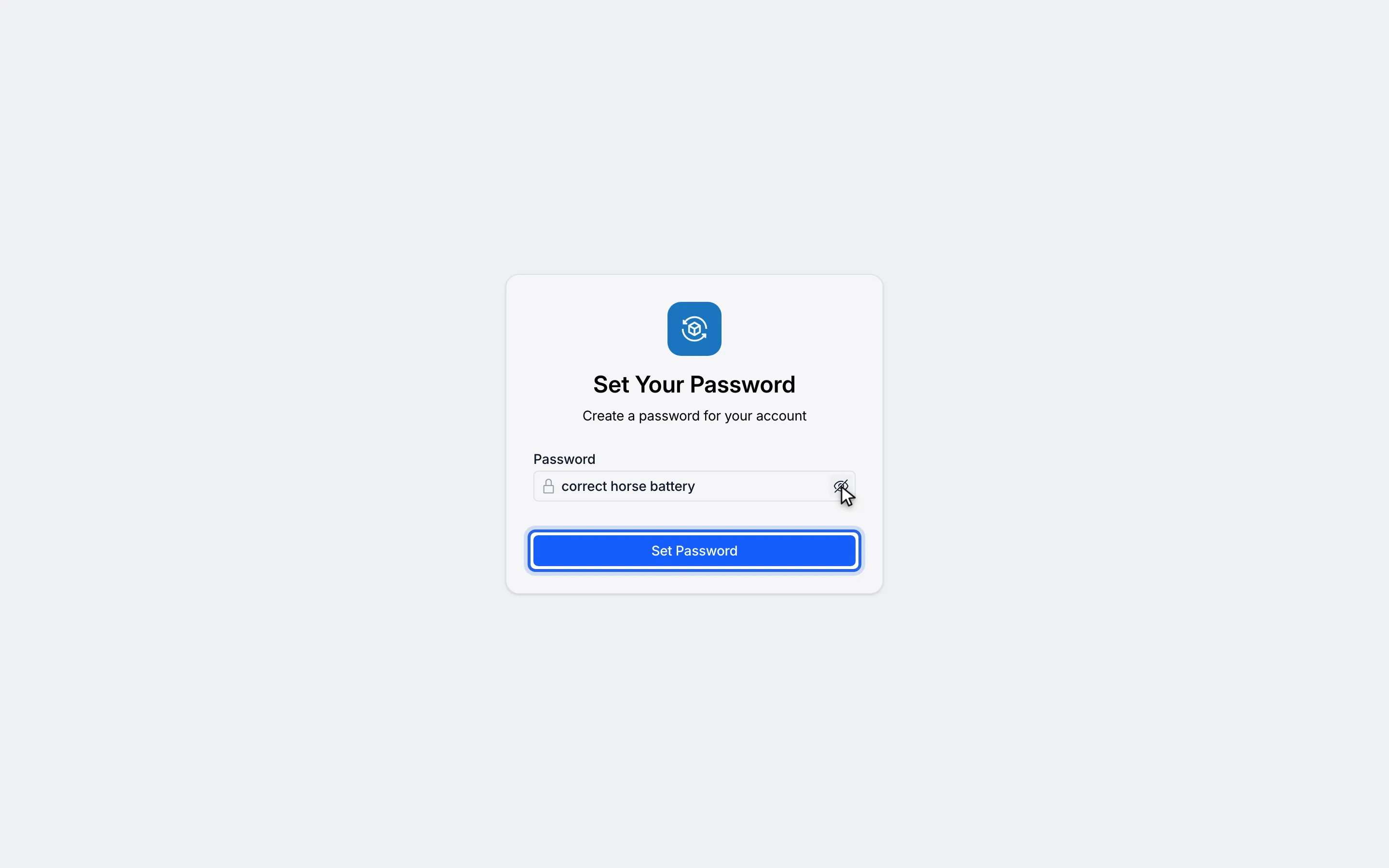
4Click Set Password.
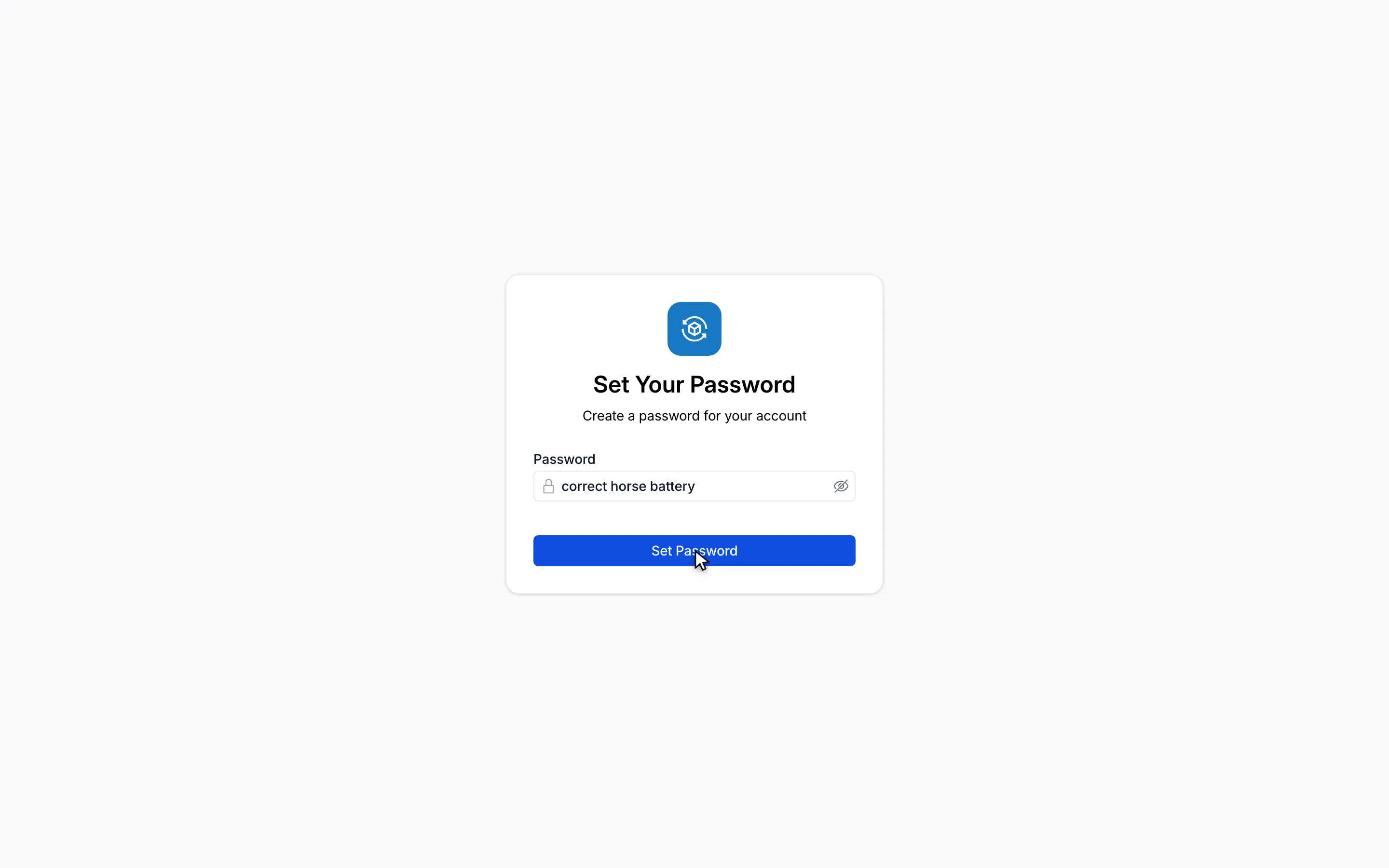
5The form is complete. Click Set Password to finish.
Watch this as a video (set your password)
What happens next
Section titled “What happens next”Omni signs you in and opens, on the Dashboard or on the page the invitation pointed to. From now on, sign in with your email address and this password. See Sign in.
If you see a message
Section titled “If you see a message”| Message | What to do |
|---|---|
| Password is required | Enter a password before clicking Set Password. |
| This setup link has expired. Request a new one. | The link is too old. Ask the person who invited you for a new invitation. |
| This setup link is invalid. Request a new one. | The link does not match an invitation. Ask for a new invitation. |
| Something went wrong. Please try again. | Click Set Password again. |