Edit a role
Edit a role when its name, description or permissions need to change.
- In the sidebar, open People and choose Roles.
- Click the edit icon on the role’s row or card. The Edit Role dialog opens with the current name, description and permissions.
- Change the Role Name or Description if needed.
- Tick or untick permissions. The All, Clear, Select All and Clear All links work as described in Create a role.
- Click Save Changes. The button is enabled only while something differs from the saved role.
Edit a role1 / 5
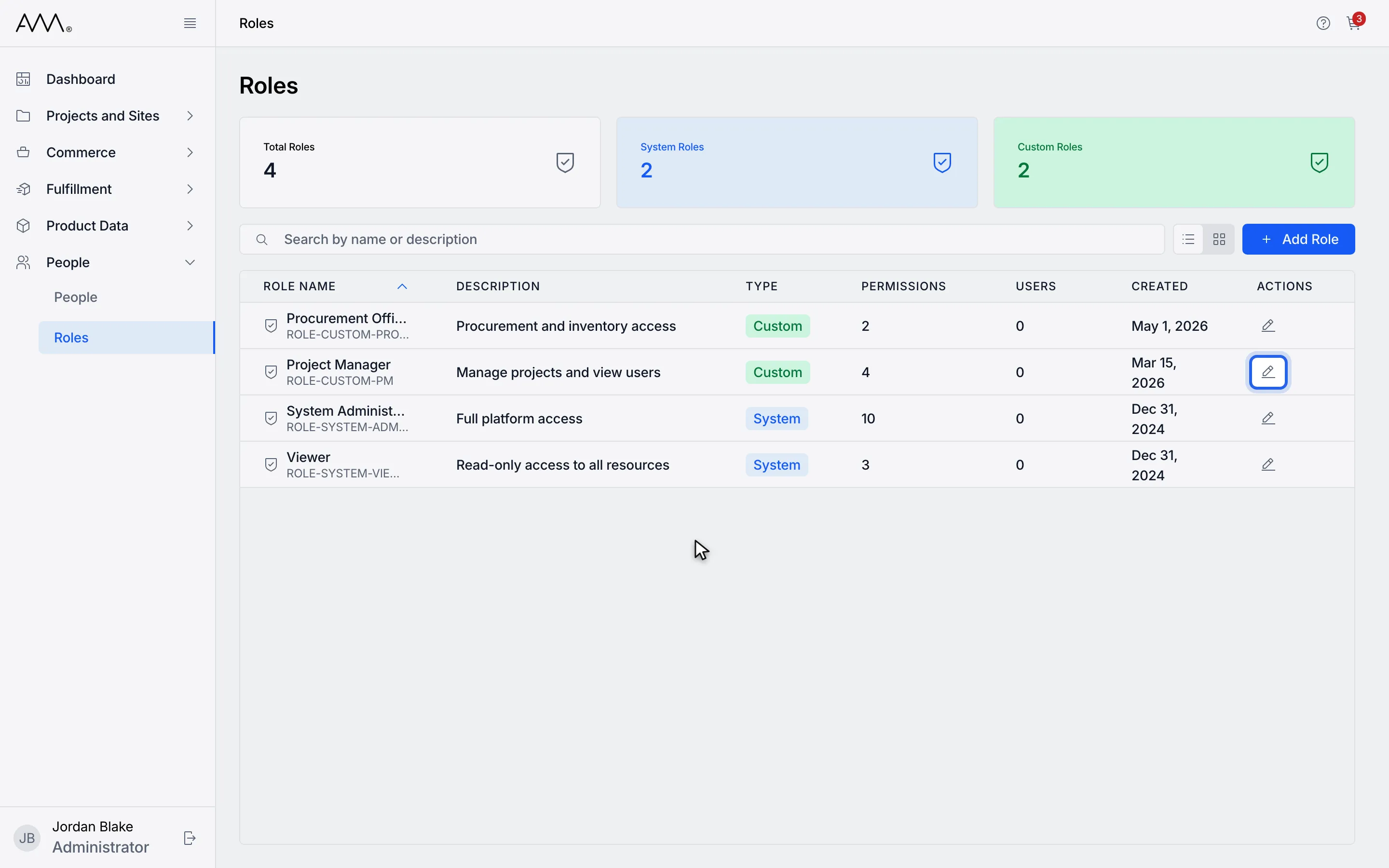
1Click the edit icon on the role.
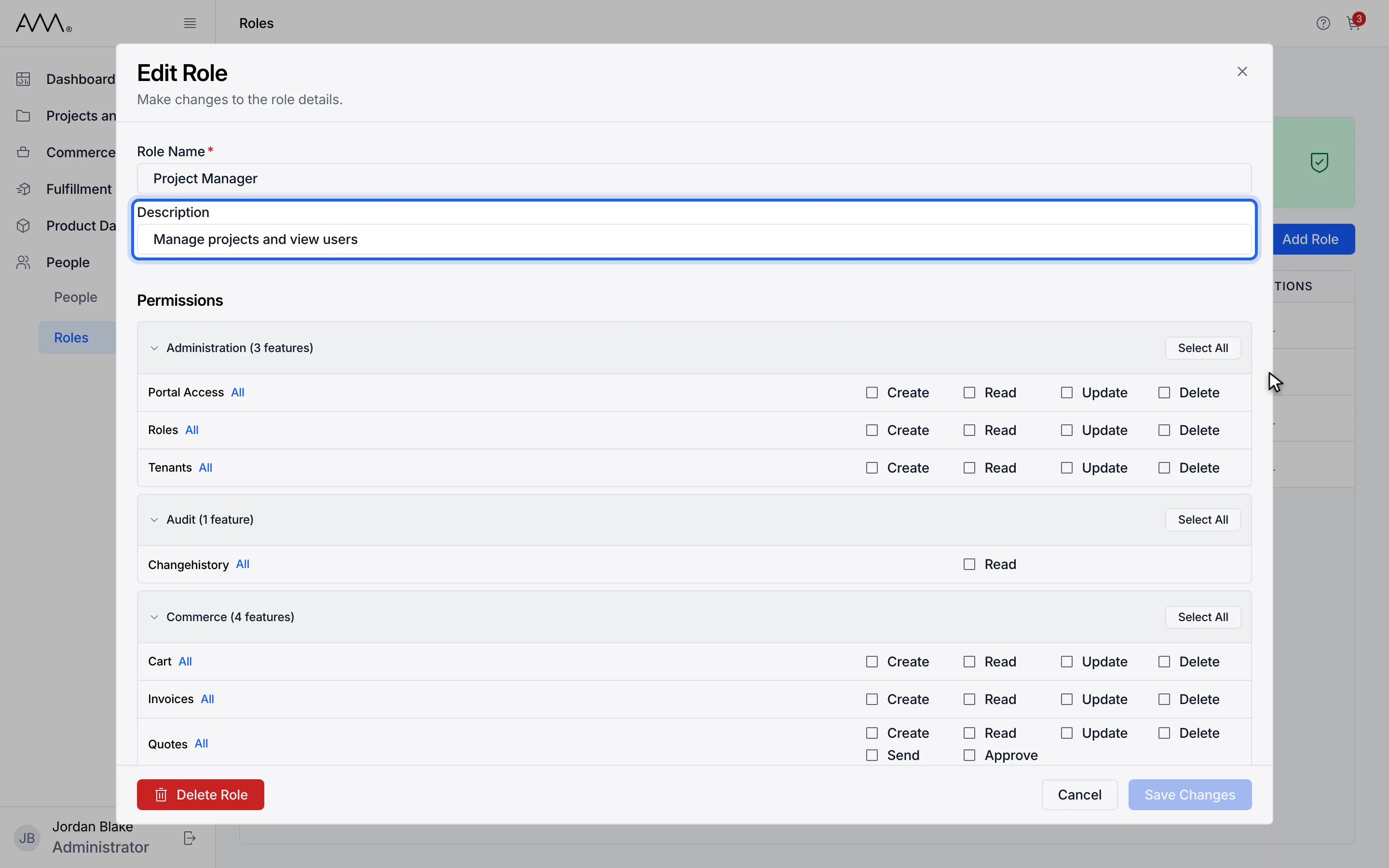
2Change the name or description.
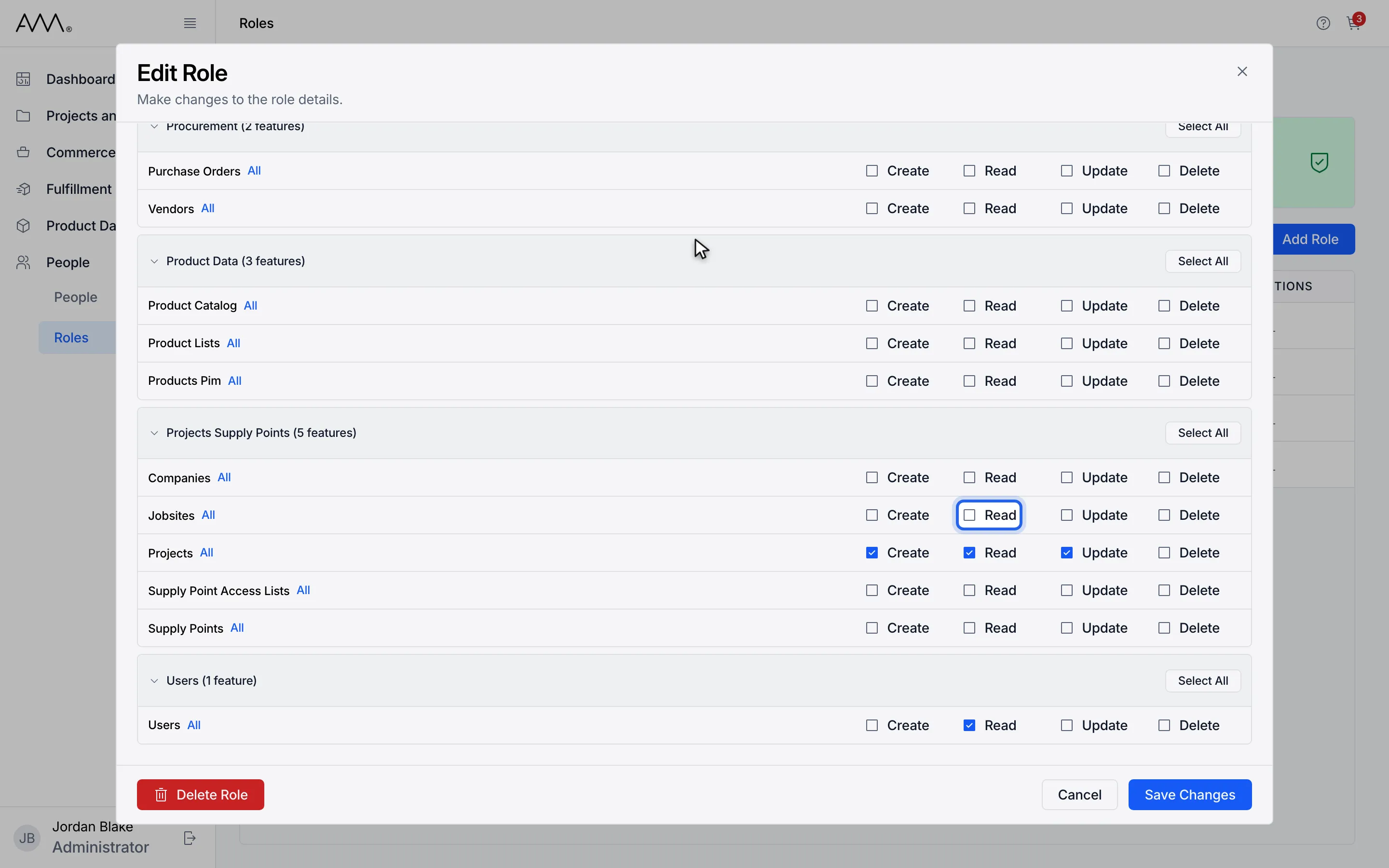
3Tick or untick permissions.
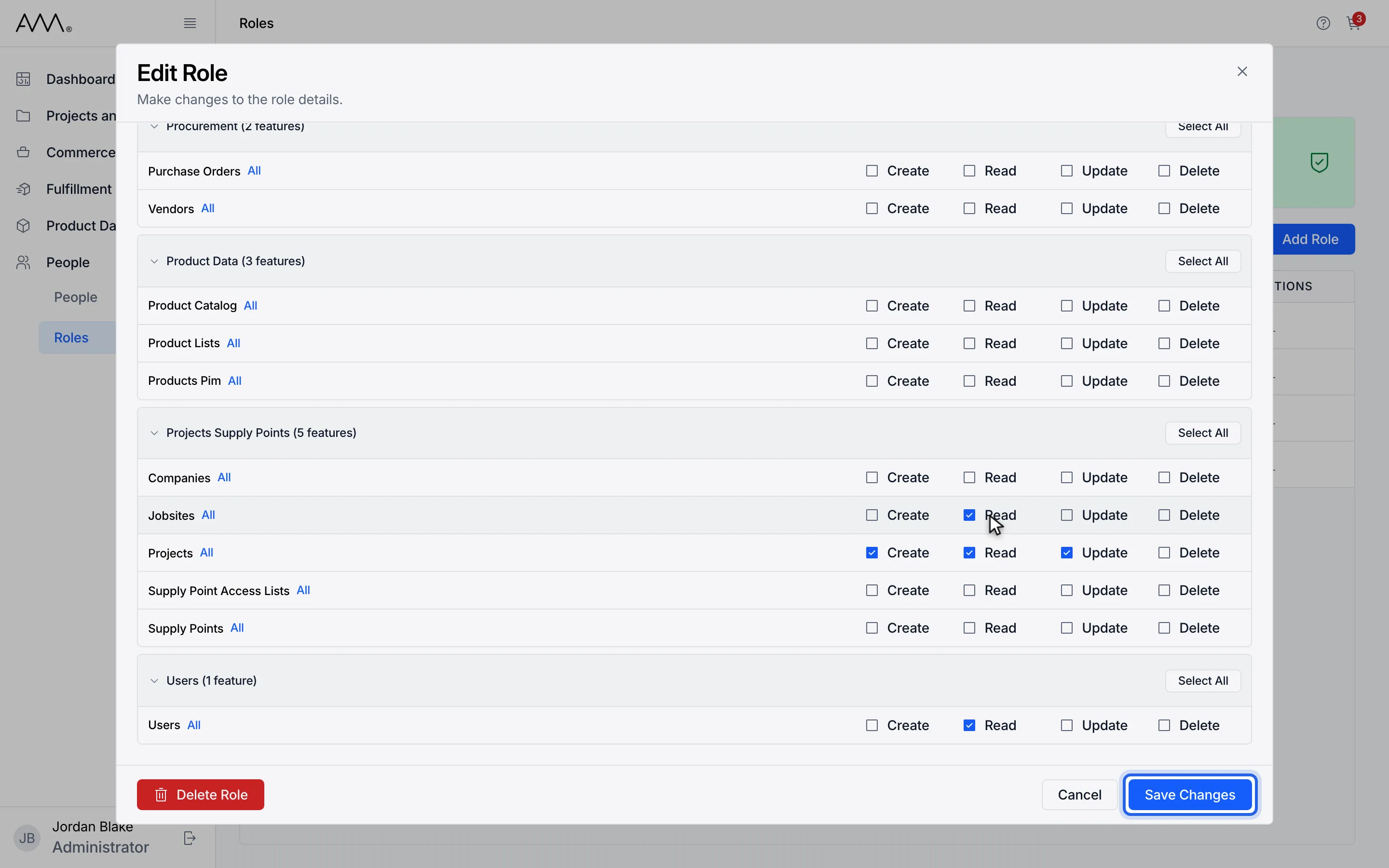
4Click Save Changes.
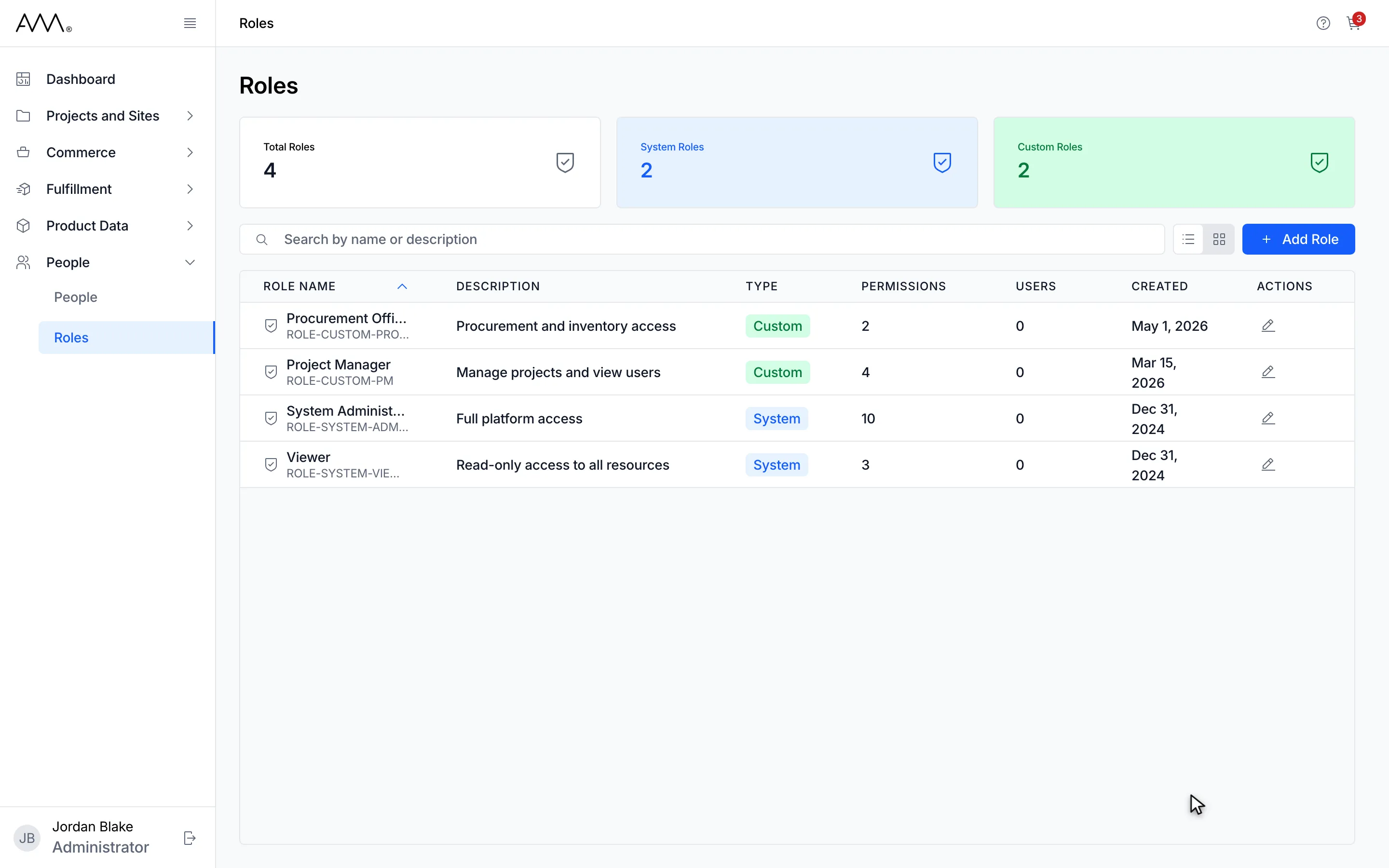
5The dialog closes and Omni returns to the Roles list.
Watch this as a video (edit a role)
What happens next
Section titled “What happens next”The dialog closes and the list refreshes. There is no confirmation message.
If the new name is already used, the dialog stays open and shows A role with this name already exists. under Role Name. For any other problem it shows Failed to save role. Please try again.
If the role’s details fail to load, the dialog shows Couldn’t load role details. with a Retry link.