Sign out and stay signed in
Sign out when you leave a shared computer or want to switch accounts. If you stop using Omni for a while, it signs you out by itself after a warning.
Sign out
Section titled “Sign out”- Find the Sign out button at the bottom of the sidebar, to the right of your name. It is there whether the sidebar is expanded or collapsed.
- Click Sign out. There is no confirmation.
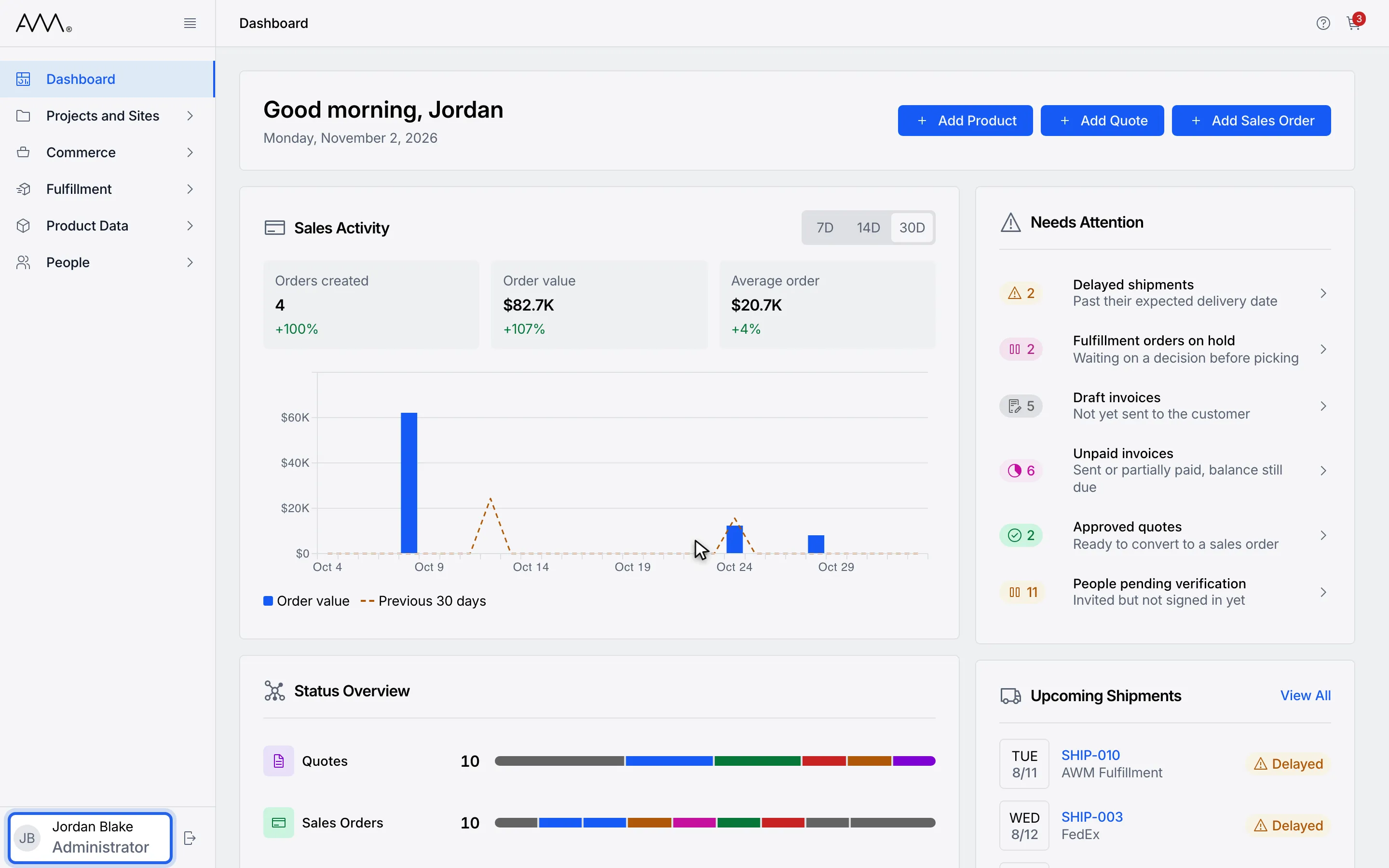
1Your name and role appear at the bottom of the sidebar.
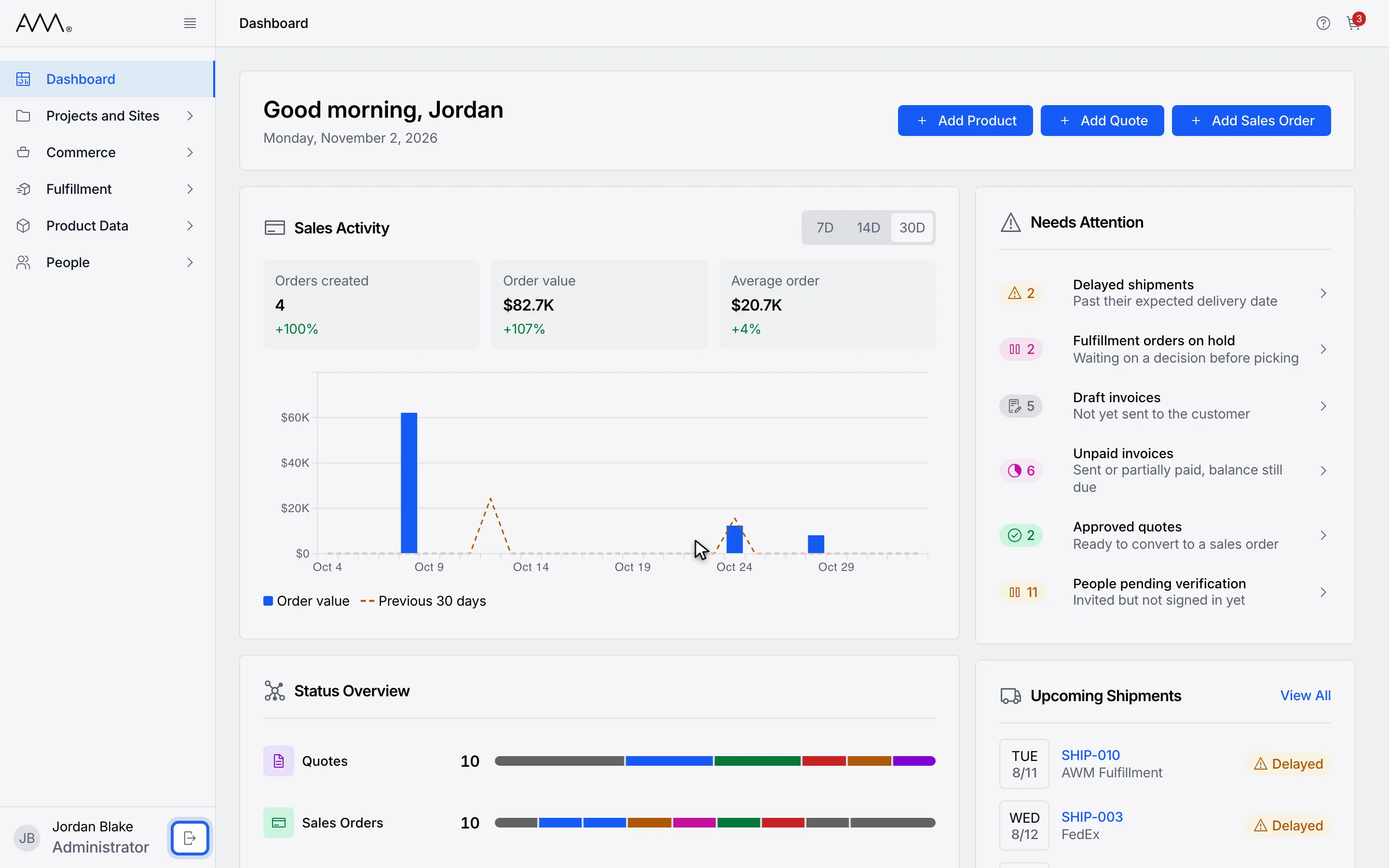
2Click Sign out, to the right of your name.
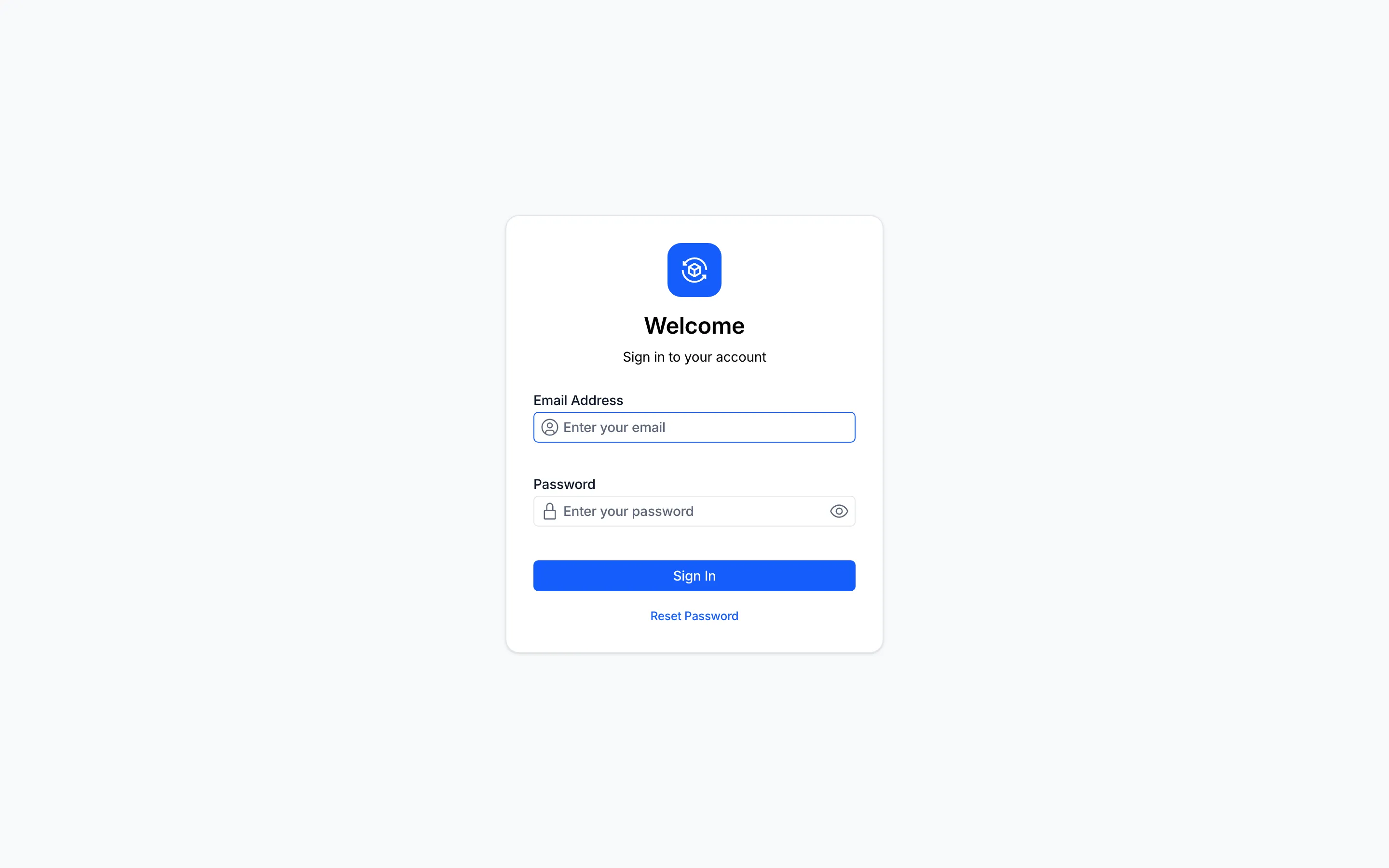
3You return to the sign-in page.
Watch this as a video (sign out)
You return to the sign-in page. Sign in again when you are ready. See Sign in.
Stay signed in when your session is expiring
Section titled “Stay signed in when your session is expiring”Omni watches for mouse, keyboard and touch activity. When you have been inactive for long enough, a Session expiring dialog appears one minute before you would be signed out, with a message such as You’ll be signed out in 60s due to inactivity. that counts down.
- Click Stay signed in, or press Escape. Moving the mouse does not dismiss the dialog.
- Carry on working. The timer starts again.
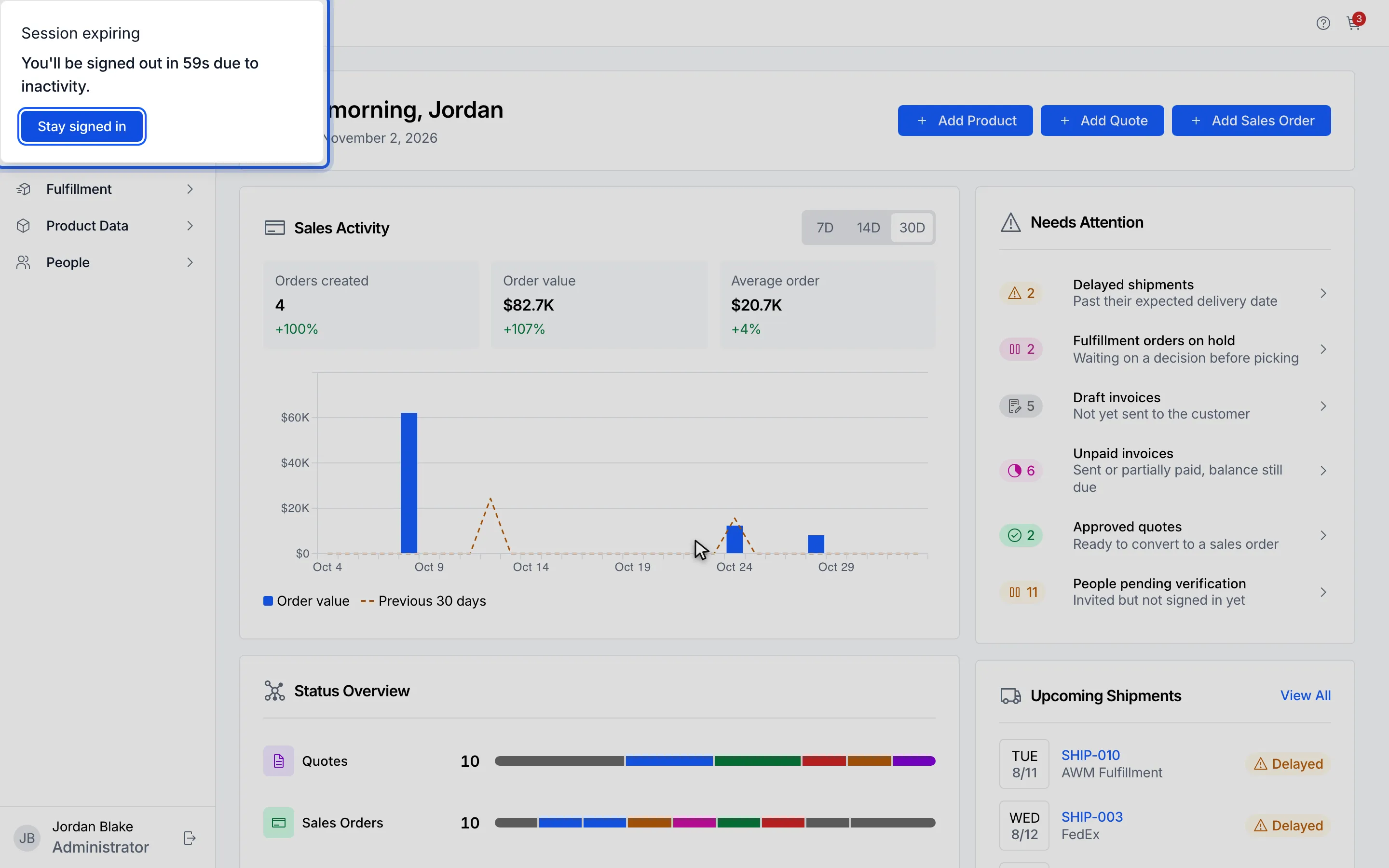
1After a period of inactivity, a Session expiring dialog counts down.
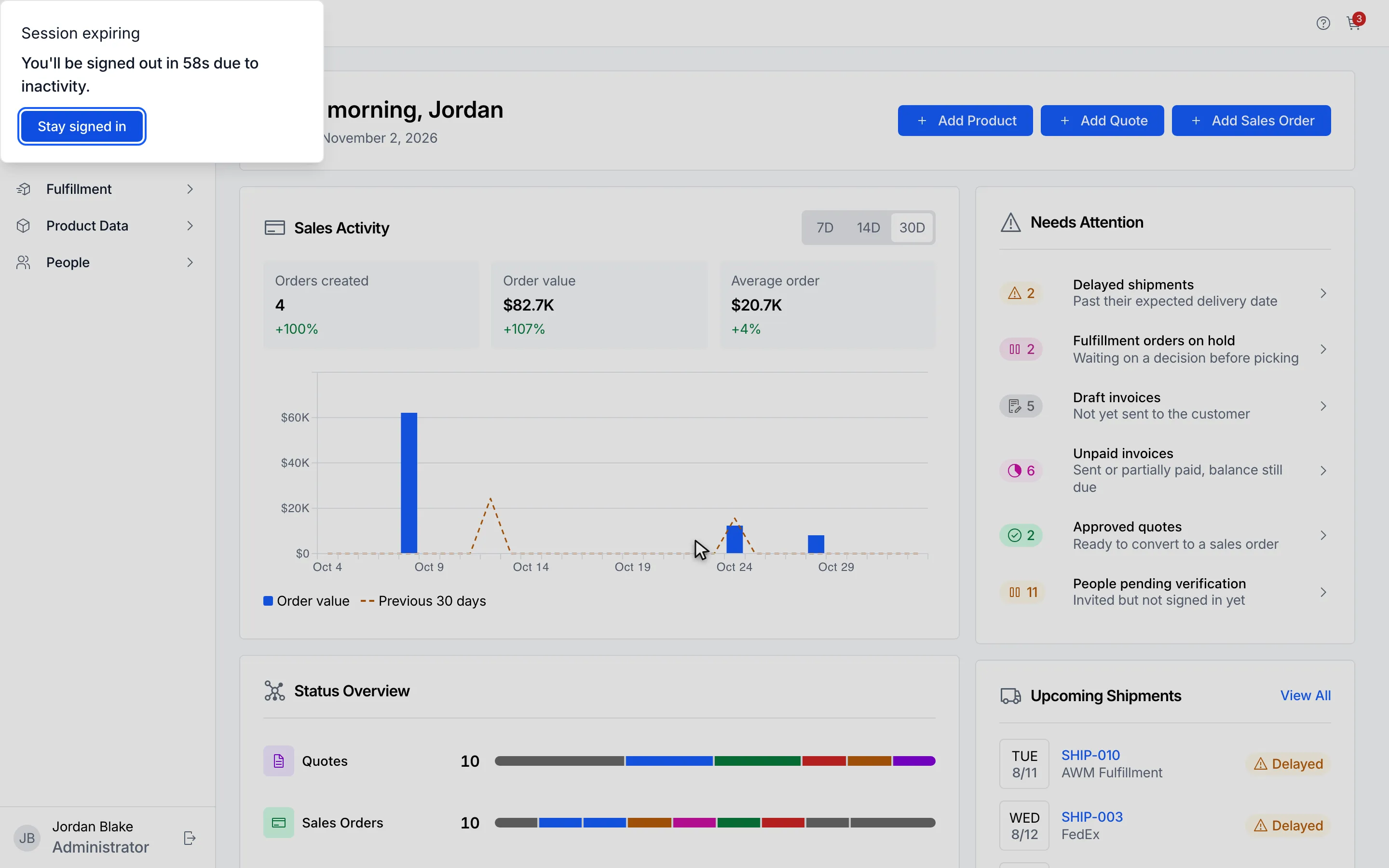
2Click Stay signed in to keep working.
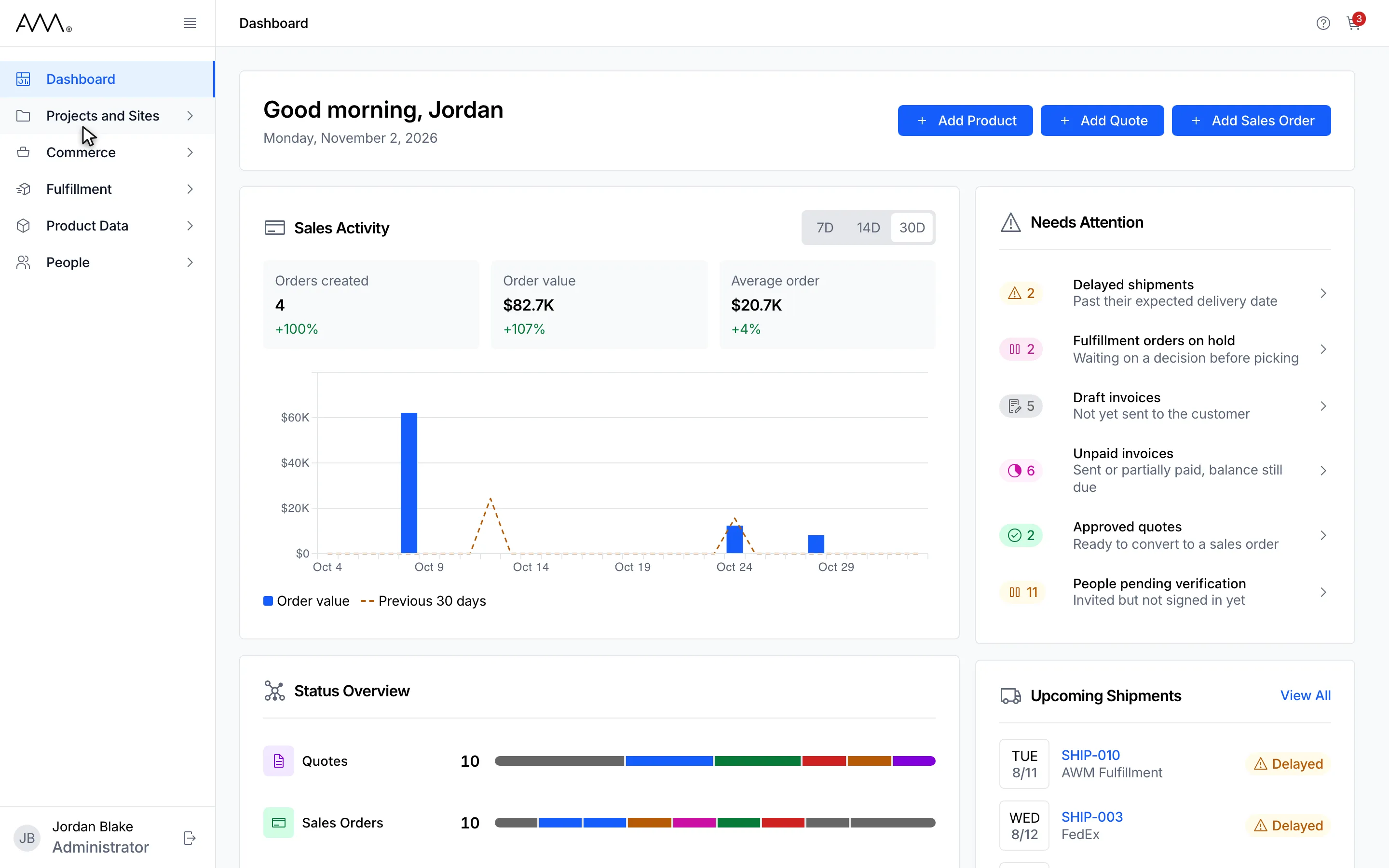
3The dialog closes and your session continues.
Watch this as a video (stay signed in)
If you do nothing, Omni signs you out when the countdown ends and shows the sign-in page.
If Omni sends you back to the sign-in page
Section titled “If Omni sends you back to the sign-in page”Your session can also end while you are away from the tab. When you come back, or open a link to an Omni page while signed out, Omni shows the sign-in page; once you sign in, it returns you to the page you were trying to reach. For other messages that interrupt your work, see Troubleshooting.