Edit a jobsite
Edit a jobsite to update its details, for example to put it On Hold or to record a new description.
- In the sidebar, open Projects and Sites and choose Jobsites.
- Click the jobsite name to open it.
- Click the Edit icon in the page header. The Edit Jobsite dialog reads Loading jobsite… for a moment and then shows the current values.
- Change any field. For example, open the Status list.
- Choose the new status.
- Update the Jobsite Description if needed.
- Click Save Changes.
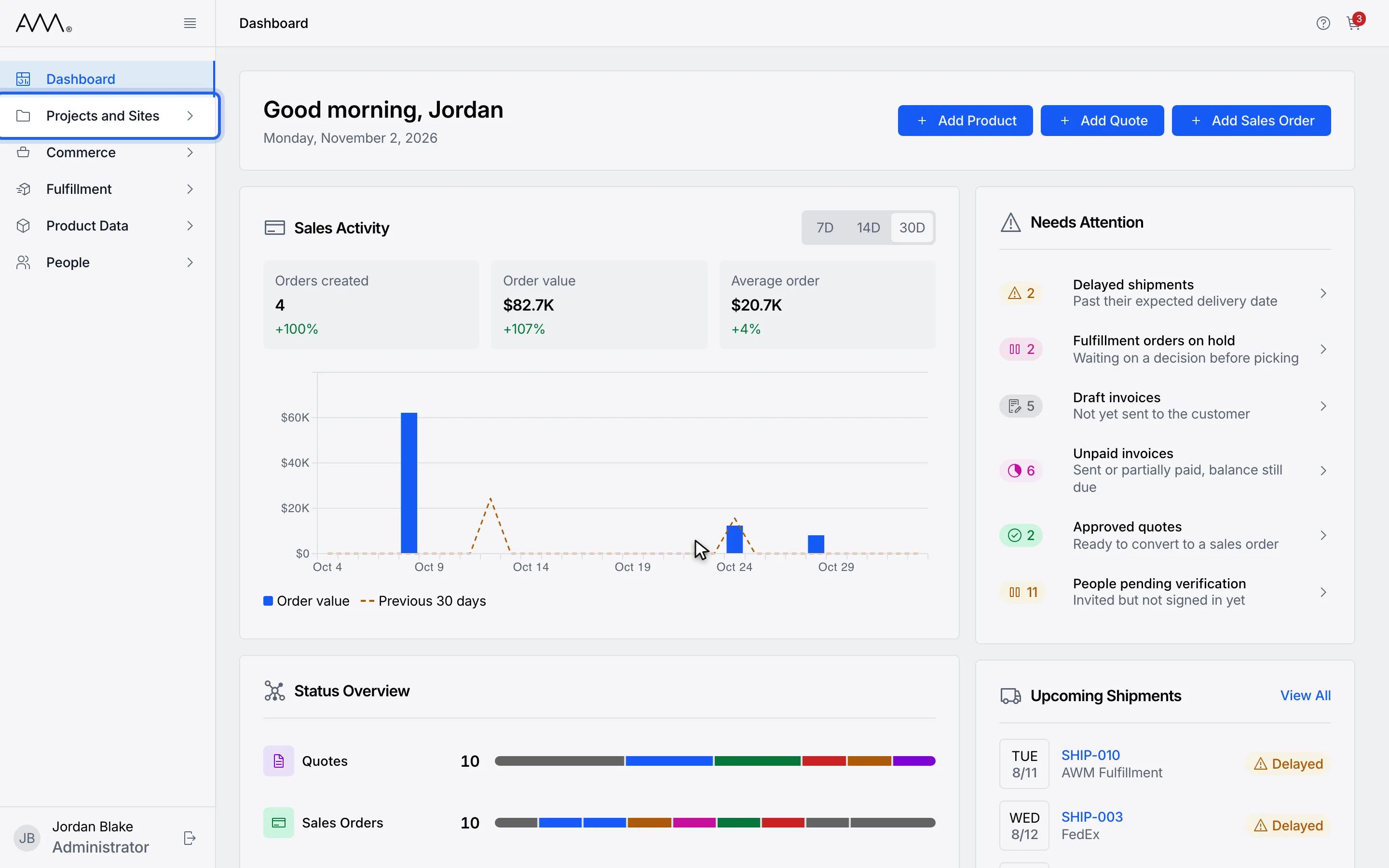
1In the sidebar, open Projects and Sites.
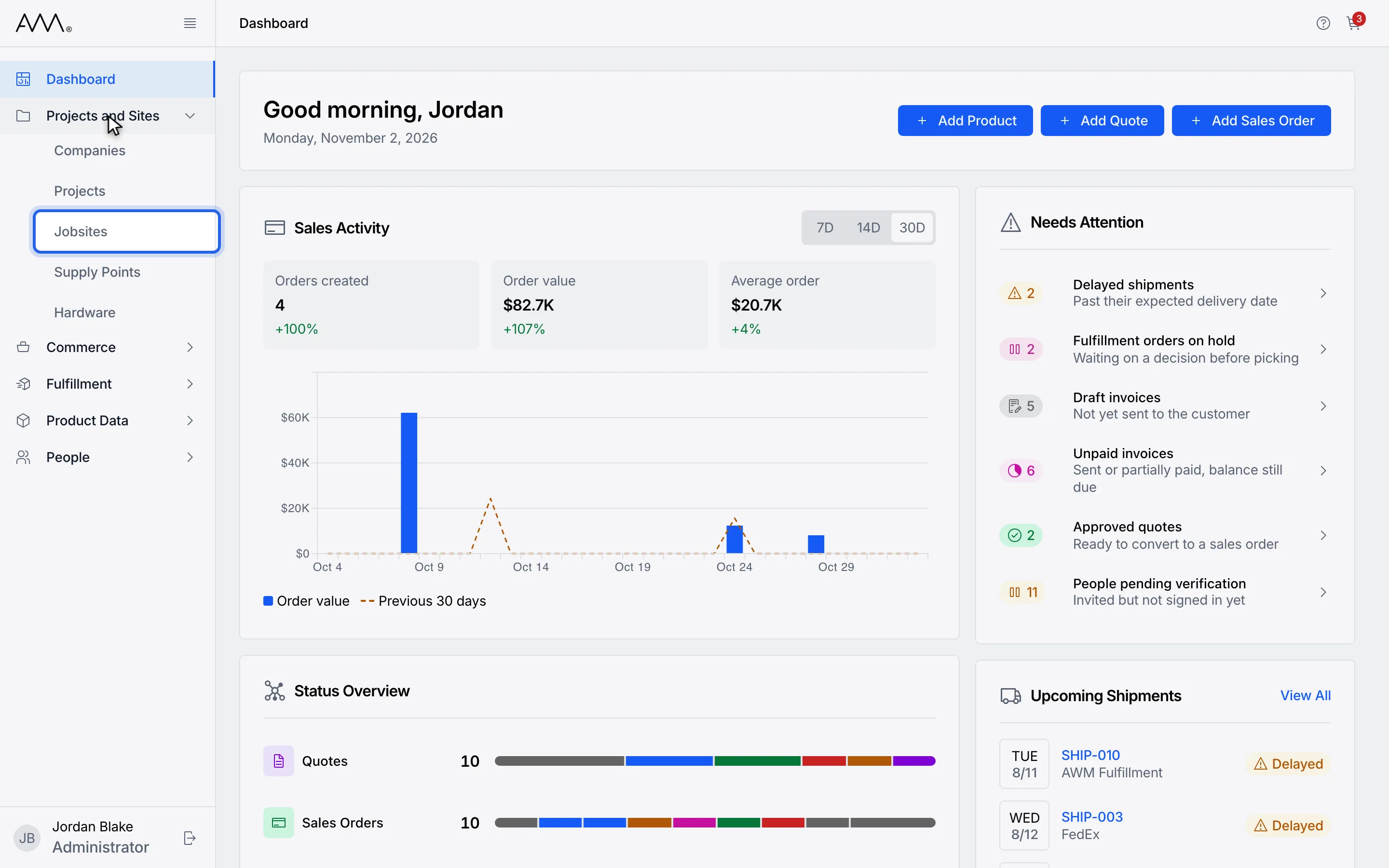
2Choose Jobsites.
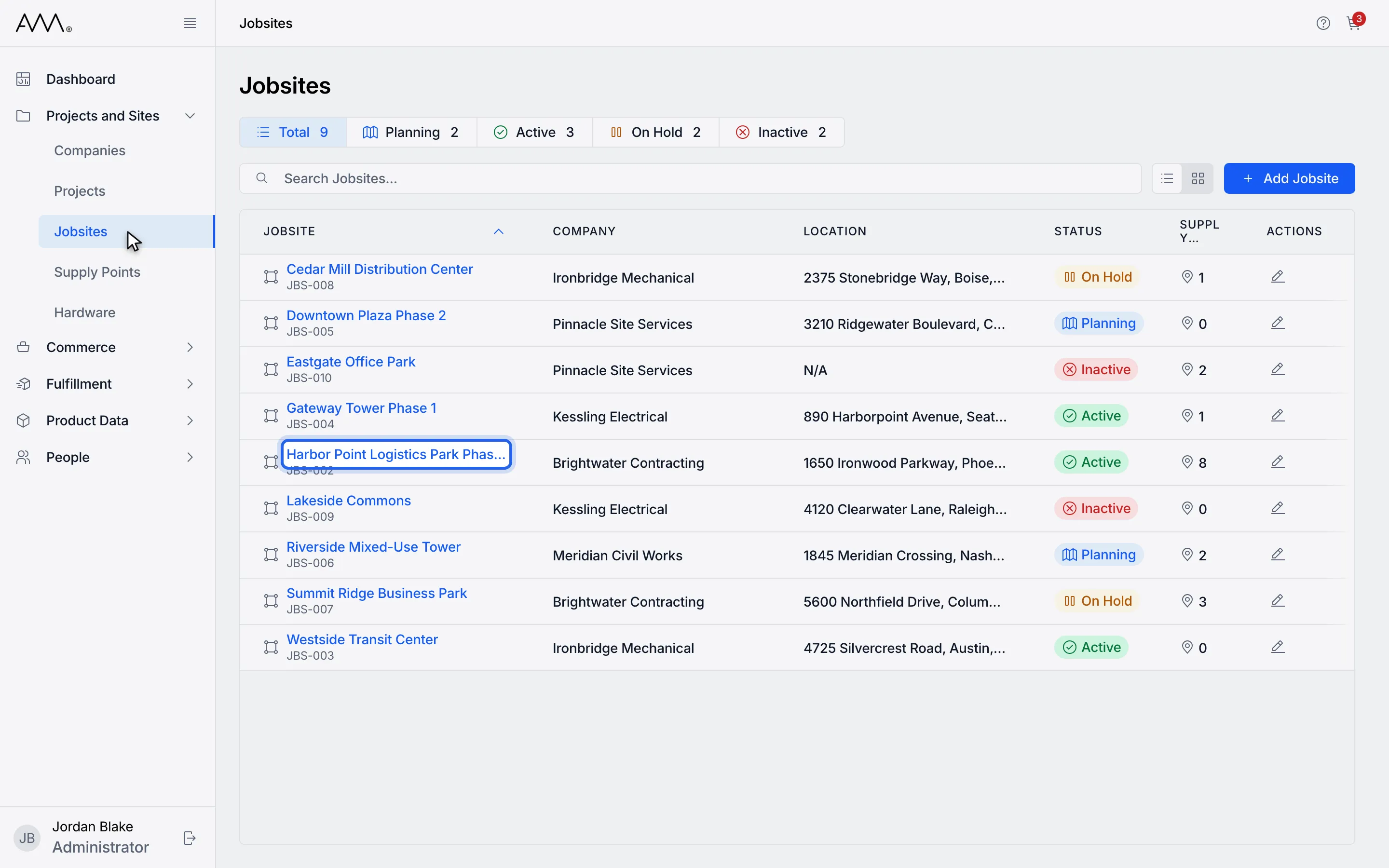
3Open the jobsite.
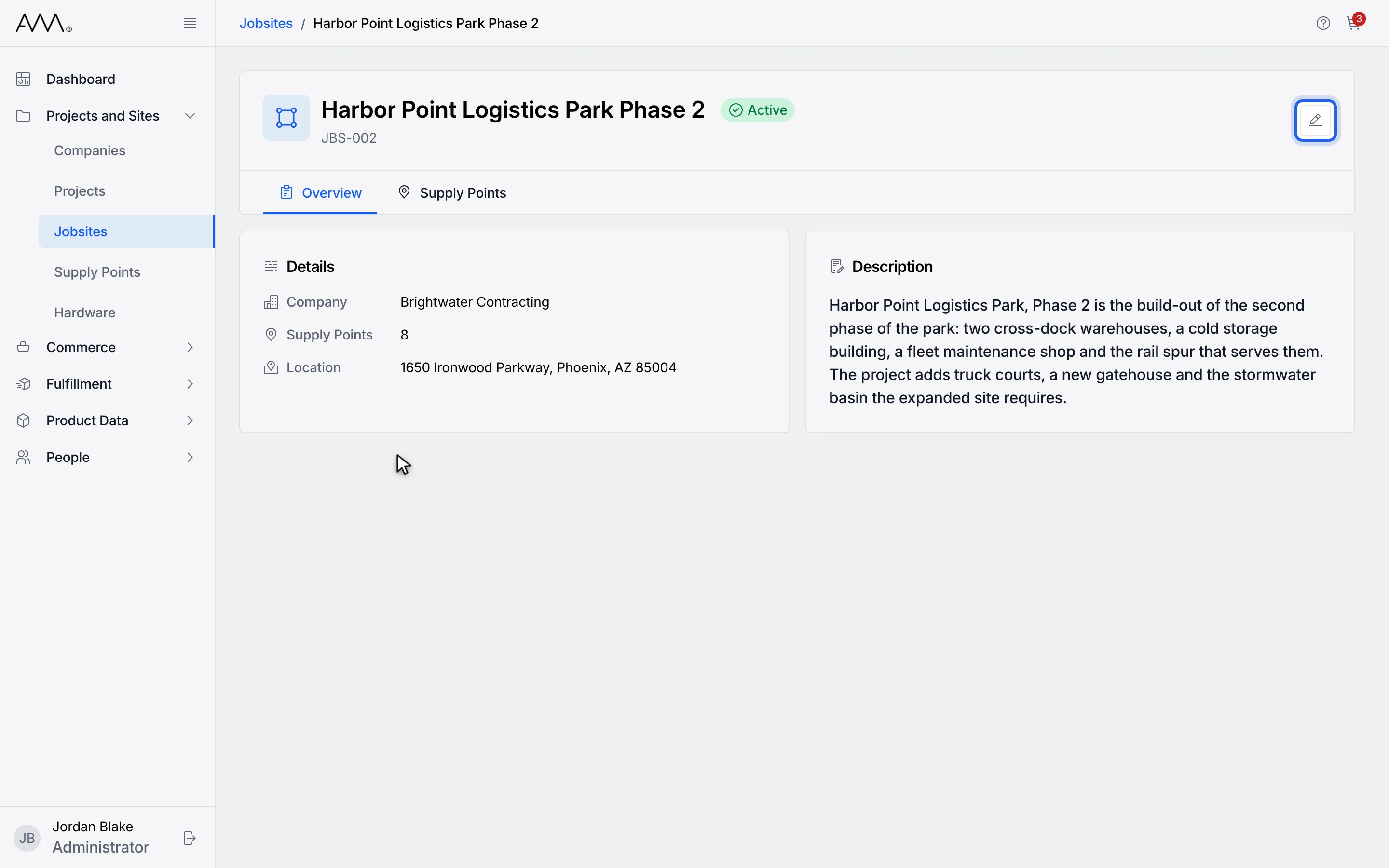
4Click the edit icon in the page header.
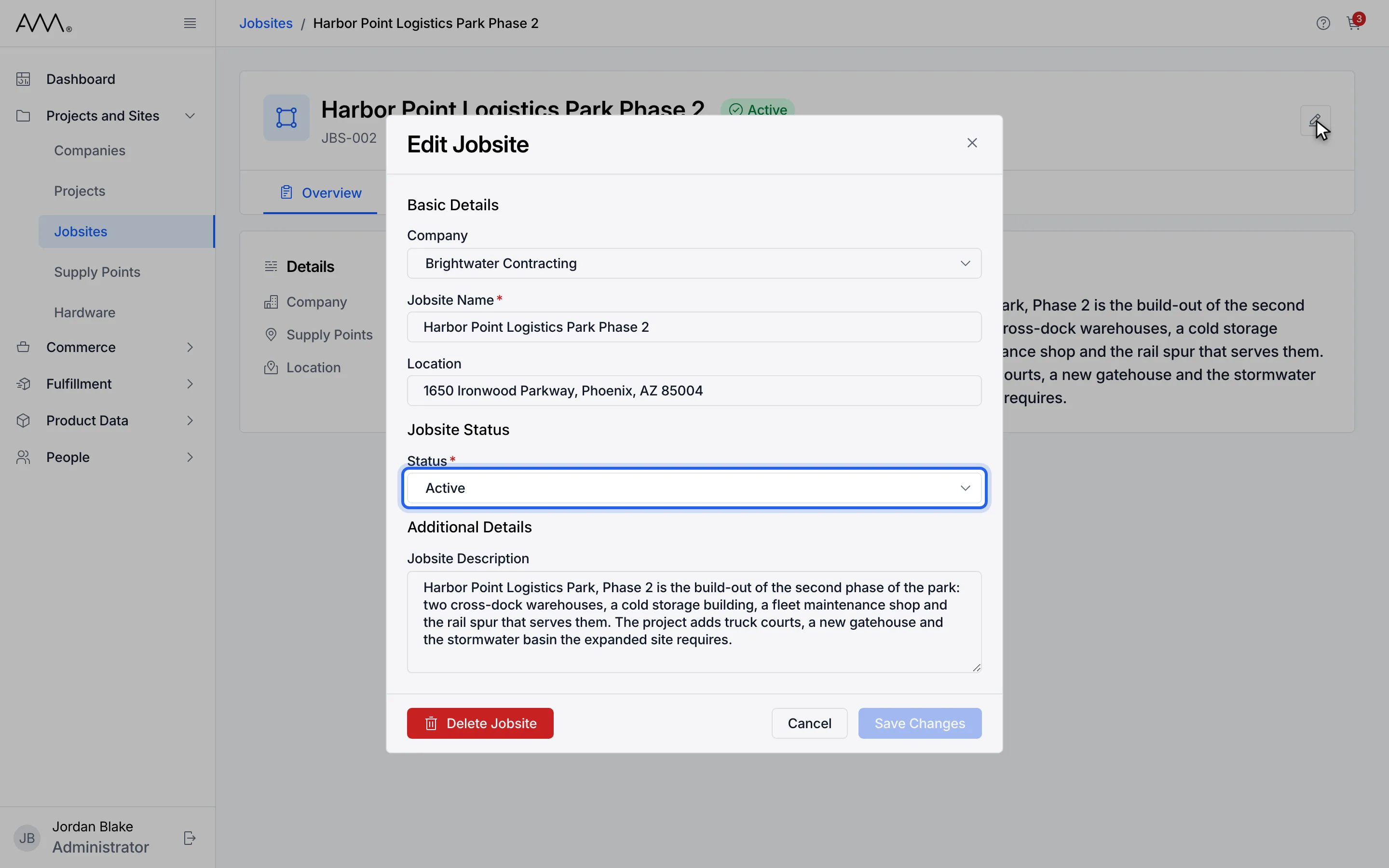
5Change any field. For example, open the Status list.
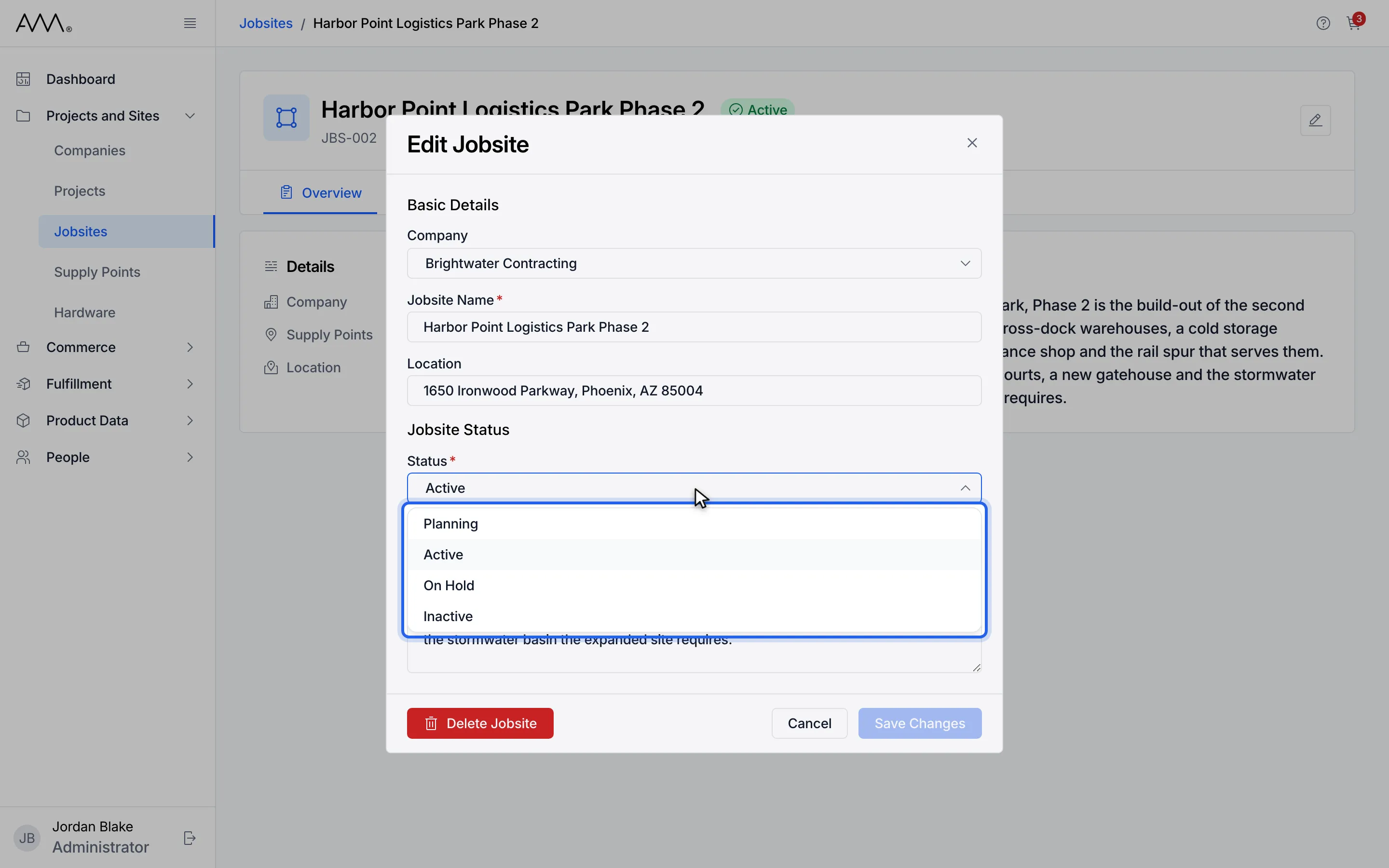
6Choose the new status.
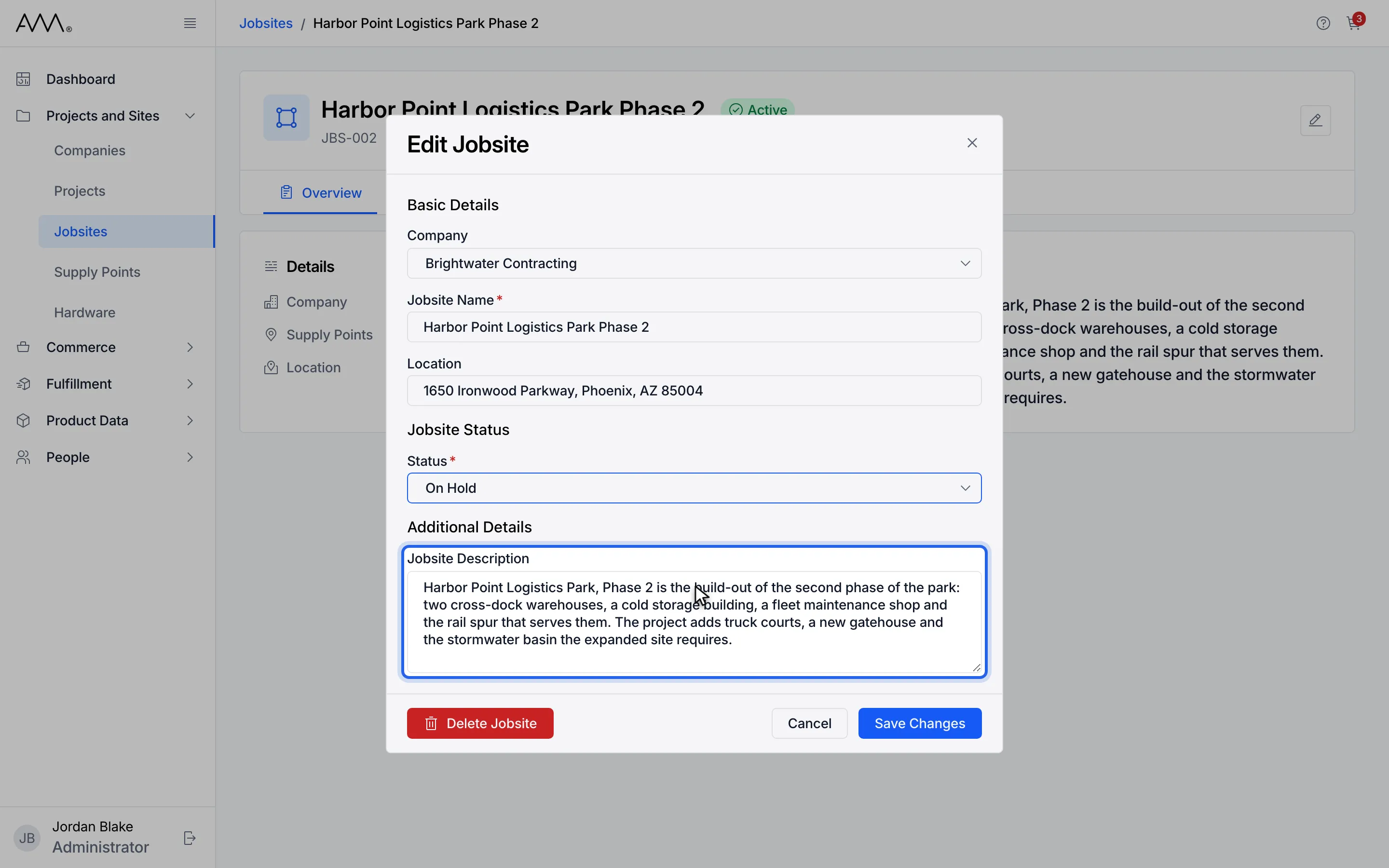
7Update the Jobsite Description.
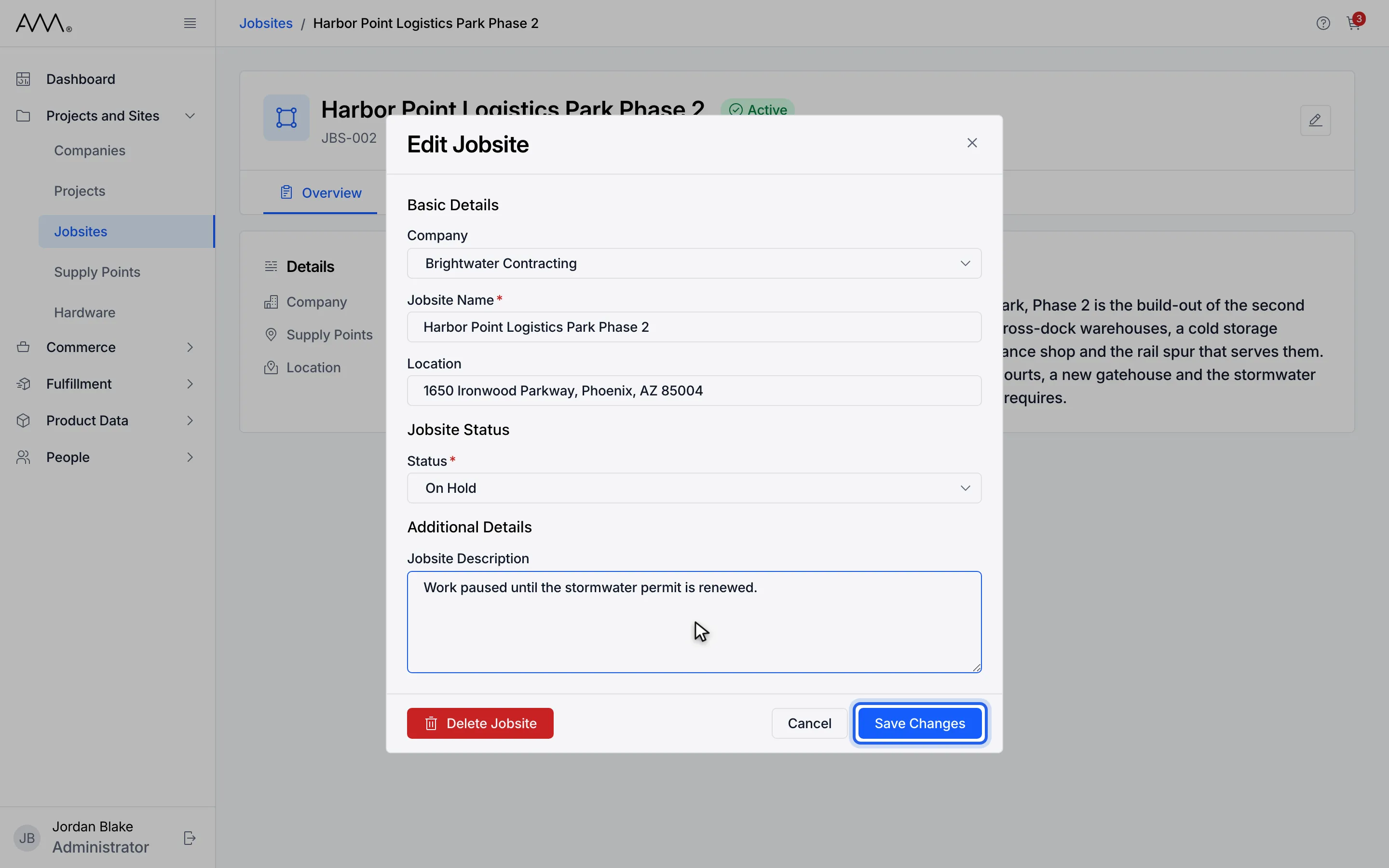
8Click Save Changes.
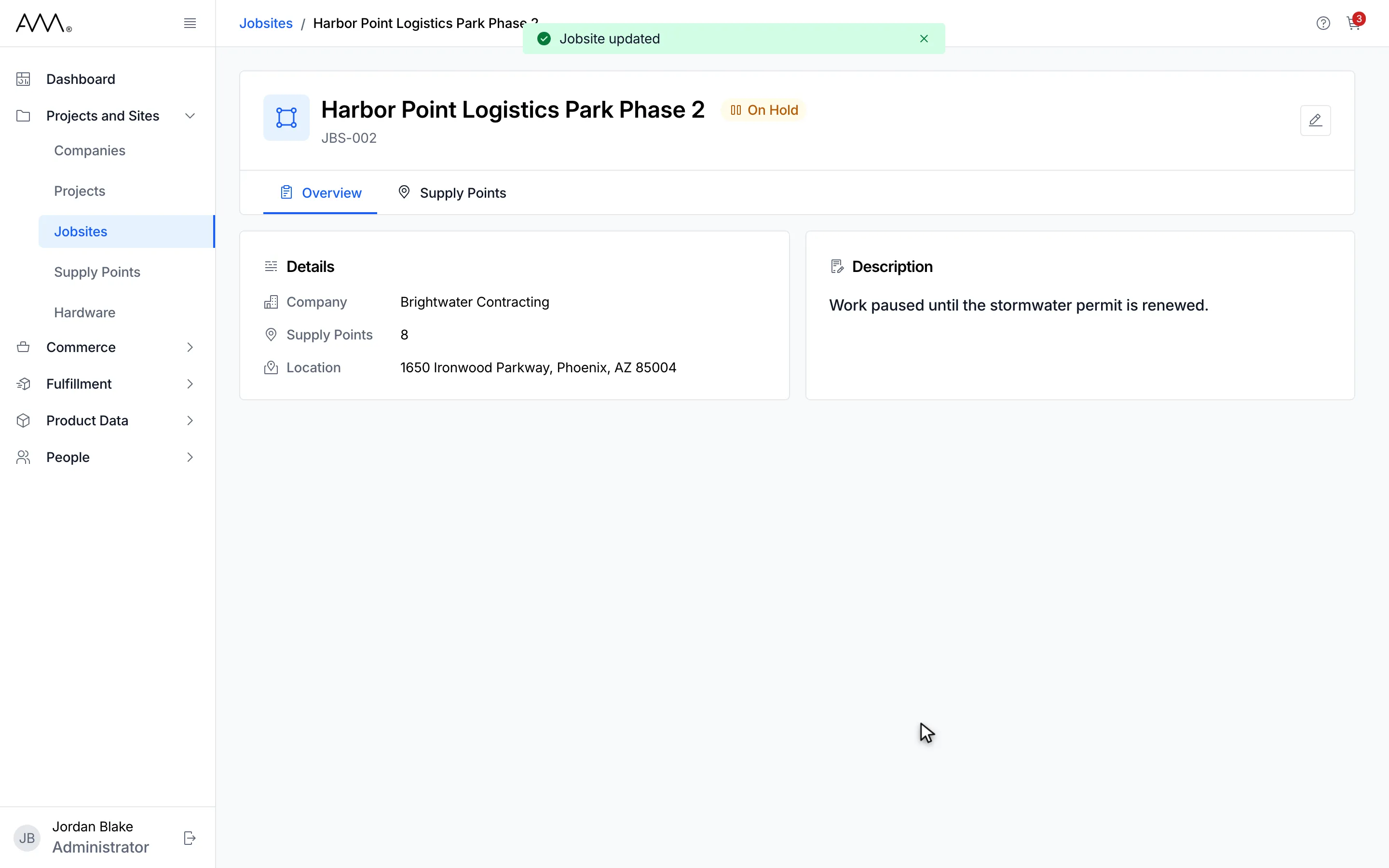
9A Jobsite updated message appears and the header shows the new status.
Watch this as a video (edit a jobsite)
What happens next
Section titled “What happens next”A Jobsite updated message appears, the dialog closes and the header and Overview tab show the new values. If the jobsite cannot be loaded, the dialog reads Couldn’t load jobsite details. with a Retry button. If saving fails, a message with the reason appears and the dialog stays open. If you close the dialog with unsaved changes, Omni asks Discard unsaved changes?