Hardware
Hardware is where AWM tracks its own physical units: the Cribs, QDUs and SBUs it places at supply points. Each unit has an identity (type, model, serial number and owner), a current location (the supply point and jobsite it is assigned to), a history of past assignments, and a status.
You find it in the sidebar under Projects and Sites, as Hardware. You need the Hardware: Read permission to see it.
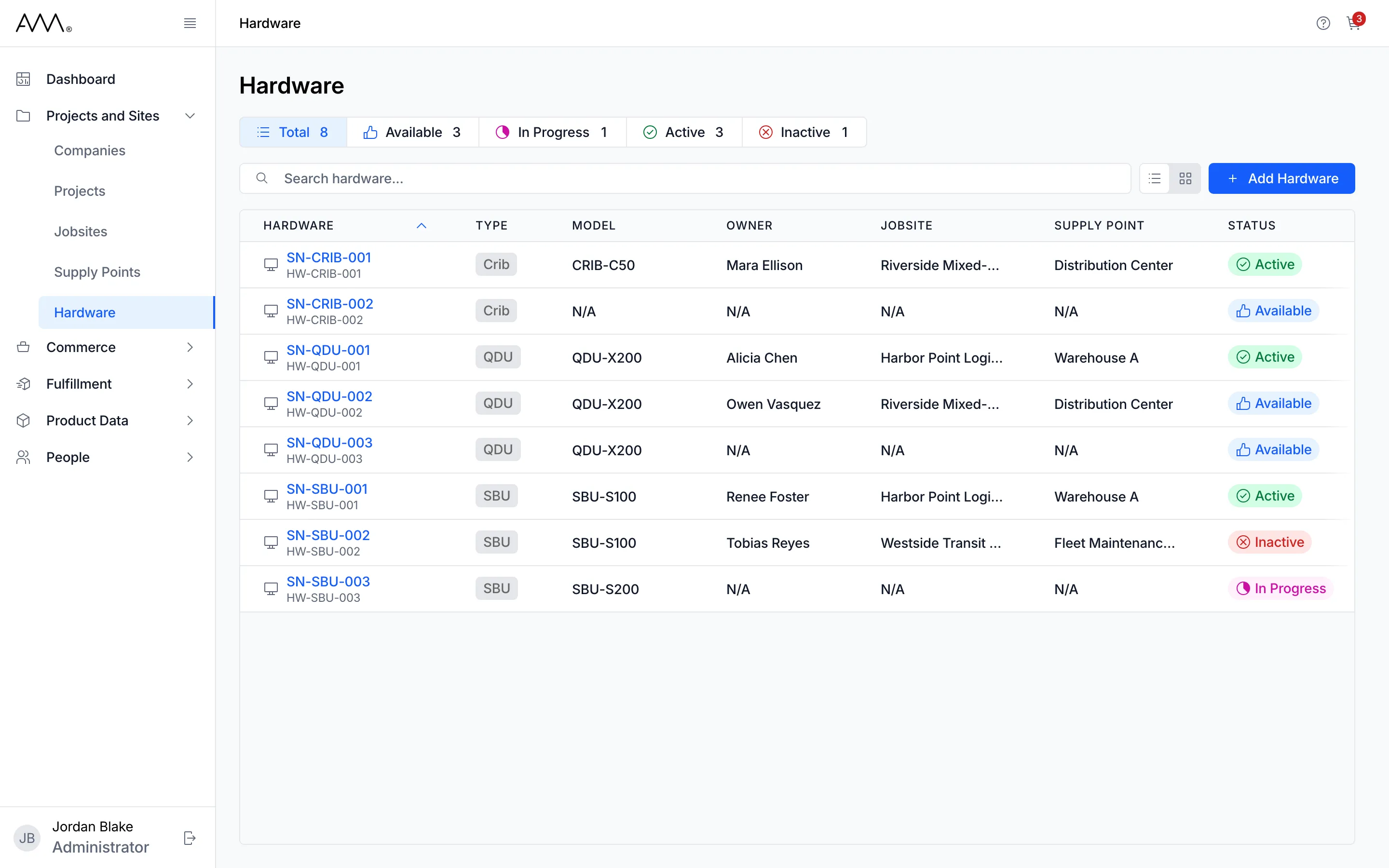
The Hardware list
Section titled “The Hardware list”The list page is titled Hardware and has four parts:
- A row of status chips: Total, Available, In Progress, Active and Inactive, each with a count. The counts cover every unit, so they do not change when you search. Click a status to show only those units, click more statuses to include them too, and click Total to clear the selection.
- A Search hardware… box. Type a serial number or hardware ID to narrow the list.
- A List view and Card view toggle. Omni remembers your choice on this browser.
- The Add Hardware button, shown if you have the Hardware: Create permission.
In List view the table has the columns Hardware (the serial number, with the hardware ID beneath it), Type, Model, Owner, Jobsite, Supply Point, Status and Actions (an edit pencil). The list opens sorted by serial number from A to Z. Click a column header to sort by it, and again to reverse the order. Anything not filled in shows as N/A. In Card view each card shows the same information with the serial number as its heading. If nothing matches, the page shows No hardware found and Try adjusting your search or filter criteria.
A unit’s page
Section titled “A unit’s page”Click a serial number to open the unit. The header shows the serial number, a type tag, the status badge, the hardware ID and an edit pencil. Two tabs sit beneath it:
- Overview has a Details card (Serial Number, Hardware ID, Model) and a Current Assignment card (Jobsite, Supply Point, Owner).
- Assignments lists every supply point the unit has been assigned to, with Jobsite, Supply Point, Assigned Date, Unassigned Date and Status (Current or Completed). Click a column header to sort the history.
Types and statuses
Section titled “Types and statuses”A unit’s Type is one of Crib, QDU or SBU. Its Status is one of:
| Status | Meaning |
|---|---|
| Available | A unit available in stock. |
| In Progress | A unit still being worked on. New units start here. |
| Active | A unit in service. |
| Inactive | A retired unit. |
You can set any status at any time. The status does not change when a unit is assigned or unassigned, and it does not restrict assignment.
Where assignment happens
Section titled “Where assignment happens”A unit can be assigned to one supply point at a time. You do not assign it from the Hardware pages. Instead, open the supply point under Supply Points and use its Hardware tab, which has an Assign Hardware button, a replace flow for a supply point that already has a unit, and a remove action. The unit’s own page shows the result in its Current Assignment card. Deleting a unit also unassigns it from any supply point it is on.