Edit a product inline
Every product field is a cell in the grid. Click it, change it, and it saves as soon as you commit. There is no edit form.
- In the sidebar, open Product Data and choose Products (PIM).
- Click the cell you want to change. A text or number cell opens with its current value selected, so typing replaces it.
- Type the new value and press Enter to save. Tab saves and opens the next cell; Escape cancels without saving.
- For a list cell such as STATUS, MANUFACTURER, CATEGORY, VENDOR or UNIT OF MEASURE, click the cell.
- Click it again to open the list.
- Pick a value. It saves at once.
Edit a product1 / 8
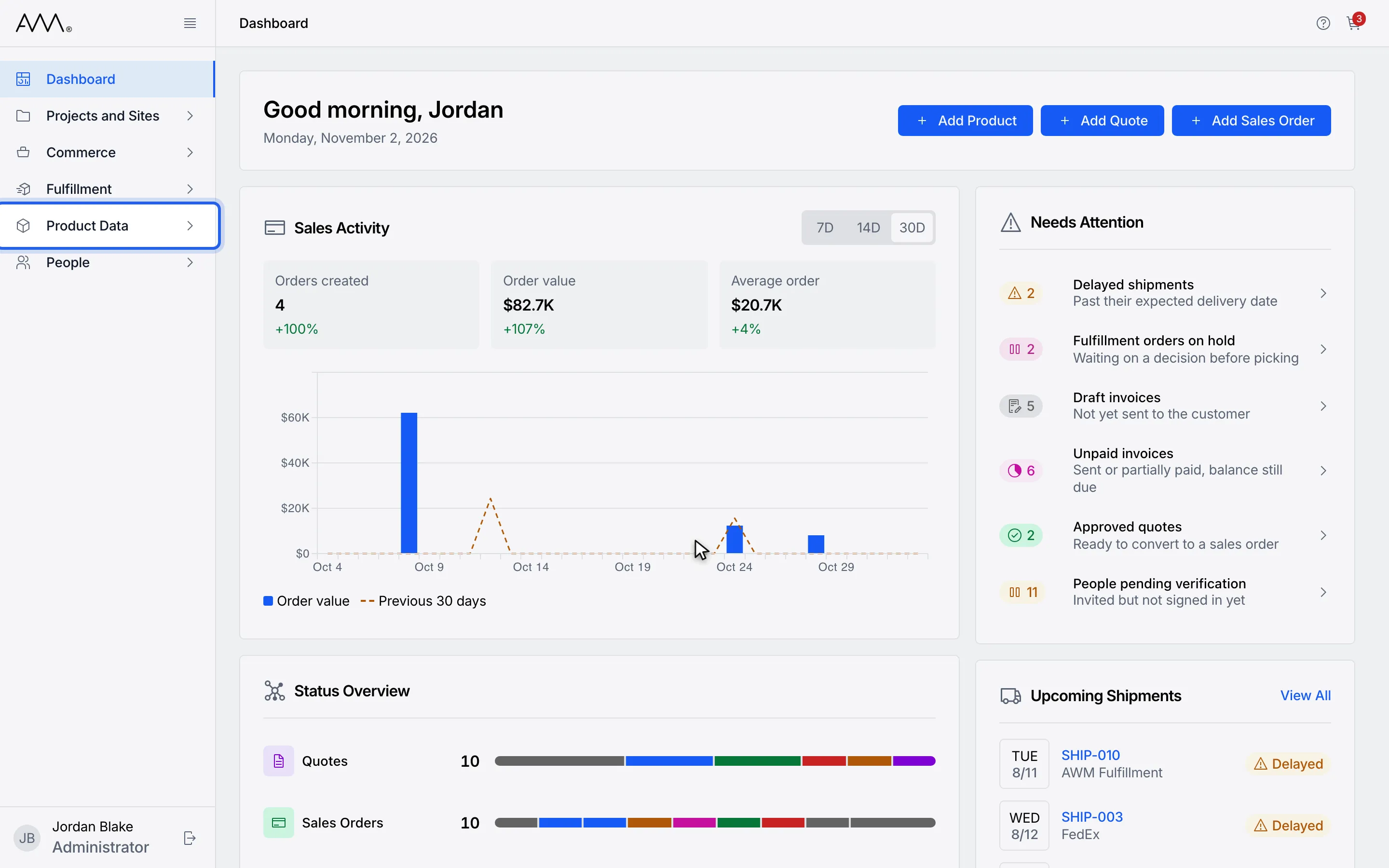
1In the sidebar, open Product Data.
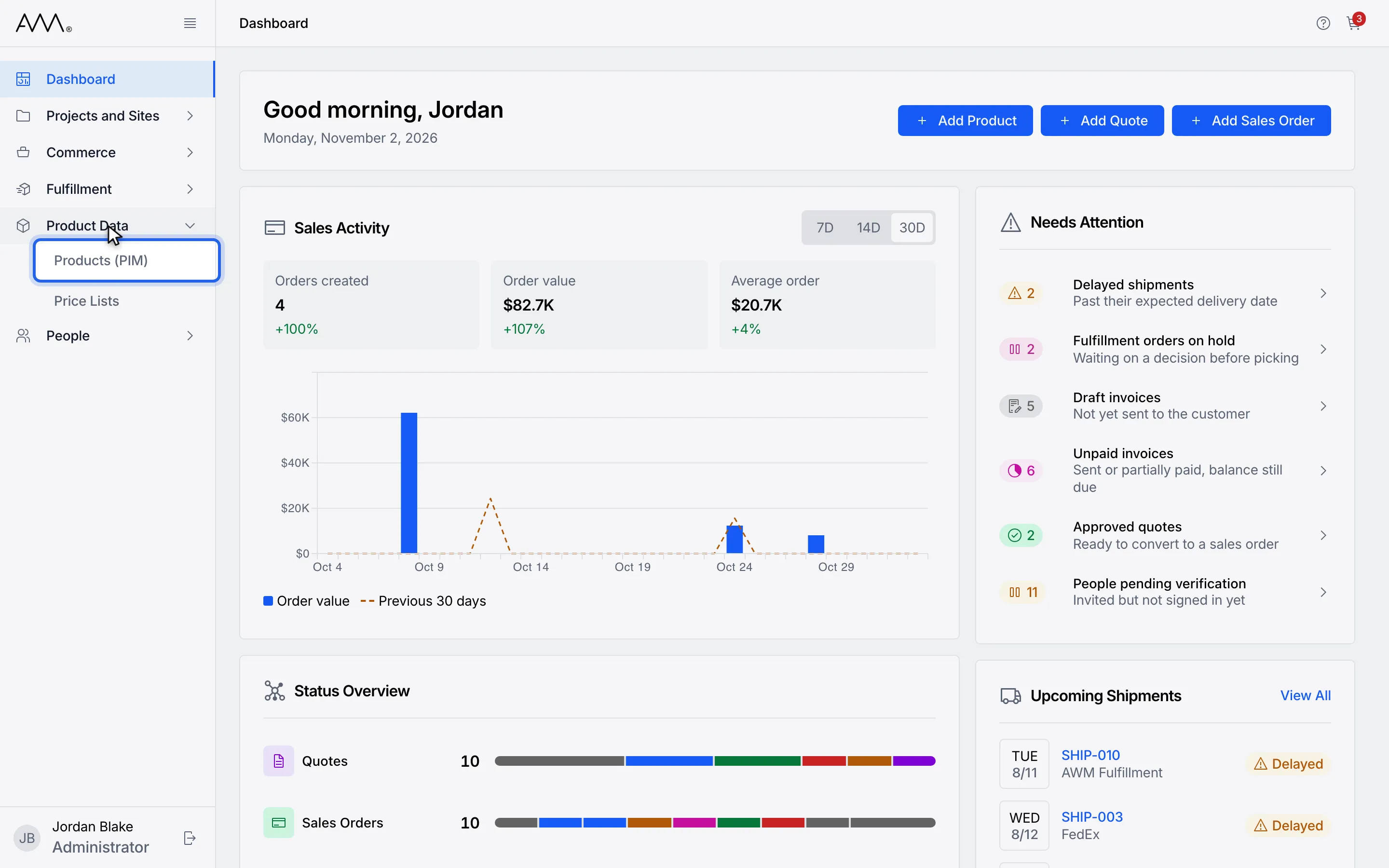
2Choose Products (PIM).
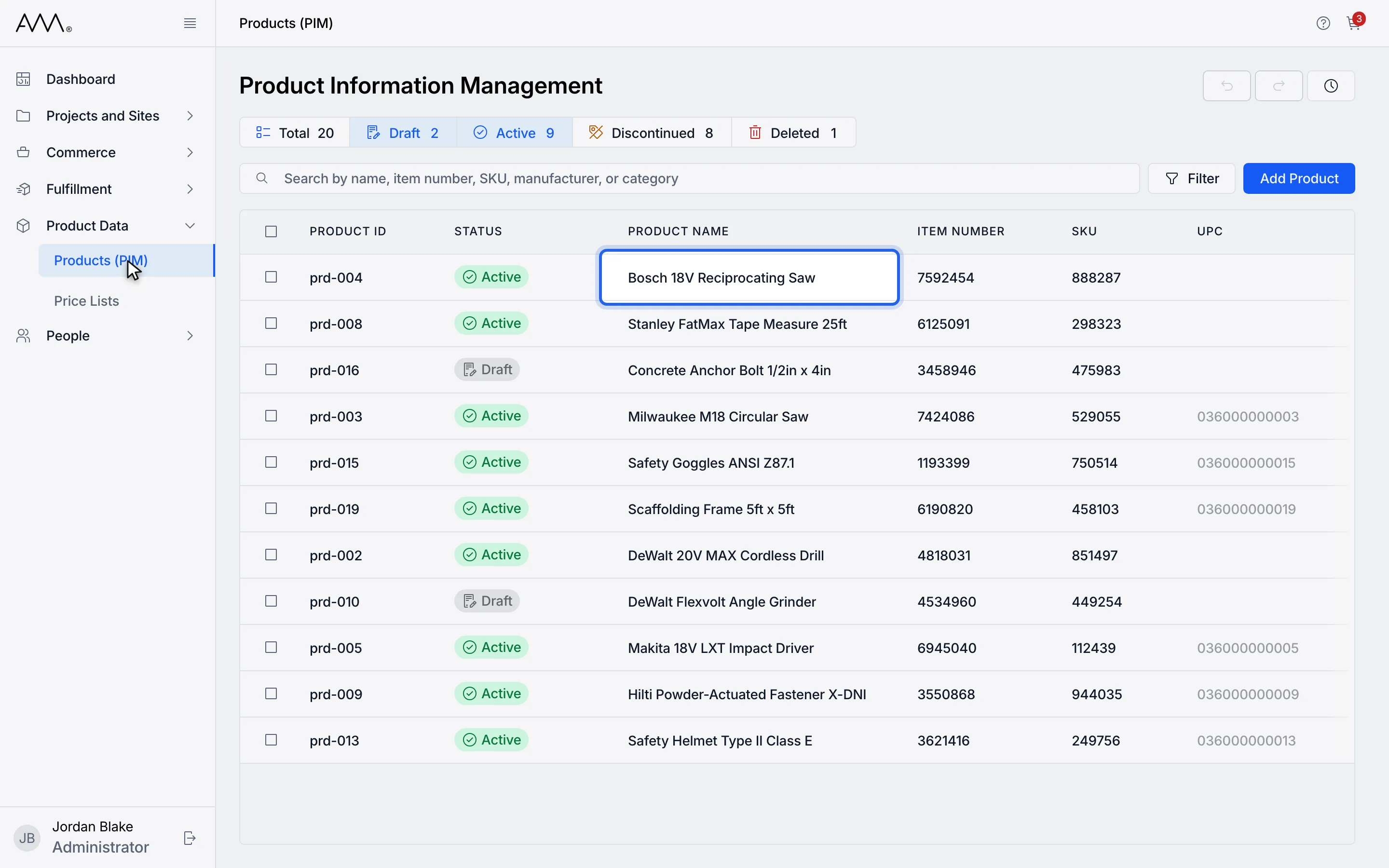
3Click the cell you want to change. Typing replaces the current value.
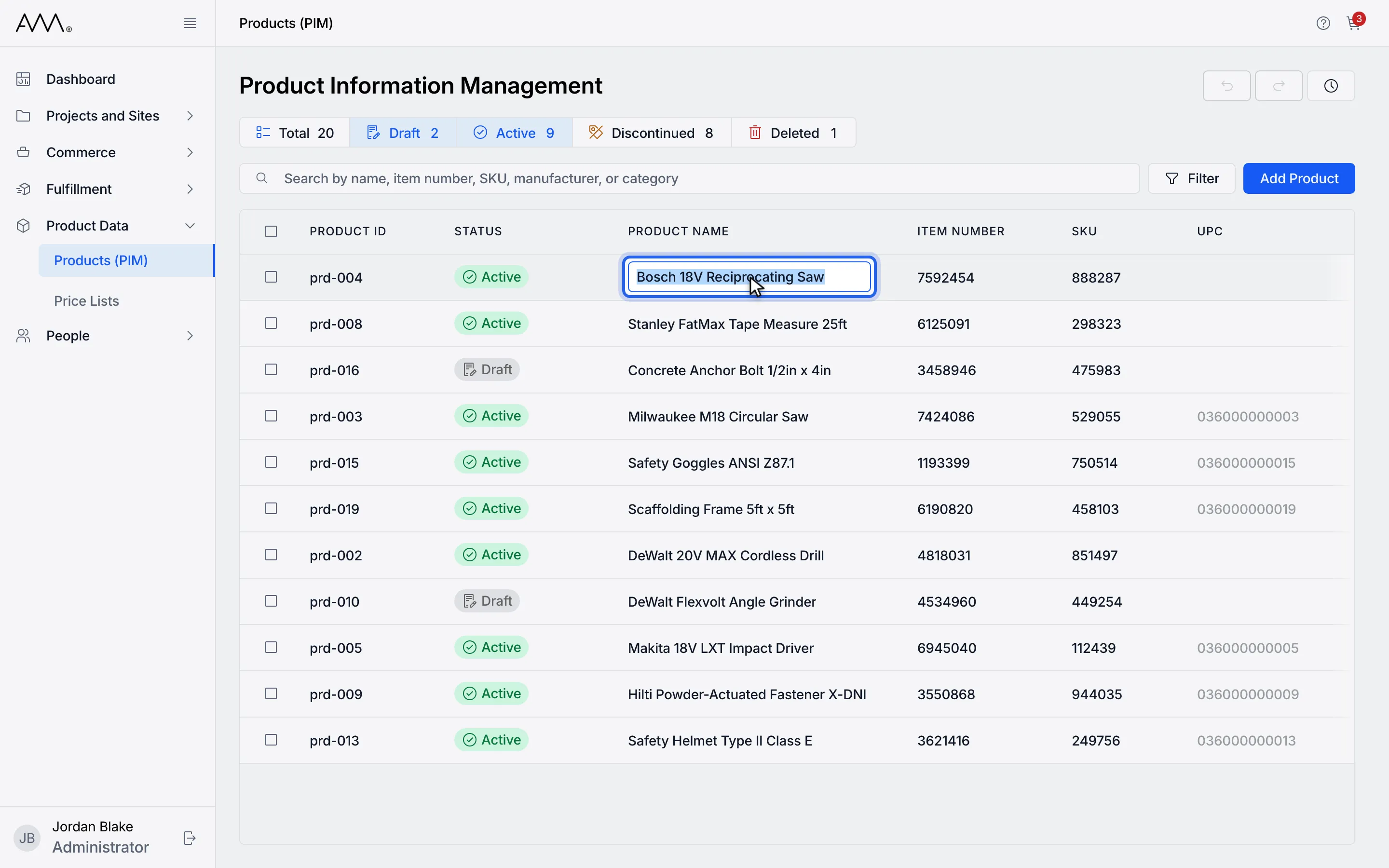
4Type the new value and press Enter to save. The row flashes green.
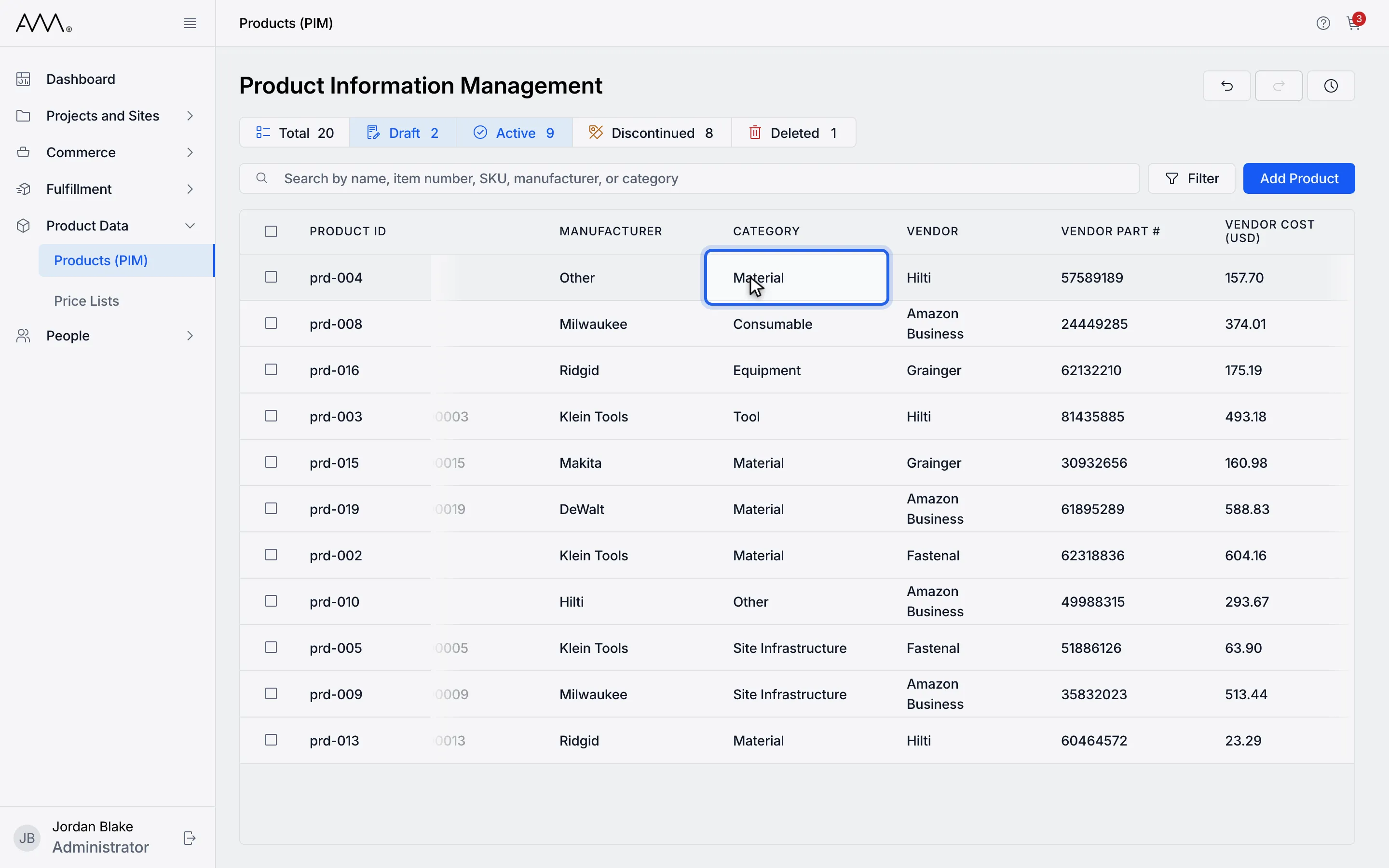
5For a list cell such as CATEGORY, click the cell.
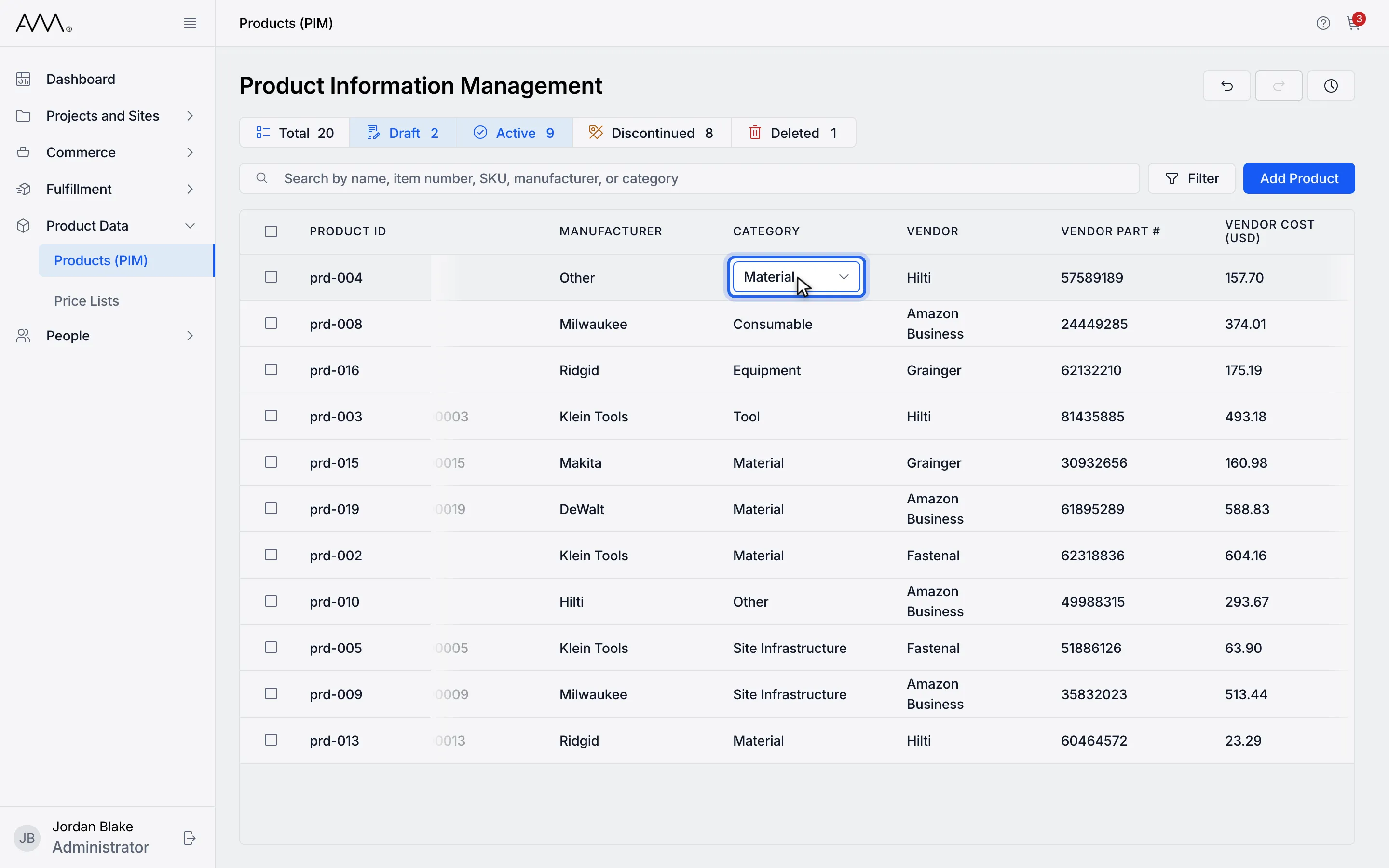
6Click again to open the list.
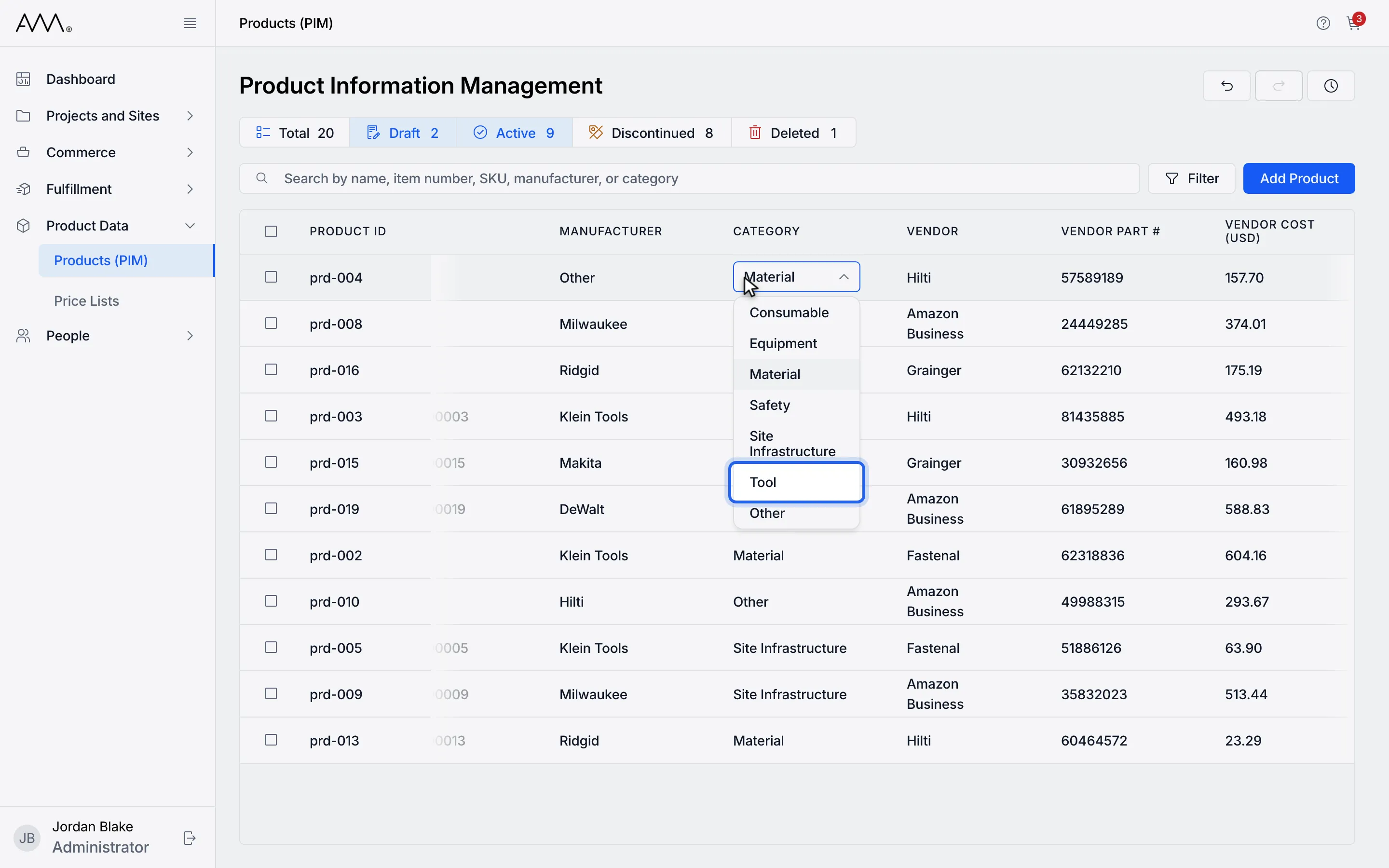
7Pick a value. It saves at once.
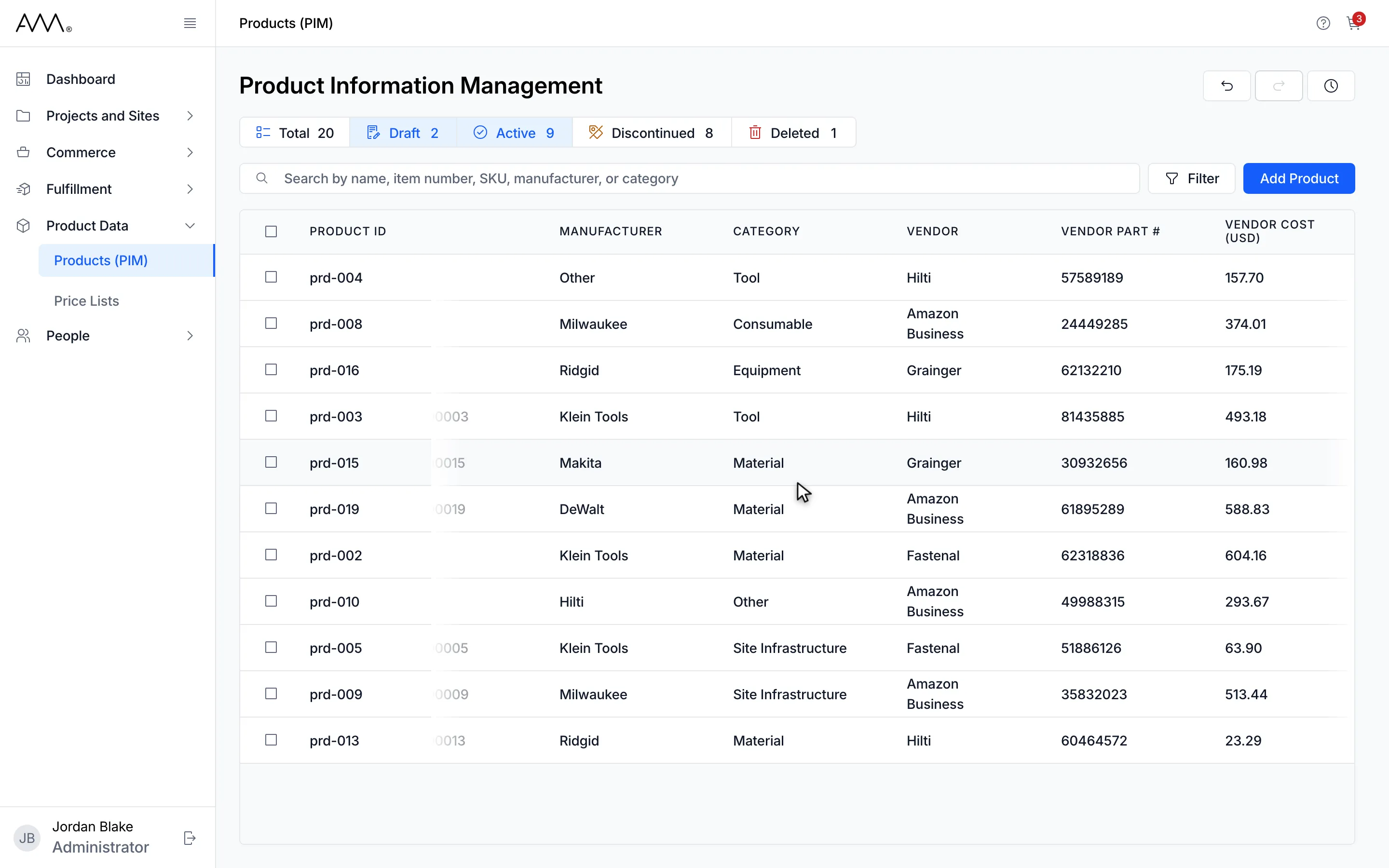
8Each saved cell shows its new value.
Watch this as a video (edit a product)
What happens next
Section titled “What happens next”- The row flashes green for a few seconds and the cell shows the saved value. LAST UPDATED and UPDATED BY are read-only.
- VENDOR PART #, VENDOR COST (USD) and LEAD TIME cannot be edited until the row has a VENDOR. If you switch the vendor, those three values carry over to the new vendor.
- LIST PRICE (USD) is saved to the cent.
- UPC can be filled in only while it is empty, and that change cannot be undone. See Set a product’s UPC.
- To take back a change, click Undo at the top right or press Ctrl+Z (Cmd+Z on a Mac). Redo or Ctrl+Shift+Z puts it back. The undo list holds the last 50 changes you made on this visit to the page and is cleared when you leave it.
- If a value is rejected, for example a SKU that another product already uses, an error message explains why and the cell keeps its old value.
- If the product has been removed since you opened the page, Omni shows Product not found. Refreshing the list. and reloads the grid.
- If an undo cannot be applied, a message starting Undo failed explains why and the change stays available to retry.