Find a quote
The Quotes list shows every quote your company has created, newest first. Use the column headings, the status buttons and the search box together to get to one quote quickly.
- In the sidebar, open Commerce and choose Quotes.
- Click a column heading, for example Quote Number, to sort by it. Click it again to reverse the order. Every column except Items sorts.
- Click a status button such as Sent to show only quotes in that status. Each button shows a count. Click another status to add it, or Total to clear the filter.
- Type a quote number or contact name in Search Quotes…. The list filters as you type.
- Click the quote number to open it. The quote opens on its Details tab, with its actions in the header.
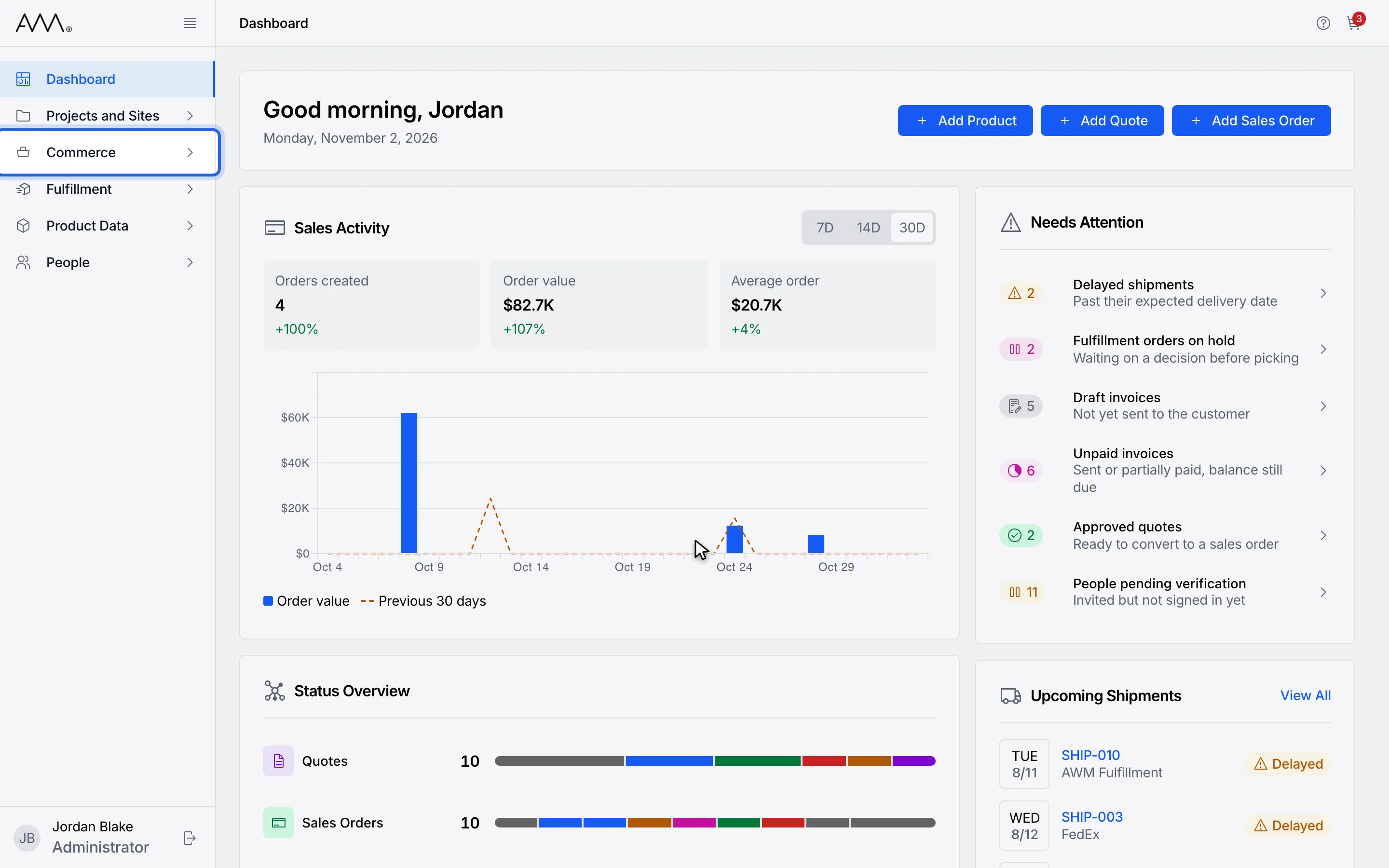
1In the sidebar, open Commerce.
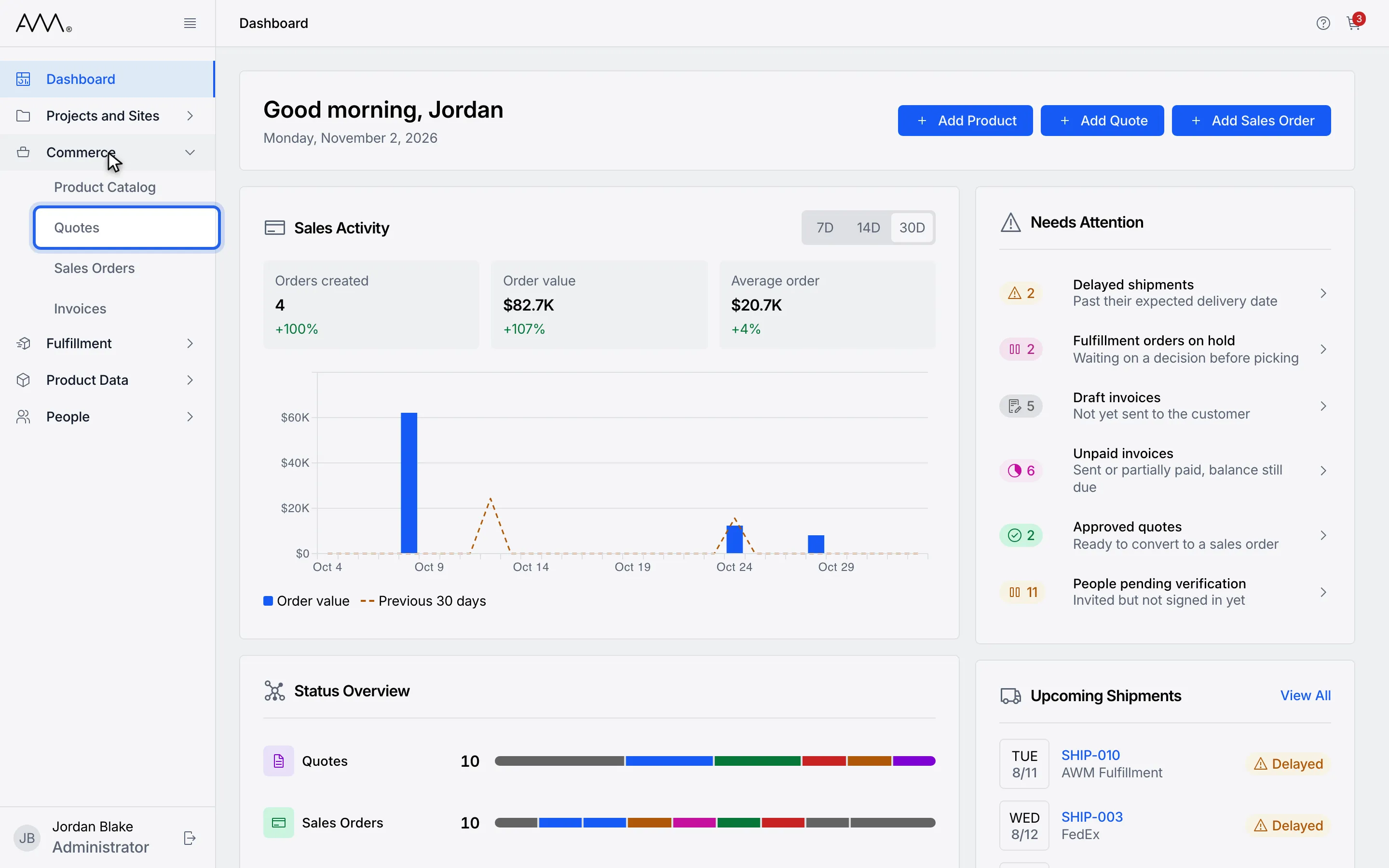
2Choose Quotes.
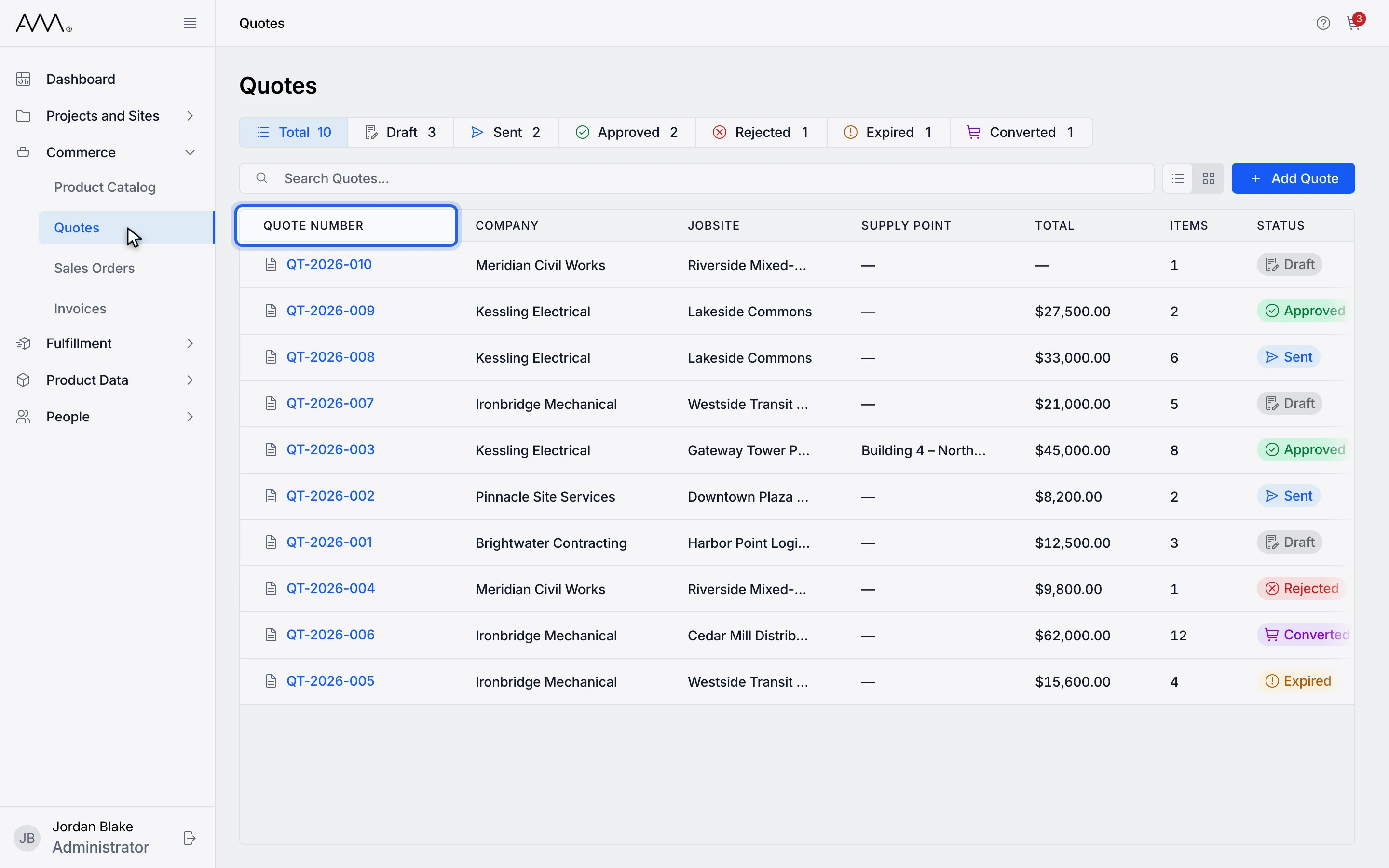
3Click a column heading to sort by it. Click again to reverse the order.
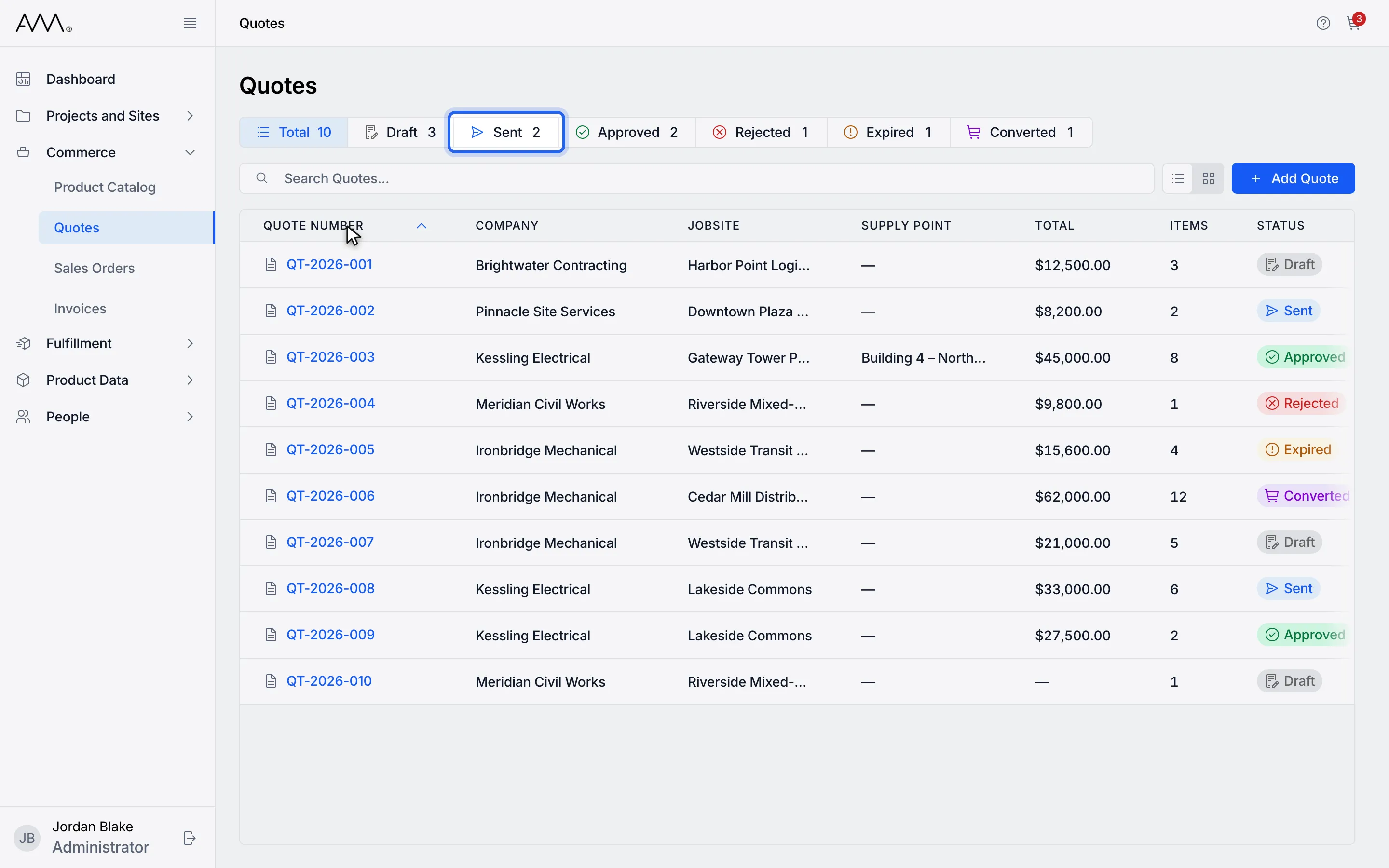
4Click a status button such as Sent to show only that status.
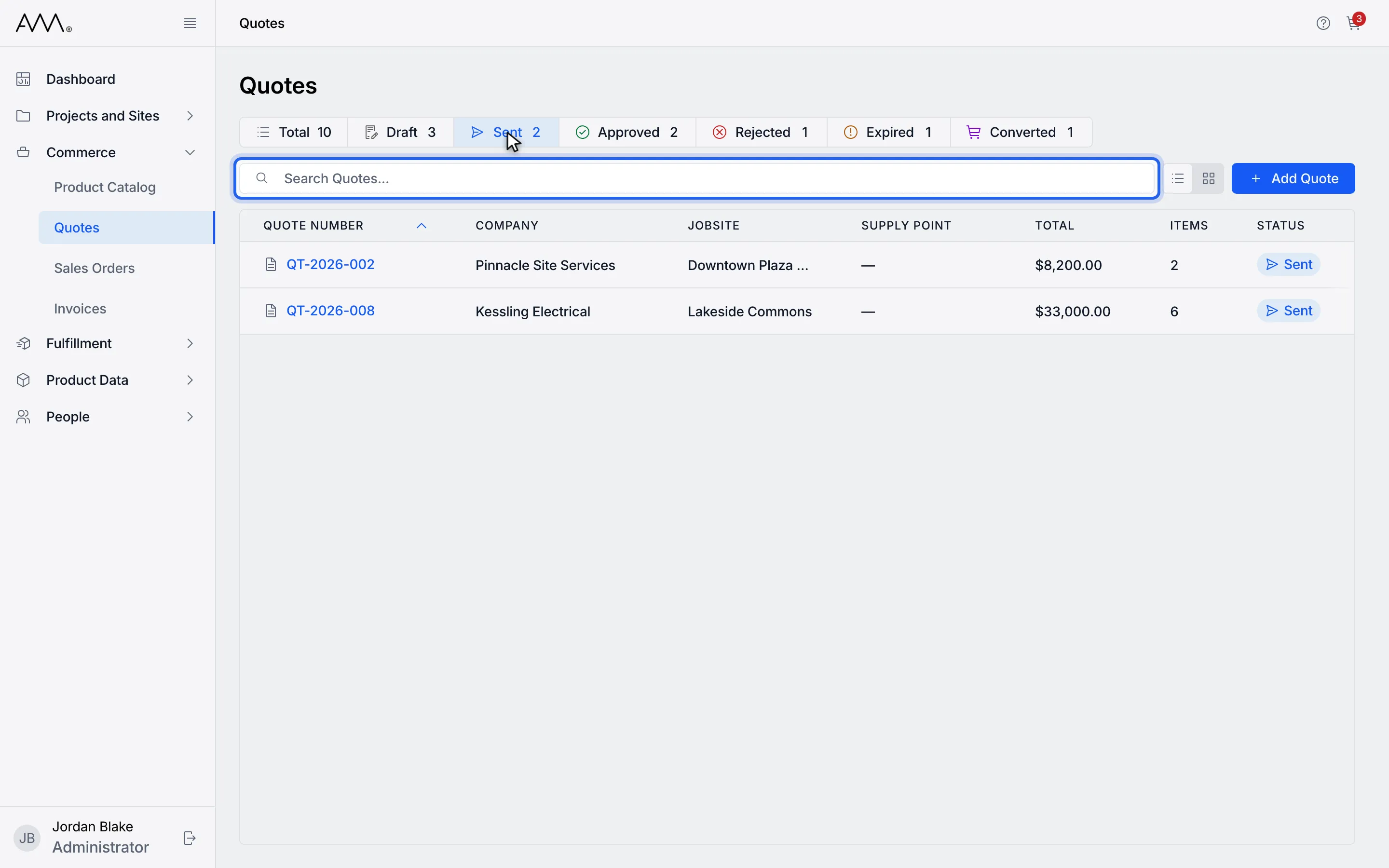
5Type a quote number or contact name in Search Quotes....
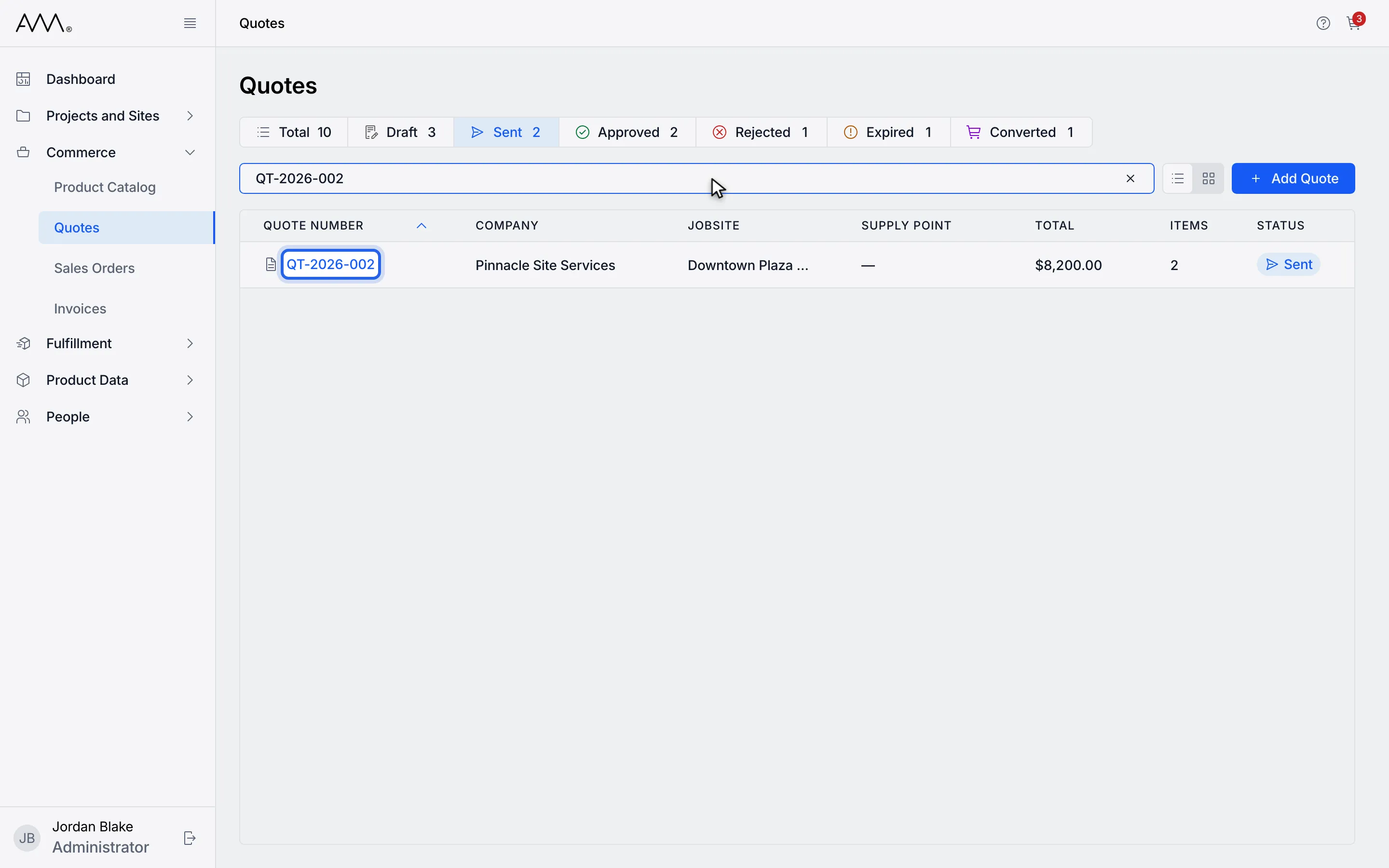
6Open a quote by clicking its number.
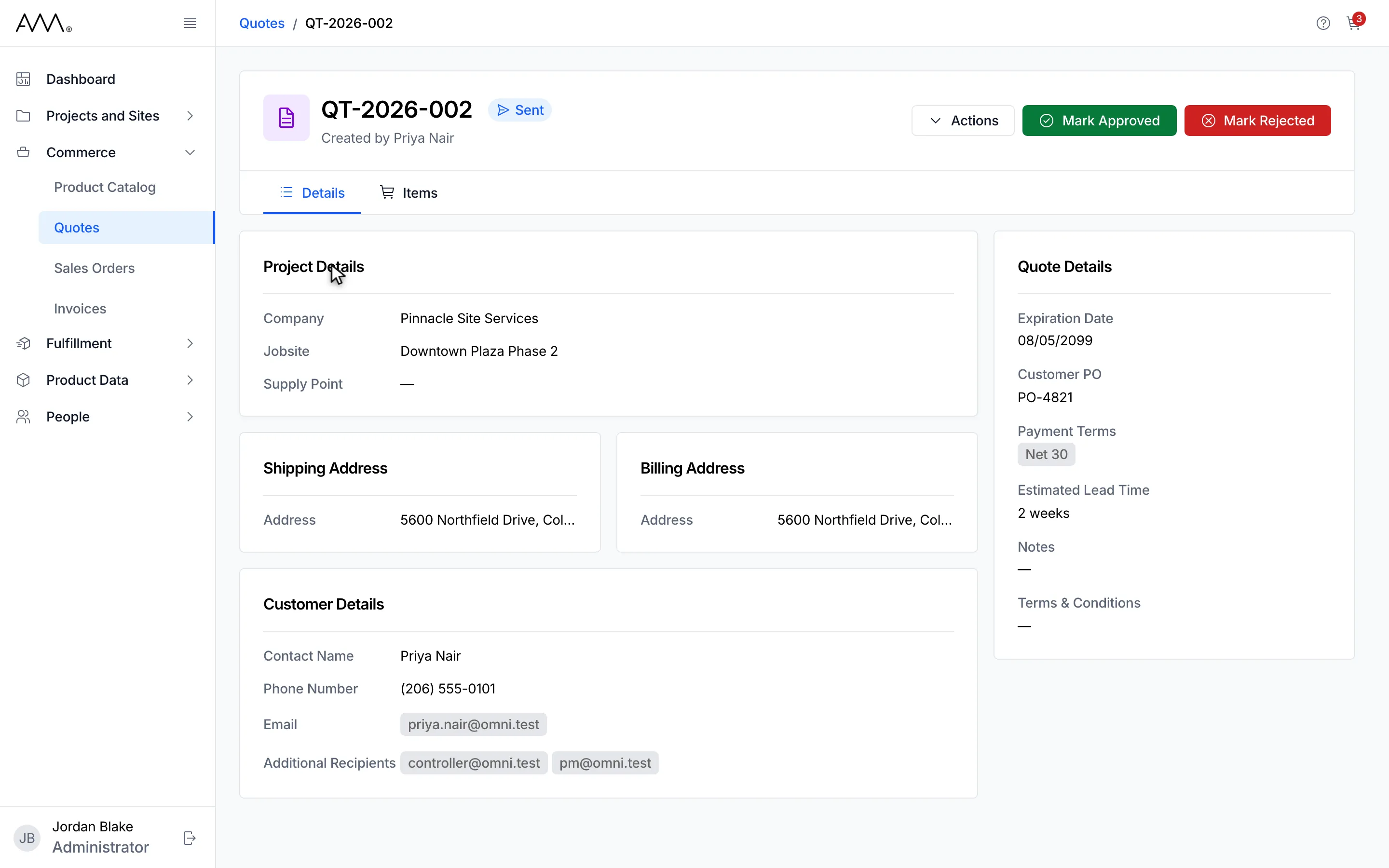
7The quote opens on its Details tab, with its actions in the header.
Watch this as a video (find a quote)
The sort, filter and search are part of the page address. Bookmark the page or send its link to a colleague to share the same view. The toggle on the right of the search box switches between List view and Card view; Omni remembers your choice on this browser.