Add cart items to an existing quote
Use this when a customer asks for more products on a quote you have already started. The cart lines are added to the quote’s line items, the cart is emptied and the quote opens in edit mode. This is also the only way to add products to a quote, because the edit form itself only lets you change or remove lines.
- On the Shopping Cart page, click Add to Quote.
- Choose Add to Existing Quote. The Add To Existing Quote dialog opens.
- Type in Search quotes by number, client, or project…, or pick Draft or Sent in the status menu (it starts on All statuses), to narrow the list.
- Click the quote that should receive the items. Only Draft and Sent quotes are listed, with their Company, Jobsite, Supply Point, Total, Items, Status and Created date.
- Click Add Cart to Quote. The quote opens in edit mode with the cart items added as line items.
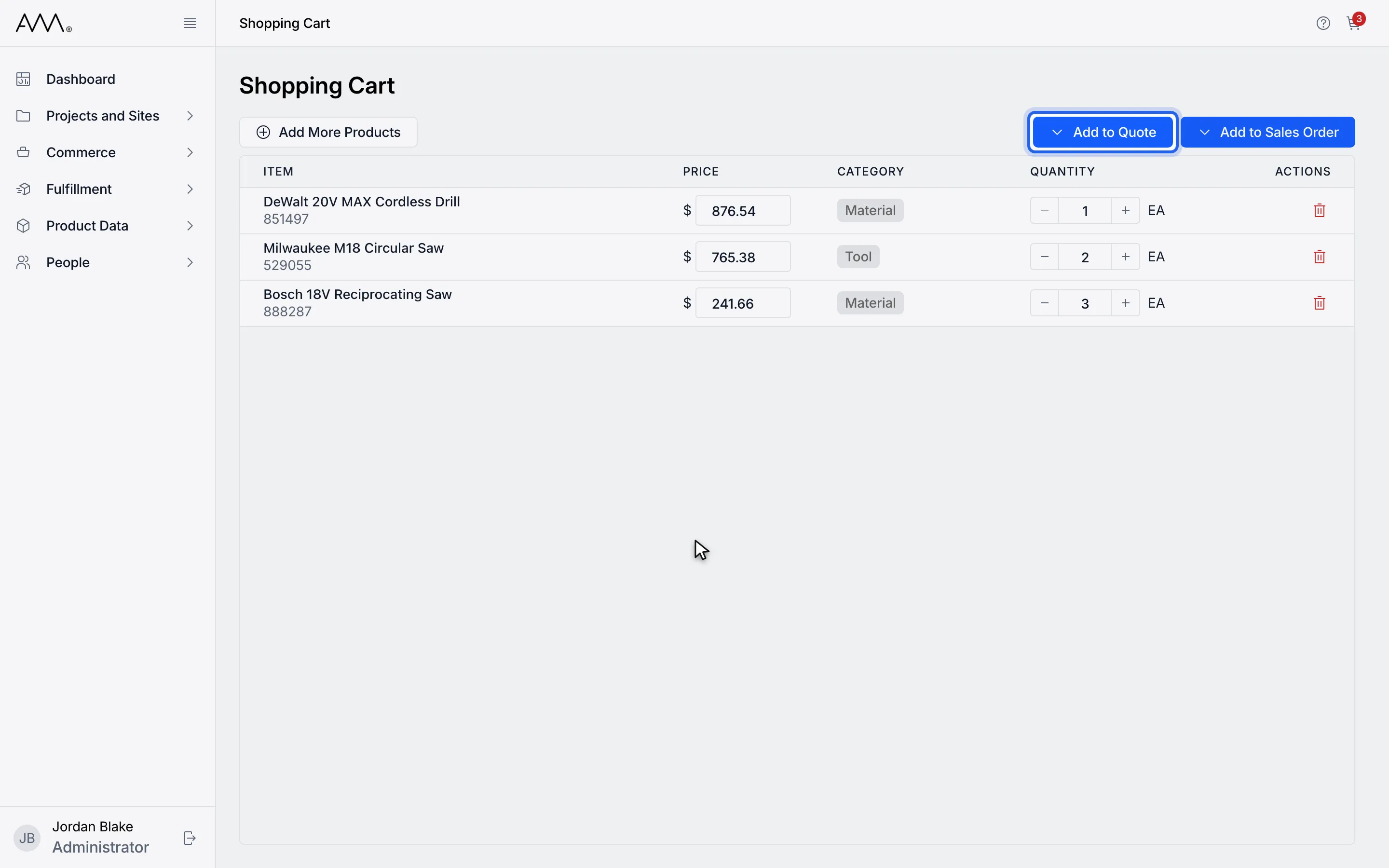
1On the Shopping Cart page, click Add to Quote.
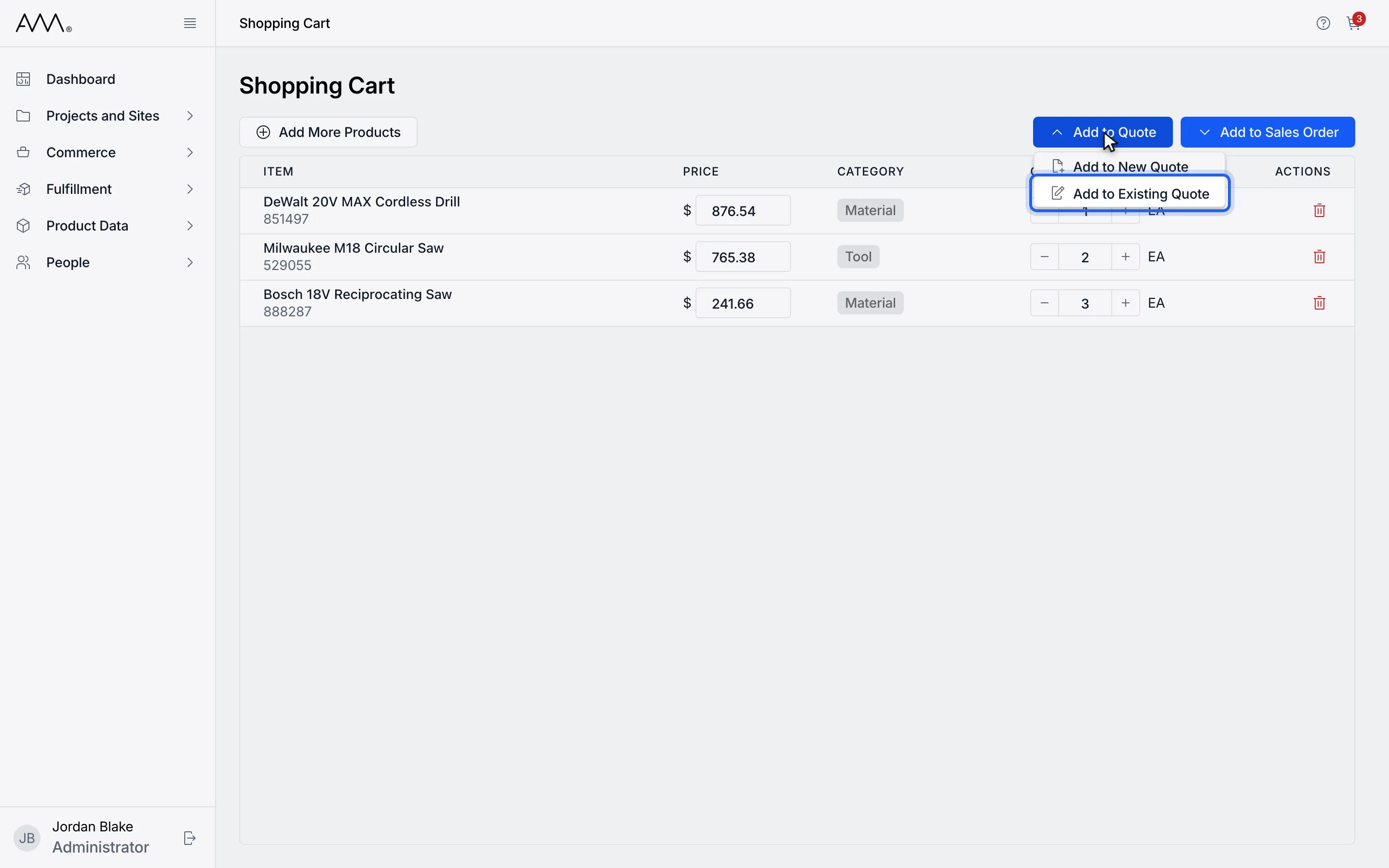
2Choose Add to Existing Quote.
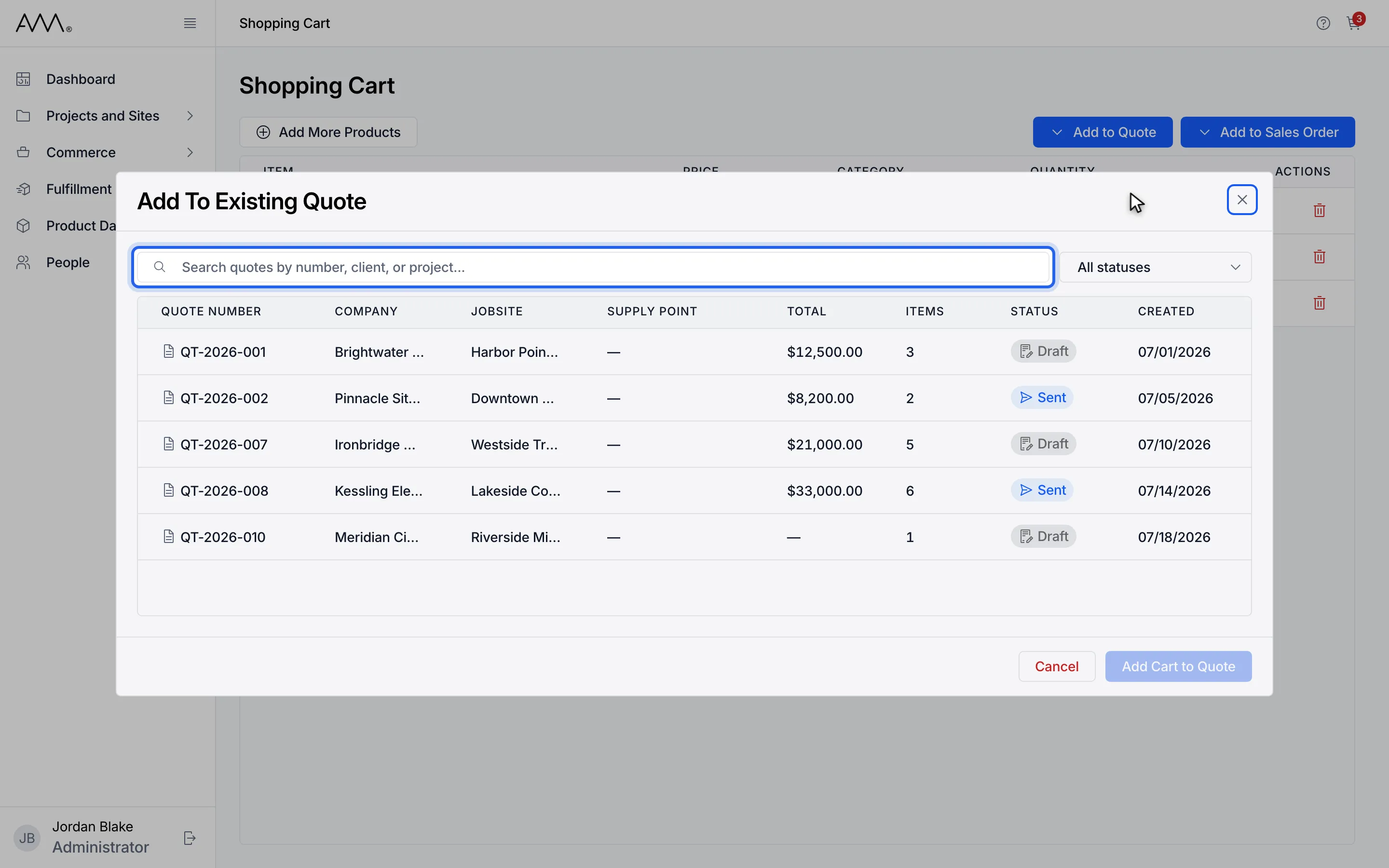
3Search by quote number, client or project, or pick a status.
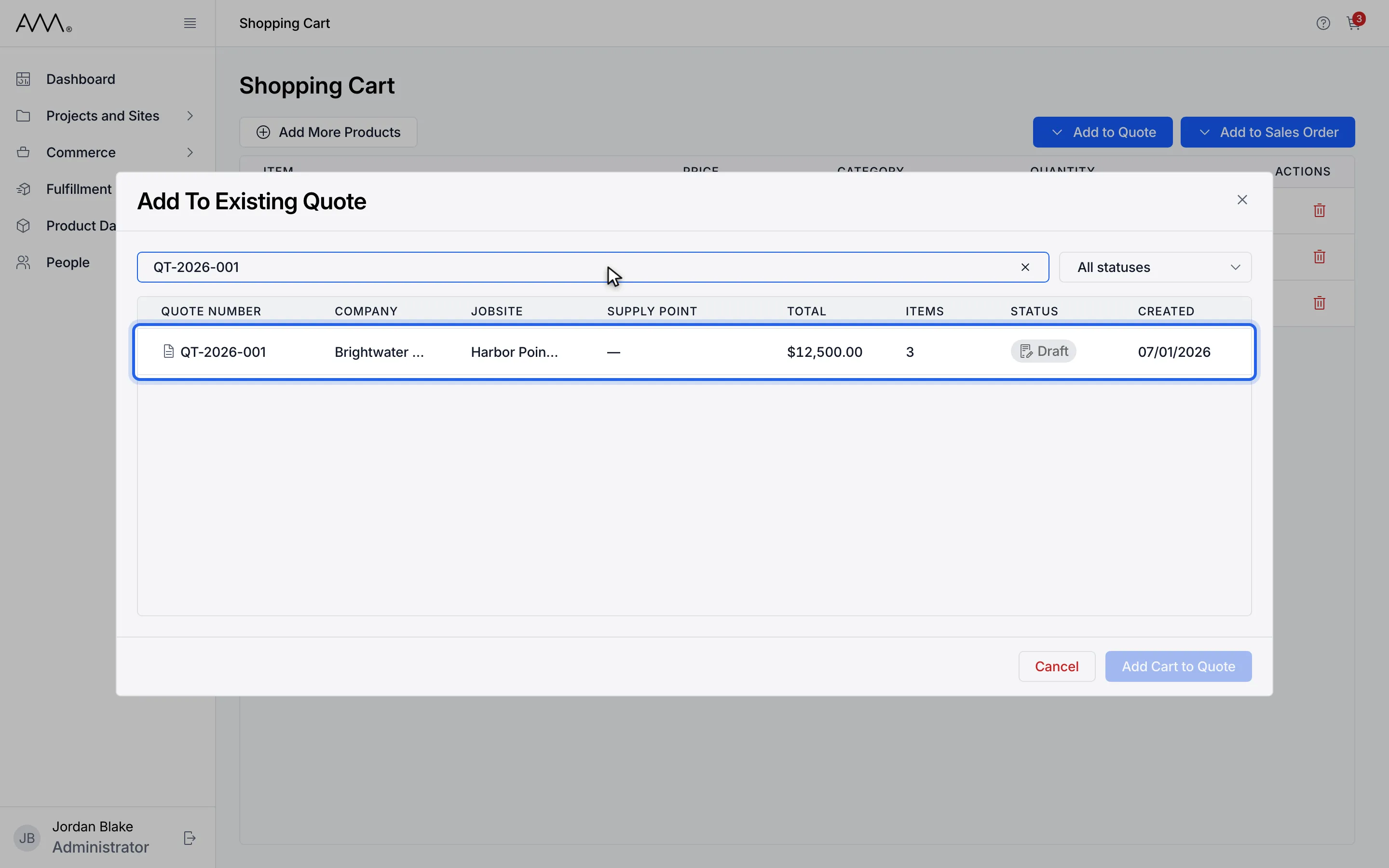
4Click the quote. Only Draft and Sent quotes are listed.
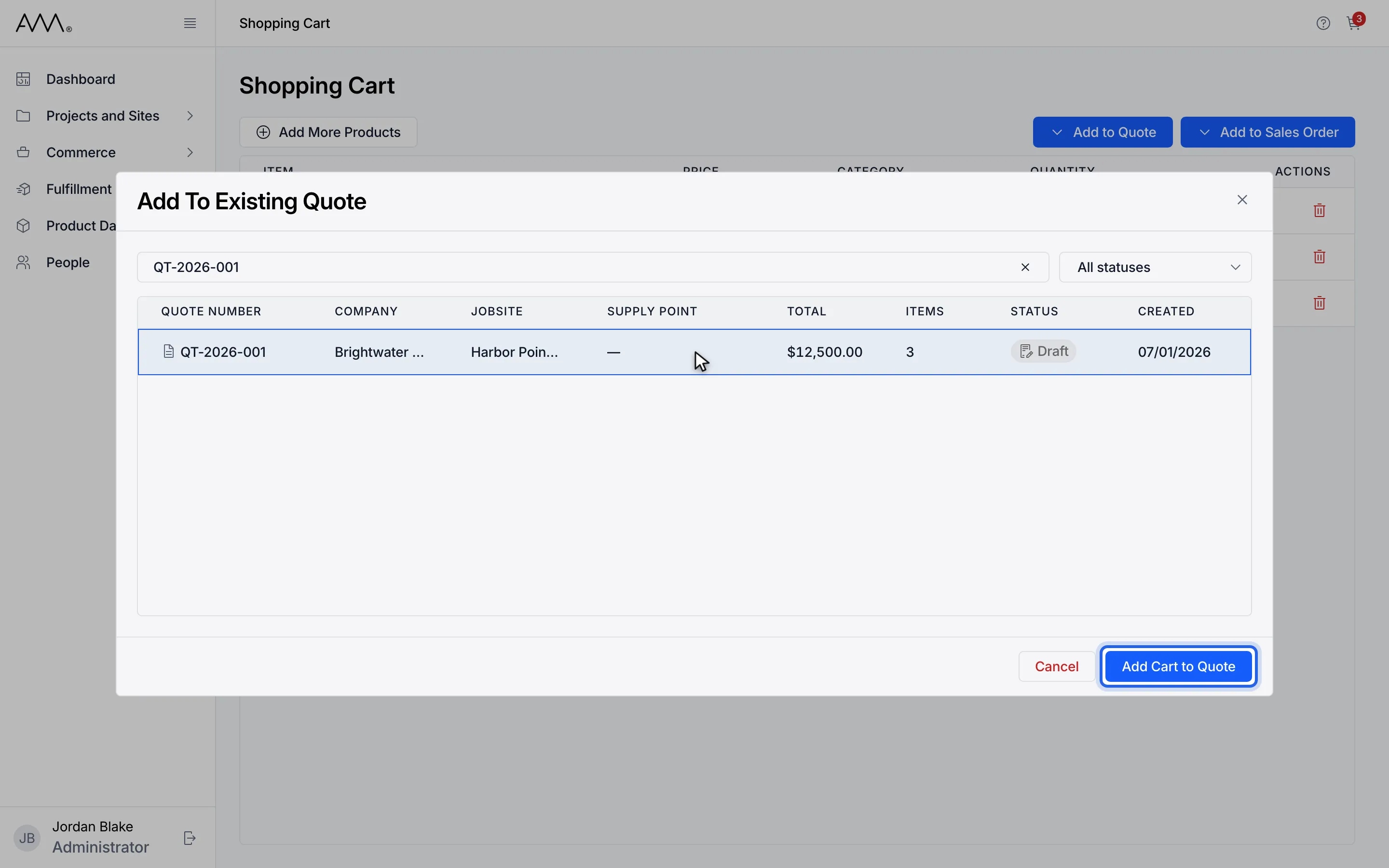
5Click Add Cart to Quote.
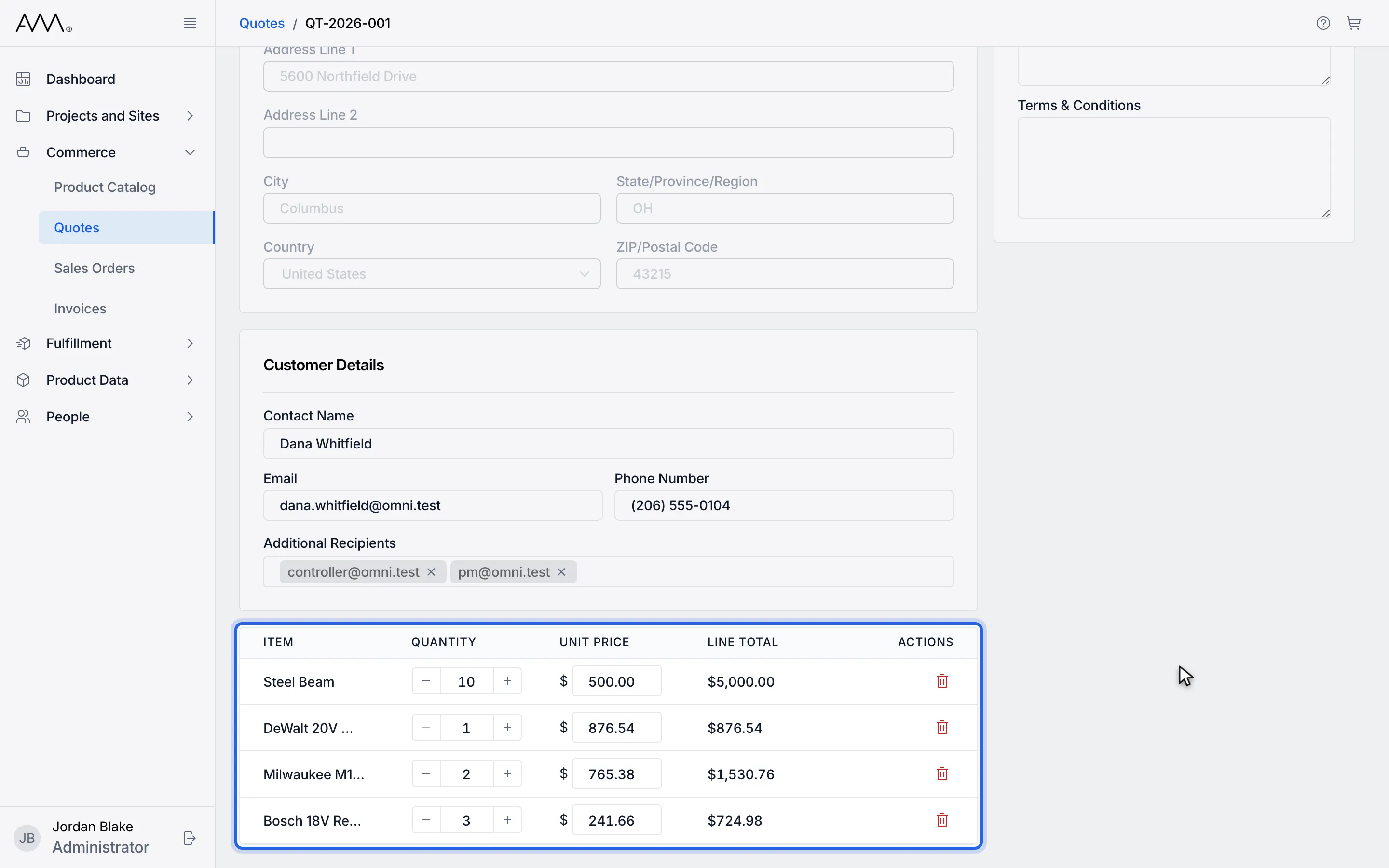
6The quote opens in edit mode with the cart lines added under its line items.
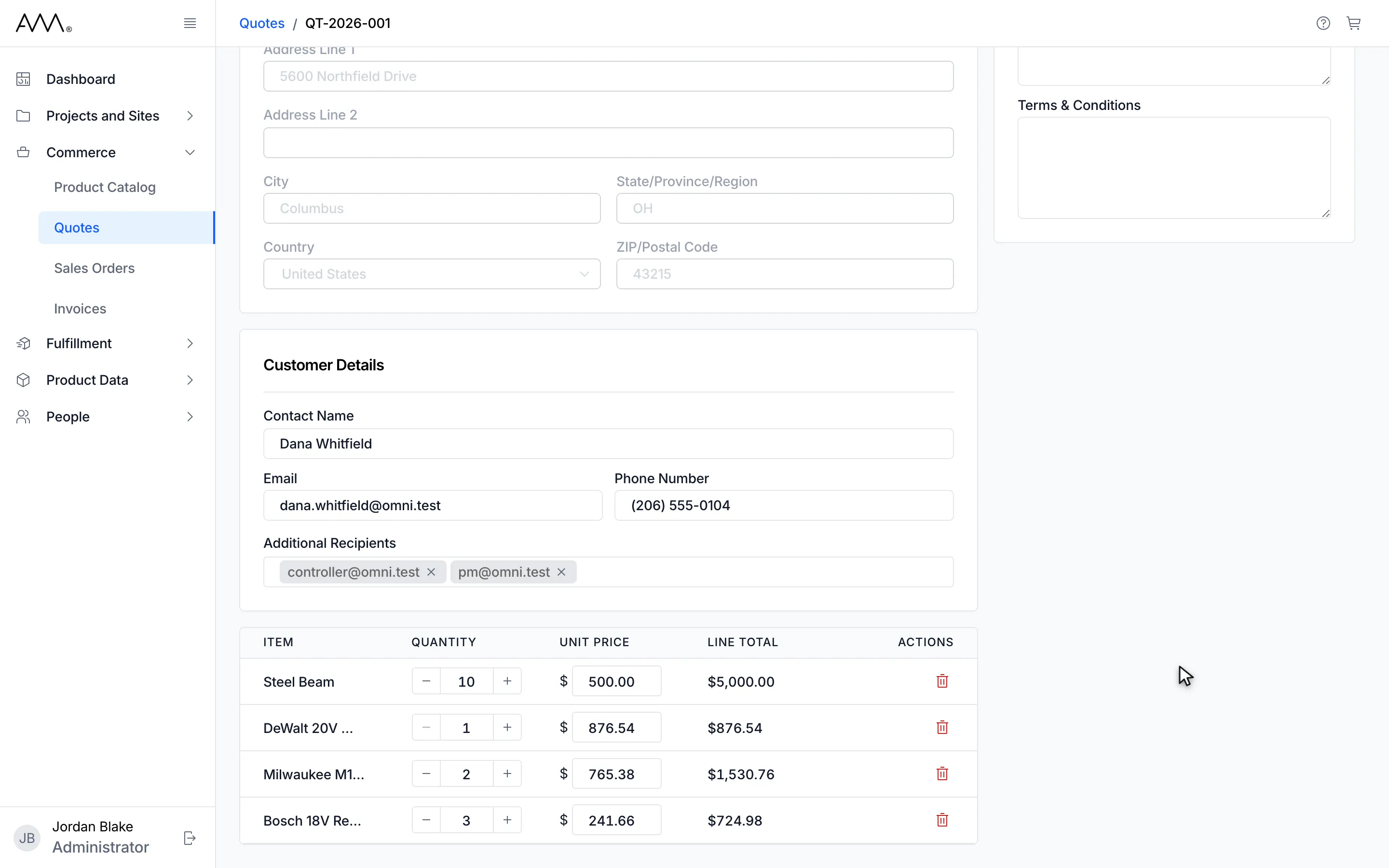
7The quote opens in edit mode with the cart items added to its line items.
Watch this as a video (add cart items to an existing quote)
What happens next
Section titled “What happens next”The new lines appear under the existing ones. If the quote already has the same product, the quantities are added together. When the quote has a price list applied, the new lines take their prices from it; otherwise they keep the cart price. The quote’s status does not change. Review the lines and click Save Changes, or send the quote.
If the items cannot be added, the dialog shows the reason and stays open, for example Could not add items to the quote. Please try again. or Only Draft or Sent quotes can take new line items. If the items are added but the cart cannot be emptied, the toast reads Items added, but the cart could not be cleared.