Bulk-edit selected products
When several products need the same value, select them all and edit one cell. The change applies to every selected row.
- In the sidebar, open Product Data and choose Products (PIM).
- Tick the checkbox at the start of the first product you want to change. The checkbox in the header selects every visible row instead.
- Tick the next product. The banner that replaces the toolbar shows how many rows are selected, for example 2 Selected, with the hint Edit any cell to apply the change to all selected rows.
- Click a cell in one of the selected rows.
- For a list cell, click it again to open the list.
- Pick the value, or type one and press Enter. It applies to every selected row and a message confirms it.
Bulk-edit products1 / 8
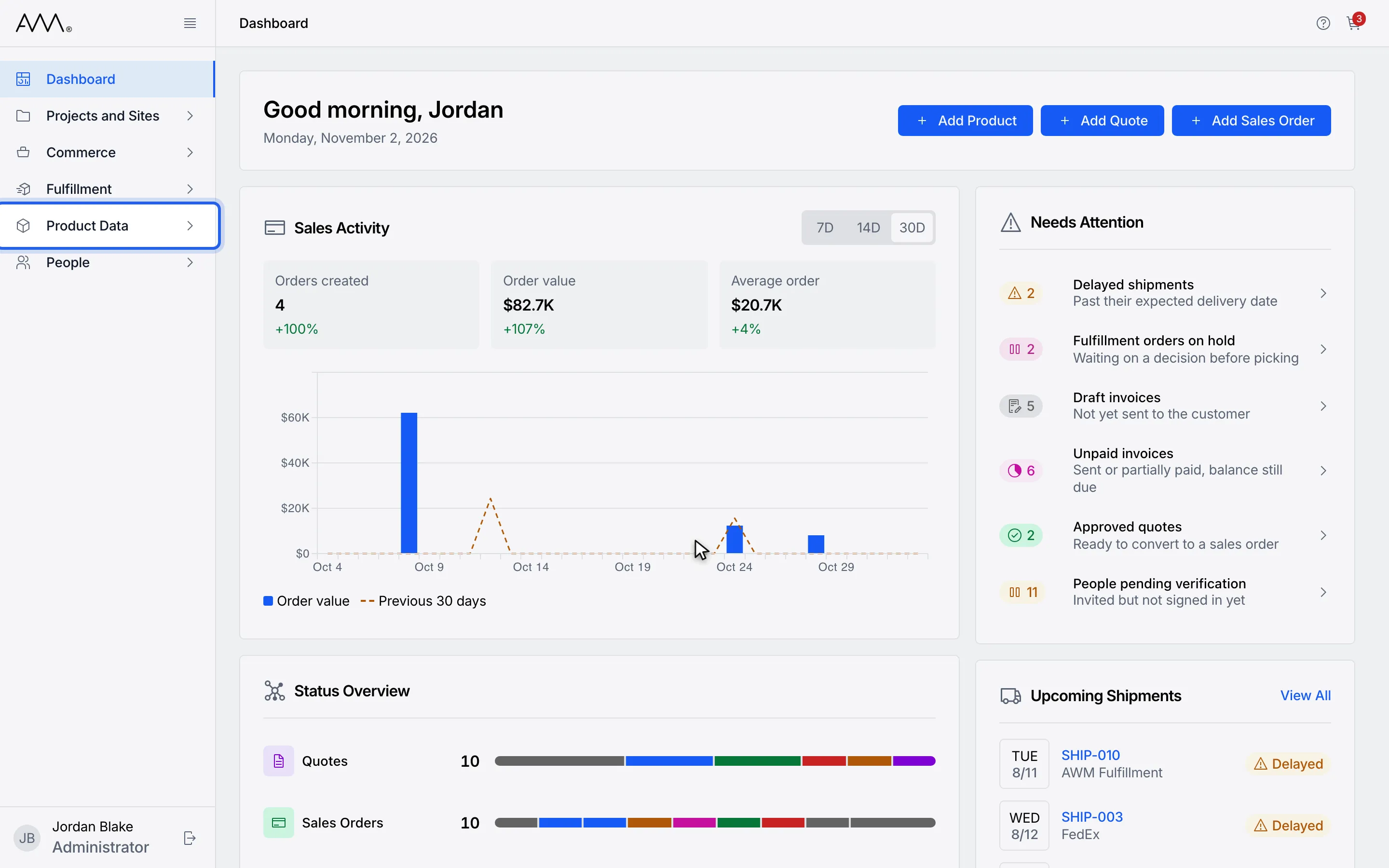
1In the sidebar, open Product Data.
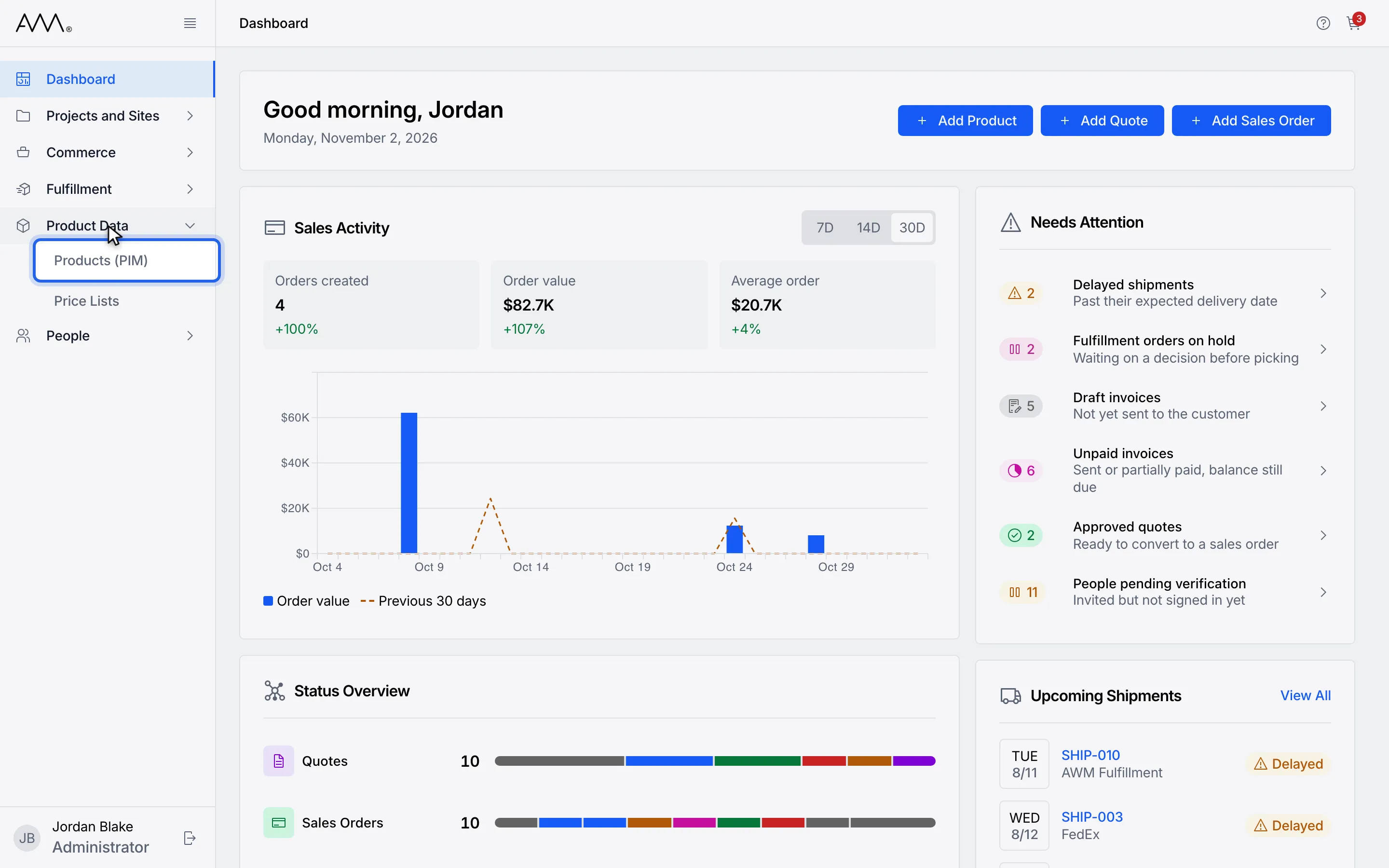
2Choose Products (PIM).
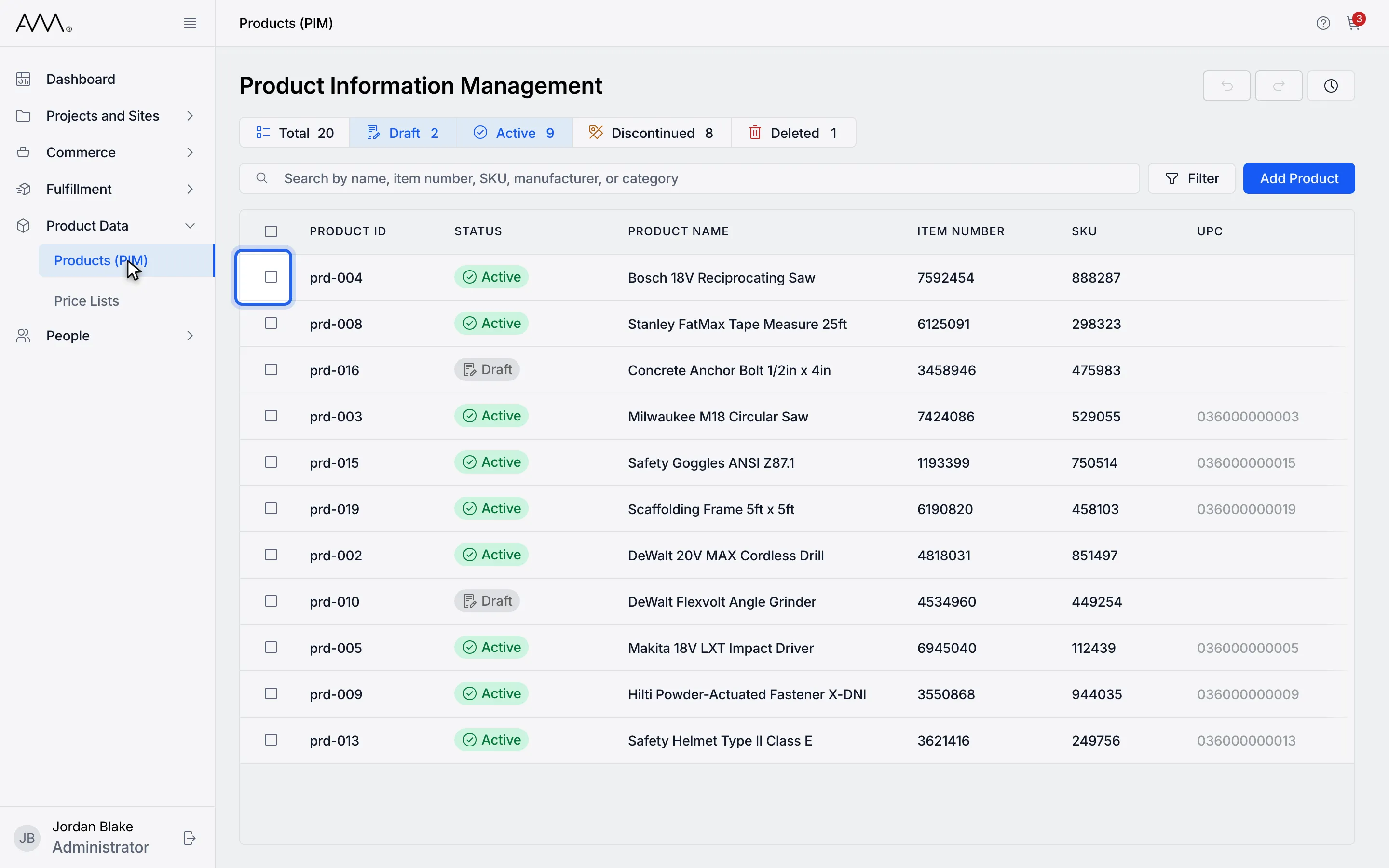
3Tick the checkbox on each product you want to change.
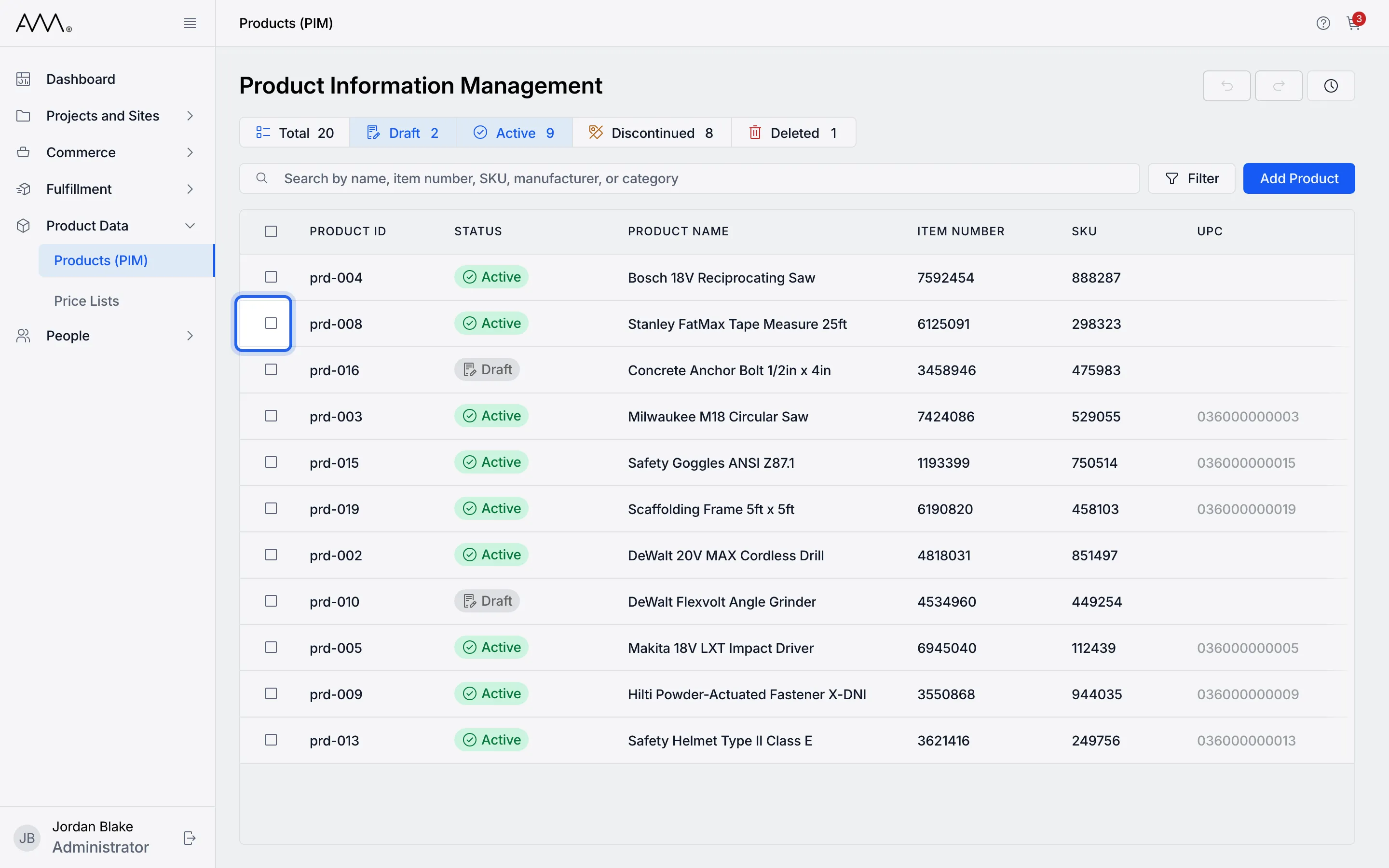
4Tick a second product. The banner shows 2 Selected.
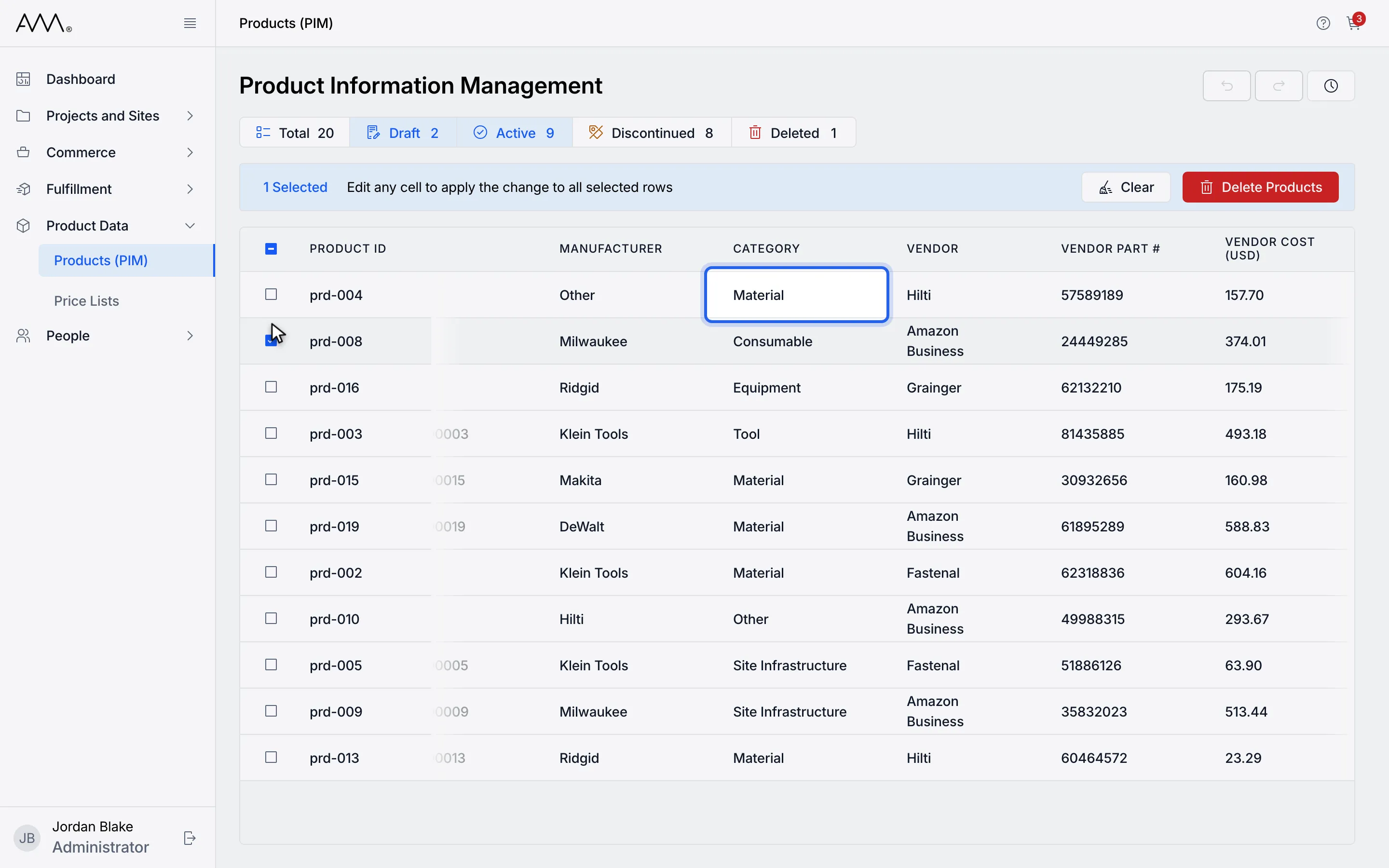
5Click a cell in one of the selected rows.
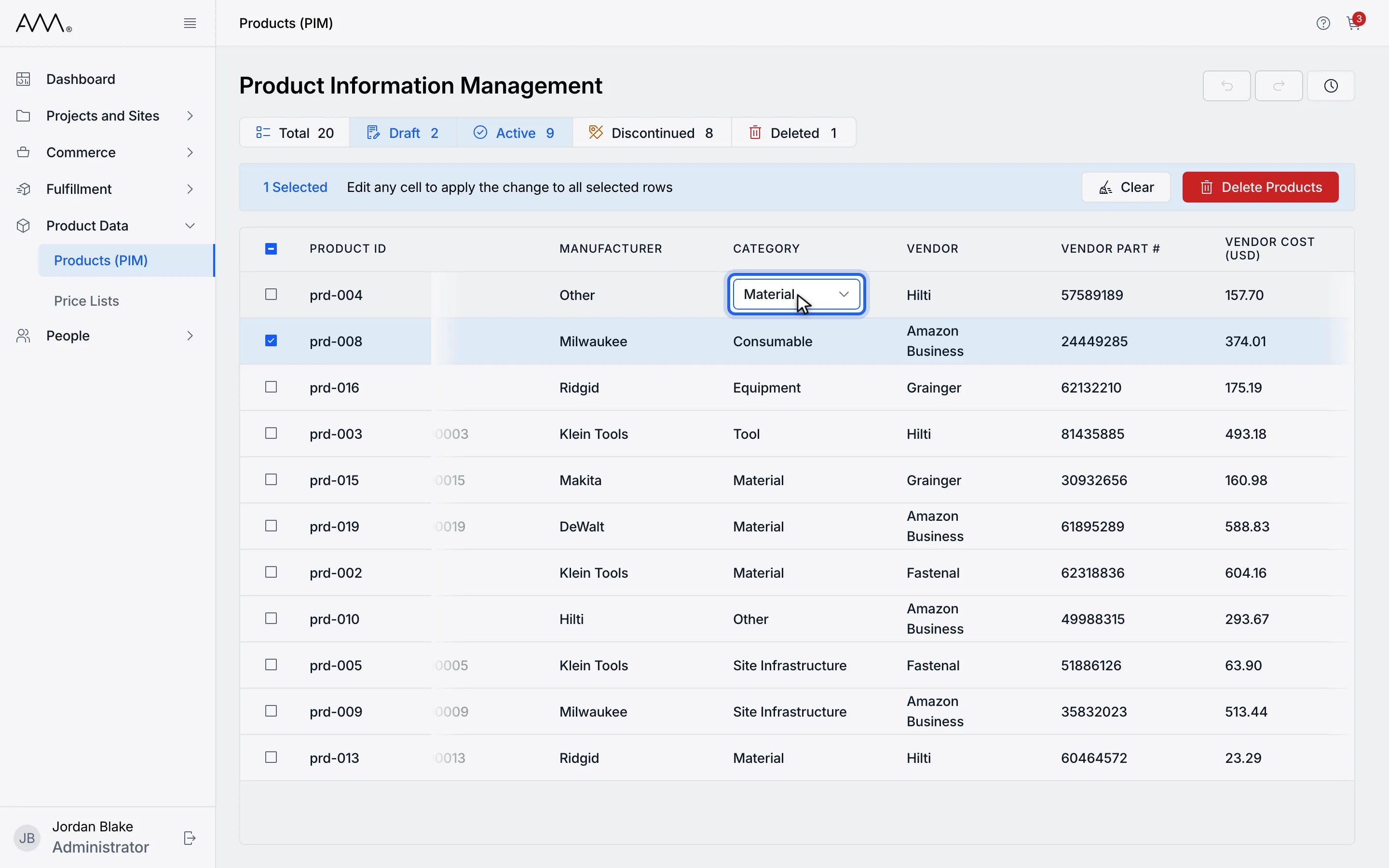
6Click again to open the list.
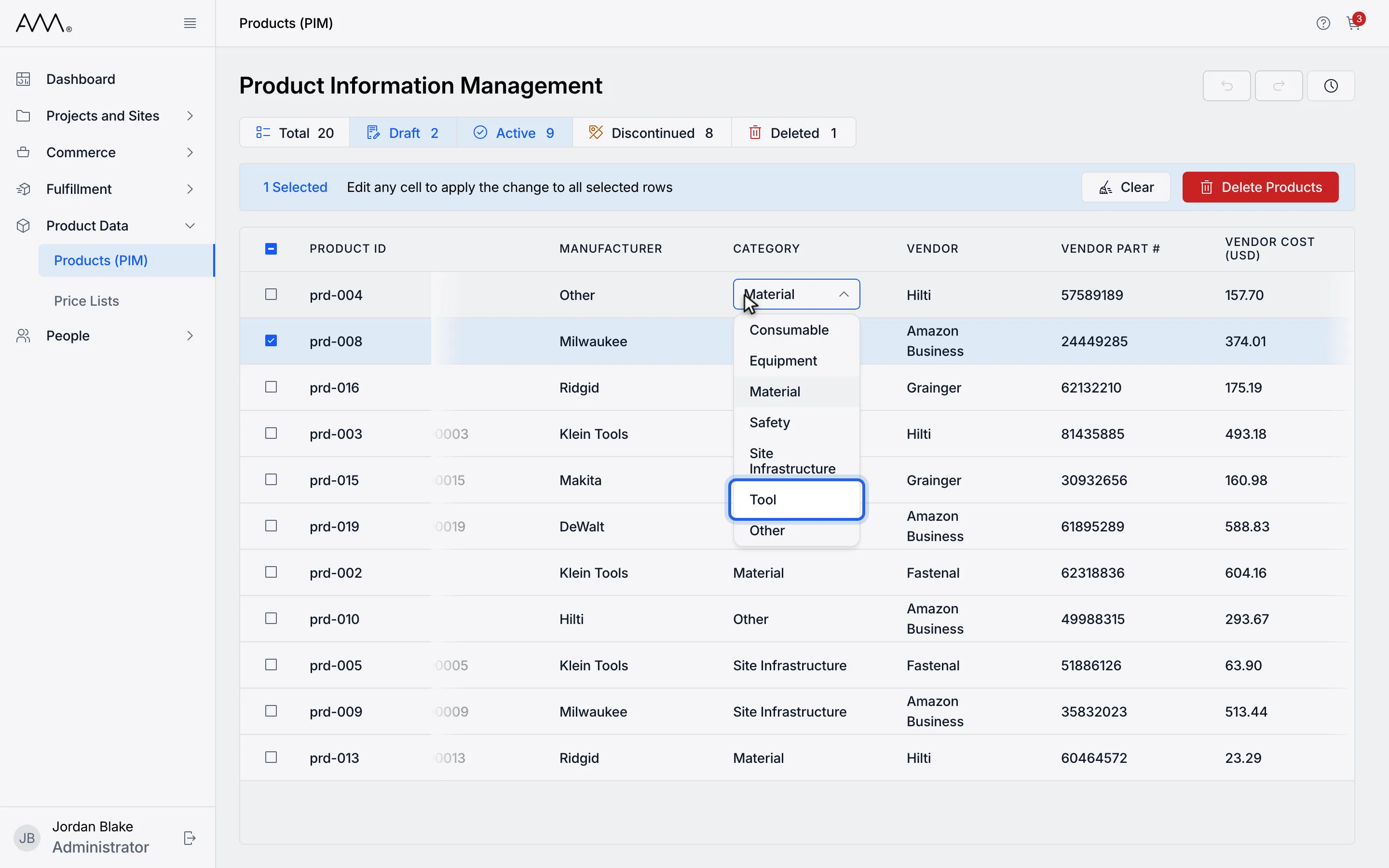
7Pick the value. It applies to every selected row and a message confirms it.
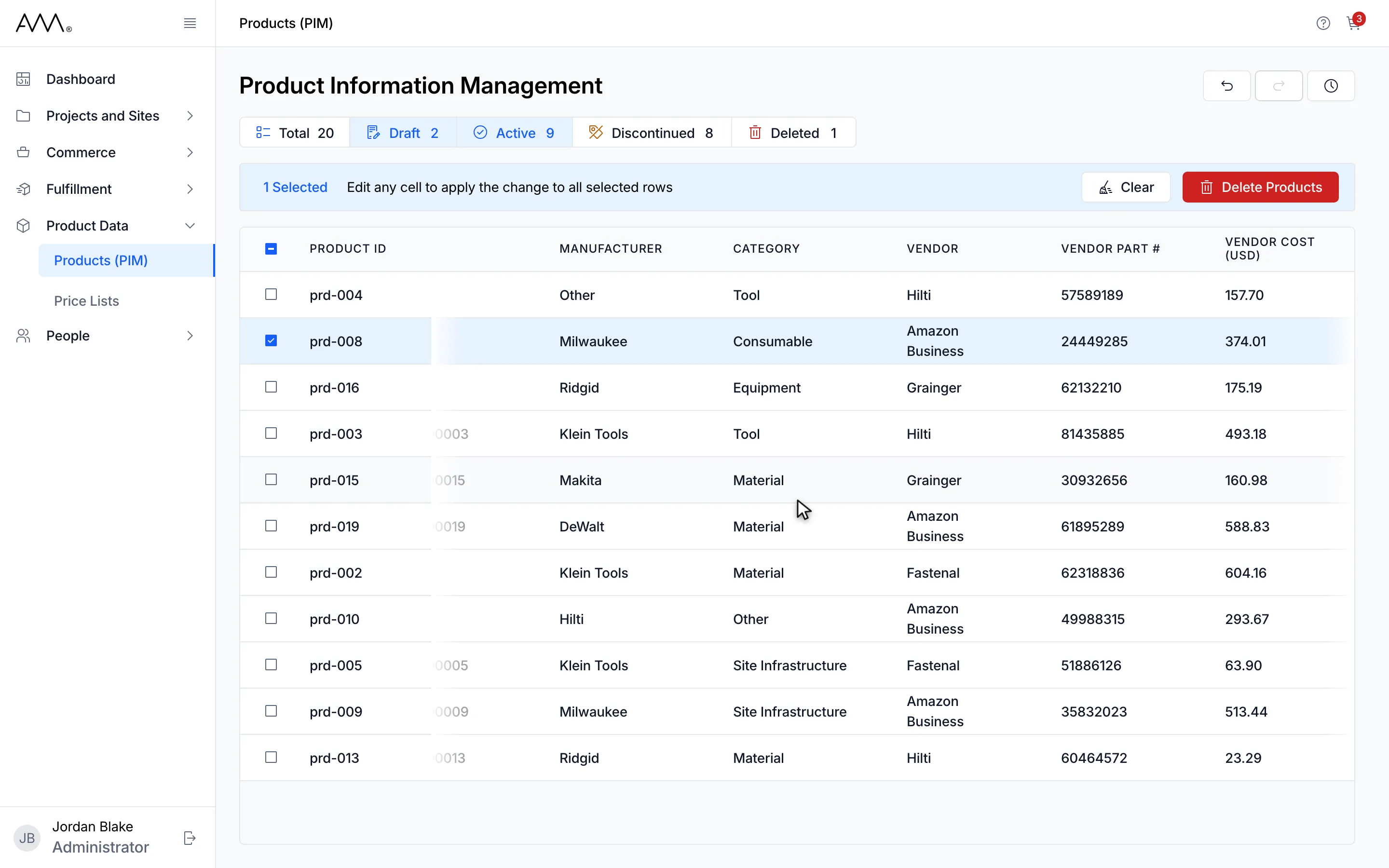
8A 2 products updated. message appears with Undo, and both rows show the new value.
Watch this as a video (bulk-edit products)
What happens next
Section titled “What happens next”- A message such as 2 products updated. appears with an Undo link. Click Undo to put every row back to its own previous value.
- The selection stays in place so you can change another field. Click Clear in the banner to deselect.
- For STATUS, MANUFACTURER, CATEGORY, ITEM NUMBER, UNIT OF MEASURE, LIST PRICE (USD), the weight, dimension, description and specification columns, you can edit up to 100 selected products at once. With more selected, Omni shows Select up to 100 products to edit this field together.
- PRODUCT NAME, SKU, VENDOR, VENDOR PART #, VENDOR COST (USD) and LEAD TIME are saved one product at a time, with no limit.
- UPC cannot be bulk-edited. Omni shows A UPC is unique to one product, so it cannot be set on several at once.
- If some rows fail, the message reads like 1 of 2 products updated, 1 failed: followed by the reason, with Undo for the rows that did change.