Delete hardware
Delete a unit when it should no longer appear in the fleet at all. If you only want to take it out of service, change its status to Inactive instead (see Edit hardware).
- In the sidebar, open Projects and Sites and choose Hardware.
- Click the unit’s serial number to open it.
- Click the edit pencil in the header. Delete Hardware appears once the unit’s details have loaded.
- Click Delete Hardware at the bottom left of the dialog.
- Read the confirmation, then click Delete Hardware.
Delete hardware1 / 7
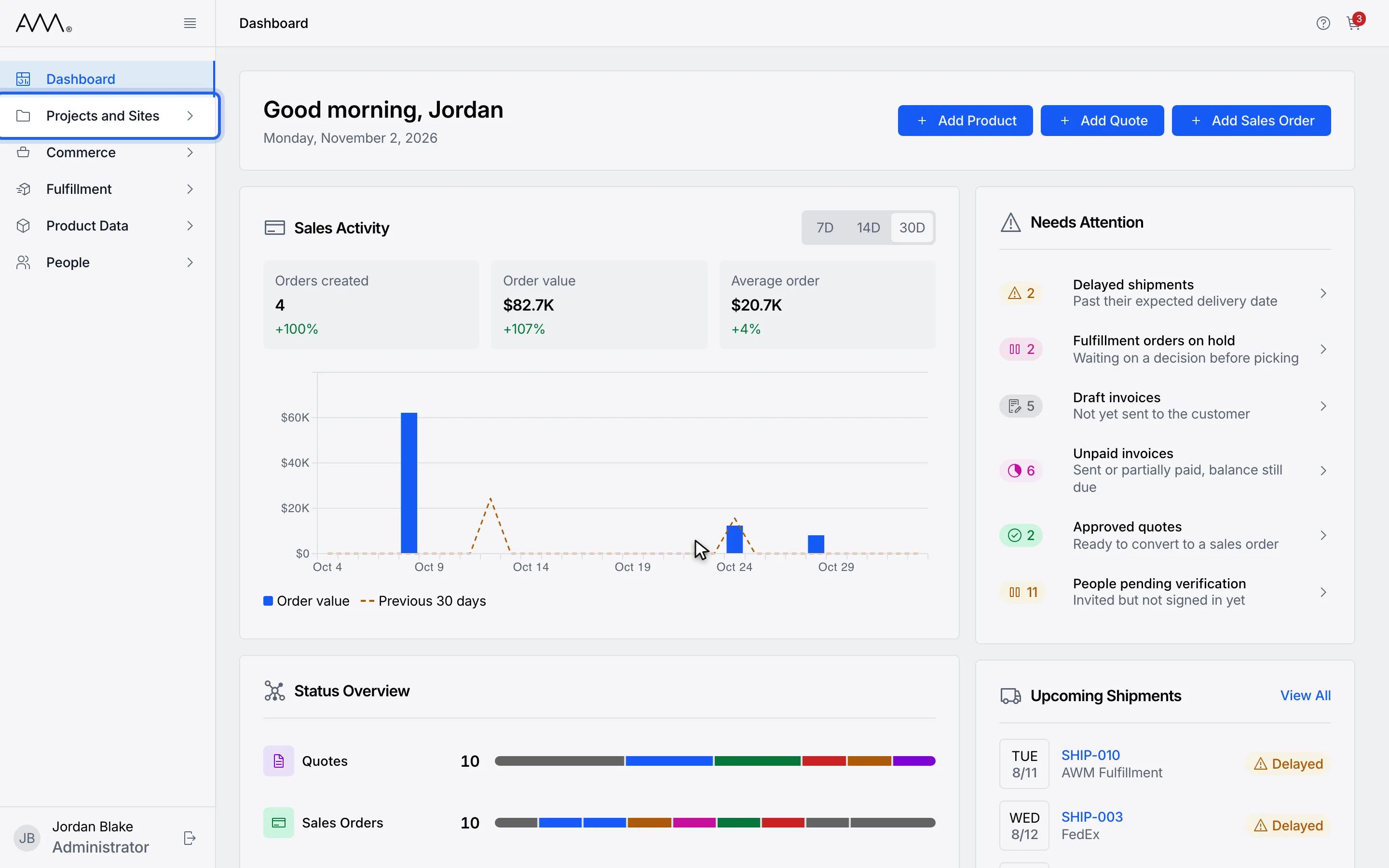
1In the sidebar, open Projects and Sites.
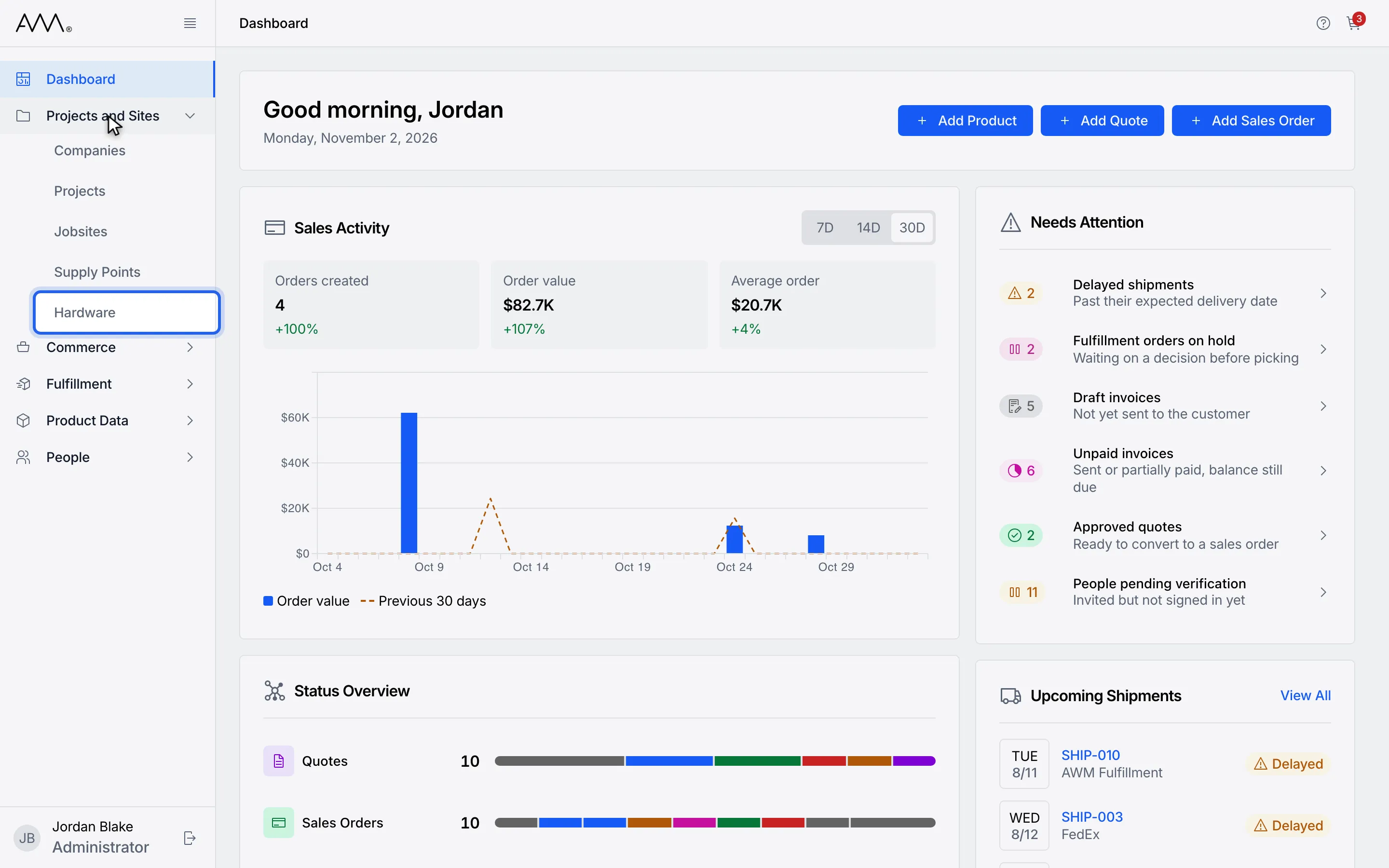
2Choose Hardware.
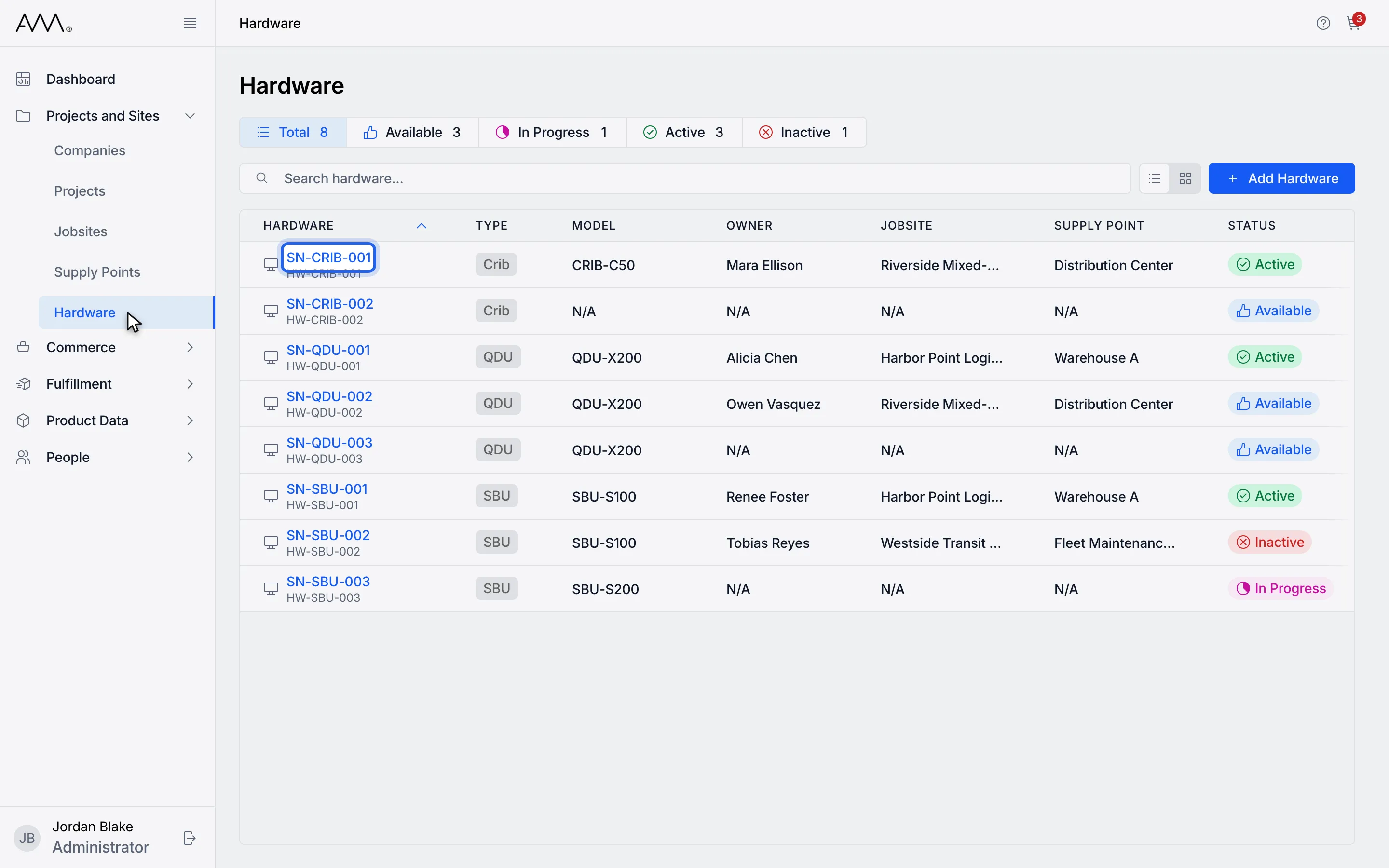
3Open the unit you want to delete.
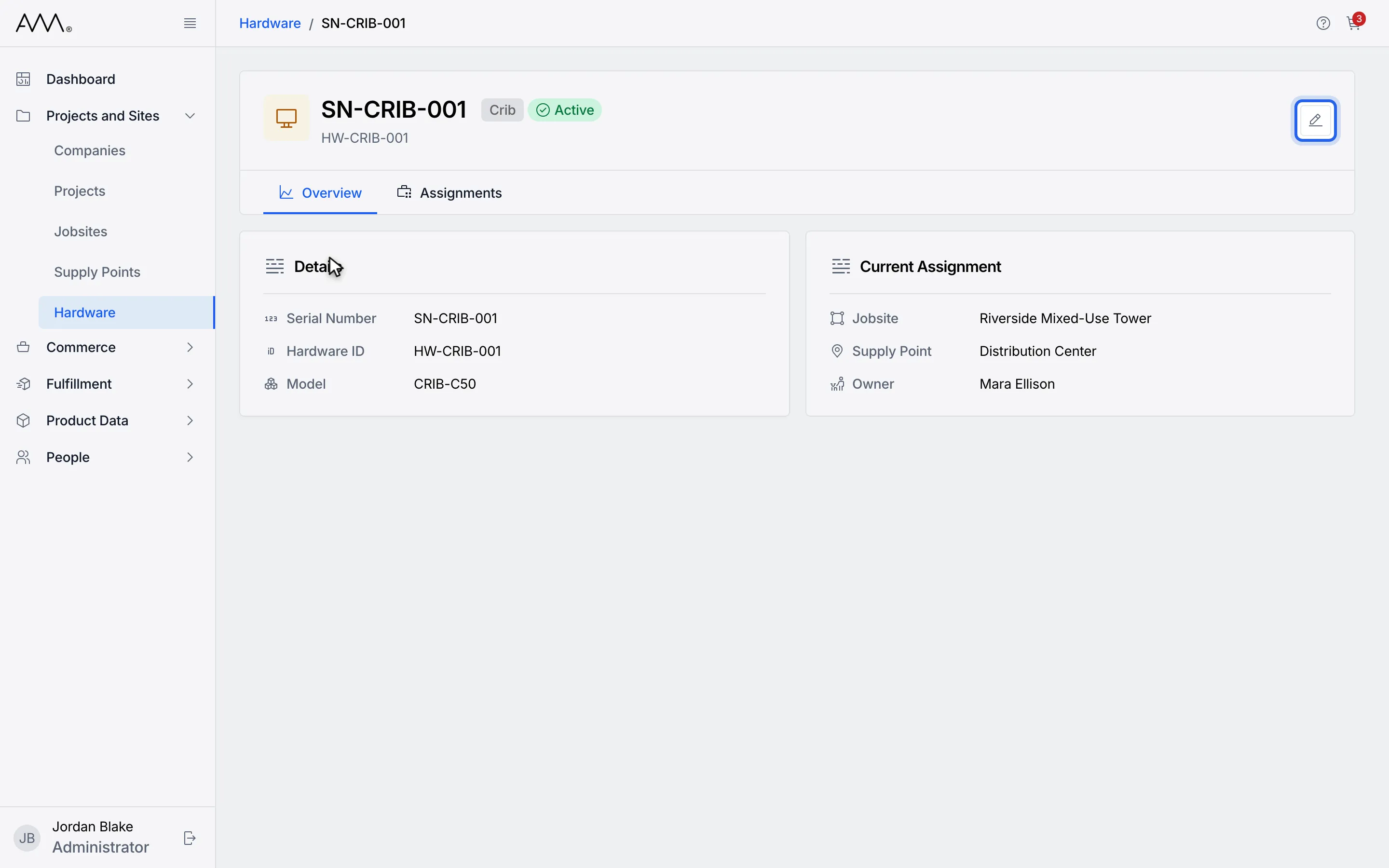
4Click the edit pencil in the header.
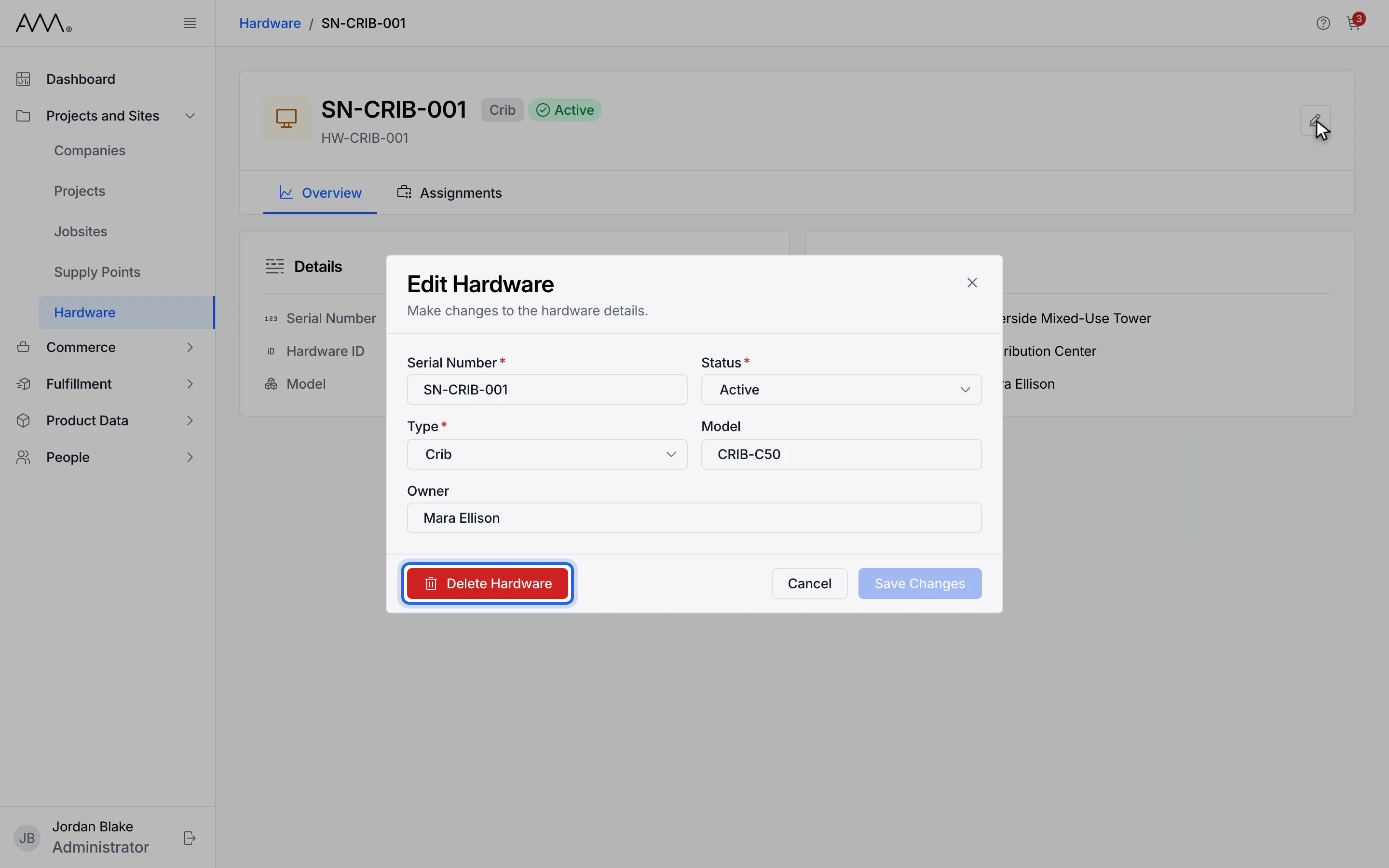
5Click Delete Hardware at the bottom left of the dialog.
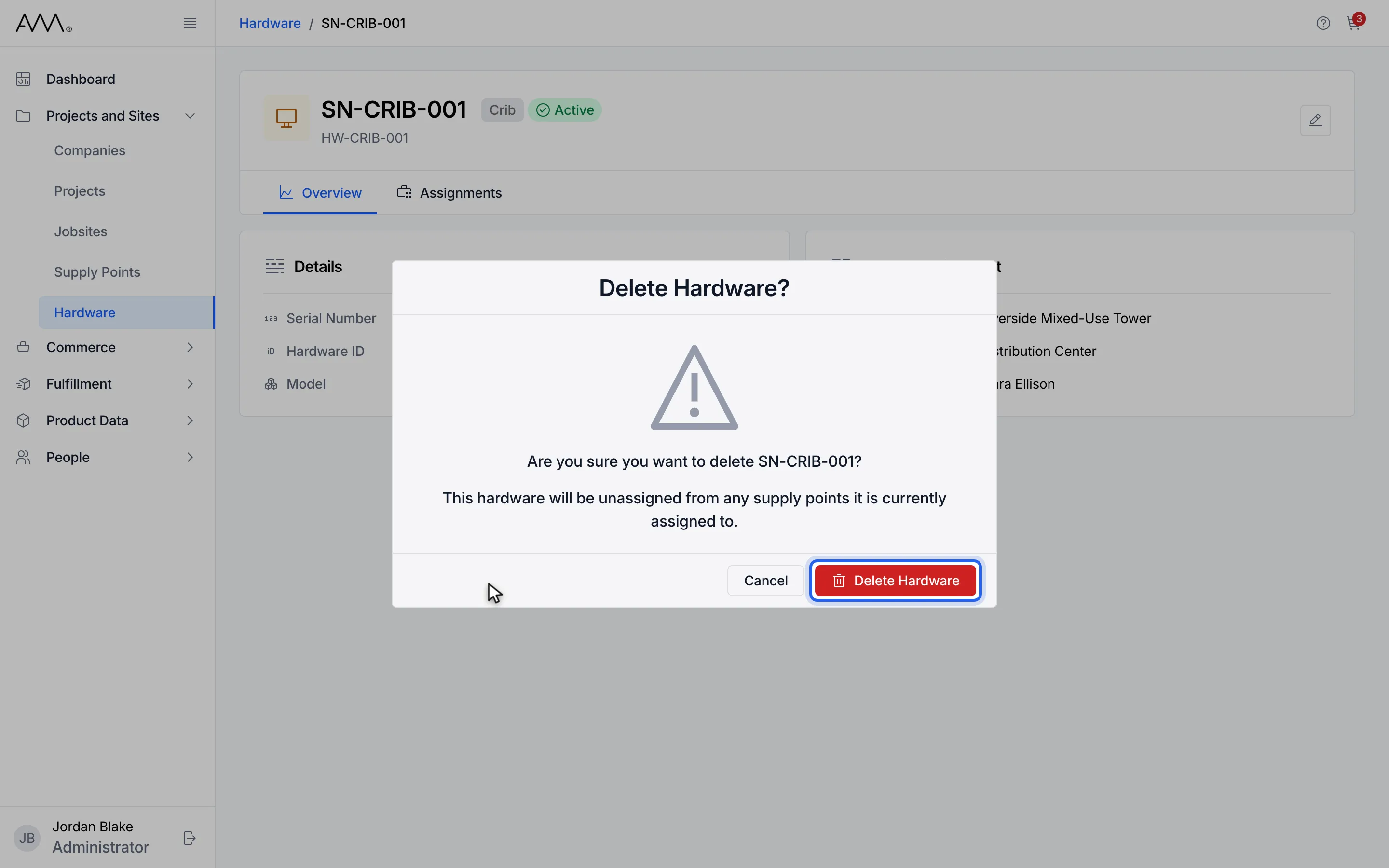
6Read the confirmation, then click Delete Hardware.
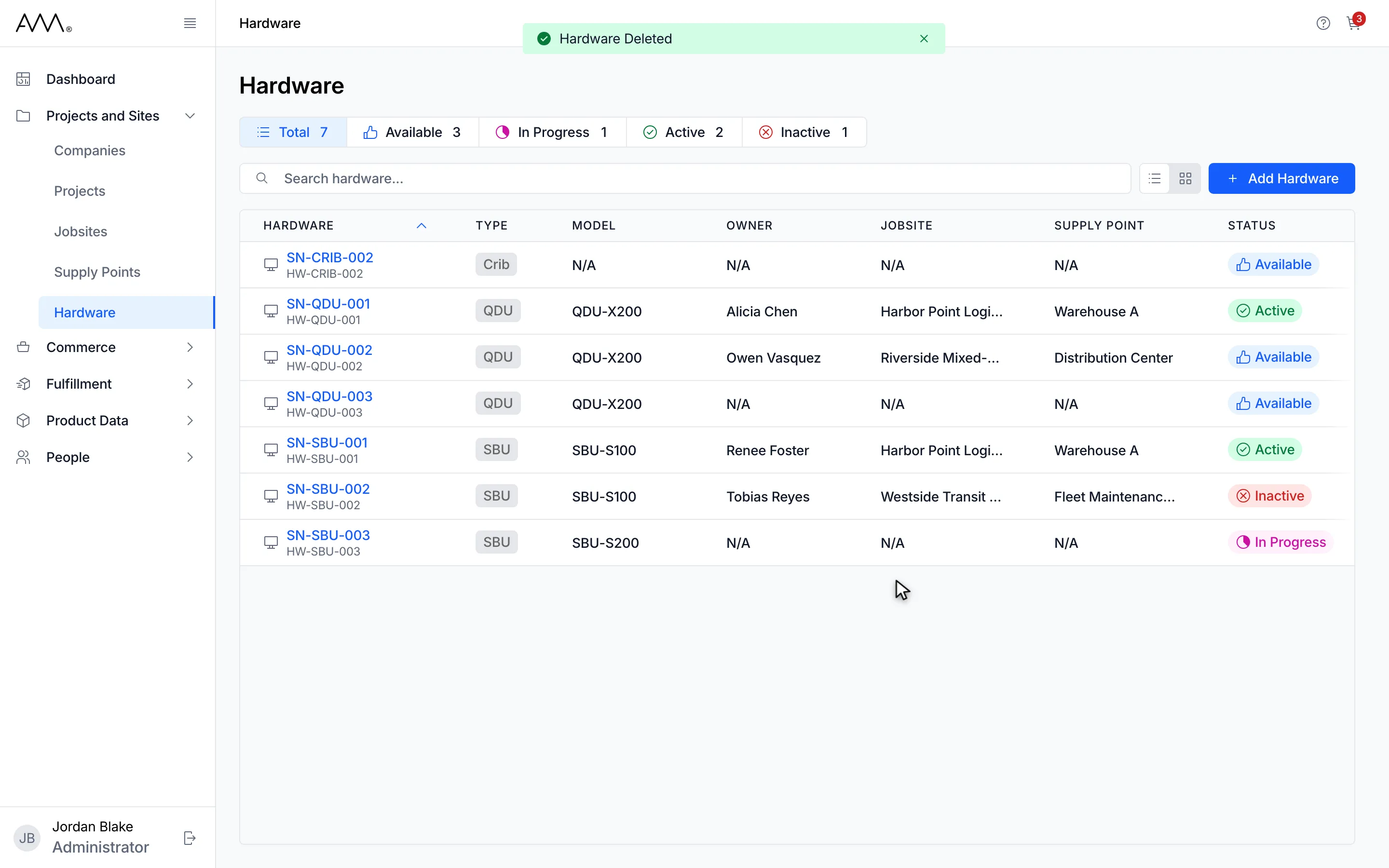
7A Hardware Deleted message appears and you return to the Hardware list.
Watch this as a video (delete hardware)
What happens next
Section titled “What happens next”- A Hardware Deleted message appears. If you started from the unit’s page, Omni takes you back to the Hardware list; if you started from the list, the list refreshes.
- If the unit cannot be deleted, the dialog stays open and shows Failed to delete hardware. Please try again.