Troubleshooting
This page lists the error pages and messages you may meet in Omni, what each one means, and what to do. Most are fixed by retrying, reloading the page or signing in again. If a problem keeps coming back, tell an administrator what you were doing and what you saw.
“Access denied”
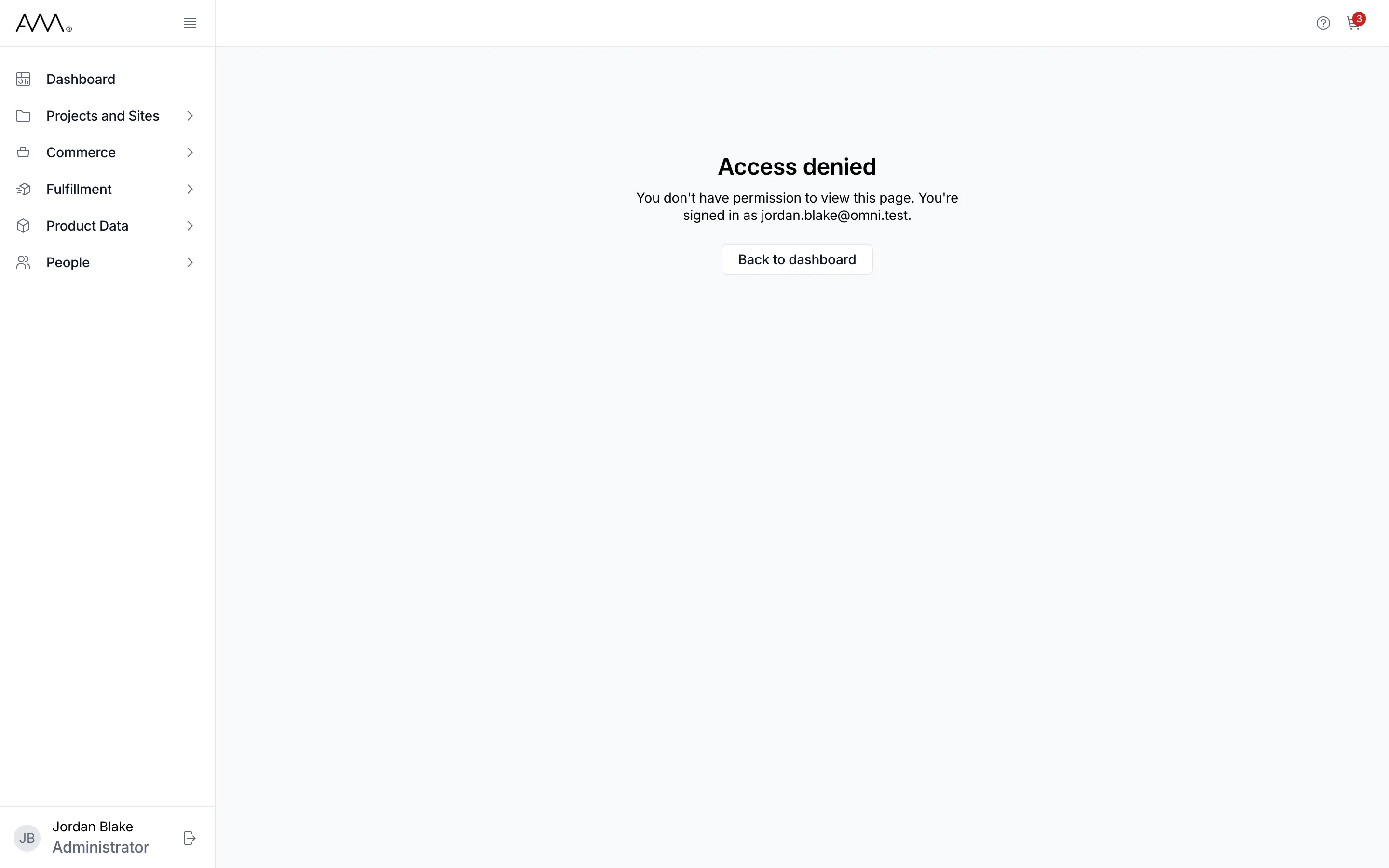
Section titled ““Access denied””The page reads Access denied, then You don’t have permission to view this page. and You’re signed in as followed by your email address, with a Back to dashboard button.
Your role does not include the permission for that page. You most often see it after following a link or a bookmark to an area that is hidden from your sidebar. Click Back to dashboard, then ask an administrator to add the permission to your role. Each how-to names the permission it needs, and Permissions lists them all.
“404 — Page not found”
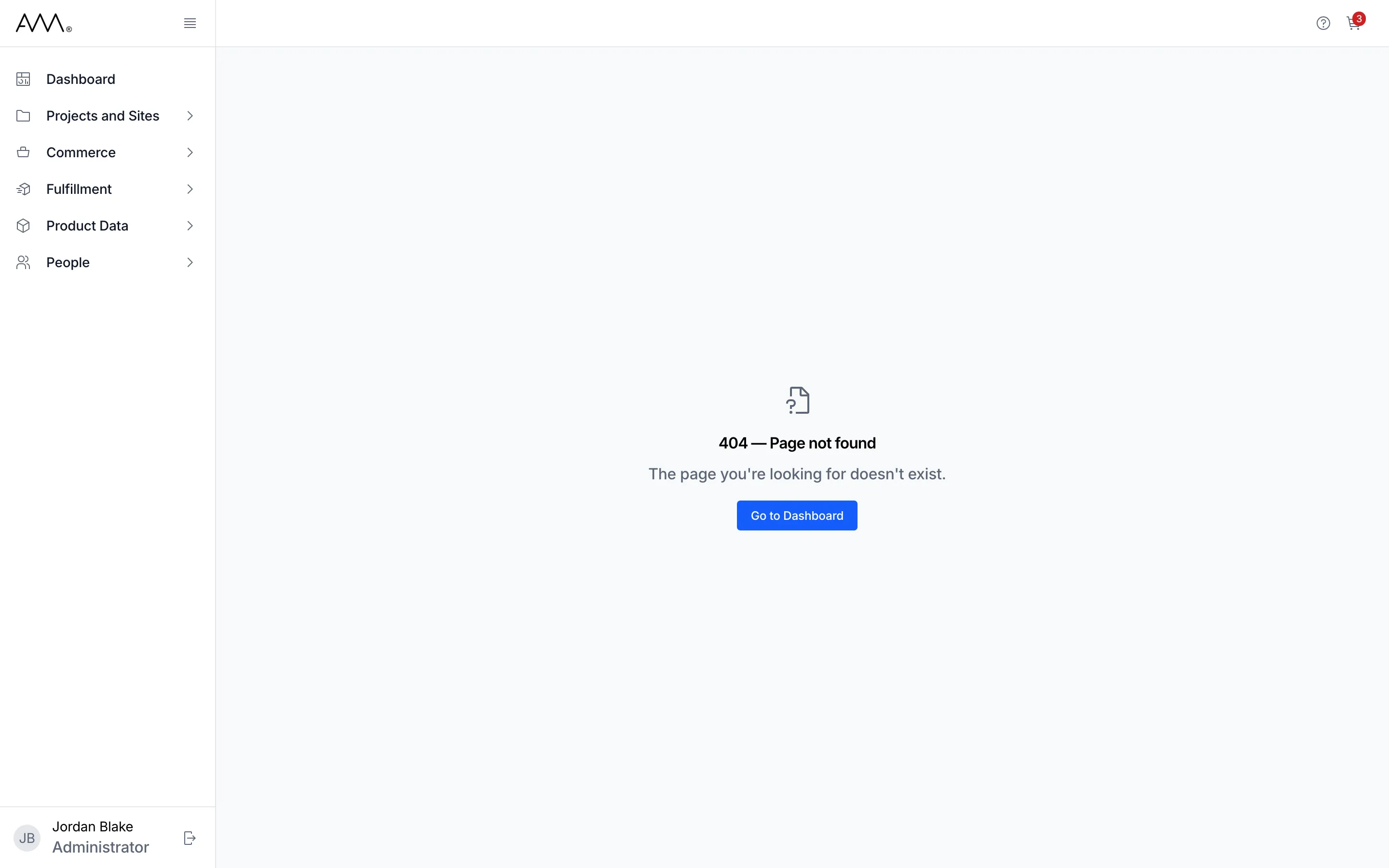
Section titled ““404 — Page not found””The page reads 404 — Page not found and The page you’re looking for doesn’t exist. with a Go to Dashboard button. The address you opened does not match any page in Omni, usually because of a mistyped or out-of-date link. Click Go to Dashboard and use the sidebar to get where you need to go. If the link came from someone else, ask them to check it.
Bookmarks from before the rename of Sites to Supply Points land here too: addresses that start with /sites no longer exist. Open Projects and Sites > Supply Points and bookmark the page again.
“Service unavailable”
Section titled ““Service unavailable””A full-screen message reads Service unavailable and We couldn’t reach the server. Please check your connection and try again. with a Retry button. Omni could not confirm your session with the server. Check your network connection, then click Retry, which reloads the page. If it keeps happening, the service may be down; try again later or tell an administrator.
“Something went wrong” and “Page error”
Section titled ““Something went wrong” and “Page error””- Something went wrong. Please try again. as a message at the top of the screen means a list or a record could not be loaded. Reload the page. If a list loaded but the next page of it did not, you see Couldn’t load more. with a Retry link instead; click Retry.
- Page error with a Try again button, shown inside the page with the sidebar still visible, means that page hit a problem. Click Try again; if the problem persists, reload the page.
- Something went wrong with a Reload page button, filling the whole window, means Omni itself hit a problem. Click Reload page.
If reloading does not help, sign out and sign in again; see Sign in.
“Unsaved Changes”
Section titled ““Unsaved Changes””When you leave a quote or sales order that you are editing, by clicking the sidebar, a breadcrumb or the browser’s back button, a dialog titled Unsaved Changes asks: You have unsaved changes. If you leave now, you’ll lose everything you’ve entered. Click Save to save and then leave, Discard to leave without saving, or close the dialog to stay on the page. The form’s own Cancel button discards your changes without asking. Closing the browser tab shows the browser’s own warning instead.
“You don’t have permission to do that.”
Section titled ““You don’t have permission to do that.””The server refused an action, even though the button was visible. Your role may have changed since you signed in, or the action needs a permission that Omni does not check on screen. Reload the page; if the button is gone, ask an administrator for the permission.
“created, but it could not be opened”
Section titled ““created, but it could not be opened””After Add to New Quote, Add to New Sales Order or one of the Add to Existing actions in the cart, a message such as Quote created, but it could not be opened. or Items added, but the sales order could not be opened. means the record was saved but Omni could not navigate to it. Your cart is already empty. Open Quotes or Sales Orders from the sidebar; the record is at the top of the list.
“Session expiring”
Section titled ““Session expiring””After a period with no mouse, keyboard or touch activity, a dialog titled Session expiring appears with a countdown: You’ll be signed out in a number of seconds due to inactivity. Click Stay signed in (or press Escape) to keep working. Moving the mouse is not enough once the dialog is showing. If you do nothing, Omni signs you out when the countdown ends and returns you to the sign-in page, and anything you had not saved is lost.
Omni also re-checks your session when you come back to its browser tab. If the session ended in the meantime you are taken to the sign-in page; after signing in you return to the page you were on.
Sign-in problems
Section titled “Sign-in problems”Problems on the sign-in page, such as a rejected password, a locked or inactive account, an expired reset or invitation link, or a two-factor code that is not accepted, are covered in Sign in and Two-factor authentication.