Reset your password
If you have forgotten your password, ask Omni to email you a reset link, then choose a new password from that link. You do this from the sign-in page; you do not need to be signed in.
- On the sign-in page, enter your email address in Email Address.
- Click Reset Password under the form. The Reset Password page opens, asks you to Enter your email address to receive a reset link, and already shows the address you typed. You can still change it.
- Click Send Reset Email. The button reads Sending… while the request goes through, then the page replaces the form with If an account exists for that email address, a reset link was sent. Omni shows this message whether or not the address matches an account.
- Open the email and click the link. The Reset Password page opens again with Enter your new password below and * Must be at least 8 characters.
- In New Password, enter a password of at least eight characters. Use the eye icon to show or hide what you typed.
- In Confirm Password, enter the same password again.
- Click Reset Password. The button reads Resetting password… and then Redirecting….
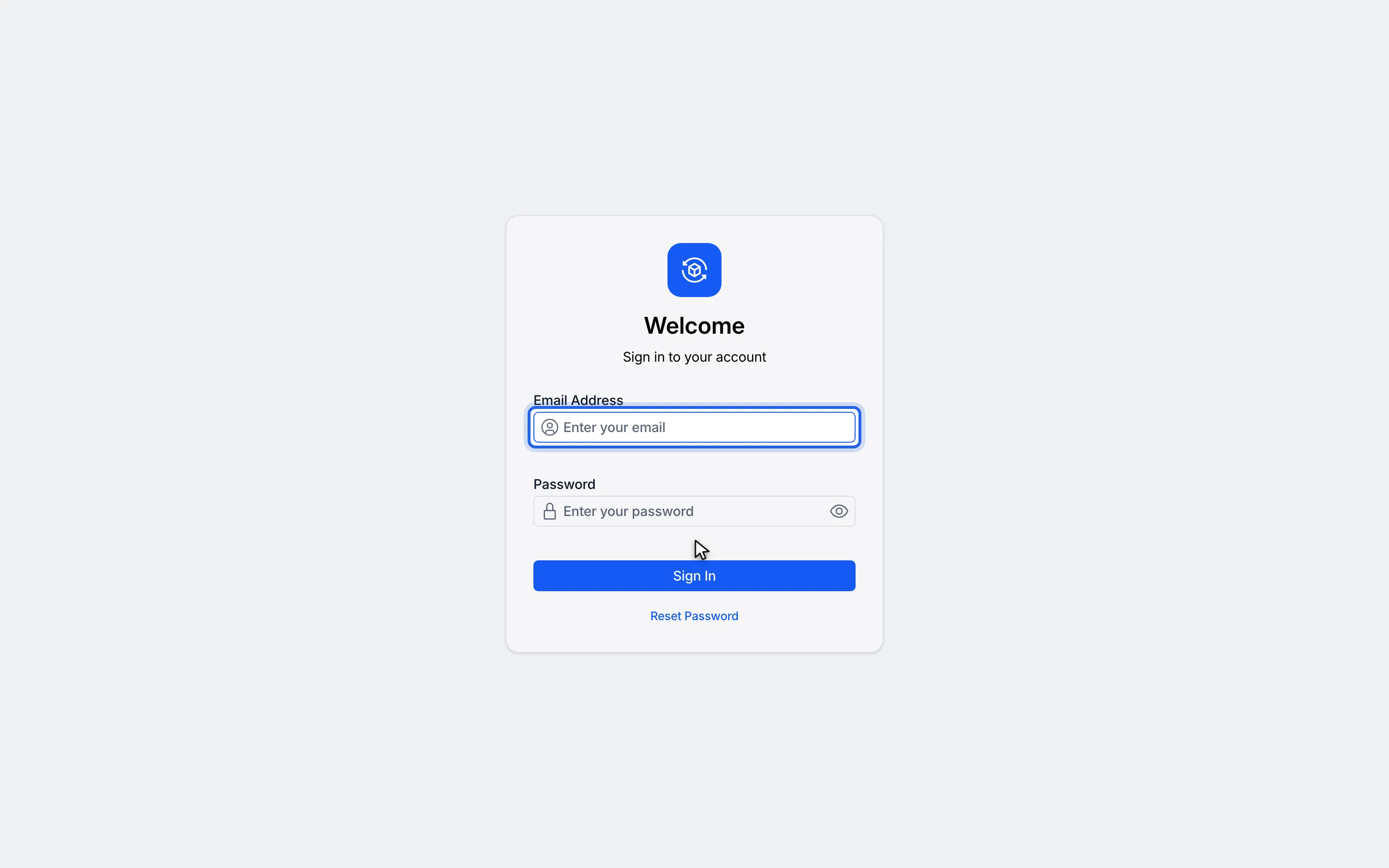
1On the sign-in page, enter your email address.
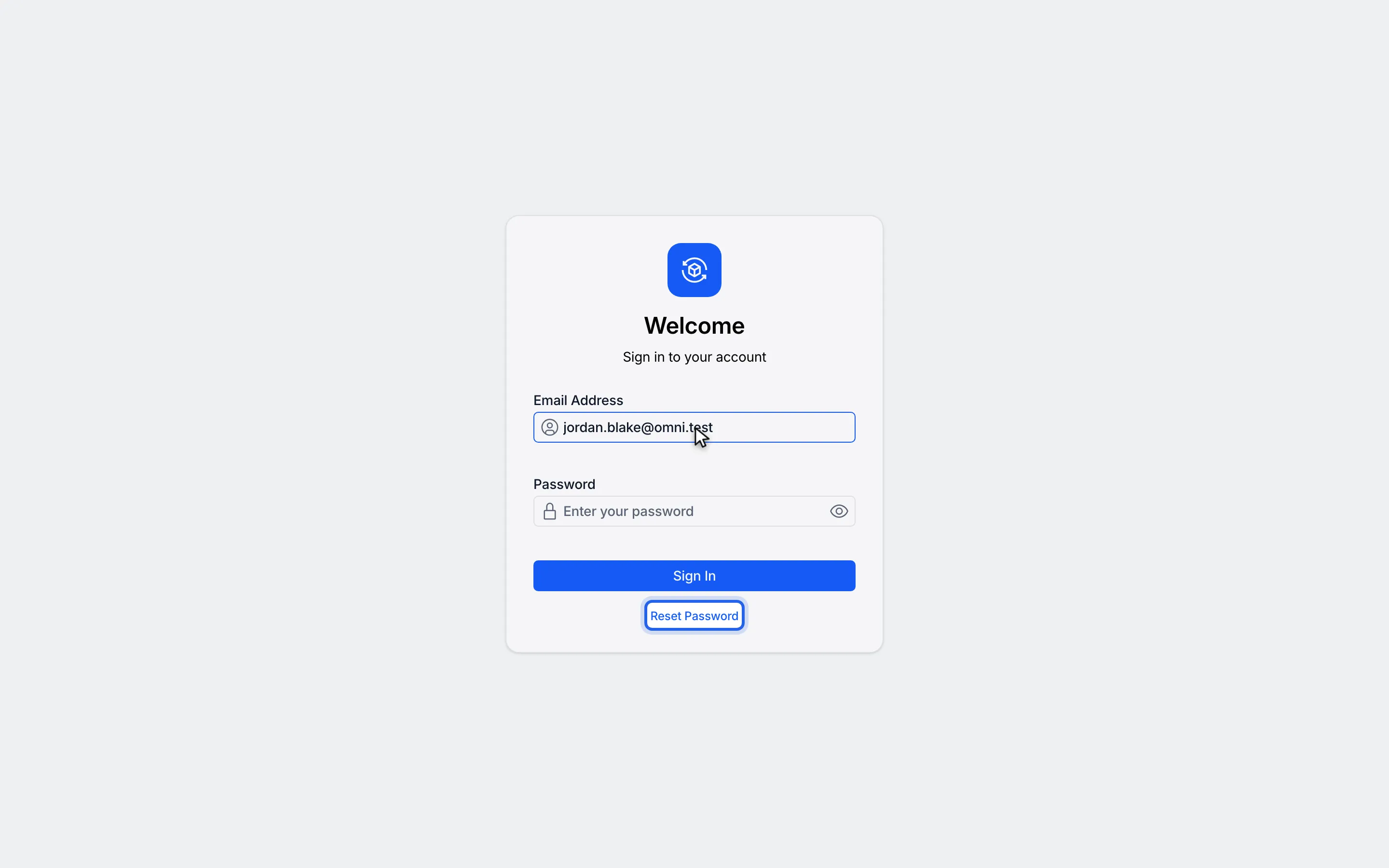
2Click Reset Password under the form.
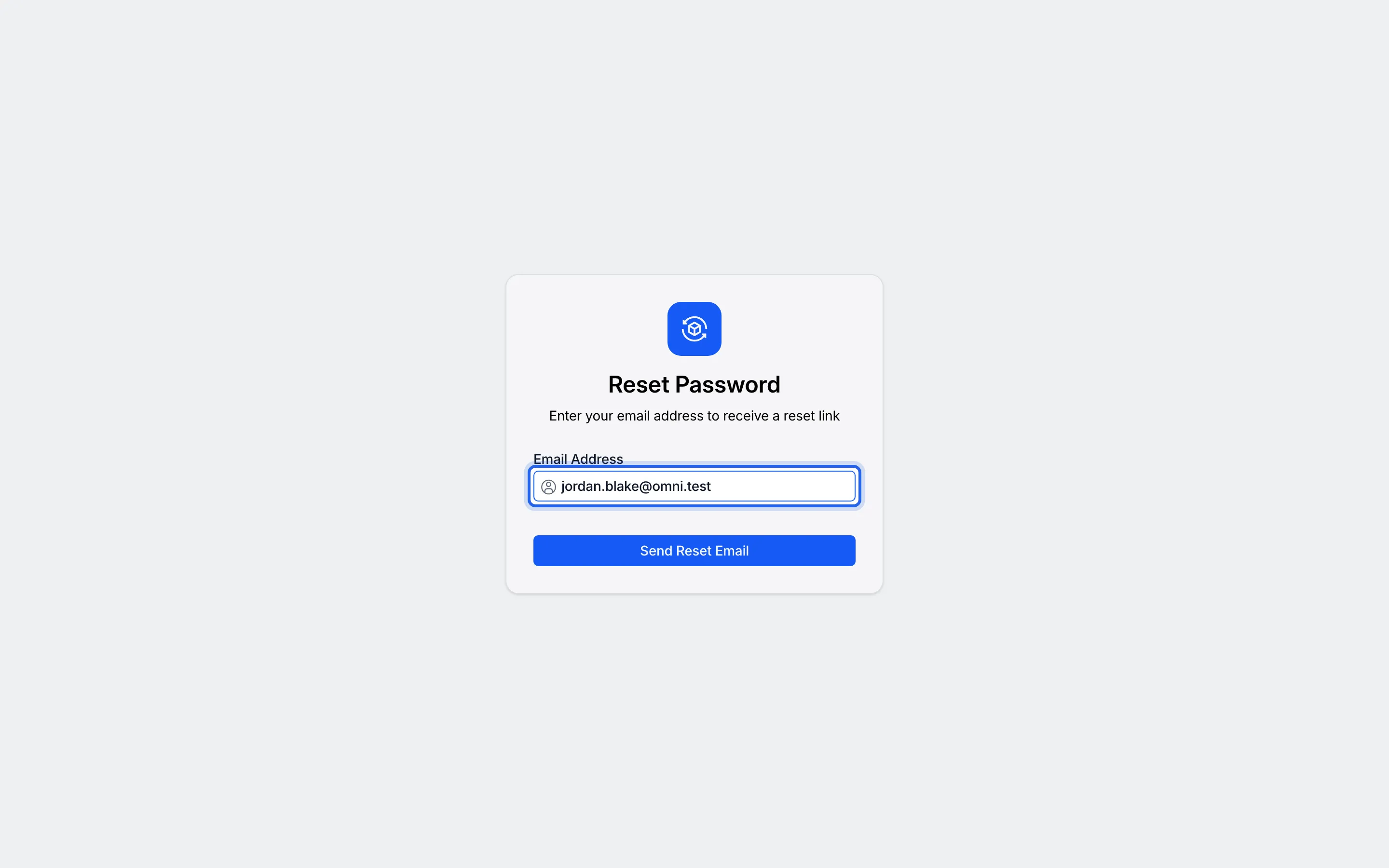
3The Reset Password page opens with the address you typed already filled in.
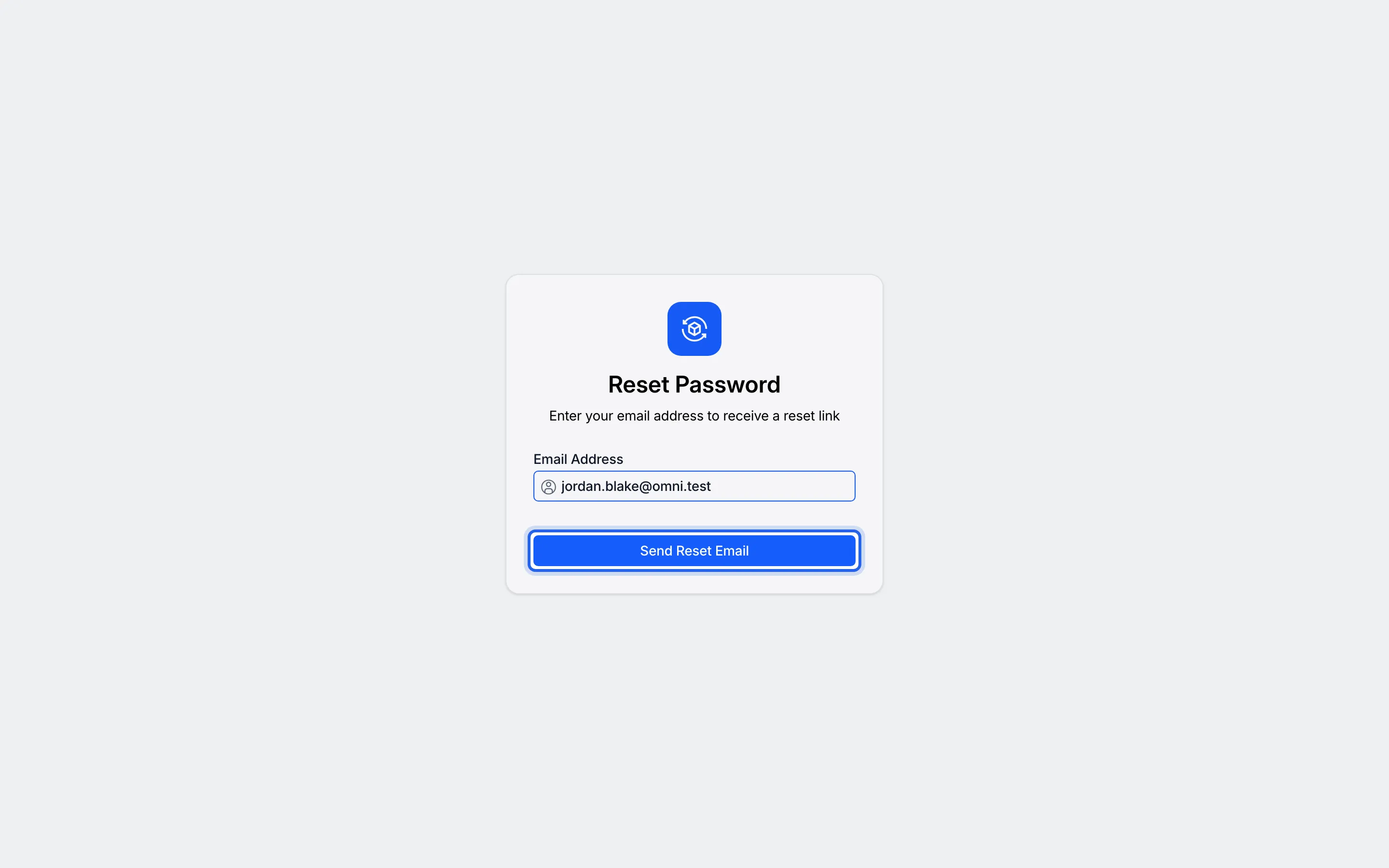
4Click Send Reset Email. The page confirms a link was sent if an account exists.
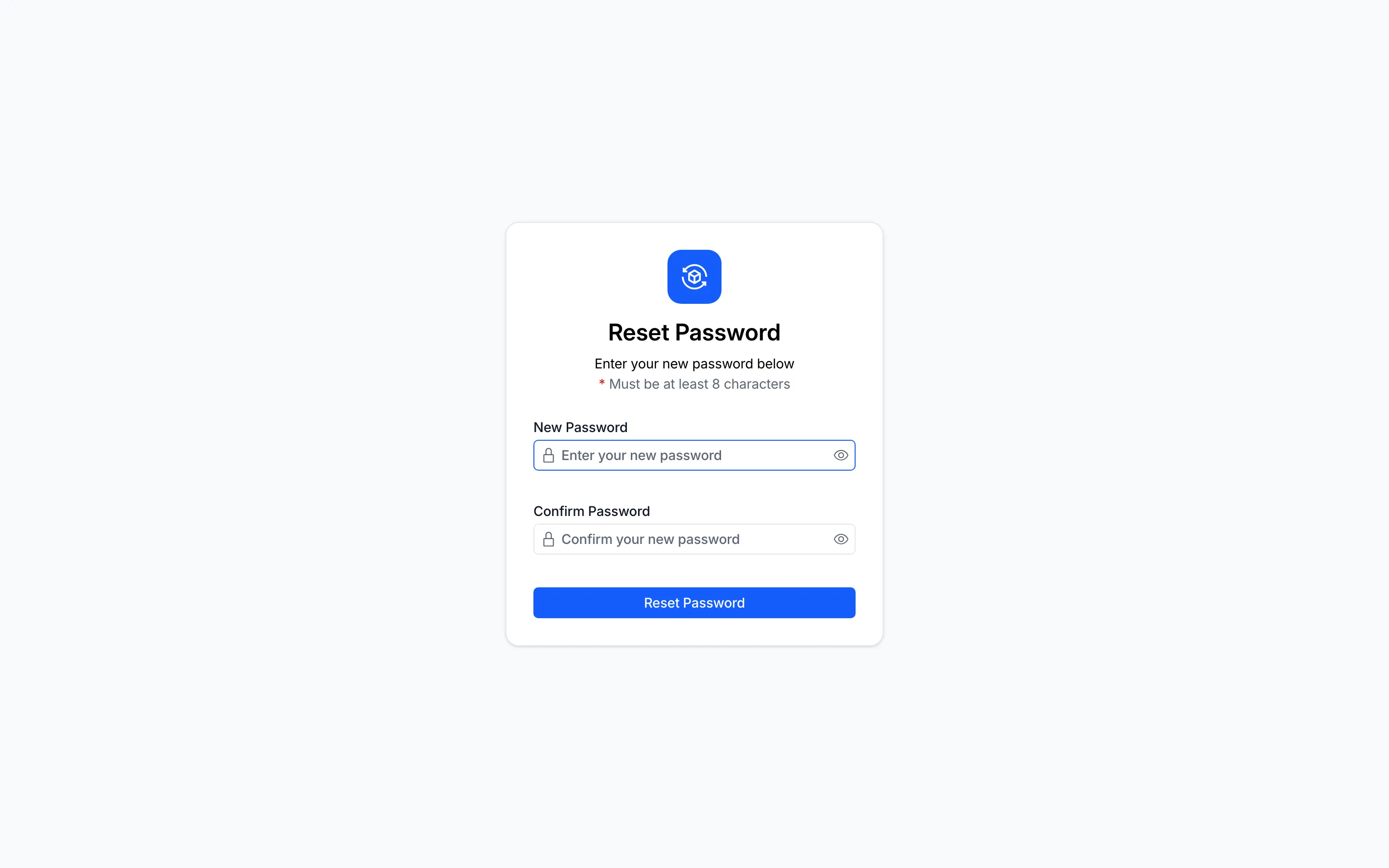
5Open the link in the email. The Reset Password page asks for a new password.
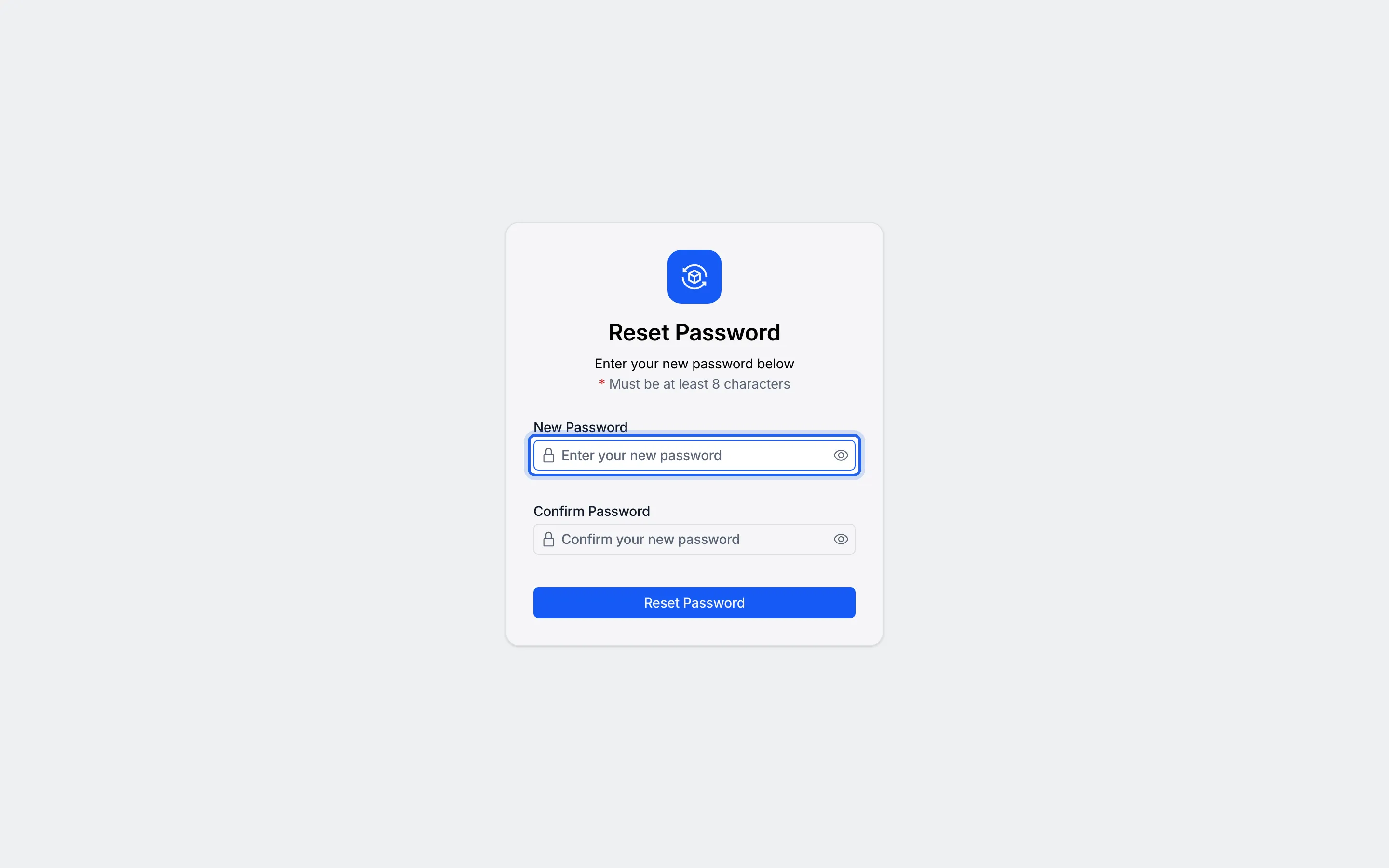
6In New Password, enter a password of at least 8 characters.
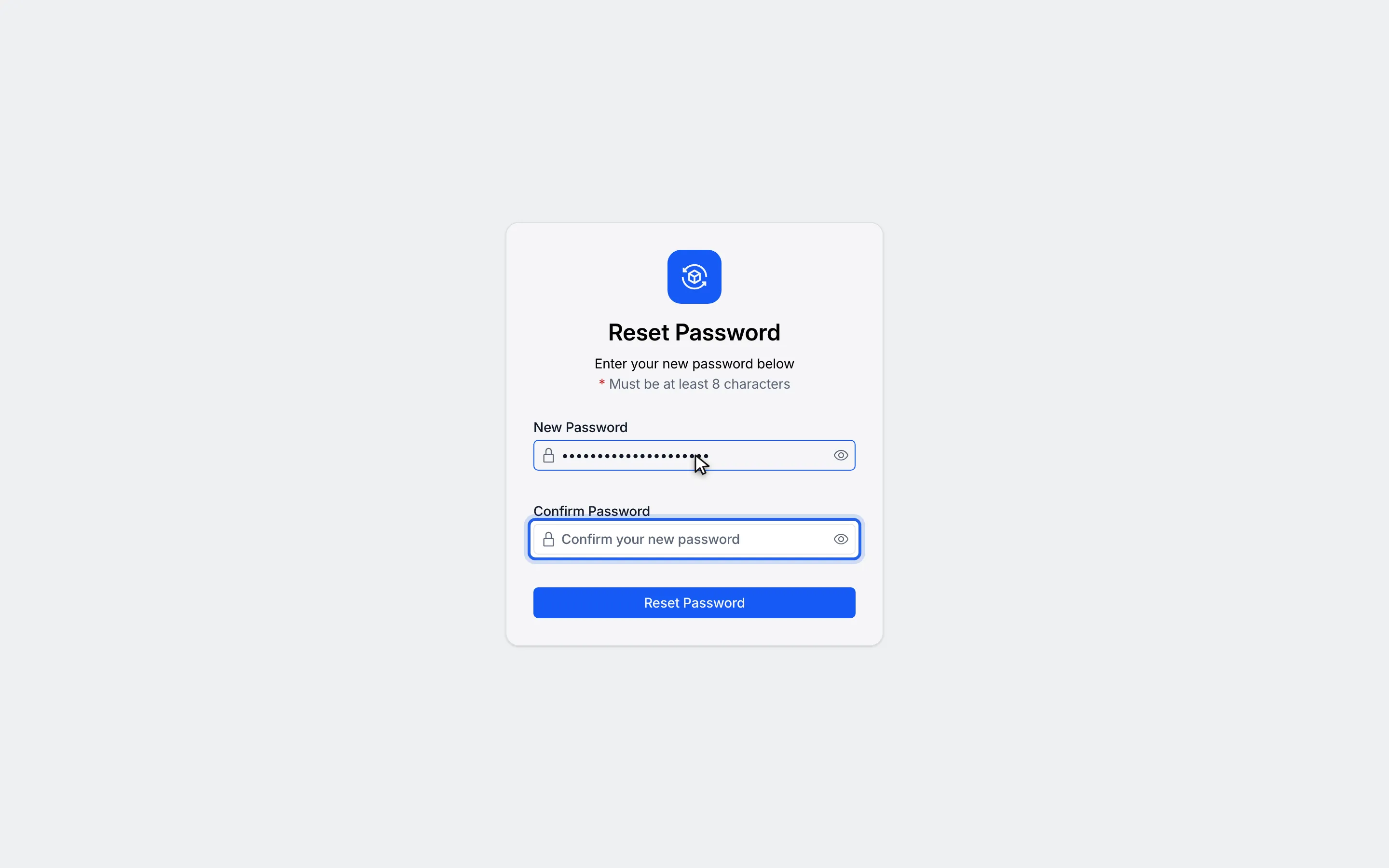
7In Confirm Password, enter the same password again.
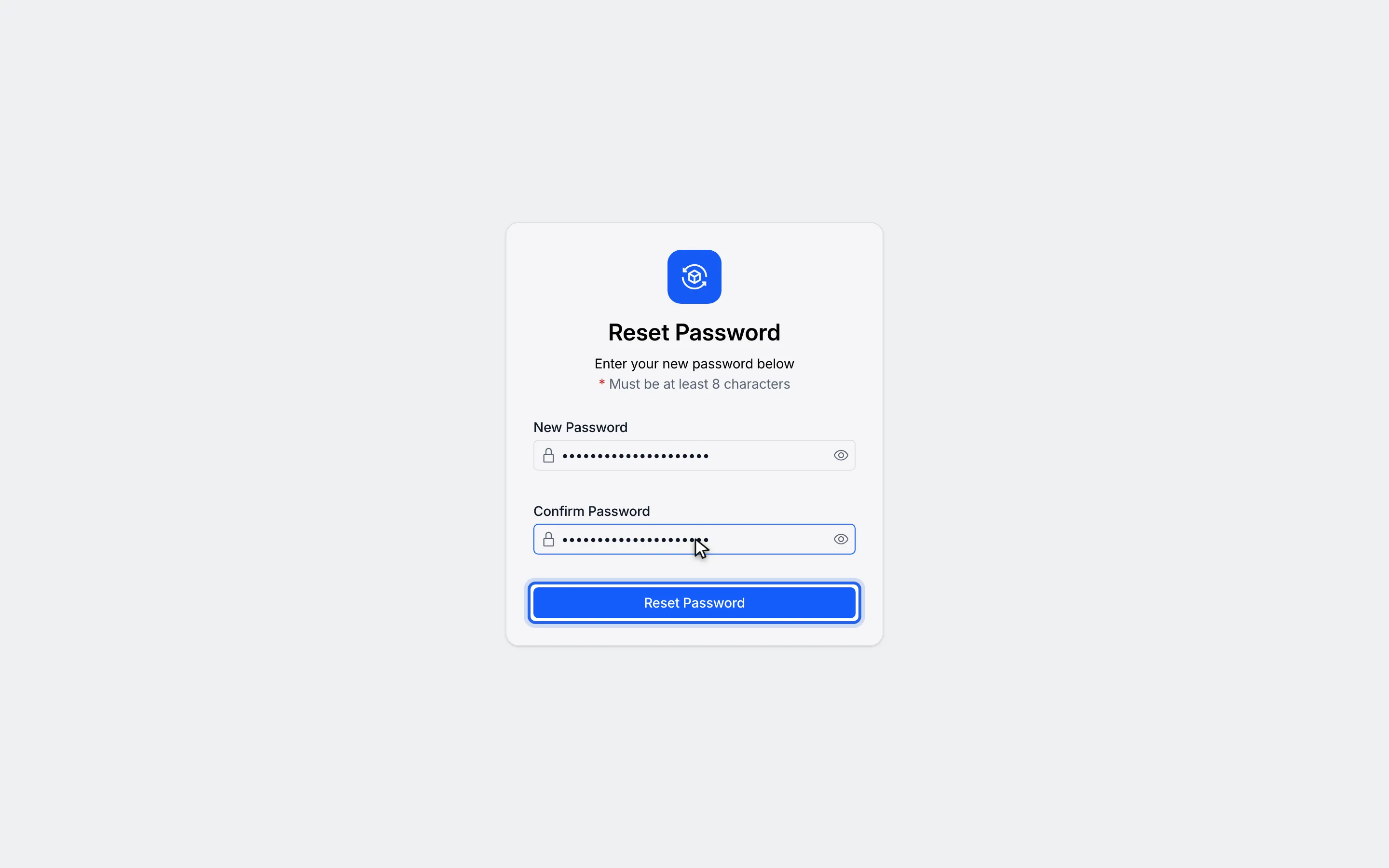
8Click Reset Password.
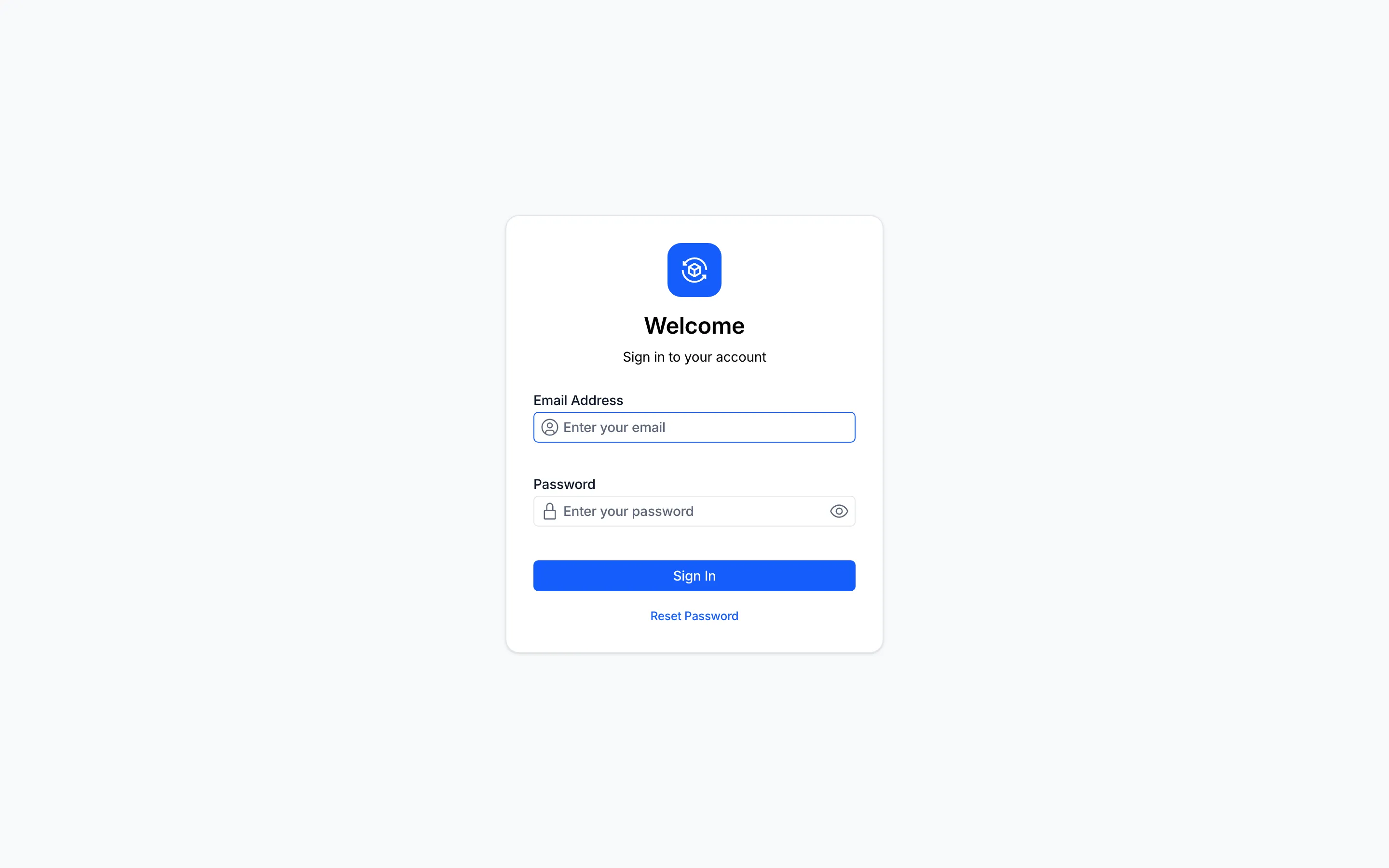
9You return to the sign-in page. Sign in with your new password.
Watch this as a video (reset your password)
What happens next
Section titled “What happens next”You return to the sign-in page. Omni does not sign you in automatically and shows no confirmation message; sign in with your new password. See Sign in.
If no email arrives, go back to the sign-in page, click Reset Password and send the request again, checking the address you enter.
If the link has expired
Section titled “If the link has expired”Reset links do not last forever. If you click Reset Password on an old link, the page shows This password reset link has expired. If the link is not valid, it shows This password reset link is invalid. In both cases go back to the sign-in page, click Reset Password and request a new link; the page with the message has no link of its own.
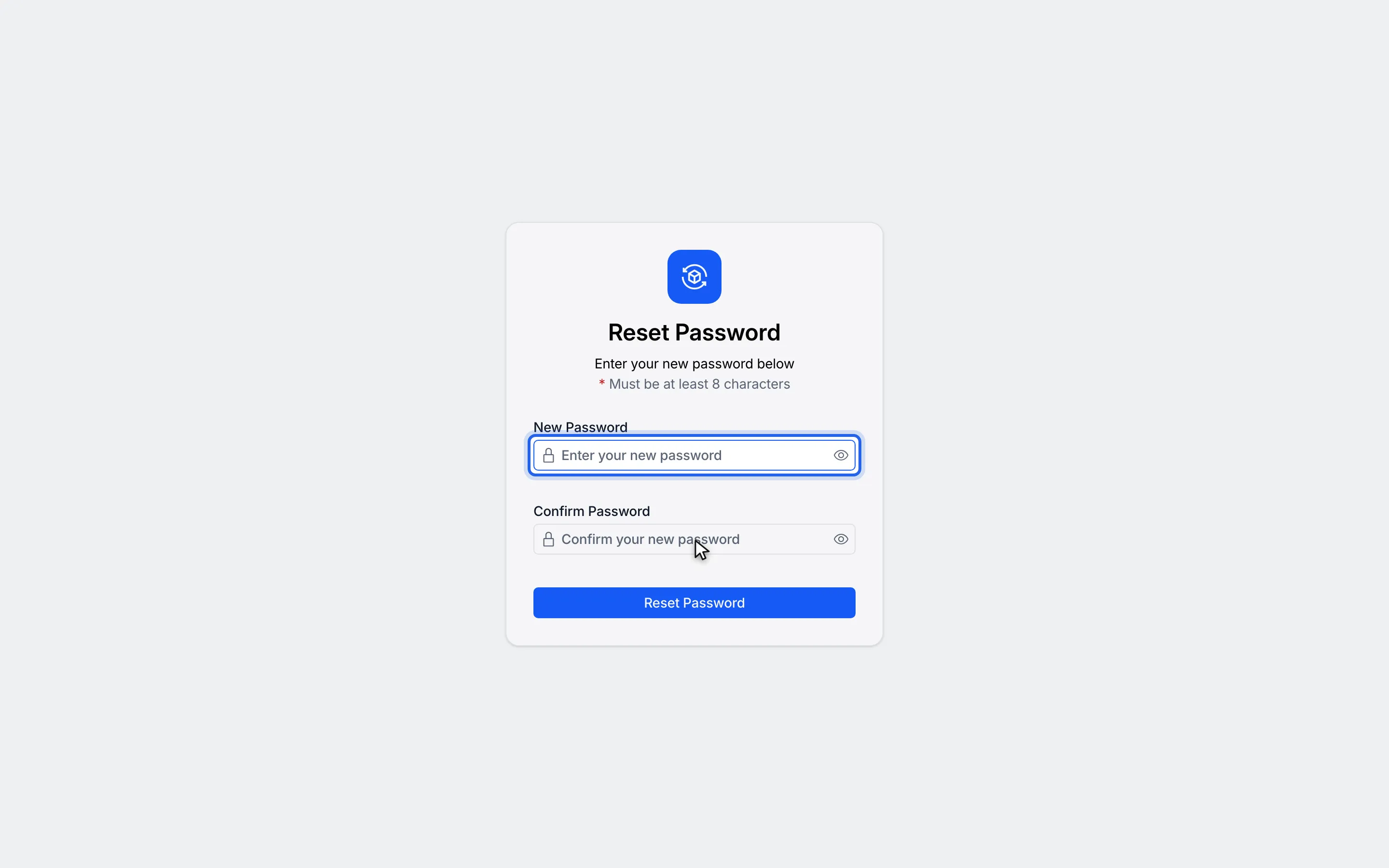
1In New Password, enter a new password.
2In Confirm Password, enter the same password again.
3Click Reset Password. An old link shows "This password reset link has expired."
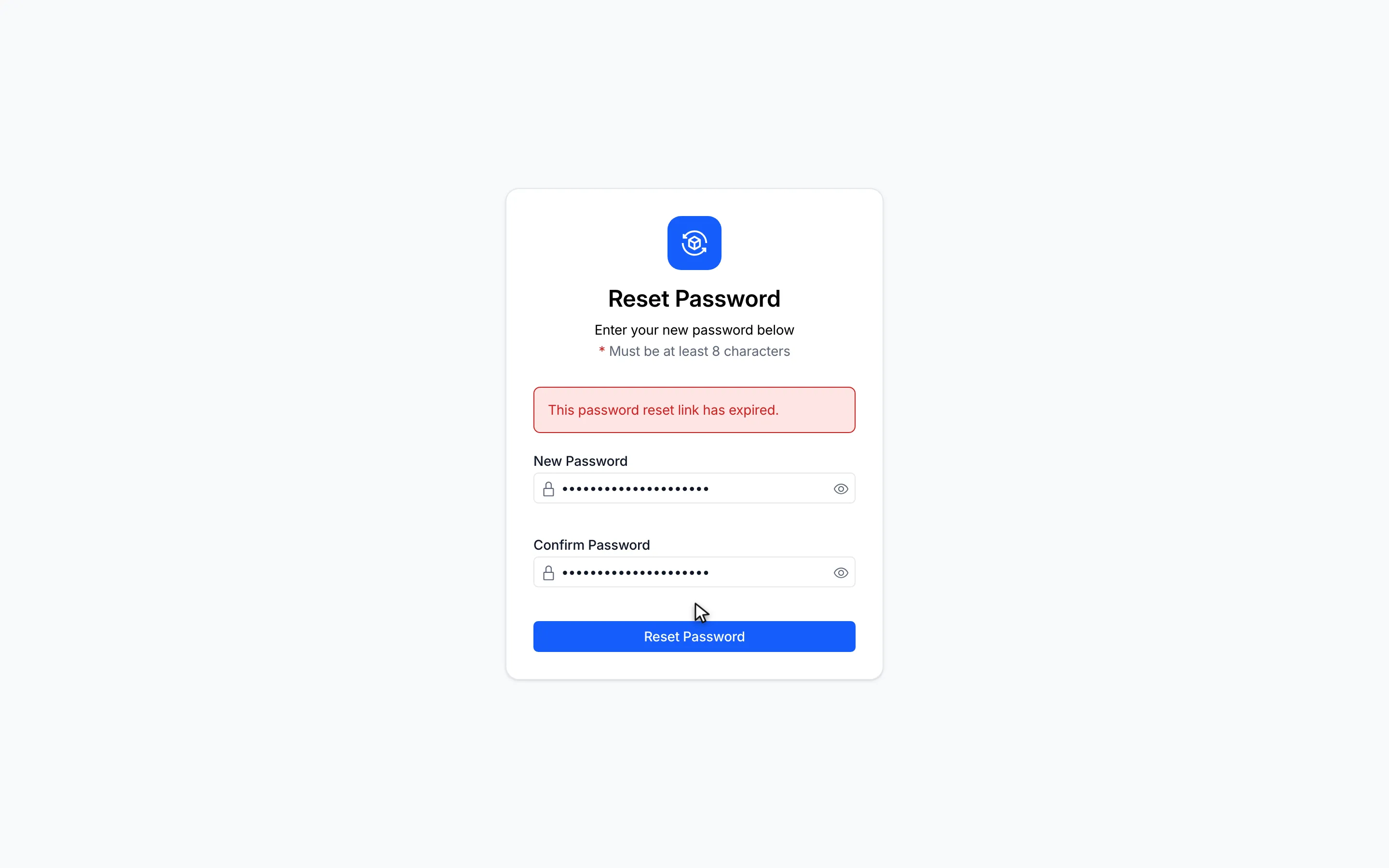
4The link has expired. Go back to the sign-in page and request a new one.
Watch this as a video (expired reset link)
Other messages you may see:
| Message | What to do |
|---|---|
| Email address is required or Enter a valid email address | Correct the address and click Send Reset Email again. |
| Password must be at least 8 characters | Choose a longer password. |
| Passwords do not match | Type the same password in both fields. |
| Something went wrong. Please try again. | Try again. If it keeps happening, request a new link. |