Import prices from CSV
When prices come from a spreadsheet, import them instead of editing products one by one. Each imported row becomes a fixed-price override on the product with that SKU.
- Open the price list from Price Lists. The Products tab shows first.
- Click Import. The Import Prices dialog opens.
- Read How each row is handled if you are unsure what will be accepted.
- Drag your file onto Drop a .csv here, or browse, or click browse and choose it. The file is checked as soon as it is selected and the dialog switches to the review.
- Review the result. The file card shows the file name and row count, with Replace if you picked the wrong file. The counts tell you how many rows will import, were rejected and were skipped. Rejected rows are listed under Not imported with their Row, SKU and Reason; click a column header to sort them, or click Download report to save them as
rejected-rows.csv. - Click Import 2 prices (the button counts the rows that will be written; it is disabled when there are none). The toast Imported 2 rows, 2 skipped appears and the dialog closes.
- Check the table: each imported product shows its new FINAL PRICE, MARGIN % and LAST UPDATED.
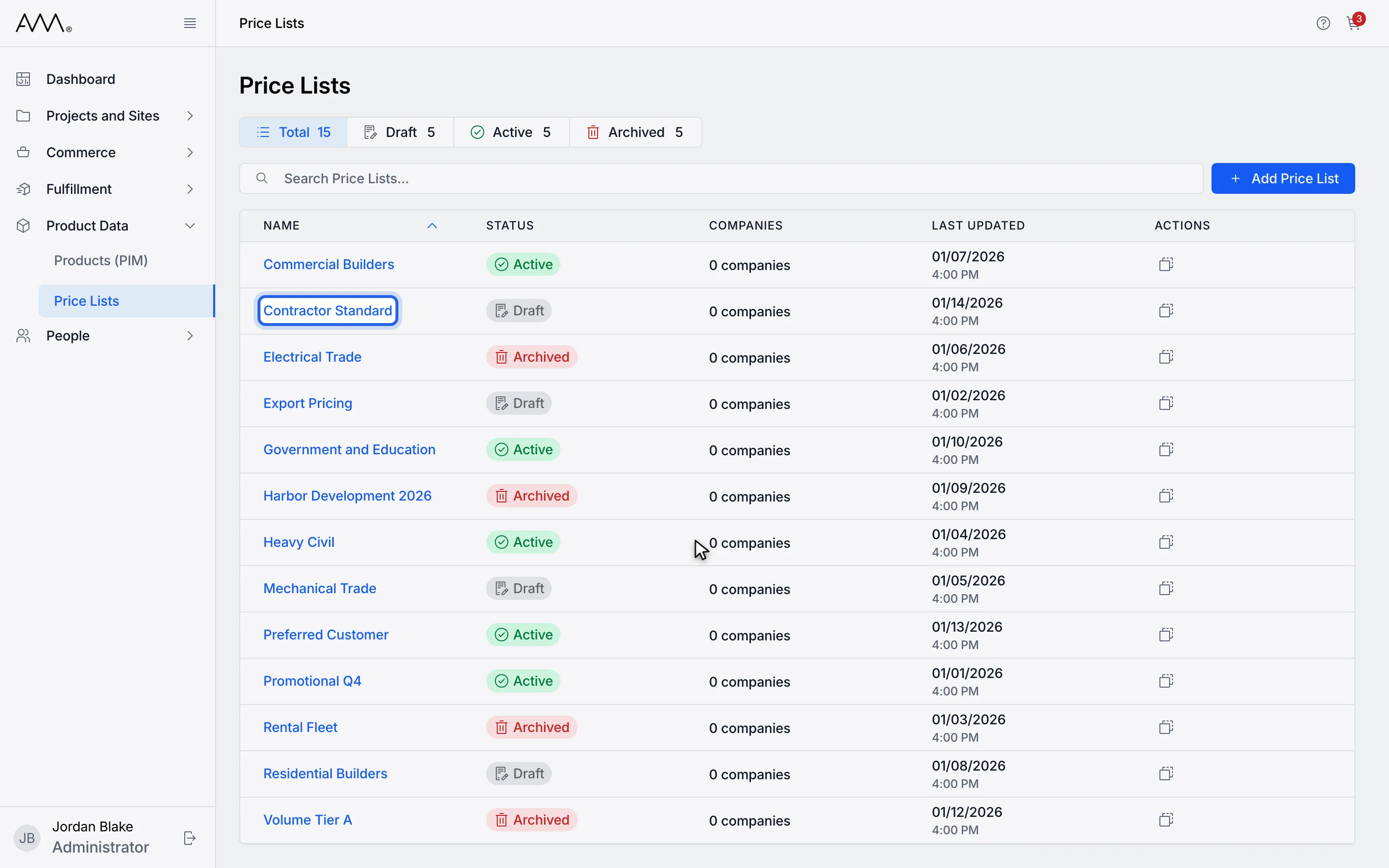
1Open the price list. The Products tab shows first.
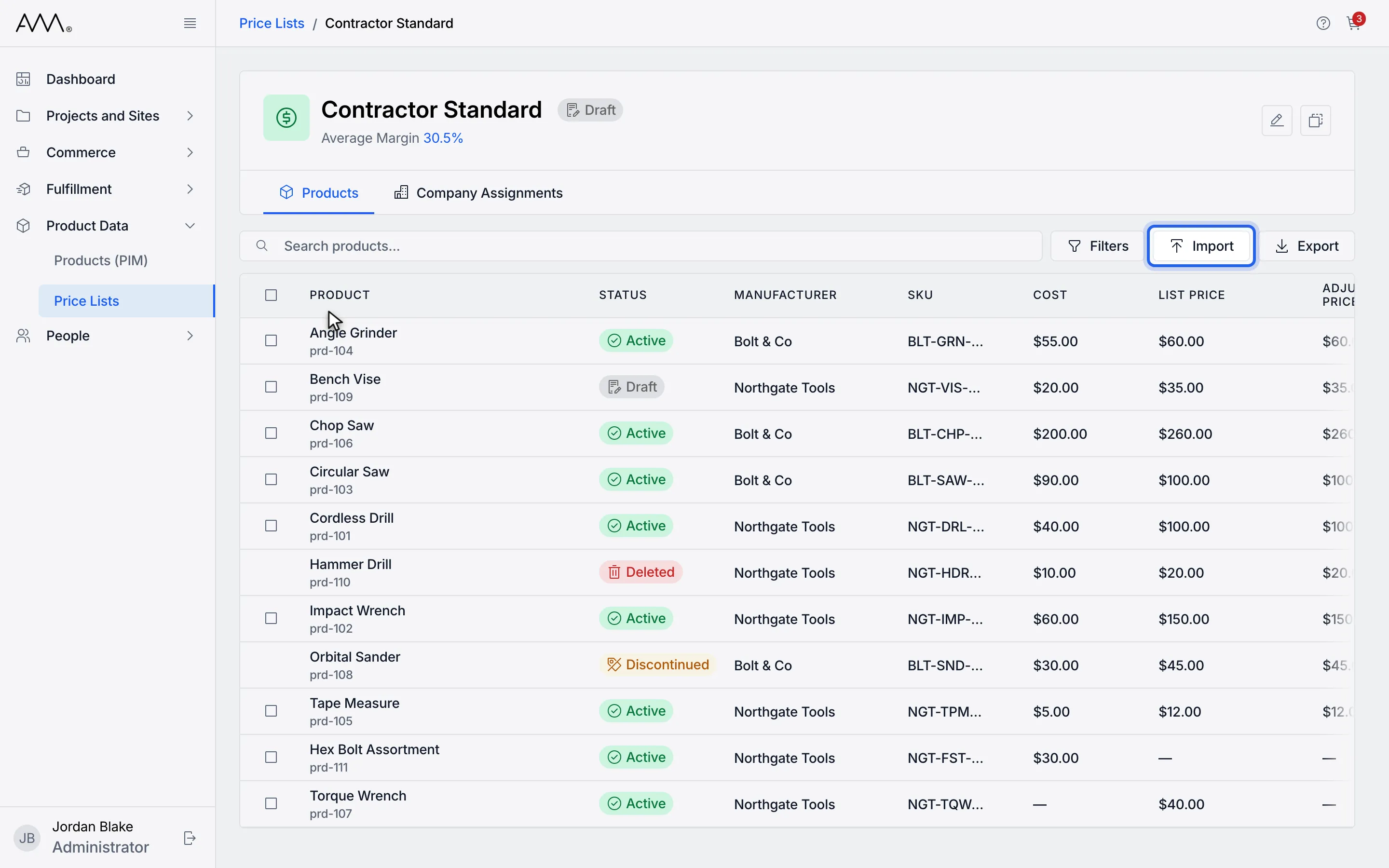
2Click Import.
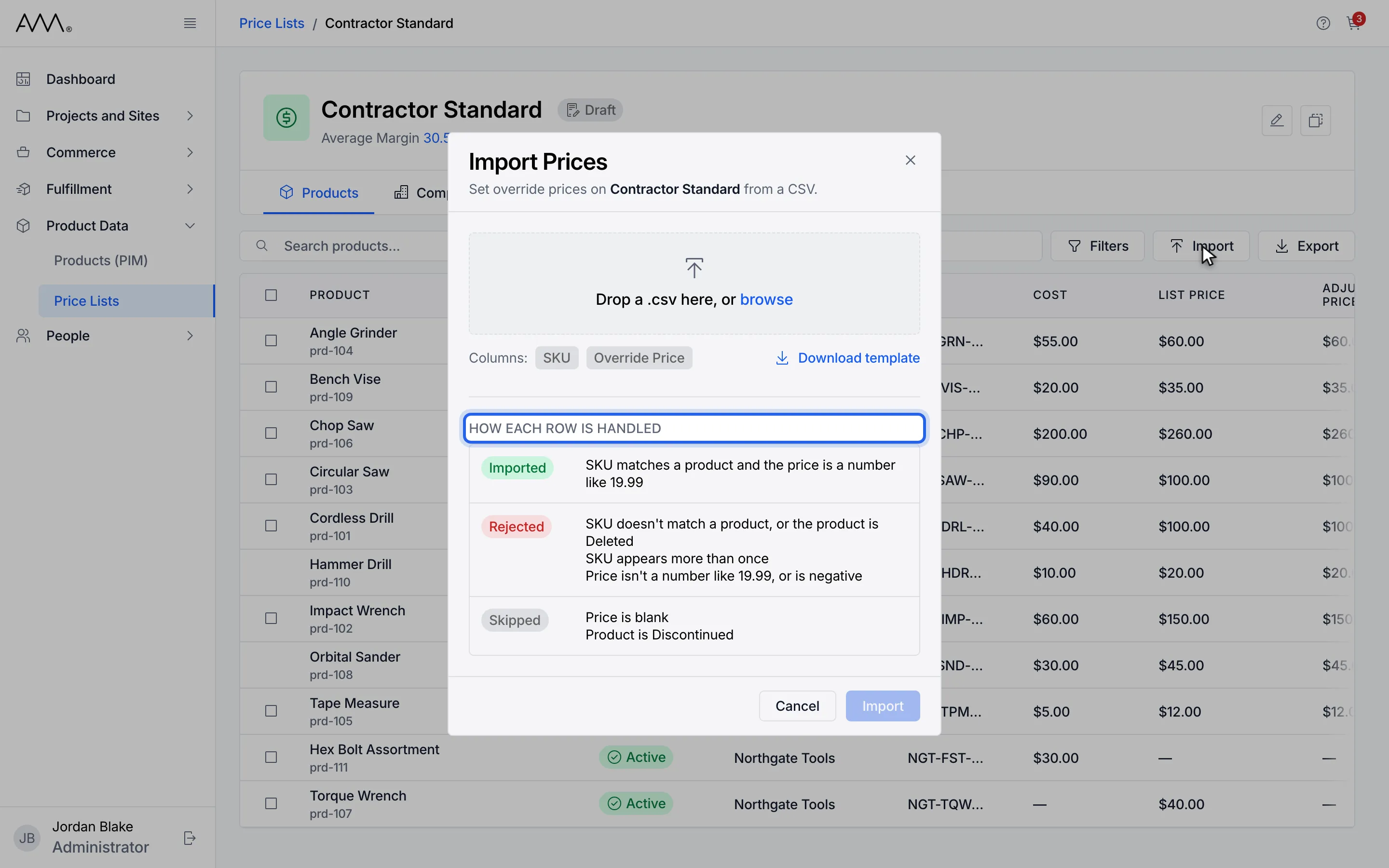
3Each row is imported, rejected or skipped according to these rules.
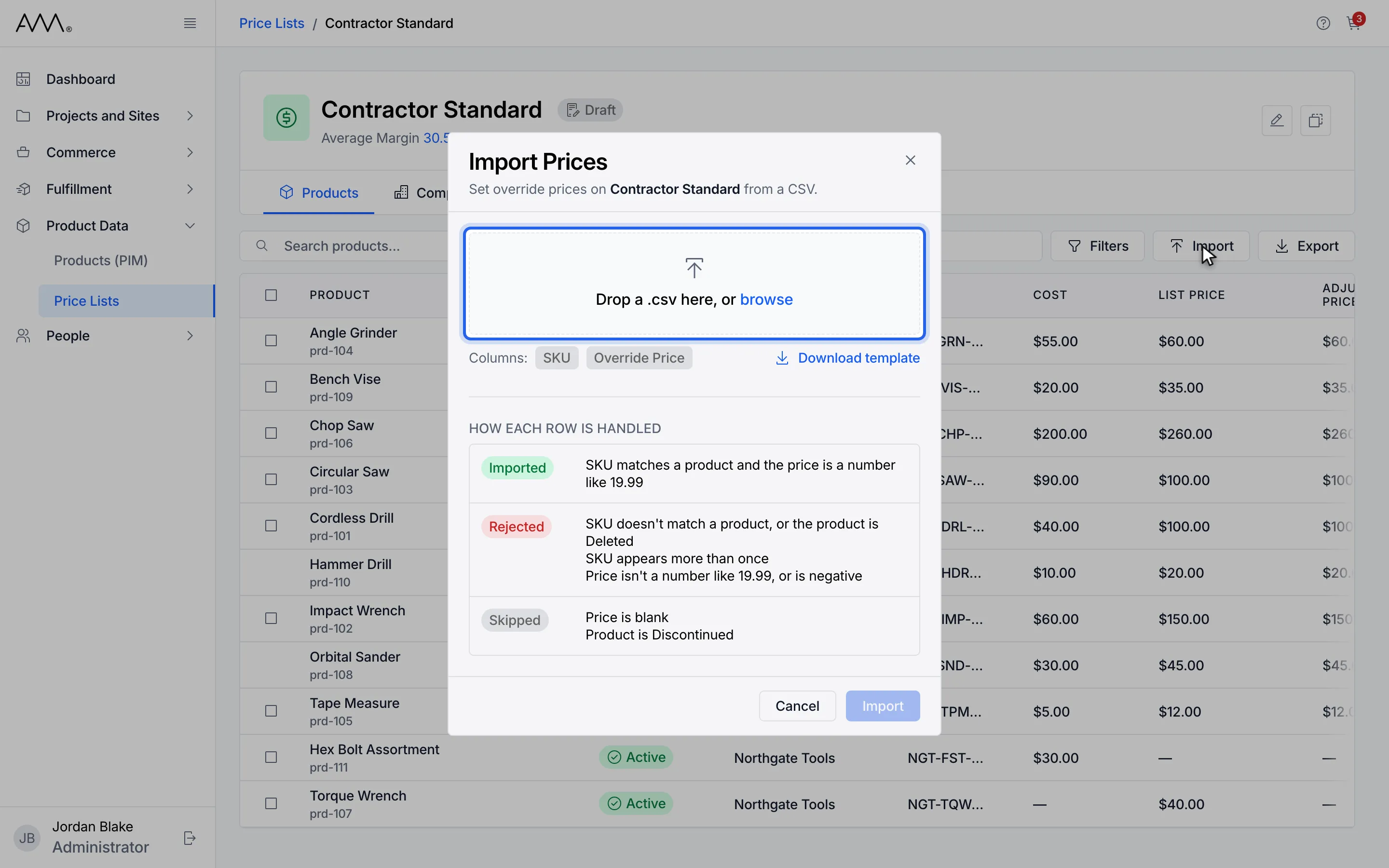
4Drop your .csv on the dialog, or click browse and choose it.
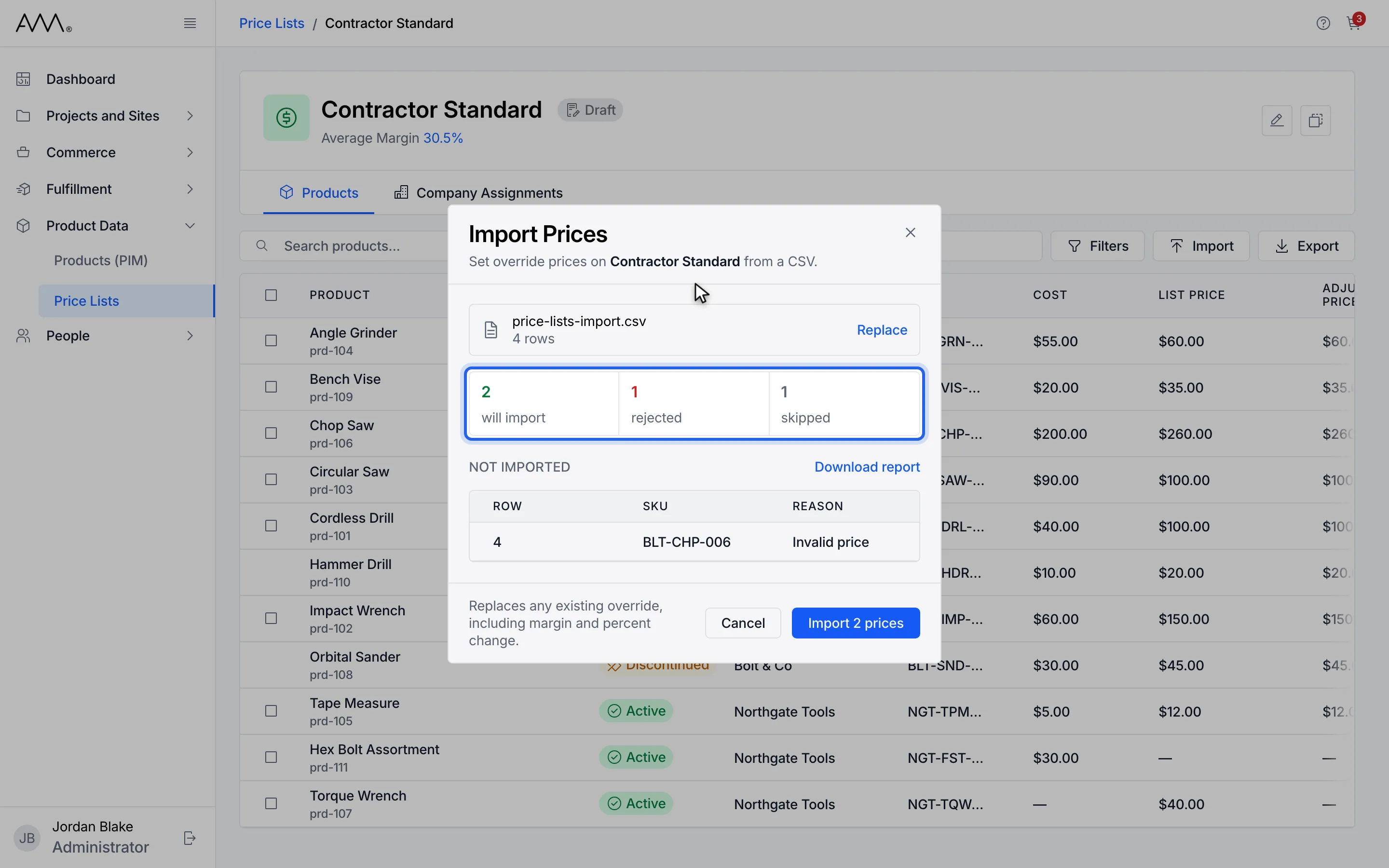
5Check how many rows will import, were rejected or were skipped.
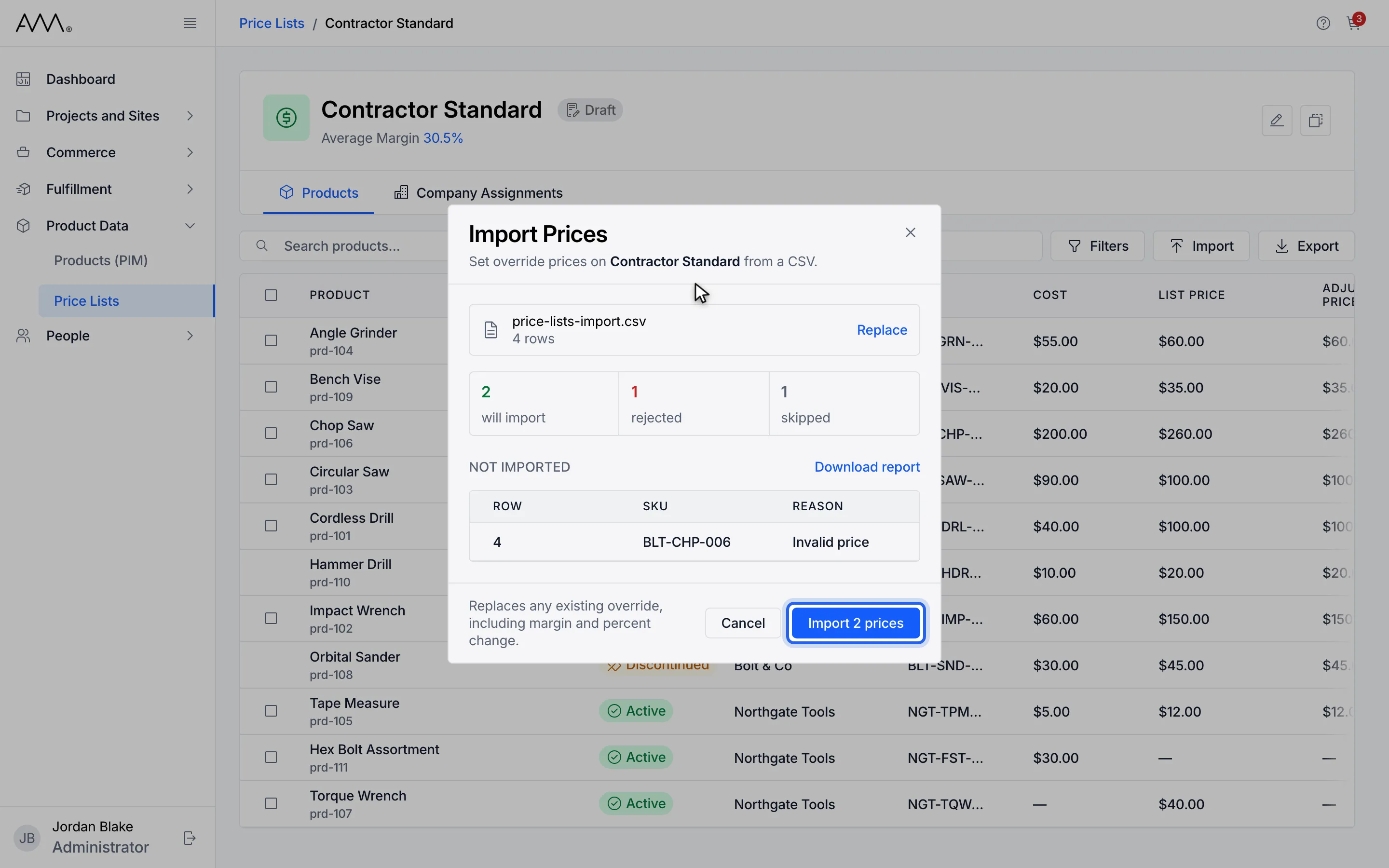
6Click the Import button. A toast confirms how many rows were imported.
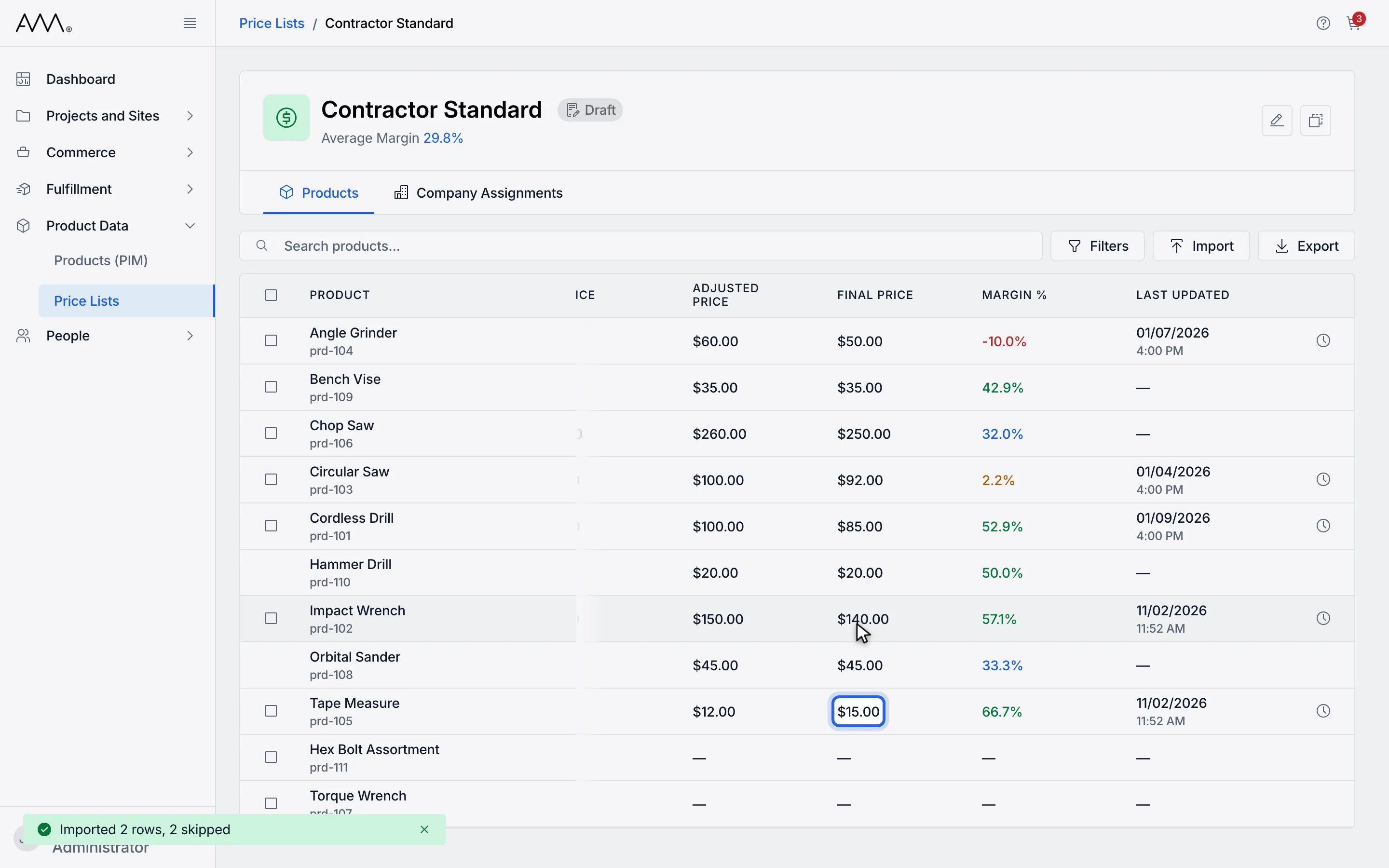
7Each imported product shows its new final price and when it was updated.
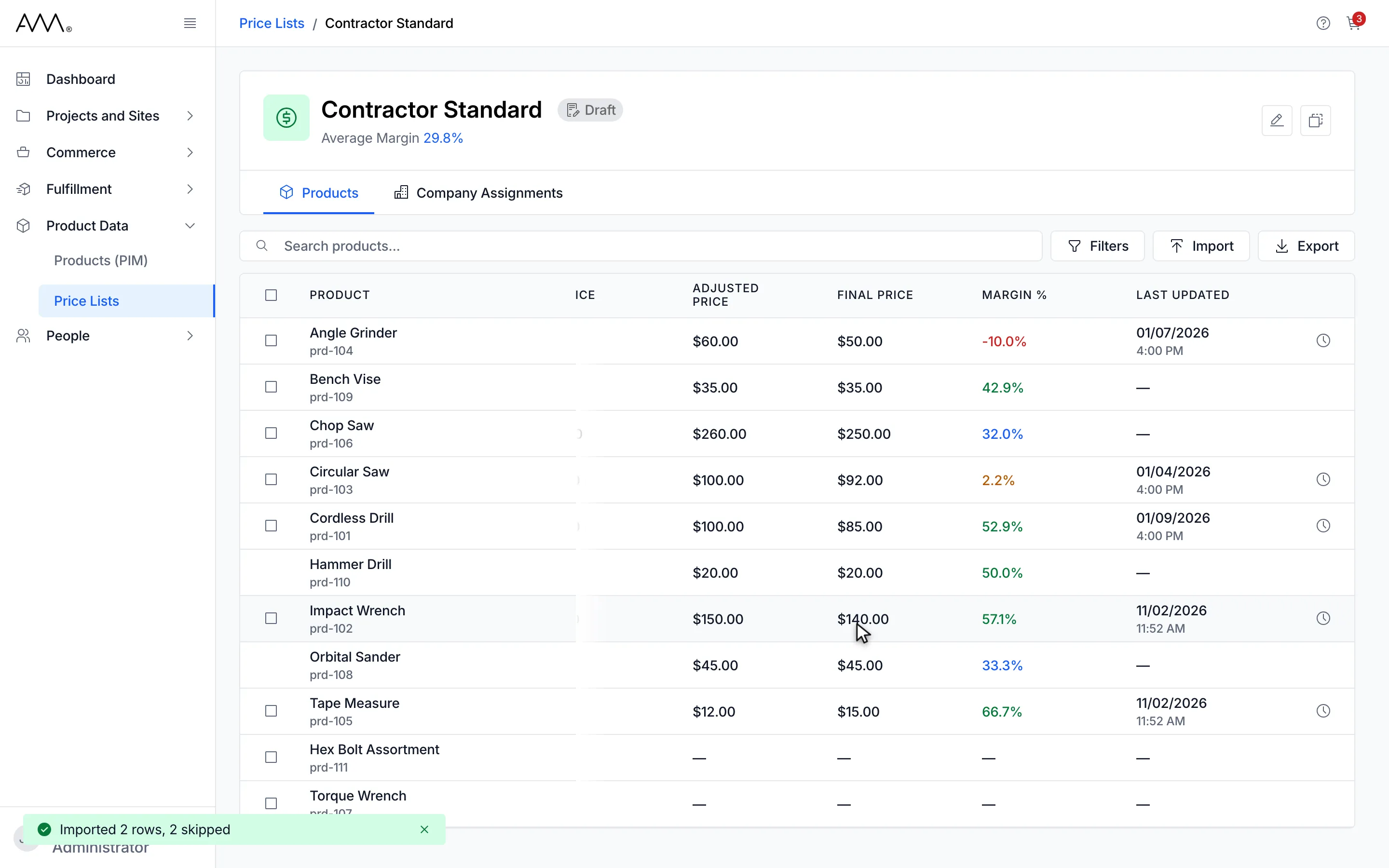
8The imported products now carry their new final prices.
Watch this as a video (import prices from csv)
What happens next
Section titled “What happens next”The toast reads Imported 2 rows (with your count), with , 2 skipped added when some rows were rejected or skipped. Products that are not in the file are untouched, and there is no large-change confirmation on import. The dialog cannot be closed while the file is being checked or imported.