See the shipments for an order
Once a packed order has been added to a shipment, its Shipments tab shows where it is going and how far along the shipment is, without leaving the order.
- Open the fulfillment order.
- Click the Shipments tab.
- Read the card for each shipment. The newest shipment is first. Click the shipment number to open it in Shipments.
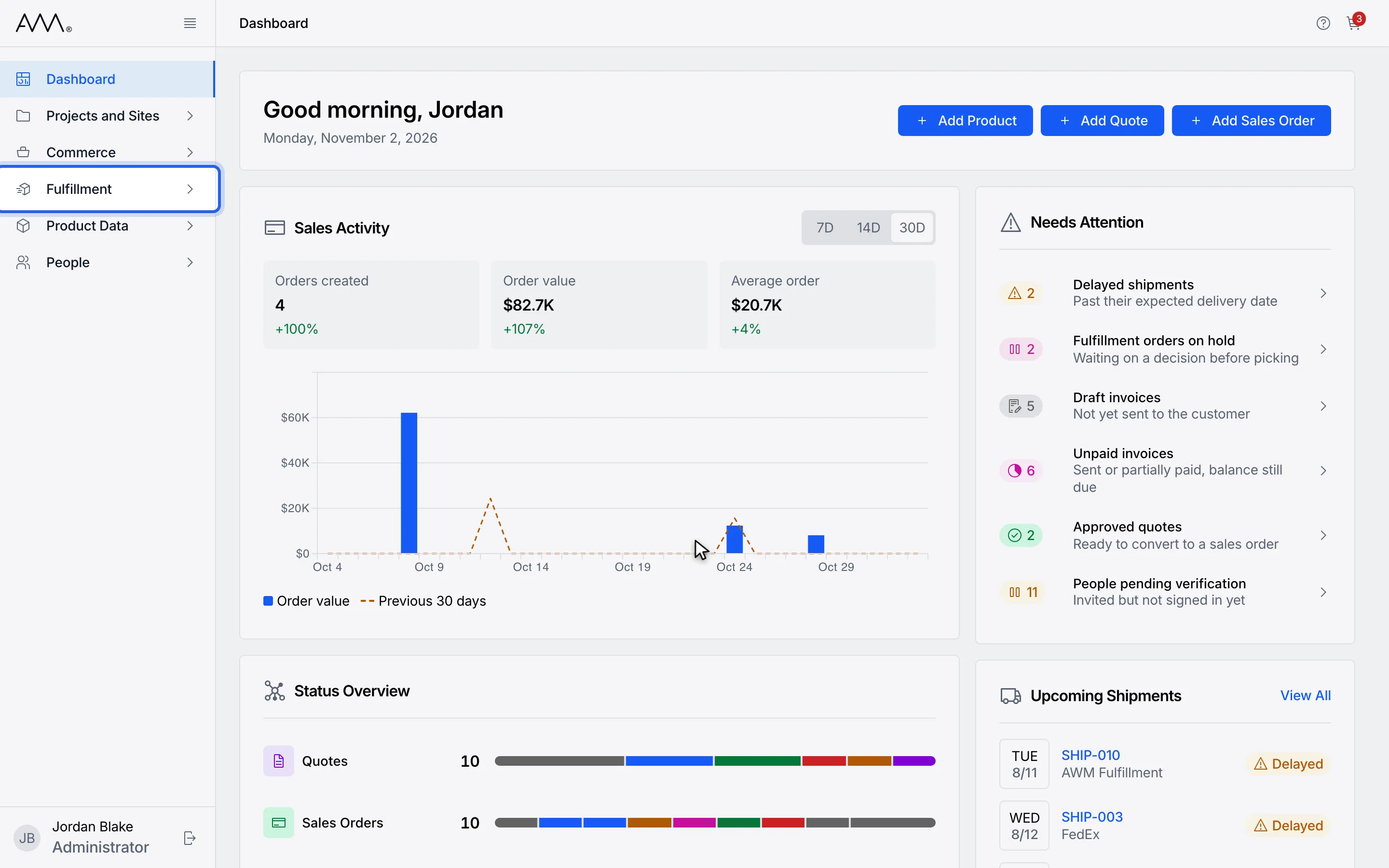
1In the sidebar, open Fulfillment.
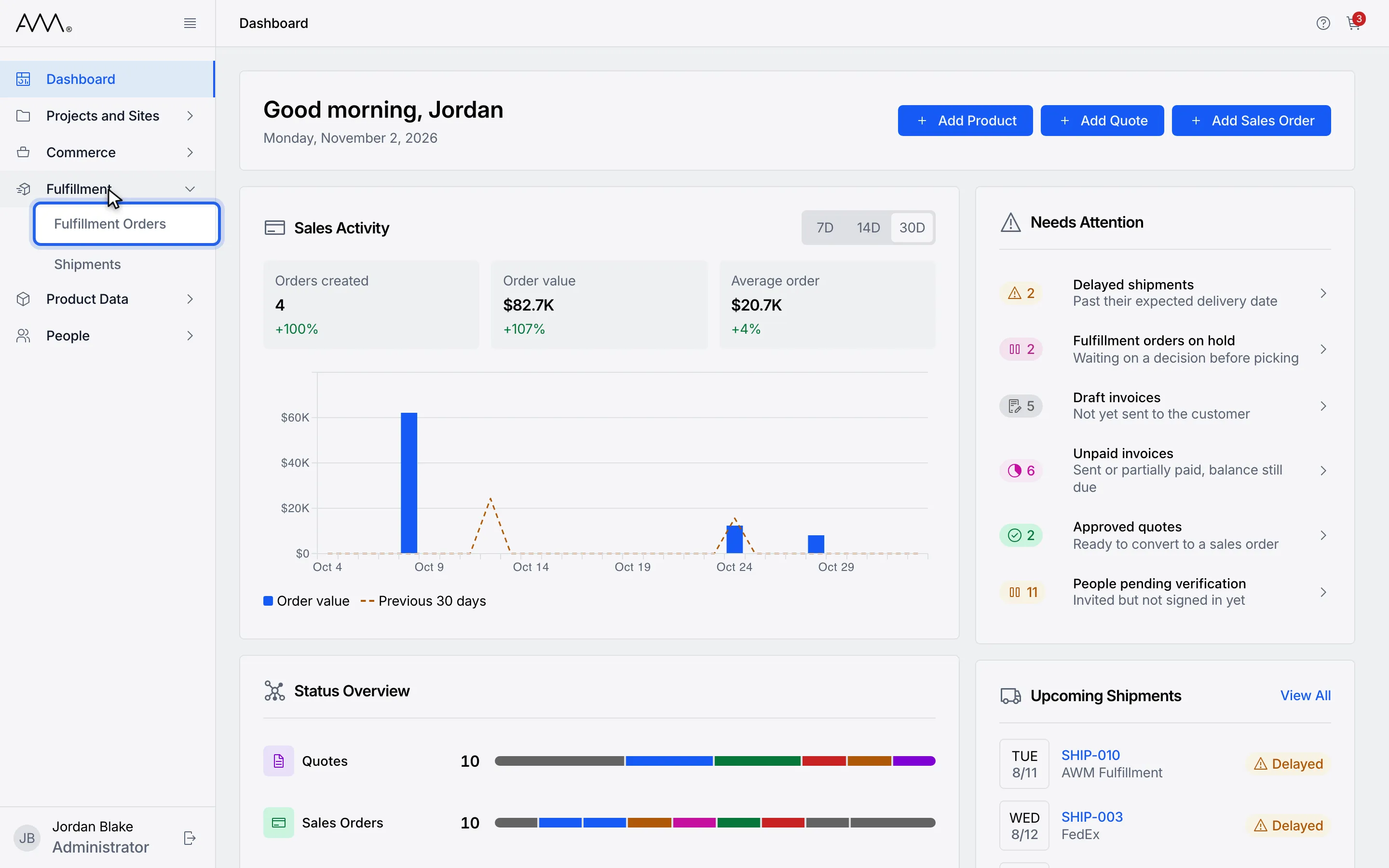
2Choose Fulfillment Orders.
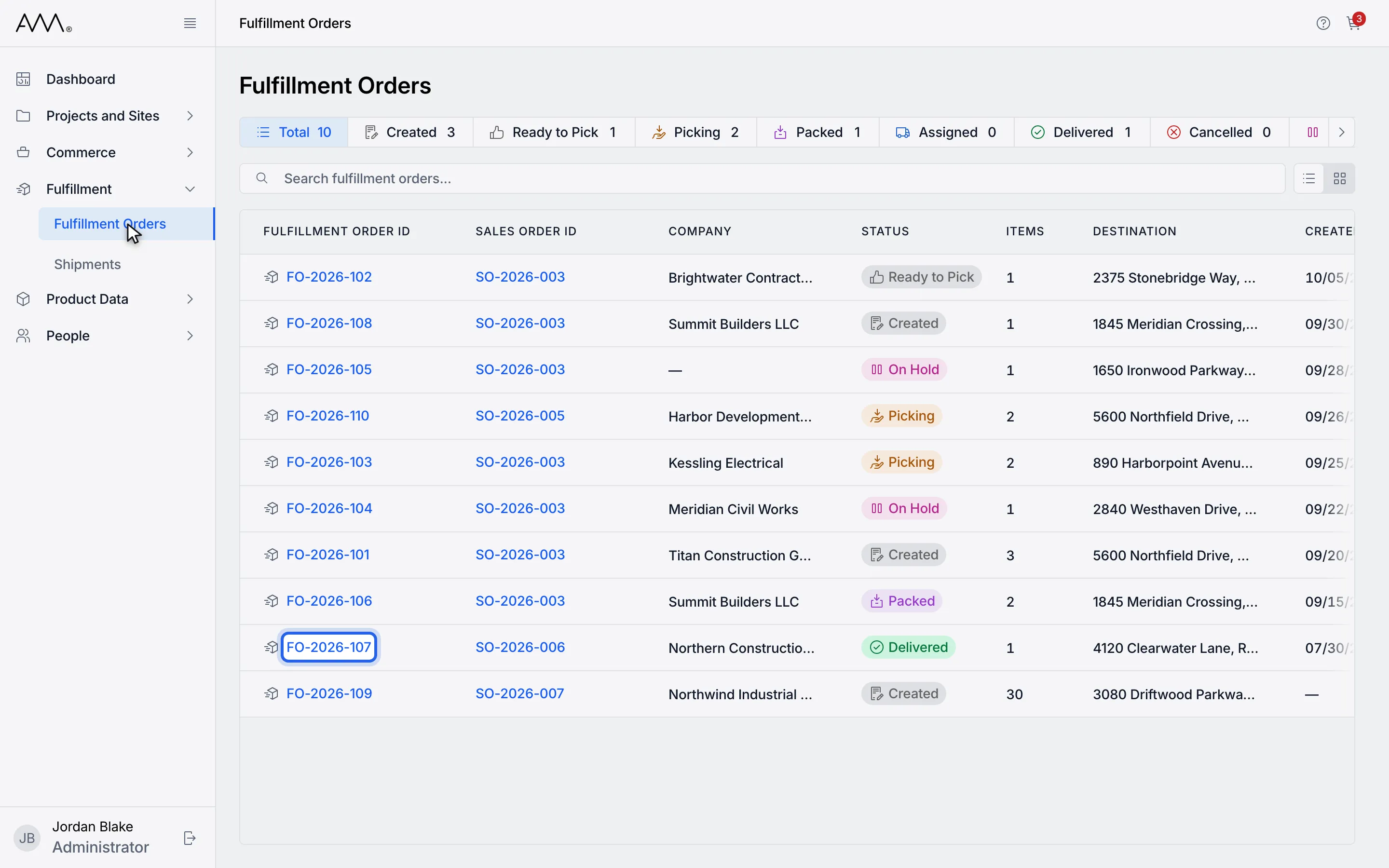
3Open the order.
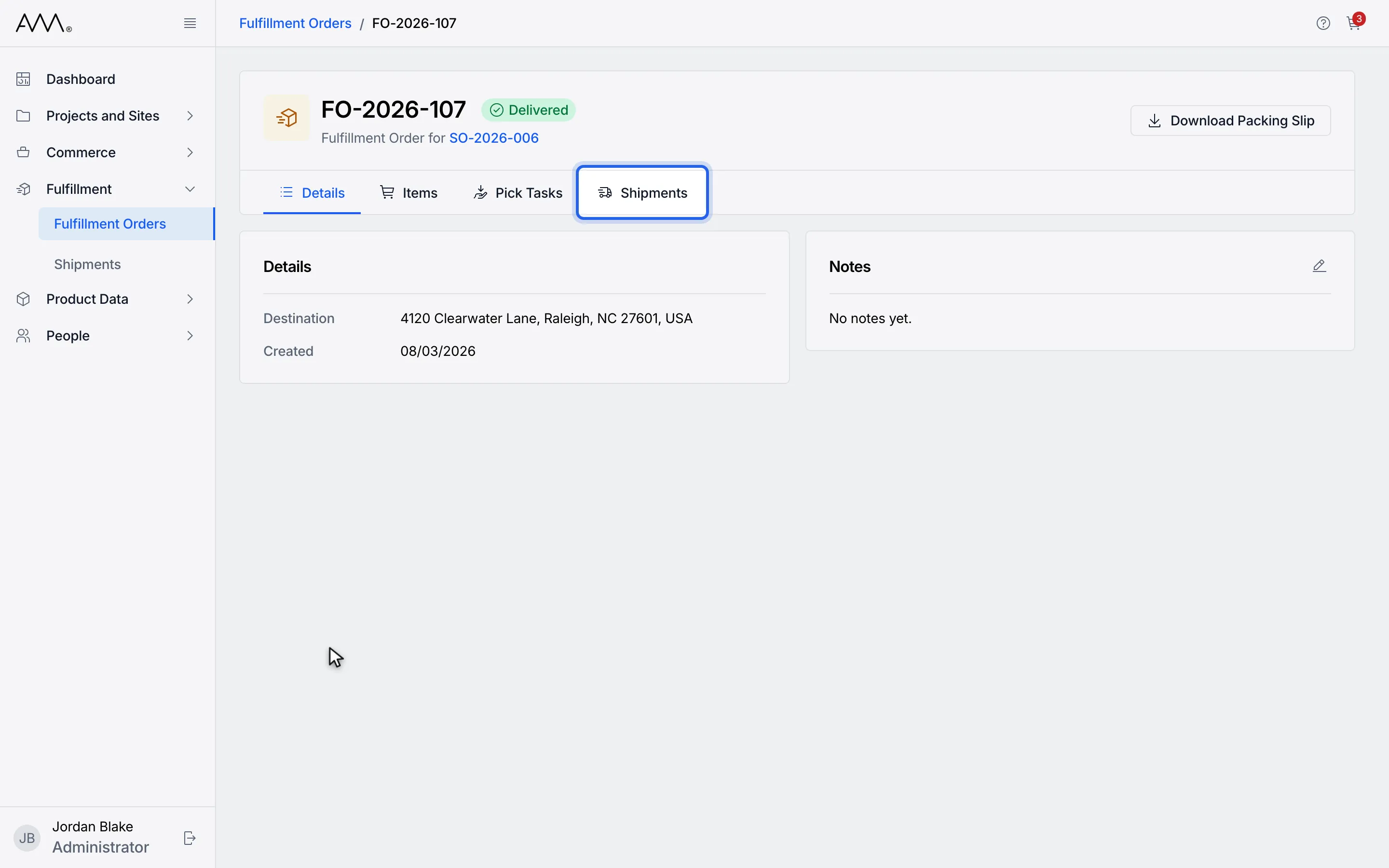
4Open the Shipments tab.
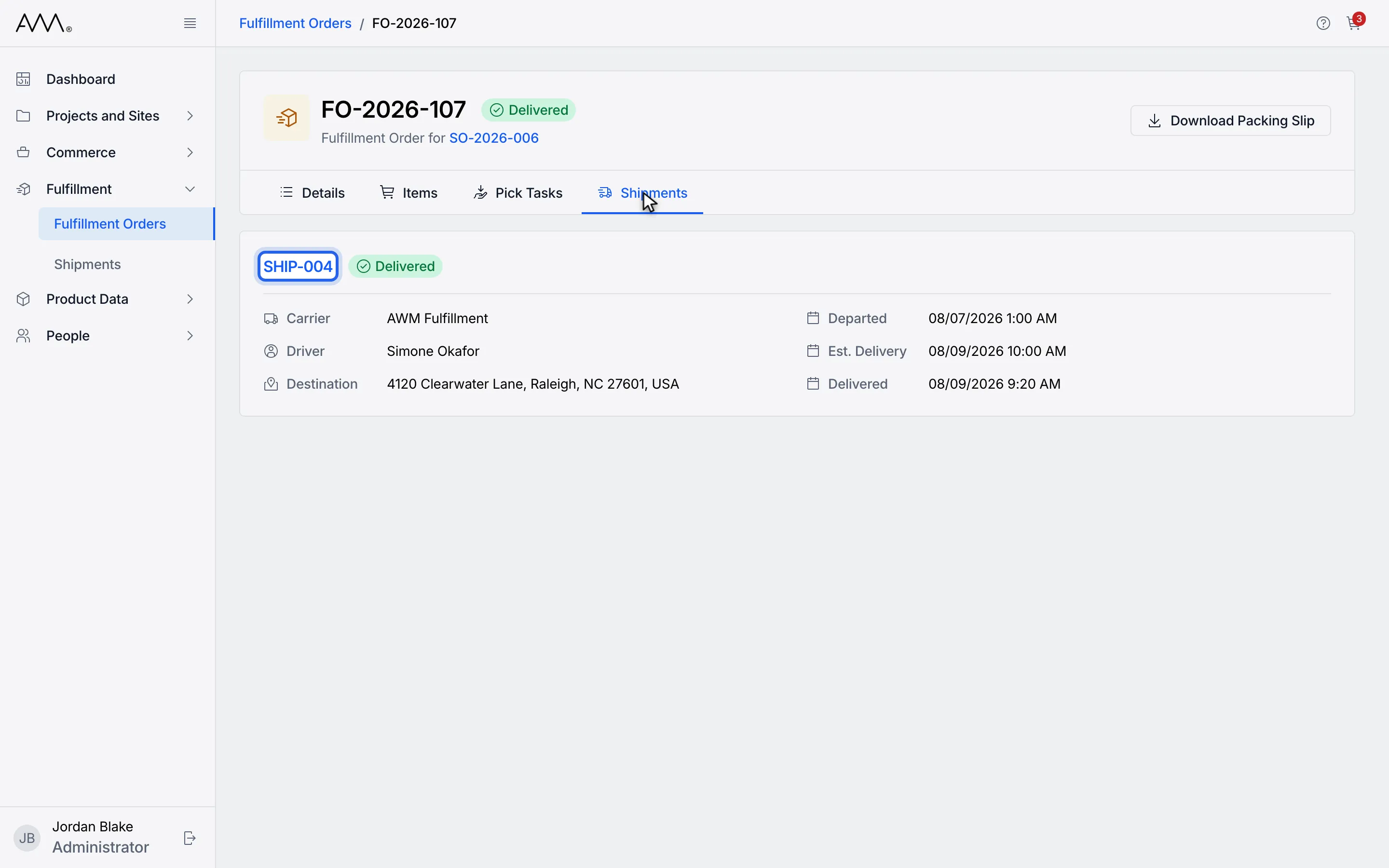
5A card shows the shipment status, carrier, driver or tracking, destination and dates.
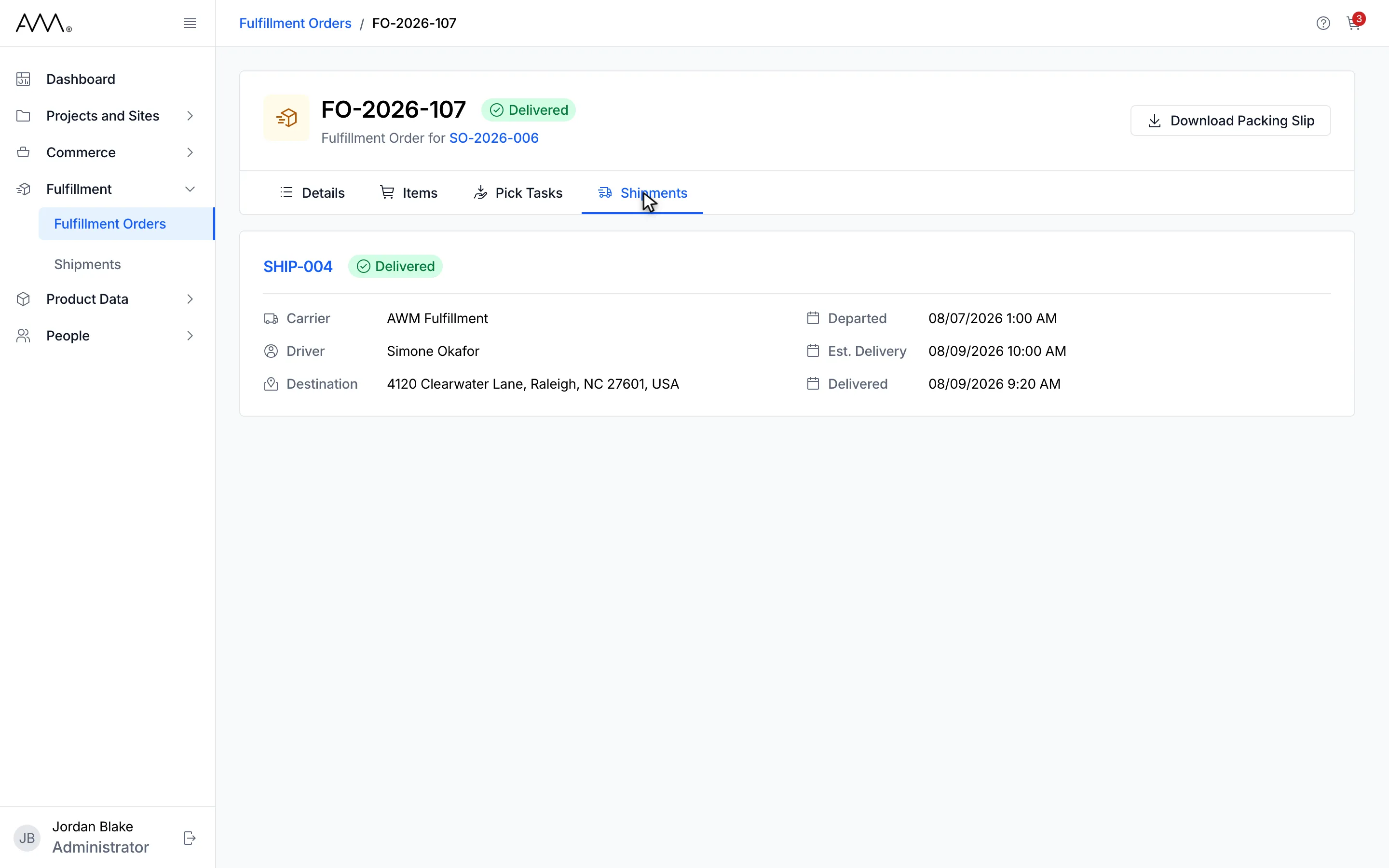
6Each card shows one shipment carrying this order. Its number opens the shipment.
Watch this as a video (see the shipments for an order)
| On the card | What it shows |
|---|---|
| Shipment number and status | The shipment’s own status badge. A Removed badge is added when this order was taken off the shipment. |
| Carrier | The carrier chosen for the shipment. |
| Driver or Tracking | Driver for an AWM Fulfillment shipment; Tracking numbers for any other carrier, or a dash when there are none yet. |
| Destination | This order’s shipping address. |
| Departed, Est. Delivery, Delivered | Each as a date and time, or a dash until it happens. |
An order that is not on a shipment yet shows No Shipments Created with Create a shipment for this fulfillment order. There is no button here: create the shipment from Shipments, where the order can be picked once it is Packed.
If the shipments cannot be loaded, the tab shows Couldn’t Load Shipments with Something went wrong loading this order’s shipments. Please try again. and a Retry button.